
If your laptop is charging slowly with USB-C, the problem is not always the charger itself. A lower-wattage power adapter, a limited USB-C cable, the wrong port, a dock or hub, heavy system load, battery temperature, or even simple dirt inside the connector can reduce charging speed.
The fastest way to troubleshoot it is to treat charging as a chain: charger → cable → USB-C port → laptop power demand. If any one part becomes the bottleneck, the whole setup slows down.
Quick Answer: Why Is My Laptop Charging Slowly With USB-C?
The most common reasons are an underpowered charger, a cable that cannot carry enough power, using a USB-C port that does not support full charging, charging through a hub or dock, or running a workload that uses most of the incoming power.
Microsoft also lists charger compatibility, insufficient charger power, an inadequate cable, the wrong USB-C charging port, dirt in the connector, and external hubs or docks among the common causes of slow USB-C charging in Windows.
| Cause | What you may notice | Best first check |
|---|---|---|
| Charger wattage is too low | Slow charge or battery drain under load | Compare charger output with laptop requirement |
| Cable is the bottleneck | Charging works but never reaches expected speed | Try a higher-power USB-C cable |
| Wrong USB-C port | Slow charging or no charging | Use the port marked for charging/PD |
| Hub or dock reduces power | Lower power reaches laptop | Connect charger directly to laptop |
| Heavy CPU/GPU load | Battery barely rises or still drops | Test while laptop is idle or asleep |
| Dirty or loose port | Intermittent charging | Inspect and clean the port carefully |
1. Check Whether Your Charger Is Powerful Enough
Start with the charger’s actual USB-C output. A laptop that can charge at 90W or 100W may still accept a 65W charger, but charging can be slower and heavy workloads can use most or all of that available power.
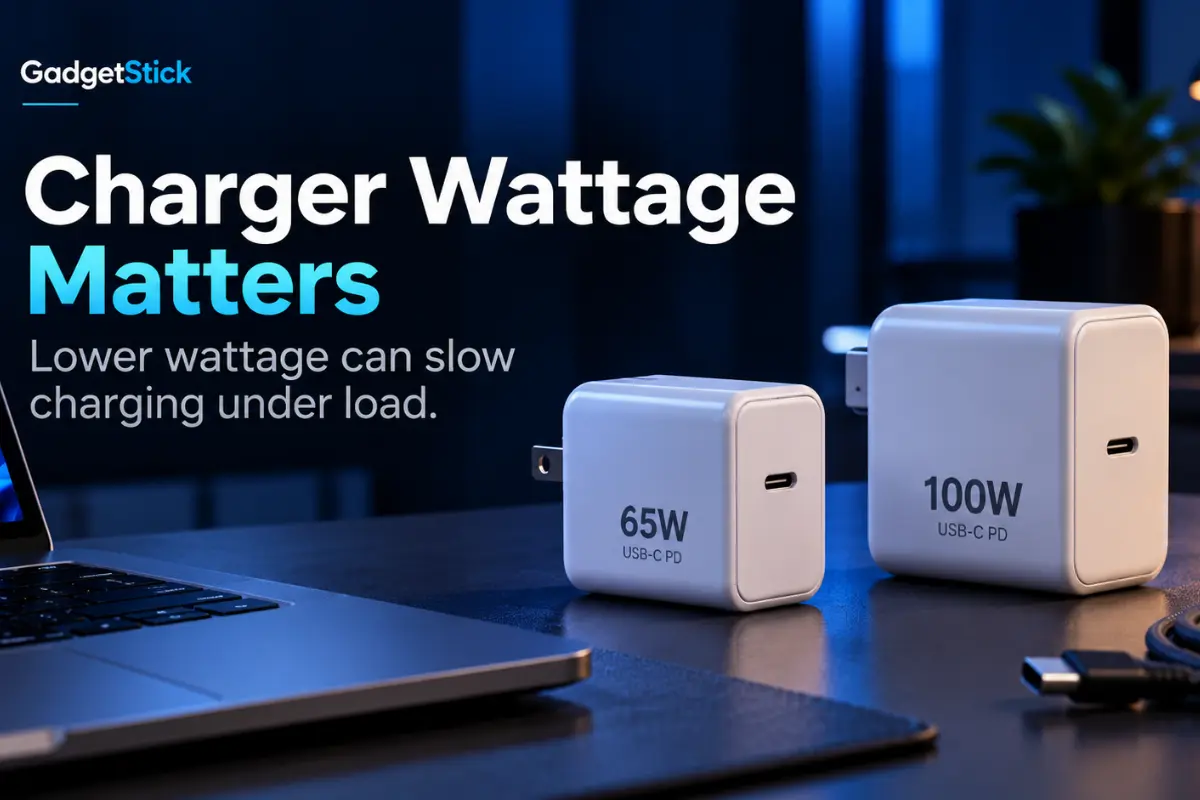
If you are using a lower-wattage adapter, compare the charger label with the power requirement in your laptop manufacturer’s specifications.
We explain this specific mismatch in more detail in our guide to using a 65W charger with a 100W laptop.
Quick test: charge the laptop while it is sleeping or turned off. If charging becomes much faster, the charger may simply have too little headroom while the computer is running.
2. Make Sure the USB-C Cable Supports Enough Power
A powerful charger does not guarantee fast laptop charging if the cable is the limiting part of the chain.
USB-IF’s current cable certification scheme identifies USB-C-to-USB-C cable power capability at 60W or 240W, while older 100W cables are still common in real-world use. A cable designed for lower power can prevent a higher-power charger from delivering its full laptop-charging capability.
If you are unsure which cable you need, see our 60W vs 100W vs 240W USB-C cable guide.
Also remember that charging wattage and data speed are separate capabilities. A cable marketed for fast data is not automatically the right choice for high-power charging.
3. Use the Correct USB-C Charging Port
Not every USB-C port on a laptop necessarily supports the same charging features.
Some laptops have multiple USB-C ports but only one accepts charging input, or one port may support a different power level. Microsoft specifically recommends connecting the charger to the USB-C charging port when troubleshooting a slow-charger warning.
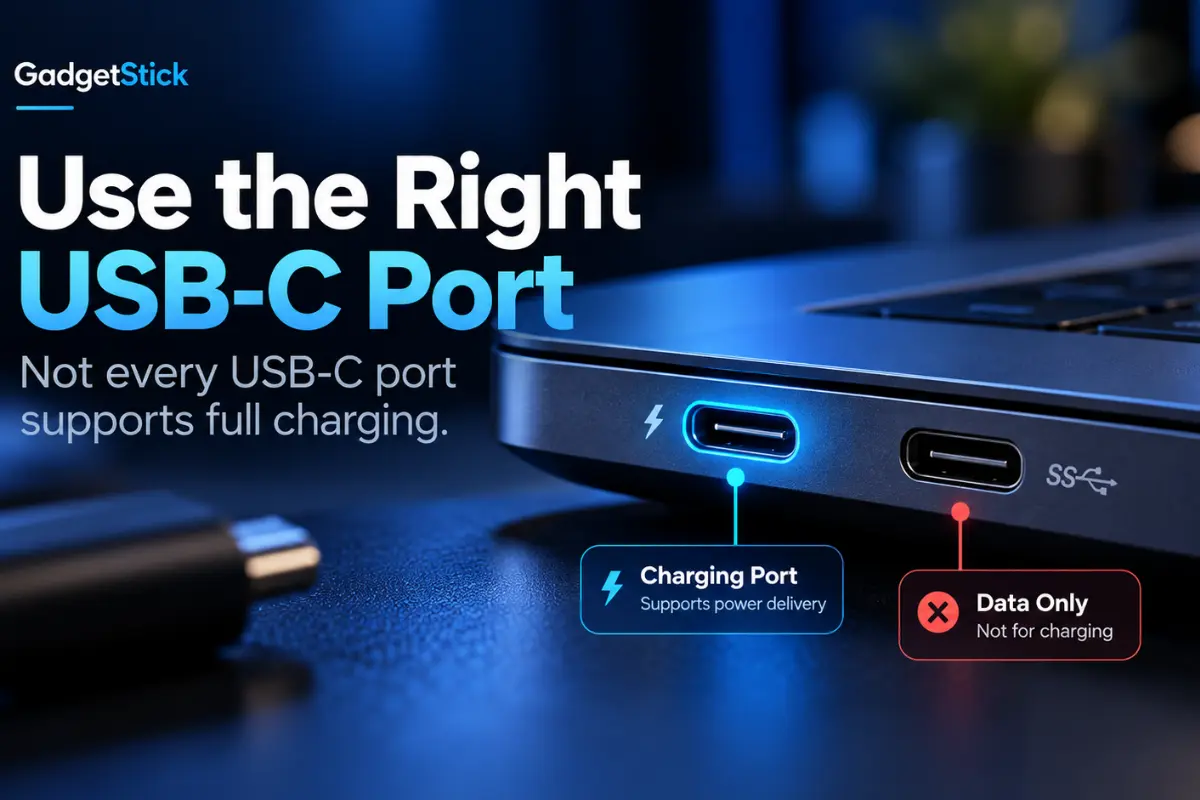
Look for a charging, power, or Thunderbolt/USB4 marking near the port, then confirm the port capabilities in the laptop’s official manual or support page.
4. Bypass the USB-C Hub or Dock
If the charger is connected through a USB-C hub or dock, plug it directly into the laptop as a test.
A hub can reserve some incoming power for itself and connected devices. That means a 100W charger connected to a dock does not always result in 100W reaching the laptop.
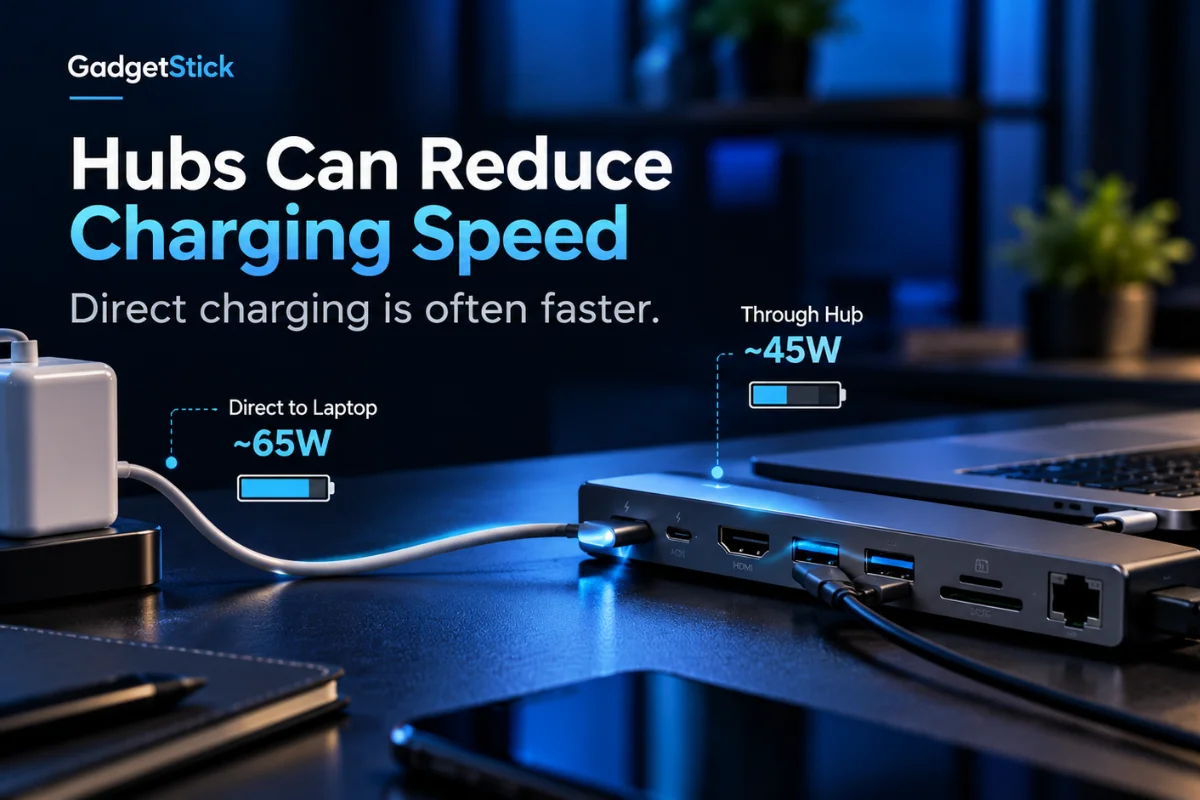
Microsoft also lists charging through an external hub or dock as a possible cause of slow charging. For the full explanation, see how USB-C hub PD passthrough works and our guide to powered vs bus-powered USB-C hubs.
5. Check Whether a Multi-Port Charger Is Sharing Its Power
Many USB-C chargers advertise a total wattage that is only available under certain port combinations.
For example, a charger sold as 100W may deliver close to its full output from one USB-C port when used alone, then reduce the laptop port when you connect a phone or tablet to another port.
Check the charger’s printed power-sharing table or manufacturer specifications. If the laptop suddenly charges faster after you unplug other devices, the charger’s power distribution was probably the bottleneck.
6. Heavy Workloads Can Make Charging Look Slow
Your laptop does not use the same amount of power all the time.
Gaming, video export, 3D rendering, compiling code, AI workloads, or sustained high CPU/GPU use can consume a large share of the incoming power. In that situation, less power is left for the battery.
This can produce three very different-looking results:
- the battery charges, but very slowly
- the battery percentage stays almost unchanged
- the battery continues to drain even though the laptop is plugged in
Microsoft documents this exact behavior when the charger does not meet the PC’s power requirements.
Quick test: close demanding apps and let the laptop sit idle for 10–15 minutes. If the battery starts rising noticeably faster, system load is part of the problem.
7. Check Battery Temperature and Battery-Care Settings
Laptops can intentionally reduce charging speed when the battery is hot, nearly full, or when a battery-care feature is active.
Some manufacturers also offer charging limits such as 80% to reduce the amount of time the battery stays fully charged. If your laptop repeatedly stops near 80%, that may be a battery-health setting rather than a USB-C charging fault.
Our guide to limiting laptop battery charging to 80% in Windows 11 explains why these controls are often manufacturer-specific.
8. Inspect the USB-C Port for Dirt, Damage, or a Loose Connection
A USB-C plug should seat firmly in the port. Dust, lint, or physical damage can prevent a clean connection and cause intermittent charging.
Microsoft recommends checking the port and cleaning it when USB-C charging problems occur. If you clean the port, power the laptop down first and avoid metal objects that could damage the connector.
If charging cuts in and out when the cable moves, test another known-good cable before assuming the laptop port itself has failed. The same isolation principle applies when a phone only charges at a certain cable angle: rule out the cable and fit before blaming the port.
What Does the Windows “Slow Charger” Warning Mean?
The Windows slow-charger warning usually means the connected charging setup cannot provide the power level the PC expects for faster charging.
That does not automatically mean the charger is unsafe or broken. It can simply mean the charger, cable, port, or dock is limiting available power.
Microsoft lists the following common triggers:
- an incompatible charger
- a charger that is not powerful enough
- the charger connected to the wrong USB-C port
- a cable that cannot meet the power requirement
- dirt inside the port
- charging through an external hub or dock
Laptop Charges Slowly Only Through a Dock: What to Check
If direct USB-C charging is fast but charging through a dock is slow, focus on the dock’s PD passthrough rating and its own power consumption.
Also check whether the dock requires its own power adapter. Some docks can pass substantial charging power only when externally powered.
This is one reason the number printed on your wall charger is not always the same number that reaches the laptop.
Laptop Is Plugged In but Battery Is Still Draining
If the battery falls while the laptop is connected, the system may be consuming more power than the charger setup can deliver.
Start by connecting the manufacturer’s recommended charger directly to the correct charging port with a suitable cable. If the problem disappears, the previous charger, cable, hub, or dock was limiting power.
If battery drain continues even with the recommended charger while the laptop is idle, check the manufacturer’s diagnostics and support guidance because the issue may involve the battery, charging circuit, firmware, or power adapter itself.
Fast Troubleshooting Checklist
- Connect the charger directly to the laptop.
- Use the laptop’s correct USB-C charging port.
- Check the charger’s per-port wattage.
- Try a known-good cable rated for the required power.
- Disconnect other devices from a multi-port charger.
- Close heavy CPU/GPU workloads.
- Test charging while the laptop is asleep or turned off.
- Check for an 80% battery-care limit.
- Inspect the port for debris or a loose connection.
- Compare the result with the original or manufacturer-recommended charger.
GadgetStick Pro Tip
Do not replace everything at once. Change one part of the charging chain at a time — first bypass the dock, then swap the cable, then test the charger. That makes it much easier to identify the actual bottleneck instead of buying a new charger when the cable or hub was the real problem.
Frequently Asked Questions
Why is my USB-C laptop charging so slowly?
The most common causes are insufficient charger wattage, a lower-power cable, the wrong USB-C port, power loss through a hub or dock, or high laptop power consumption while charging.
Can a USB-C cable make laptop charging slower?
Yes. If the cable cannot support the power level the charger and laptop are capable of using, it can become the bottleneck.
Why does my laptop charge faster when it is turned off?
When the laptop is off or sleeping, much less incoming power is being used by the CPU, GPU, display, and other hardware, leaving more of the charger’s available power for the battery.
Why is my battery draining even though the charger is connected?
The laptop may be consuming more power than the charger setup can supply, especially during gaming or another heavy workload. An underpowered charger, cable, dock, or power-sharing charger can all contribute.
Does charging through a USB-C hub make charging slower?
It can. A hub or dock may reserve part of the incoming power for itself and connected devices, so the laptop receives less power than the charger can provide directly.
Should I always use the laptop’s original charger?
The original or manufacturer-recommended charger is the easiest baseline for troubleshooting. Compatible third-party USB-C PD chargers can also work, but they should meet the laptop’s required power and protocol specifications.
Final Answer
If your laptop is charging slowly with USB-C, check the whole charging chain rather than blaming only the wall charger.
Start with charger wattage, cable capability, the correct charging port, and whether a hub or dock is reducing power. Then test the laptop under a lighter workload and check for battery-care or thermal limits.
If charging remains unusually slow with the manufacturer-recommended charger, a suitable cable, and a direct connection while the laptop is idle, the problem may need model-specific diagnostics.
How We Researched This Guide
We built this troubleshooting guide around the most common USB-C laptop charging failure points rather than treating every slow-charging problem as a charger-wattage issue.
We reviewed Microsoft’s current Windows guidance for slow chargers and USB-C connection problems, plus USB Implementers Forum documentation on USB Power Delivery and USB-C cable power capability. We also checked the topic against GadgetStick’s existing charger, cable, hub, and battery guides so this article solves a broader troubleshooting intent instead of duplicating those pages.
This article is not based on hands-on electrical testing of every laptop, charger, cable, or dock combination. USB-C charging behavior can vary by laptop model, firmware, port design, charger profiles, cable capability, and manufacturer-specific power management.
Primary sources reviewed:
- Microsoft Support — PC is charging slowly or discharging while plugged in
- Microsoft Support — Fix USB-C problems in Windows
- USB-IF — USB Charger (USB Power Delivery)
- USB-IF — Cables and Connectors
Editorial Note
This guide is independent informational content. GadgetStick has not tested every USB-C charging combination discussed here. For a specific laptop model, the manufacturer’s charging specifications and support documentation should be treated as the final compatibility reference.
