
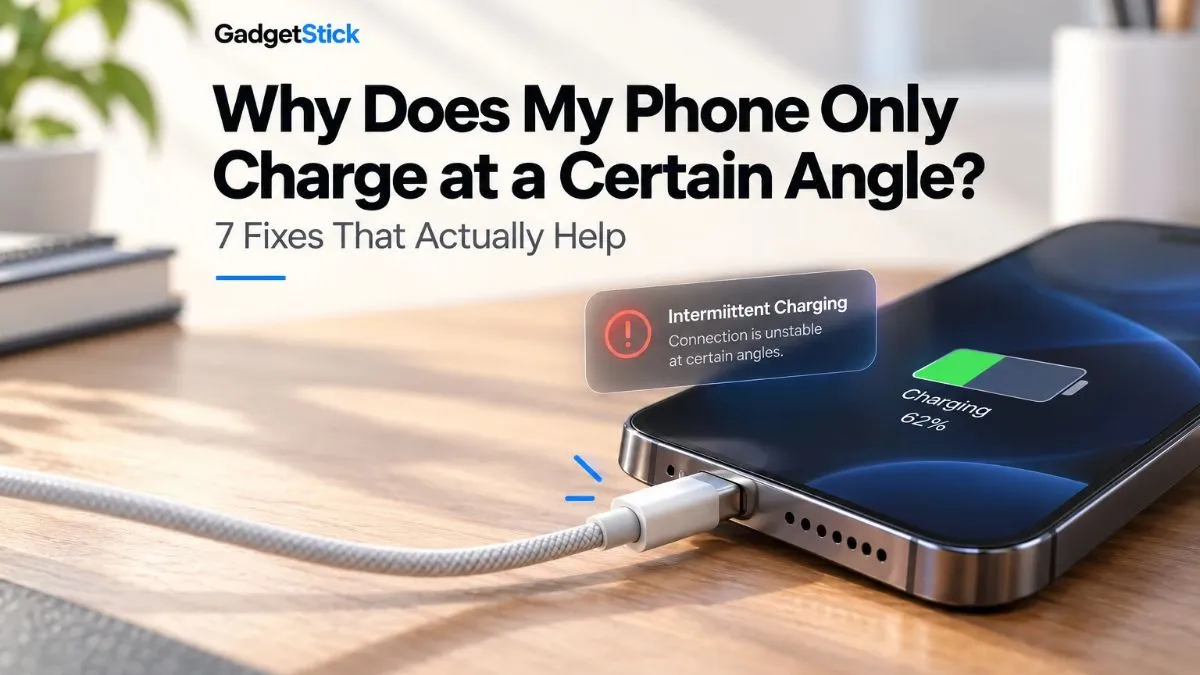
If your phone only charges when you hold the cable at a certain angle, the problem is usually somewhere in the physical charging connection—not the battery itself. A worn cable, a case blocking the connector, debris in the port, moisture, or a loose/damaged charging port can all cause intermittent contact.
Quick Answer
Start with the easy tests: remove the case, try a known-good cable and compatible charger, and check whether the plug seats firmly. If the same phone still charges only when the connector is pushed, tilted, or held in one position, inspect the charging port for visible debris, moisture, corrosion, or physical damage. Do not keep bending the cable to make it charge; repeated sideways pressure can make an existing cable or port problem worse.
Apple recommends checking the cable and adapter for damage, confirming firm connections, and checking the charging port when an iPhone will not charge. Google gives similar troubleshooting advice for Pixel phones, including removing a case, checking for dust or lint, and testing another cable or power adapter.
Why Does a Phone Only Charge at a Certain Angle?
Charging requires reliable electrical contact between the connector and the contacts inside the phone’s port. If that connection becomes intermittent, moving the plug can temporarily restore contact. That is why the charging icon may appear when you push the cable upward, disappear when you let go, and return when you find the “right” position.
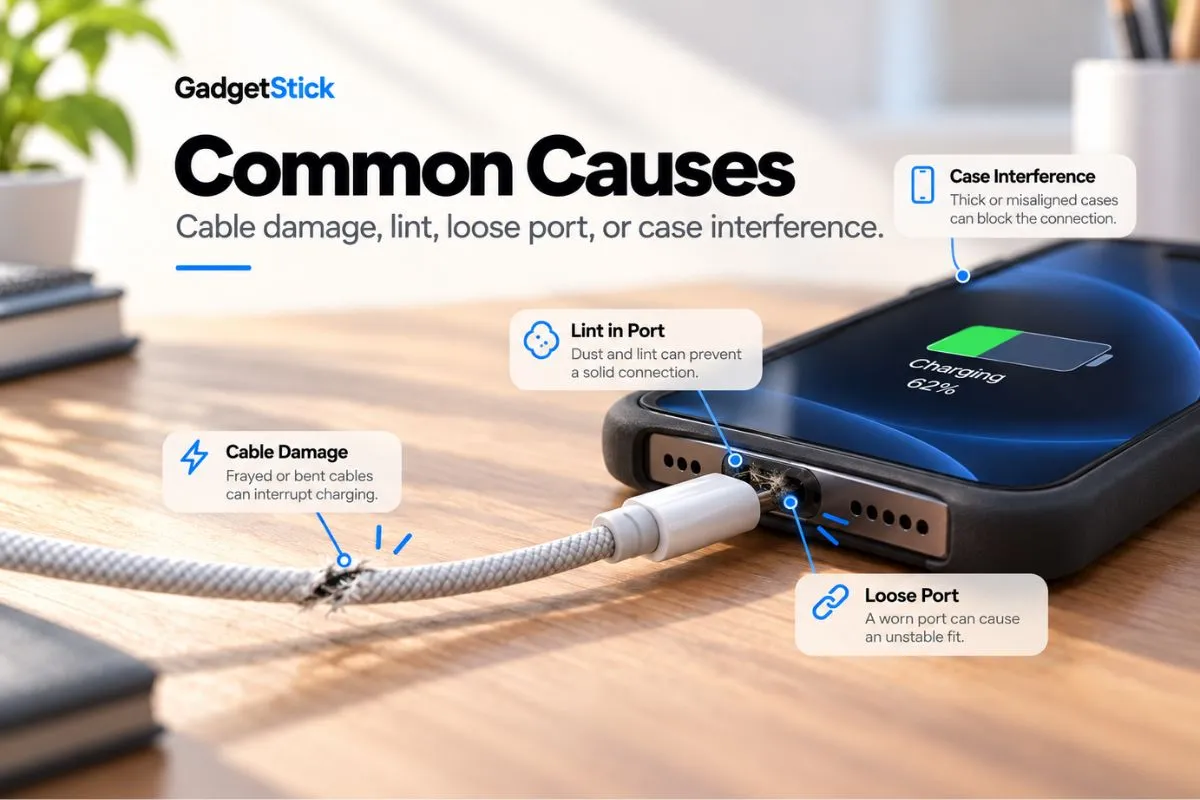
| What you notice | More likely cause | First test |
|---|---|---|
| Only one cable needs to be bent | Worn or damaged cable/connector | Try a known-good cable |
| Several cables feel loose in the same phone | Debris or wear in the phone’s port | Remove the case and visually inspect the port |
| Plug will not seat fully | Case obstruction or debris | Remove the case and compare plug fit |
| Moisture/debris warning appears | Moisture or contamination detected | Disconnect power and let the port dry |
| Port looks burned, melted, bent, or corroded | Physical/electrical damage | Stop troubleshooting and seek service |
1. Try a Different Charging Cable First
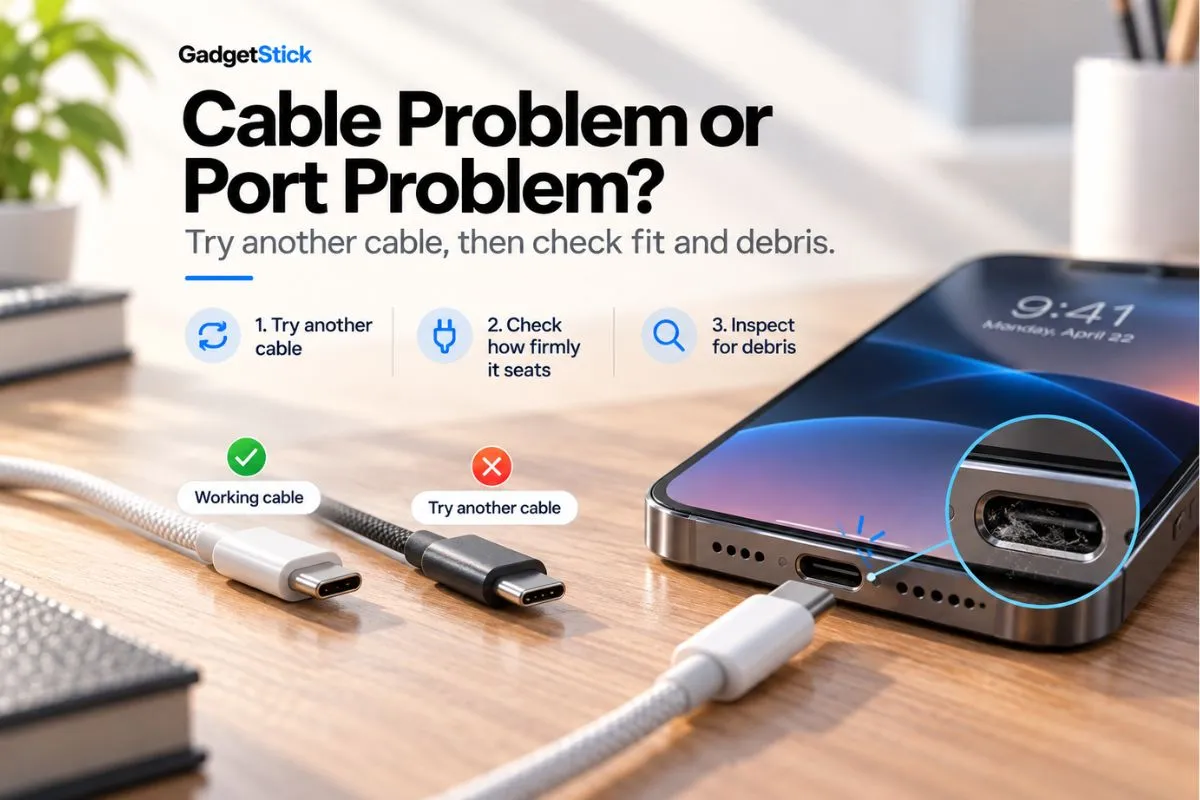
The cable is the fastest variable to eliminate. A cable can fail near the connector even when the outer insulation still looks normal. If changing the cable fixes the problem immediately, you probably do not need to blame the phone’s charging port.
Use a known-good cable that is compatible with your phone. Also inspect the connector and cable for fraying, bent parts, discoloration, or other visible damage. Apple specifically advises against using damaged charging accessories.
2. Test the Charger and Wall Outlet
Next, keep the known-good cable and test a compatible power adapter and a working wall outlet. This separates a phone-side connection problem from a failing adapter or power source. Google recommends testing the adapter and cable with another device and trying another cable or power adapter when diagnosing a Pixel that will not charge.
If the phone charges normally with another charger setup without needing the cable held at an angle, the original accessory is the stronger suspect.
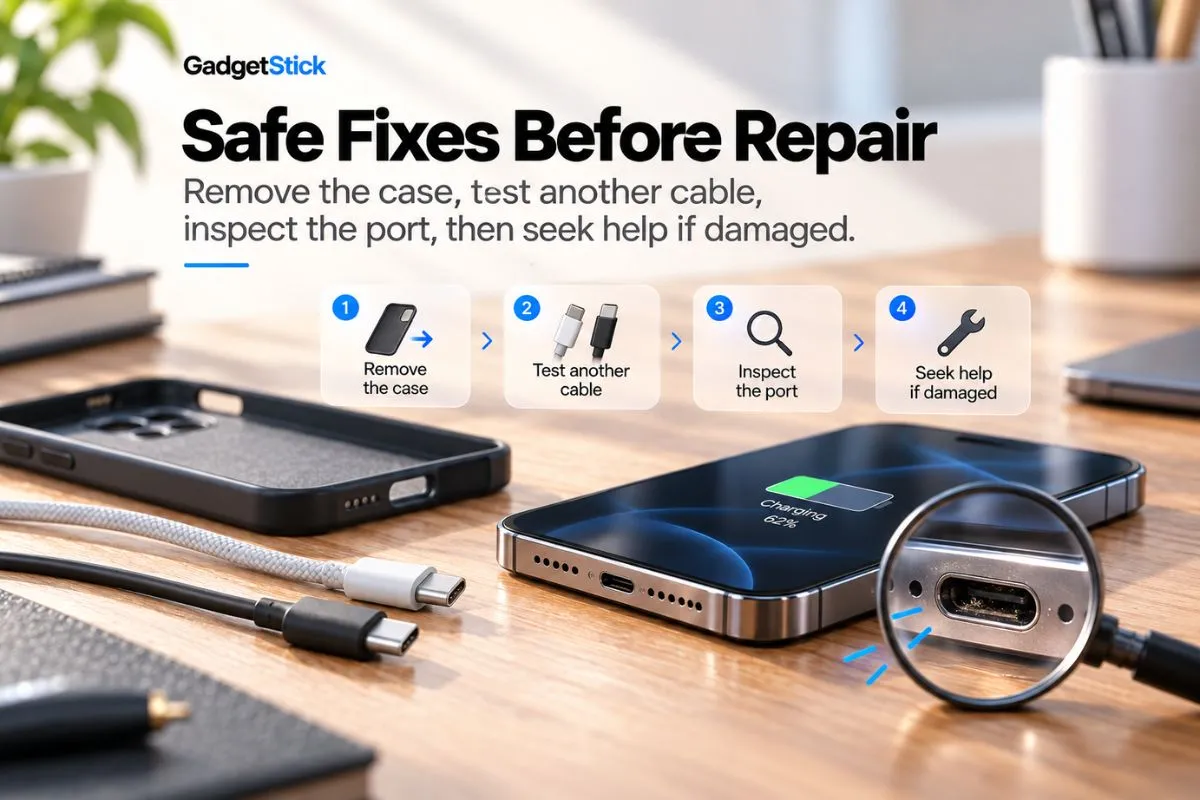
3. Remove the Phone Case
A thick, damaged, or poorly aligned case can stop the connector from going fully into the port. Remove the case and reconnect the cable straight into the phone. Google includes case removal in its charging troubleshooting because a case can interfere with the charging connection.
If the plug suddenly seats deeper and charging becomes stable, the case—not the charging port—may have been the problem.
4. Check the Charging Port for Dust or Lint
Pocket lint and dust can accumulate in a charging port and prevent the connector from seating correctly. Samsung notes that debris such as dust or lint can interfere with the cable’s connection to the charging terminals, while Google also tells Pixel owners to check that nothing such as dust or lint is in the port.
Turn the phone off and inspect the port in good light. If you can see contamination, follow the cleaning guidance for your specific manufacturer and model. Avoid improvised scraping: Google’s current Pixel guidance for a liquid-or-debris warning says not to put anything into the USB-C port or cable. If debris is deeply packed or the port is blocked, professional cleaning is the safer option. If the same USB-C port also has trouble detecting wired audio, our USB-C headphones troubleshooting guide for Android covers that separate symptom. If the same USB-C port also has trouble detecting wired audio, our USB-C headphones troubleshooting guide for Android covers that separate symptom.
5. Check for Moisture Before Charging Again
If your phone reports moisture or liquid in the port, disconnect the charger rather than repeatedly forcing a connection. Google advises turning an affected Pixel off and allowing it to dry on a flat surface at room temperature. Samsung likewise warns that charging while moisture is present can damage internal circuits.
Do not assume an angle-dependent connection is purely mechanical if a moisture warning is also present. Let the port dry according to the manufacturer’s instructions before testing charging again.
6. Check Whether the Port or Connector Feels Loose
After ruling out the cable, charger, case, visible debris, and moisture, pay attention to how the connector fits. It should not require constant sideways pressure to maintain charging.
A useful clue is repeatability. If several known-good cables all become intermittent in the same phone and all require similar pressure or positioning, the phone-side port becomes a more plausible cause. Do not deliberately wiggle the plug aggressively to “test” it; that adds stress to the connector.
7. Get the Phone Inspected if the Problem Continues
If multiple known-good cables and chargers behave the same way, the case is not interfering, and the port is clean and dry, the problem may require hardware service. Apple says an iPhone that still will not charge after its troubleshooting steps may need service. Google directs users toward support or an authorized repair partner when the USB-C port appears damaged.
Stop using the wired connection and seek service sooner if the port or plug is burned, melted, visibly corroded, unusually hot, or producing a burning smell. Google specifically treats a burned, melted, or corroded USB-C port as a reason to pursue repair rather than continue normal charging.
Cable Problem or Charging Port Problem?
| Test | If charging becomes stable | If it still needs an angle |
|---|---|---|
| Swap only the cable | Original cable is likely the issue | Continue diagnosis |
| Remove the case | Case was obstructing the plug | Inspect the port |
| Try multiple known-good cables | Accessory-specific issue | Phone-side port becomes more suspicious |
| Port is clean and dry but connection remains loose | — | Consider professional inspection |
What You Should Not Do
Do not make “charging at an angle” your permanent workaround. Avoid repeatedly bending the cable, forcing the connector into the port, or using a visibly damaged cable. And do not copy aggressive port-cleaning hacks from forums without checking your phone manufacturer’s instructions first.
For Pixel USB-C ports, Google’s current liquid/debris guidance explicitly says not to insert anything into the port or cable. Manufacturer instructions can differ by device, so the safest cleaning method is the one documented for your model.
Frequently Asked Questions
Does charging at an angle mean my charging port is broken?
No. A damaged port is one possibility, but a worn cable, case interference, debris, or moisture can produce similar symptoms. Test a known-good cable and charger and remove the case before concluding that the port needs replacement.
Why does my charger only work when I bend the cable?
If bending one particular cable makes charging start or stop, the cable or its connector may be worn. Stop relying on that cable and test a known-good replacement. If several cables behave the same way only with that phone, investigate the phone’s port instead.
Can lint make a phone charge only at certain angles?
Yes. Debris can prevent a connector from seating correctly and interfere with charging contact. Both Google and Samsung include port debris in their charging troubleshooting guidance.
Should I clean a USB-C port with a toothpick?
Do not assume that common internet advice is safe for every phone. Google’s current Pixel guidance says not to put anything into the USB-C port or cable when dealing with a liquid-or-debris warning. Follow the manufacturer instructions for your exact device, or use professional service if debris is packed inside.
When should I replace the charging port?
Consider professional inspection when several known-good cables and chargers still require pressure or a particular angle, after the case, debris, and moisture have been ruled out. Visible burning, melting, corrosion, or other physical damage is a stronger reason to stop using the port and seek service.
Final Answer
If your phone only charges at a certain angle, do not jump straight to a charging-port replacement. First remove the case, swap in a known-good cable and compatible charger, and inspect the port for visible debris or moisture. Those checks can separate a simple accessory problem from a phone-side hardware issue.
If multiple good cables still need the same pressure or position and the port is clean and dry, stop using cable bending as a workaround and have the phone inspected. A stable charging connection should not depend on holding the plug in exactly the right position.
How We Researched This Guide
We built this troubleshooting sequence around current manufacturer support guidance rather than forum fixes. We reviewed Apple’s charging troubleshooting, Google’s Pixel charging and USB-C liquid/debris guidance, and Samsung’s wired-charging support information. The steps are ordered to rule out simple accessory and fit problems before treating the charging port as failed.
Editorial Note
This guide is general troubleshooting information. Charging-port design and approved cleaning procedures vary by phone model. If your manufacturer gives model-specific instructions, follow those instructions first. Stop using damaged or overheating charging hardware and seek qualified service when physical damage is visible.
