
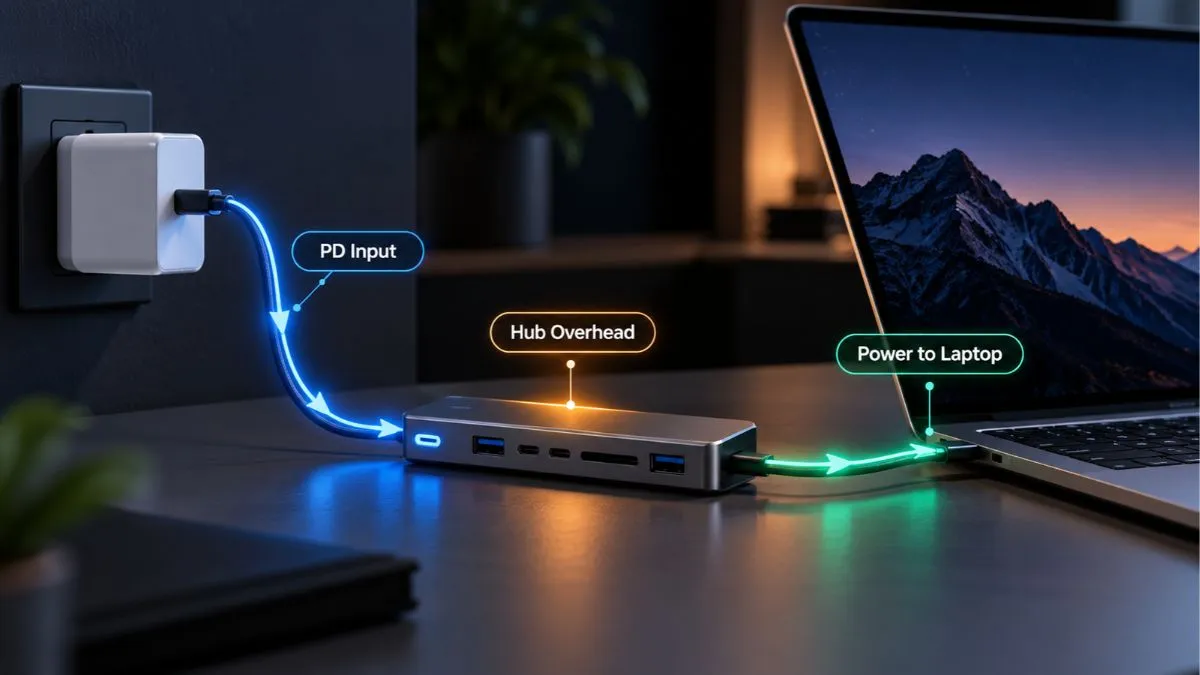
Yes — a USB-C hub can charge a laptop, but only if the hub supports USB Power Delivery passthrough and the laptop itself accepts charging over USB-C.
That sounds simple, but the details matter.
A hub labeled 100W PD does not always deliver the full 100W to your laptop. The charger, cable, hub, and laptop all have their own limits, and the hub usually keeps part of the incoming power for itself and attached devices.
That is why one setup can charge normally while another reports “slow charger”, loses battery under load, or does not charge at all.
This guide explains how USB-C hub charging actually works, what PD passthrough means, and what to check when your laptop is not getting the power you expected.
Quick Answer: Can a USB-C Hub Charge a Laptop?
Yes, if all four parts of the charging chain support it:
- the hub supports USB-C Power Delivery passthrough
- the laptop supports charging over USB-C
- the charger provides enough wattage
- the cable supports the required power level
If one of those pieces cannot handle the required power, charging may become slower, limited, or fail completely.
| Setup | Will It Charge the Laptop? |
|---|---|
| USB-C hub with PD + USB-C charging laptop | Usually yes |
| Hub without PD passthrough | No |
| Laptop USB-C port does not support charging | No |
| Underpowered charger | Maybe, but slowly |
| Wrong / low-rated cable | Possibly limited |
| 100W hub + 100W charger | Usually less than 100W reaches laptop |
| Charger connected to data-only USB-C port | No |
The key thing to understand is this:
USB-C connector shape does not guarantee USB-C laptop charging.
The actual features supported by the port matter more than the connector itself.
How USB-C Hub Laptop Charging Works
A USB-C hub does not normally create charging power on its own.
Instead, a compatible charger connects to the hub’s Power Delivery input, and the hub passes part of that power through to the laptop.
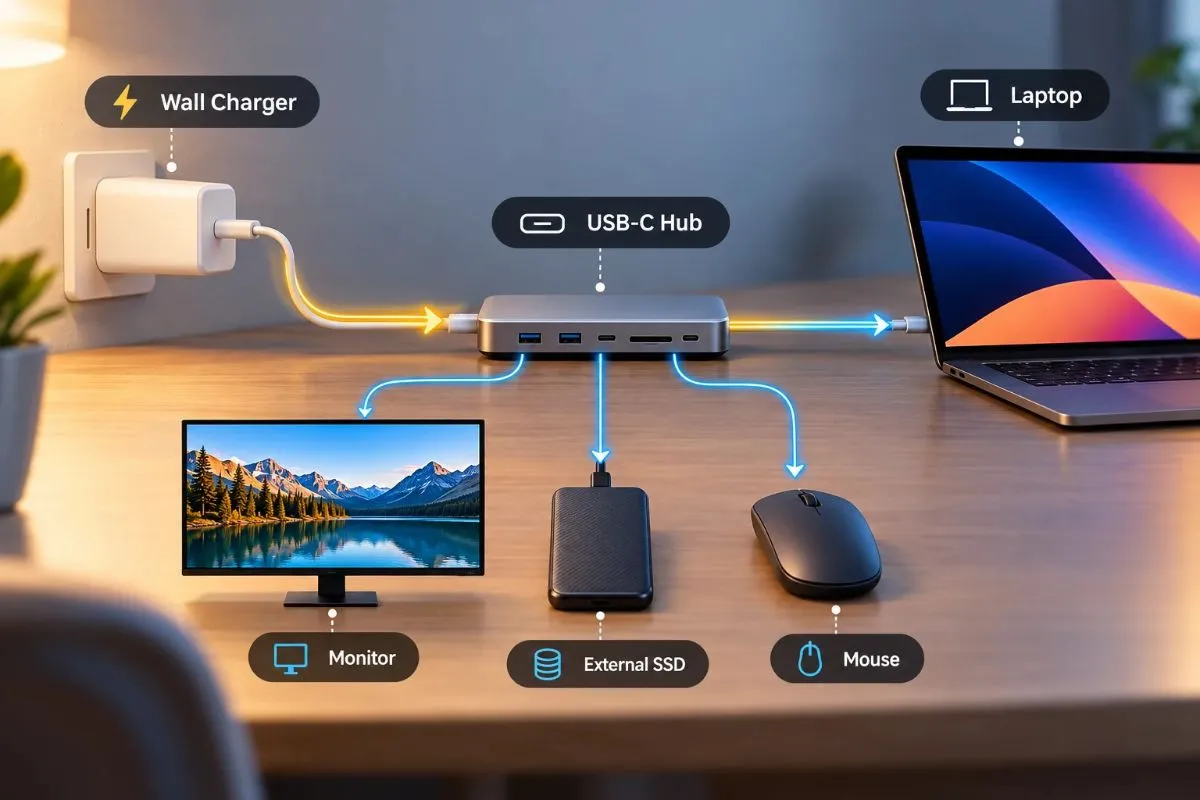
Wall Charger → USB-C Hub → Laptop
At the same time, the hub may also be powering its own electronics and devices connected to its USB ports.
This is called USB-C Power Delivery passthrough.
Plugable, for example, documents hubs that accept up to 100W Power Delivery input and pass up to 92W to the connected laptop.
What Does USB-C PD Passthrough Mean?
PD passthrough simply means the hub can receive power from an external USB-C charger and forward some of that power to the host device.
The hub sits between the charger and laptop.
It still handles data, displays, storage devices, Ethernet, card readers, and other functions, but it also becomes part of the charging path.
USB Power Delivery itself is designed to negotiate power between compatible devices rather than sending a fixed amount blindly.
Current USB PD specifications can support power levels up to 240W over compatible USB Type-C hardware and cables.
That does not mean a typical USB-C hub can deliver 240W.
Most hubs operate at much lower limits.
The Real Charging Chain
When you charge a laptop through a hub, the final result depends on the weakest part of the chain:
Charger → USB-C Cable → Hub → Laptop
If the charger can provide 100W but the hub only supports 65W passthrough, the laptop is limited by the hub.
If the hub supports 100W but the laptop only accepts 65W, the laptop will normally draw only what it needs.
And if the cable is not rated for the required wattage, it can become the limiting factor instead.
What You Need for a USB-C Hub to Charge a Laptop
1. The Hub Must Support USB-C Power Delivery Passthrough
This is the first thing to check.
A USB-C hub can have several USB-C ports and still not support charging the laptop.
One port might be data-only.
Another might be designed only for peripherals.
A dedicated port labeled PD, Power, or Power Delivery is usually where the charger connects.
Plugable documents this clearly on one of its hubs: the dedicated USB-C port is for Power Delivery input and does not handle normal USB data or video.
Do not assume every USB-C port on a hub does the same thing.
Always read the port labels and specifications.
2. The Laptop Must Support USB-C Charging
This is one of the most common sources of confusion.
A laptop may have a USB-C port but still require its original barrel charger or another dedicated charging connector.
If the laptop’s USB-C port does not support Power Delivery input, a hub cannot force charging through it.
Belkin also notes that for charging through compatible docks, the connected device must support charging over USB-C.
So before blaming the hub, check the laptop manual or manufacturer’s specifications.
Look for wording such as:
- USB-C charging
- USB Power Delivery
- PD charging
- Thunderbolt charging
- USB-C DC input
3. The Charger Must Provide Enough Wattage
A hub capable of accepting 100W does not mean you can plug in any charger and get 100W charging.
If you connect a 30W charger, the hub still only has around 30W available before its own power requirements are considered.
That can be enough for a small tablet or lightweight laptop, but it may be far below what a larger notebook expects.
If your laptop normally ships with a 65W charger, using a 30W charger through a hub will almost certainly result in slower charging — if the laptop accepts it at all.
4. The Cable Must Support the Required Power
USB-C cables are not all identical.
Some are designed primarily for basic charging and data.
Others are rated for higher USB Power Delivery levels.
For high-power charging, the cable has to support the negotiated voltage and current.
USB-IF’s current Power Delivery specification allows power up to 240W using compatible cables and hardware.
For a normal 65W or 100W laptop setup, use a quality USB-C cable clearly rated for the wattage you need.
Why a 100W USB-C Hub May Not Give Your Laptop 100W
This is one of the most important things to understand about USB-C hub charging.
A hub may advertise:
100W Power Delivery
But that figure can refer to the maximum power entering the hub, not necessarily the power reaching the laptop.
The hub itself needs electricity.
Connected devices may need electricity too.
So some of the incoming power can be reserved before the rest reaches the host computer.
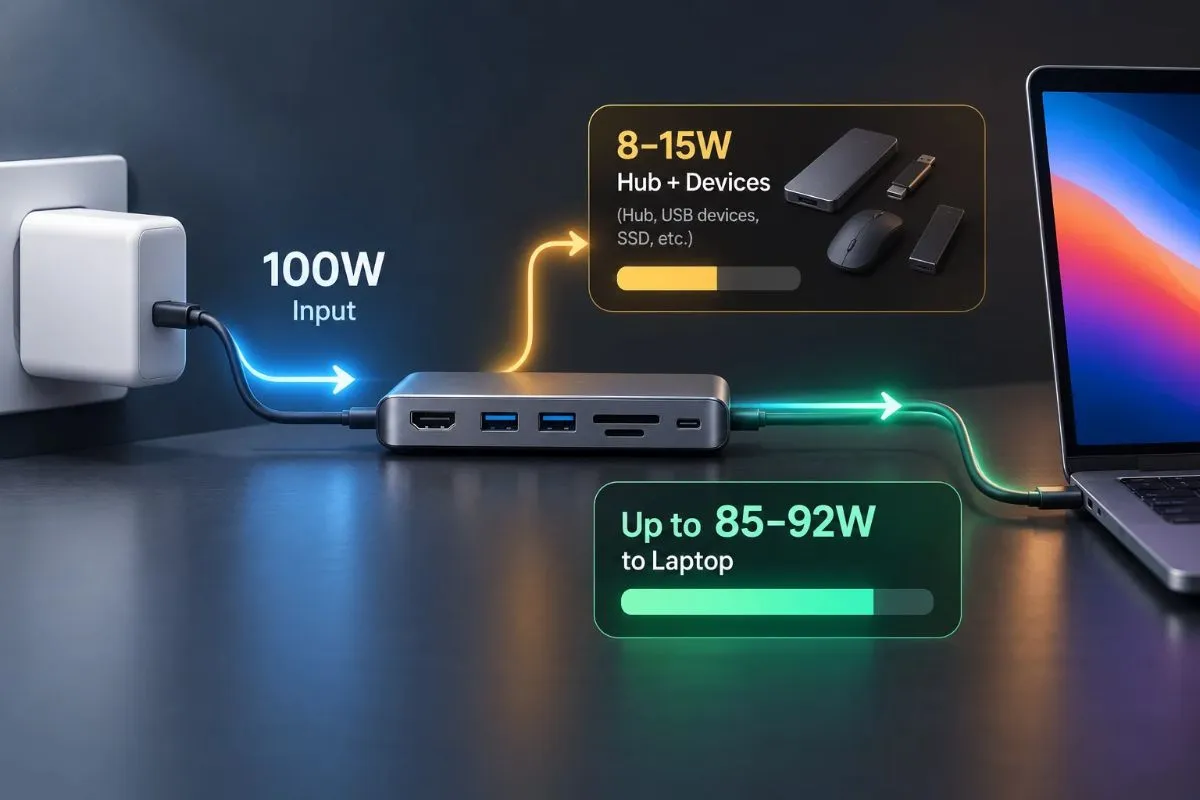
| Example | Hub PD Input | Maximum to Laptop |
|---|---|---|
| Plugable USB-C hub | 100W | Up to 92W |
| Belkin USB-C hub | 100W | Up to 85W |
Plugable specifies up to 100W input and 92W to the host on multiple current hub models.
Belkin lists 100W pass-through input with up to 85W to the host on its 4-port USB-C hub.
This does not mean either design is bad.
It simply means 100W input and 100W laptop charging are not the same specification.
USB-C Hubs and Docks Worth Considering for Laptop Charging
Affiliate disclosure: As an Amazon Associate I earn from qualifying purchases. GadgetStick may earn a commission if you buy through the Amazon links below, at no extra cost to you.

If you want one cable to handle laptop charging, displays, Ethernet, storage, and accessories, the most important spec is not simply “100W PD.” Check how much power actually reaches the laptop, which display modes your computer supports, and whether the dock needs its own power adapter.
Anker 555 USB-C Hub (8-in-1) — A Balanced Everyday Hub
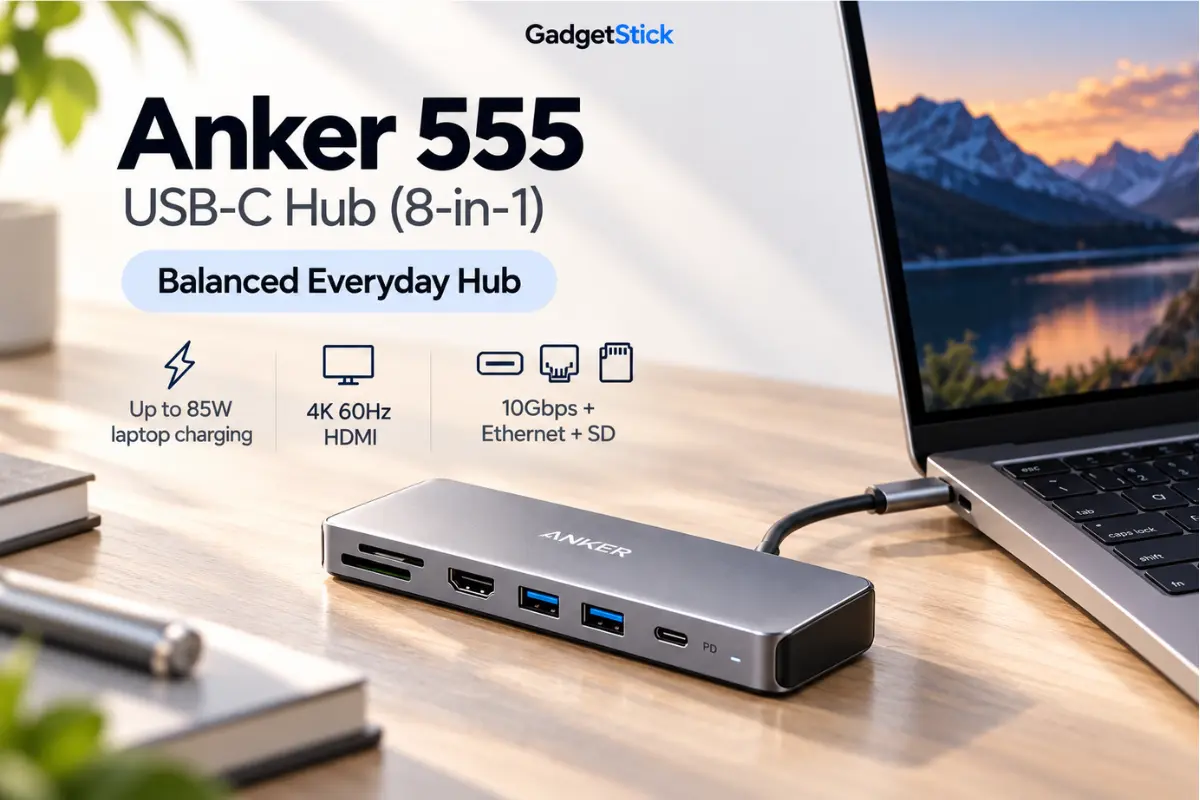
Best for: laptop users who want a compact hub for charging, one external display, Ethernet, fast USB storage, and SD cards without moving to a full desktop dock.
- Laptop charging: up to 85W pass-through with a suitable 100W USB-C PD charger and cable.
- Display: one HDMI output up to 4K at 60Hz on compatible laptops.
- Data: 10Gbps USB-C and USB-A data ports.
- Other ports: Gigabit Ethernet, SD, and microSD.
Important limitation: the hub can accept up to 100W input, but it reserves power for itself, so the laptop does not receive the full 100W. The Amazon listing linked below is a bundle that includes a USB-C to DisplayPort adapter, so check the listing contents before buying.
Anker 575 USB-C Docking Station (13-in-1) — For a Premium Workstation Setup
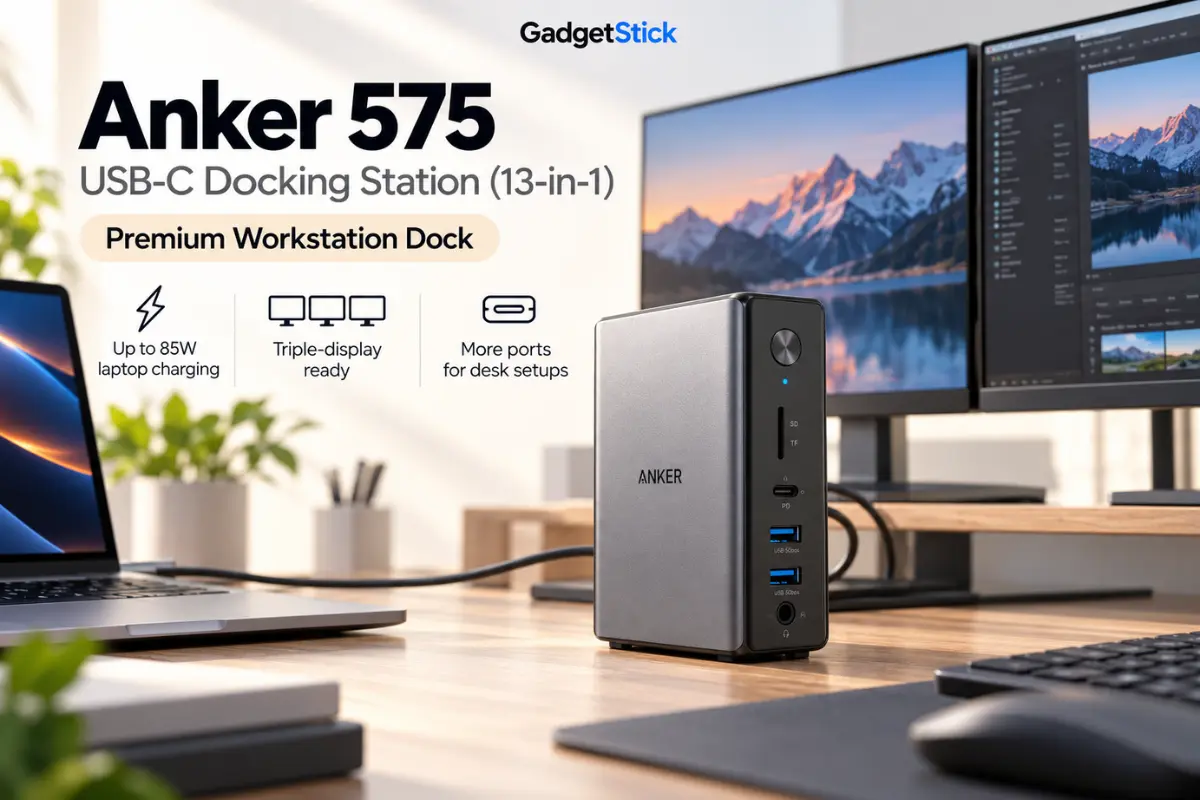
Best for: users building a more permanent desk setup with multiple displays, Ethernet, card readers, audio, and several USB devices connected at once.
- Laptop charging: up to 85W to the host laptop.
- Displays: two HDMI ports plus DisplayPort, with triple-display support subject to laptop and operating-system limitations.
- Data: USB-C up to 10Gbps plus multiple USB-A ports.
- Other ports: Gigabit Ethernet, SD, microSD, and 3.5mm audio.
Important limitation: this is a desktop-class docking station rather than a tiny travel hub. Display resolution and multi-monitor behavior depend on the laptop, GPU, USB-C/DisplayPort support, and operating system.
UGREEN Revodok 10-in-1 — For Dual-Monitor Desk Setups
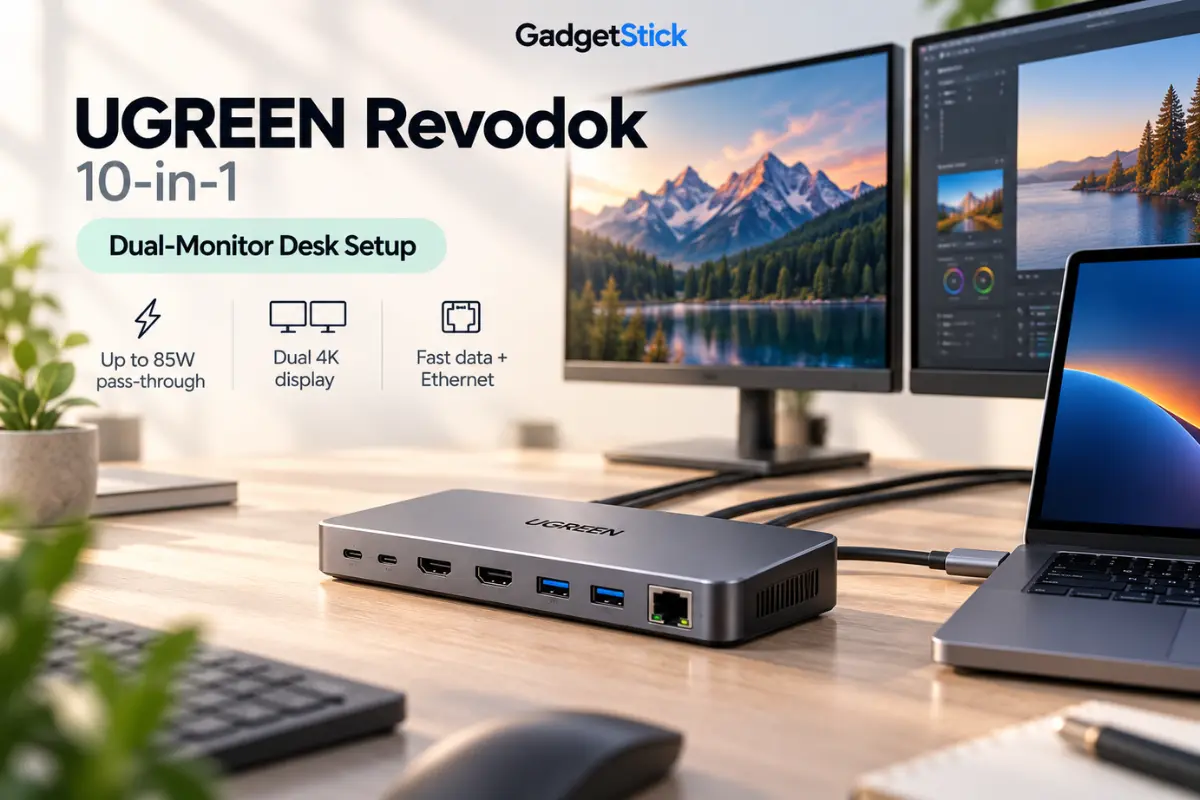
Best for: Windows laptop users who want two HDMI displays, fast USB data, Ethernet, card readers, and USB-C Power Delivery in one dock.
- Laptop charging: up to 85W pass-through from the 100W USB-C PD input.
- Displays: dual HDMI with up to 4K at 60Hz on compatible systems.
- Data: up to 10Gbps on supported USB-C and USB-A data ports.
- Other ports: Gigabit Ethernet, SD, and microSD.
Important limitation: MacBook multi-monitor behavior can be more restricted; connected external displays may mirror the same content on some macOS setups. Check your laptop’s USB-C video and display capabilities before buying.
Which One Makes the Most Sense?
| Product | Best for | Charging to laptop | Key trade-off |
|---|---|---|---|
| Anker 555 USB-C Hub (8-in-1) | Portable everyday use | Up to 85W | Single HDMI; linked Amazon listing is a bundle |
| Anker 575 USB-C Docking Station (13-in-1) | Premium permanent workstation | Up to 85W | Larger desktop dock; display support depends on laptop |
| UGREEN Revodok 10-in-1 | Dual-monitor desk setup | Up to 85W | macOS multi-display limitations |
Buying tip: choose based on your laptop’s required charging wattage and display support first, then the number of ports. A dock advertised with 100W PD can still deliver less than 100W to the laptop because part of the incoming power is reserved for the dock itself.
65W vs 100W Charging Through a USB-C Hub
Suppose your laptop normally uses a 65W USB-C charger.
If you connect that same 65W charger through a hub that keeps several watts for itself, your laptop may receive less than 65W.
For basic office work, that may still be completely fine.
Under heavy workloads such as gaming, rendering, video editing, or compiling code, the laptop may consume more power than the hub can deliver.
You might then notice:
- slower charging
- a “slow charger” warning
- battery percentage barely increasing
- battery level dropping even while plugged in
In that case, a compatible higher-wattage charger can provide more headroom — but only if the hub and laptop both support the higher input.
Why Your USB-C Hub Is Not Charging Your Laptop
If the hub supports PD but the laptop is not charging, there are several things worth checking before assuming the hardware is defective.
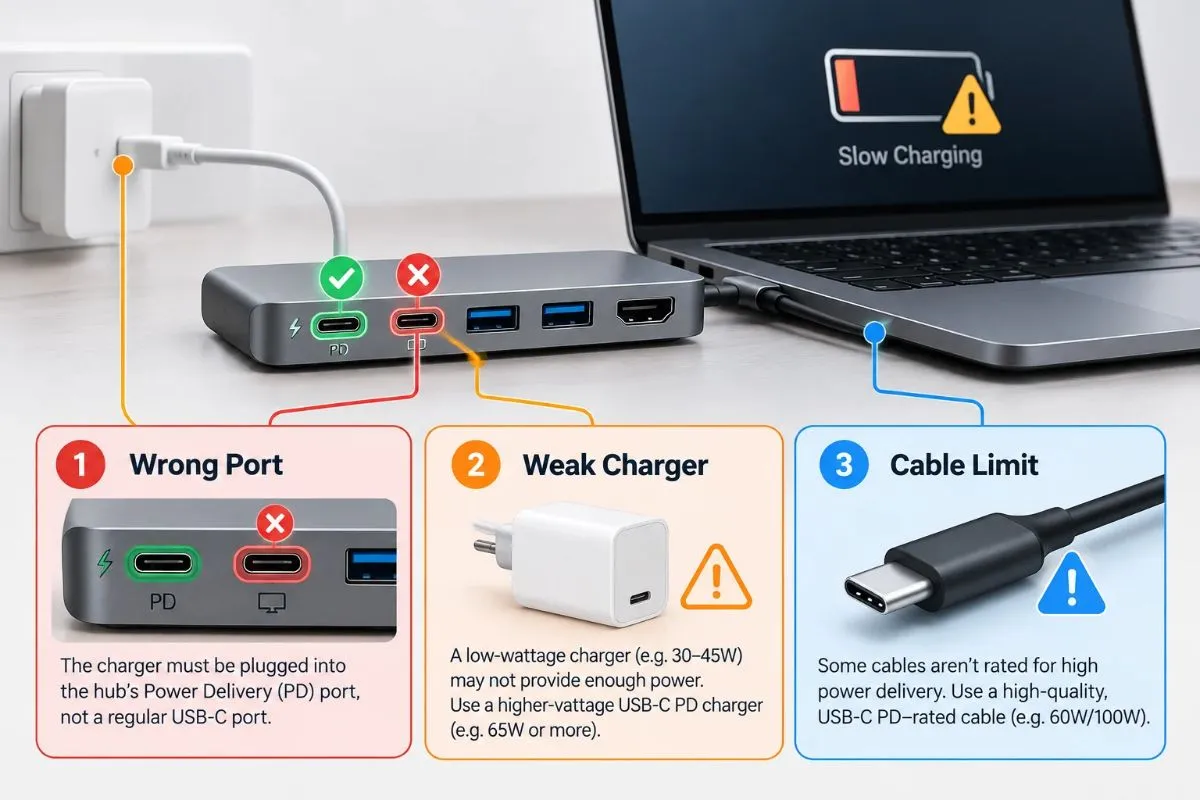
The Charger Is Plugged Into the Wrong USB-C Port
Many hubs have multiple USB-C ports.
Only one may accept Power Delivery input.
Connecting the charger to a data-only USB-C port will not power the laptop.
Look for a PD, battery, plug, or lightning-style label near the port.
The Laptop Does Not Support USB-C Charging
This is a deal-breaker.
If the laptop cannot accept charging through USB-C, the hub cannot change that.
Check the laptop’s official specifications before troubleshooting anything else.
The Charger Is Too Weak
An underpowered charger can cause slow charging or no charging.
Plugable recommends using a USB-C adapter that meets or exceeds the laptop’s power requirements while accounting for the power the hub reserves for itself.
A 45W charger may technically charge a laptop designed around 65W, but performance under load can be poor.
The Hub Keeps Part of the Power
This is normal.
For example, Plugable documents a hub that accepts 100W and reserves roughly 8W, leaving around 92W for the host.
Belkin documents another design where 15W is used for the adapter itself, leaving up to 85W for the connected computer.
That overhead should be included when you choose a charger.
The USB-C Cable Is the Limiting Factor
A poor or under-rated cable can prevent the expected wattage from reaching the laptop.
This matters more as power levels increase.
Use a cable that clearly supports the wattage required by your charger and laptop.
The PD Connection Did Not Negotiate Correctly
Sometimes reconnecting the setup can help.
Plugable’s current troubleshooting guidance recommends disconnecting the hub from the laptop, connecting the USB-C charger to the hub first, and then reconnecting the hub to the laptop when charging does not start correctly.
That is worth trying before replacing hardware.
Can a USB-C Hub Charge a Laptop While Using HDMI, SSDs, and USB Devices?
Usually yes, provided the hub is designed for it and there is enough power available.
The hub can simultaneously:
- pass video to a monitor
- connect storage devices
- run Ethernet
- handle keyboards and mice
- read SD cards
- charge the laptop
But all of those functions share the hub’s internal power and bandwidth resources.
The more devices you attach, the more important the hub’s design and external charger become.
This is also why a permanently docked workstation benefits more from a well-powered hub or docking station than a tiny travel adapter.
Is Charging a Laptop Through a USB-C Hub Safe?
With a reputable hub, compatible charger, and properly rated cable, USB Power Delivery is designed to negotiate power between devices rather than simply forcing maximum wattage into the laptop.
USB-IF describes USB PD as a system where devices can request the power they require, allowing compatible equipment to manage power dynamically.
The bigger practical risk is usually not “too much wattage.”
It is using poor-quality hardware, an underpowered charger, or equipment that does not clearly state its USB-C PD capabilities.
A 100W charger does not automatically force 100W into a laptop that only needs 65W.
The supported devices negotiate the power level.
USB-C Hub Charging Mistakes to Avoid
Assuming Every USB-C Hub Supports Laptop Charging
Some hubs only expand data ports.
Look specifically for Power Delivery passthrough.
Buying Based Only on the “100W” Label
Check whether 100W refers to input or actual power delivered to the host.
Using the Laptop’s Exact Charger Wattage With No Headroom
If the laptop normally uses 65W and the hub consumes part of that input, the host may receive less than expected.
Ignoring the Cable
The charger and hub can both support high power while an unsuitable cable becomes the limiting factor.
Assuming USB-C Means the Same Thing on Every Port
USB-C describes the connector.
Individual ports can support very different combinations of charging, data speed, video output, and Power Delivery.
The GadgetStick Pro Tip
If you plan to use a USB-C hub as the center of your desk, choose the charger based on host output, not only the wattage printed on the hub.
If a hub accepts 100W but delivers 85W to the laptop, treat it as an 85W laptop-charging setup.
Also leave some headroom.
For a laptop that normally uses 65W, a properly supported 100W charger through a good PD hub can make more sense than supplying exactly 65W to the hub.
And when comparing products, look for manufacturers that clearly publish both:
Maximum PD input
and
Maximum host output
That tells you far more than a vague “100W charging” claim.
Frequently Asked Questions
Can any USB-C hub charge a laptop?
No. The hub must support USB Power Delivery passthrough, and the laptop must support charging through its USB-C port.
Can a 100W USB-C hub charge a 65W laptop?
Usually yes, provided the laptop supports USB-C PD charging and the charger, cable, and hub are compatible. The laptop normally draws the power it supports rather than being forced to take the hub’s maximum wattage.
Why is my laptop charging slowly through a USB-C hub?
The charger may be underpowered, the hub may reserve part of the input wattage, the cable may limit power, or the laptop may require more wattage than the hub can deliver.
Does a USB-C hub need its own charger to charge a laptop?
A PD passthrough hub usually requires an external USB-C charger connected to its Power Delivery input. The hub itself generally does not generate charging power. For more detail, see Does a USB-C Hub Need Power?
Can a USB-C hub charge a laptop while using HDMI and USB devices?
Yes, many hubs can do this simultaneously. The actual charging performance depends on the hub, charger, laptop, cable, and total power required by the setup.
Is a 100W charger better than a 65W charger for a USB-C hub?
It can be, especially if the hub keeps part of the incoming power for itself. However, the higher-wattage charger only helps if the hub and laptop support that power level.
Final Answer
A USB-C hub can absolutely charge a laptop, but only when the entire setup supports USB Power Delivery.
The hub needs PD passthrough, the laptop must accept USB-C charging, the charger must provide enough power, and the cable must support the required wattage.
The biggest mistake is assuming a 100W hub automatically means 100W reaches the laptop.
In real products, some of that power is often reserved for the hub itself and attached devices.
So when you compare USB-C hubs, look beyond the headline wattage.
Check the actual host charging output, match it to your laptop’s requirements, and leave some power headroom if the hub will also be running storage, displays, and several peripherals.
How We Researched This Guide
This guide was researched using current USB-IF documentation and technical specifications from established USB-C accessory manufacturers including Plugable and Belkin.
USB-IF documentation was used to verify USB Power Delivery behavior and the current maximum power specification, while manufacturer documentation was used for practical examples of PD input, host-output limits, and charging troubleshooting.
GadgetStick does not claim hands-on testing unless a product or setup has actually been tested by our team.
Editorial Note
USB-C hub charging capabilities vary by model. Always check the manufacturer’s current documentation for exact PD input, host output, cable requirements, and laptop compatibility before buying or troubleshooting a specific setup.
