
You plug a USB Bluetooth adapter into your Xbox Series X or Series S, expecting AirPods or another Bluetooth headset to pair. The adapter may light up, but the console never shows your headphones or sends audio. That usually is not a broken USB port: a generic PC Bluetooth dongle is not the same as an Xbox-compatible audio transmitter.
The distinction matters because an Xbox controller can use Bluetooth with PCs and phones, while the Xbox console uses Xbox Wireless for compatible accessories. Those facts do not mean the console accepts ordinary Bluetooth headphones or general-purpose PC USB Bluetooth adapters.
Quick Answer: Why Does a USB Bluetooth Adapter Not Work on Xbox?
An Xbox Series X|S does not natively pair with standard Bluetooth headphones, and it generally does not support generic USB Bluetooth audio dongles intended for Windows PCs. The USB port can power an adapter without recognizing it as an audio device. For game audio, the practical alternatives are an Xbox-compatible wireless headset, a 3.5mm wired headset connected to the controller, or a dedicated Bluetooth audio transmitter connected to an actual audio output (such as a TV headphone output or a compatible controller 3.5mm jack). Each has different limitations for latency, microphone and party chat.
Microsoft’s Xbox headset compatibility guide identifies supported wired/controller and Xbox-wireless connections. Its controller specifications explain that controllers use Xbox Wireless for consoles and Bluetooth for other devices. Headset manufacturer JBL also explicitly states that ordinary Bluetooth headset connectivity is not supported directly on Xbox Series consoles in its Xbox compatibility guidance.
First, Identify What You Plugged Into the Console
| Device or connection | Will it usually work? | What to know |
|---|---|---|
| Generic USB Bluetooth adapter for a PC | No, not as Xbox Bluetooth headphone audio | USB power does not imply supported audio drivers |
| Xbox-licensed / explicitly Xbox-compatible wireless headset | Yes, with its supported Xbox pairing method | Follow headset manufacturer instructions |
| Xbox-compatible dedicated headset USB transmitter | Model-dependent, only when specifically licensed/supported | Do not assume a generic USB audio dongle qualifies |
| 3.5mm wired headphones into controller | Yes, compatible wiring/headset required | Best straightforward connection for wired audio |
| Bluetooth transmitter on TV headphone / optical audio output | Often possible if display supports it | Usually audio-only; latency and chat limitations |
| Bluetooth transmitter on controller 3.5mm jack | Possible with compatible analog transmitter | Typically game audio out; mic return often unavailable |
The word adapter is used for both a computer Bluetooth radio and a standalone audio transmitter, but they solve different problems. A Bluetooth transmitter must receive an audio signal from a supported source and then pair with headphones. A PC USB dongle expects computer Bluetooth drivers and operating-system support.
1. Stop Trying to Pair Headphones Through a Generic USB Bluetooth Dongle
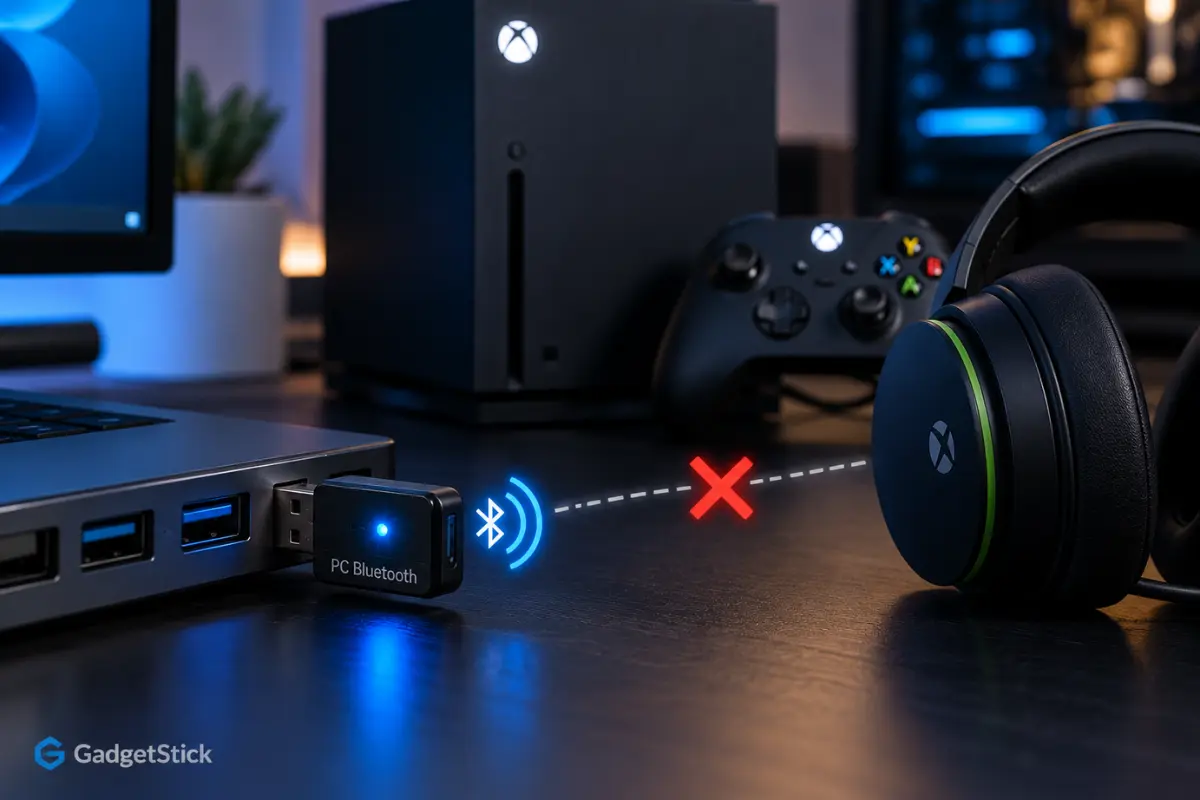
A conventional USB Bluetooth dongle adds a Bluetooth radio to a computer. On a Windows PC, the operating system provides drivers, pairing menus and audio profiles. Xbox consoles do not expose an equivalent general-purpose Bluetooth headphone pairing workflow. Repeating the pairing steps or moving the adapter between USB ports will not turn a PC-only dongle into a supported headset.
A glowing LED only tells you the dongle is receiving power. It does not prove the Xbox has recognized it as an audio device. Confirm what the product explicitly says: Xbox Series X|S compatible for headset audio is meaningful; generic labels like Bluetooth 5.3, USB-C, gaming or low latency are not enough.
2. Check Whether You Own an Xbox Wireless Headset Instead
Some gaming headsets support Bluetooth and Xbox Wireless. For these models, Bluetooth may be used to connect to a phone or PC, while Xbox Wireless is used for the console. Microsoft’s Xbox Wireless Headset documentation specifically describes separate Xbox Wireless and Bluetooth connectivity.
If your headset is Xbox-compatible, follow the manufacturer’s Xbox pairing procedure. For supported Xbox Wireless headsets, Microsoft describes turning on the headset and console, holding the headset pairing control, then using the console’s Pair button until both indicate a connection. Exact button timings differ by model. Do not use the console’s unsupported generic Bluetooth pairing method.
3. Use the Controller’s 3.5mm Jack If Your Headphones Support a Cable
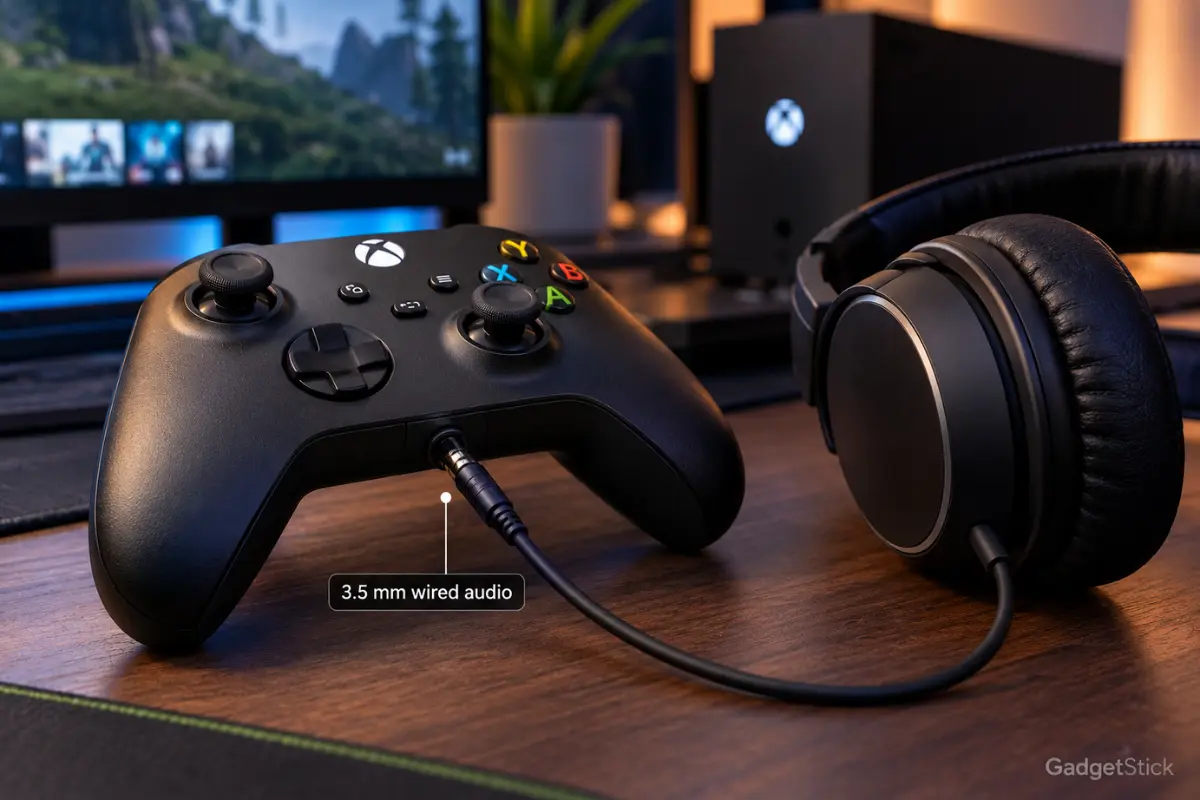
Microsoft confirms that Xbox Series X|S controllers have a 3.5mm headphone connection for compatible wired headsets. This is the simplest reliable alternative if your headphones also offer a working analog cable. Xbox’s headset guide explains the controller connection.
- Check whether your headphones actually support passive wired listening; not every wireless earbud or headset does.
- Connect a compatible 3.5mm audio cable to the headset and the controller.
- Open the Xbox audio controls and adjust headset volume and game/chat mixer if available.
- If you need voice chat, confirm that the cable and headset provide a compatible microphone connection. A standard stereo-only cable may carry sound without mic input.
A regular Bluetooth earbud case cannot plug into this jack, so this method is mainly for over-ear headphones or headsets with analog input.
4. If You Want Bluetooth Headphones, Use a Real Audio Transmitter
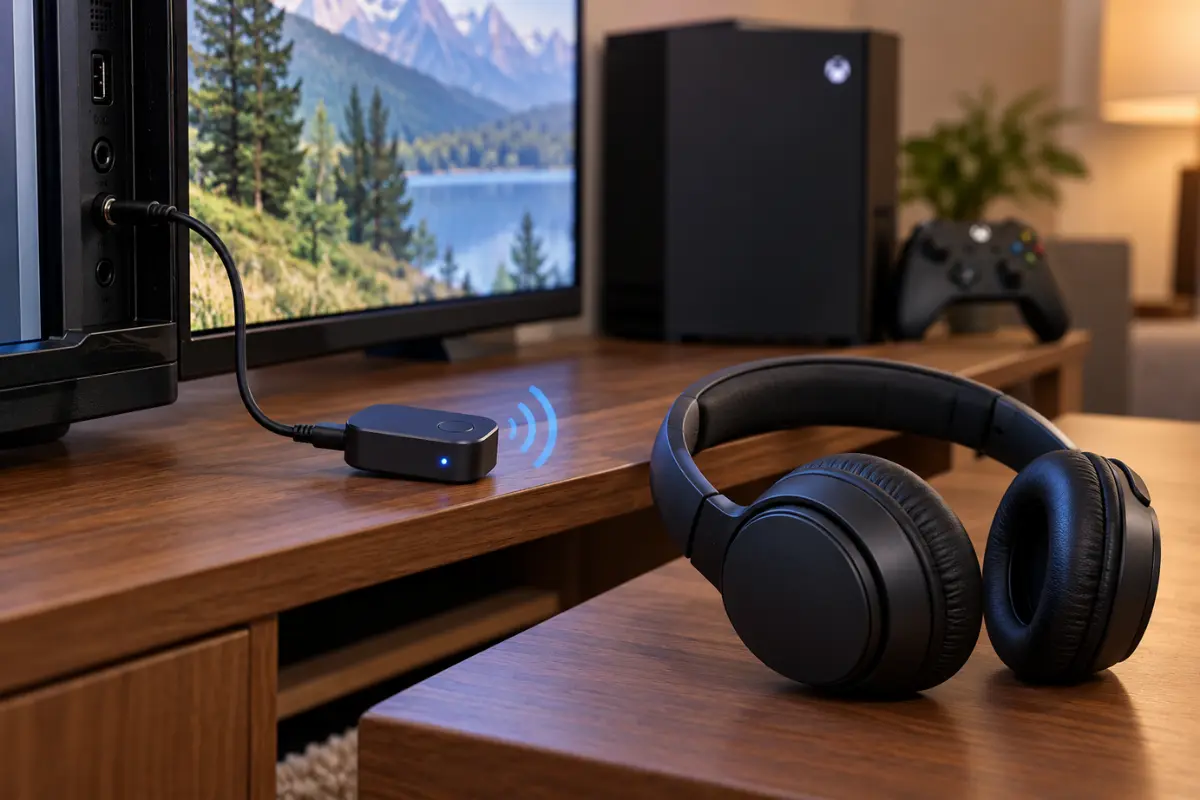
A standalone Bluetooth transmitter sends sound from an analog or compatible digital audio output to Bluetooth headphones. It is not the same as the USB Bluetooth adapters sold for computers. Depending on your setup, potential connection points include the controller headphone jack, a TV’s 3.5mm headphone output, a TV’s supported optical output with a matching transmitter, or an audio extractor designed for the signal chain.
Before buying, check all three links in the chain: the source actually outputs game audio, the transmitter accepts that input, and your headphones support the transmitter’s Bluetooth audio mode. For controller-connected transmitters, check whether the unit physically clears the controller and how it is powered. Some devices use USB only for charging while taking audio through 3.5mm.
Do not assume the Xbox USB-A port is a plug-and-play Bluetooth audio output. Purchase only when the manufacturer explicitly documents your Xbox model and intended connection method. We are not recommending an unverified product or affiliate adapter here.
5. Expect Audio Latency and Party Chat Limitations
A transmitter may solve game-audio listening but still be a poor substitute for a gaming headset. Bluetooth audio introduces processing and transmission delay, which can be noticeable in rhythm games, shooters and lip-synced dialogue. The result depends on both transmitter and headphone codec support; a low-latency transmitter cannot enable a codec that the headphones do not support.
Microphone behavior is a separate problem. Many 3.5mm Bluetooth transmitters and TV Bluetooth audio connections carry audio out only. Even if game sound reaches your headphones, the Xbox may not receive a microphone signal from them. If party chat is important, use a verified Xbox-compatible chat headset or a separate supported chat setup rather than assuming the Bluetooth transmitter returns mic audio.
6. If Your Headset Connects but Is Silent, Check Xbox Audio Settings
This step is relevant when you are using a supported Xbox audio path, such as a licensed Xbox wireless headset or a headset connected to the controller. It is not a fix for an unsupported PC Bluetooth dongle.
- Open the Xbox guide and locate the Audio & music controls.
- Raise headset volume and verify the game/chat mixer is not pushed entirely to the wrong side.
- Check whether the TV, receiver or monitor output you are feeding to a transmitter is muted.
- If using a controller cable, reseat the 3.5mm connection and test another compatible headset if available.
- Restart only the affected accessory and console after checking basic connections.
Xbox’s official headset FAQ documents the headset-volume and chat-mixer controls.
7. Check the Actual Product Compatibility Before Spending Money
Headset listings sometimes say Bluetooth for mobile and PC alongside compatible with Xbox. That can mean different connection technologies for different devices, not Bluetooth audio support on the console. Look for the manufacturer’s exact Xbox Series X|S compatibility statement, pairing instructions, and whether the microphone works for Xbox party chat.
Be especially careful with small USB transmitters marketed as compatible with multiple consoles. A transmitter that works on Windows or PlayStation cannot be presumed to work on Xbox. If a retailer listing conflicts with the manufacturer’s own documentation, prioritize the manufacturer specification and ask support for model-specific confirmation.
Which Connection Should You Choose?
| Your priority | Best starting option | Trade-off |
|---|---|---|
| Reliable game audio and voice chat | Xbox-compatible wired or Xbox Wireless headset | May require separate headset purchase |
| Use existing headphones with a 3.5mm input | Controller cable | Wireless convenience lost |
| Use Bluetooth headphones for casual game sound | Verified transmitter on controller or TV audio output | Potential delay and mic restrictions |
| Competitive gaming with low delay | Xbox-compatible dedicated gaming headset | Generic Bluetooth often unsuitable |
| Use AirPods specifically | External audio transmitter with confirmed pairing | No native Xbox Bluetooth; chat usually separate |
Frequently Asked Questions
Why does my USB Bluetooth adapter light up but not work on Xbox?
Its LED may indicate USB power, not compatible audio-driver support. Most generic PC Bluetooth adapters are not recognized by Xbox as Bluetooth headphone devices.
Can I connect AirPods to Xbox Series X or Series S?
Not directly through the console’s native Bluetooth pairing, because Xbox Series X|S does not support ordinary Bluetooth headphone audio. You may be able to use an external transmitter connected to a compatible audio output, with potential latency and party-chat limitations.
Does the Xbox controller having Bluetooth mean the console supports Bluetooth headphones?
No. Microsoft lists Bluetooth for the controller’s connections to PCs and mobile devices. For Xbox consoles, the controller uses Xbox Wireless. Those are separate paths.
Can I use any USB-C or USB-A Bluetooth transmitter?
No. A generic PC Bluetooth radio is not enough. Check for explicit Xbox Series X|S support and the specific headset audio function, or choose a standalone analog/TV audio transmitter.
Why does Bluetooth game audio work but my microphone not work?
Many TV and analog Bluetooth transmitter methods only carry audio out. They do not necessarily provide a compatible microphone return channel to the Xbox. Use a verified chat-compatible headset when voice chat matters.
Final Answer
A USB Bluetooth adapter not working on Xbox Series X|S is usually a compatibility limitation—not something you can repair by trying random USB ports. Start by checking whether your device is a generic PC dongle or a truly Xbox-compatible headset transmitter. For reliable sound and chat, use a supported Xbox headset or a wired connection to the controller. If you only need casual game audio on existing Bluetooth headphones, a properly matched standalone transmitter on a real audio output may work, with latency and mic limitations.
For Windows-specific headset issues, see GadgetStick’s explanation of Bluetooth headphone quality dropping when the microphone activates. If you’re considering dedicated gaming headsets, our wireless gaming headset guide covers a different PC/Discord buying scenario; verify Xbox support separately before purchasing.
How We Researched This Guide
We compared Microsoft’s official Xbox headset and controller connectivity documentation, the Xbox Wireless Headset product guidance and JBL’s published Xbox compatibility information. We used these sources to distinguish native Xbox Wireless connectivity, controller analog audio, generic PC Bluetooth dongles and external Bluetooth transmitters. We did not claim hands-on device benchmarks or independently test transmitter latency or chat compatibility.
Editorial Note
Xbox accessory features, firmware and retailer product descriptions can change. Verify the specific adapter/headset manufacturer’s Xbox compatibility and microphone support before purchasing. No paid affiliate product recommendations or undisclosed test claims are included in this article.
