
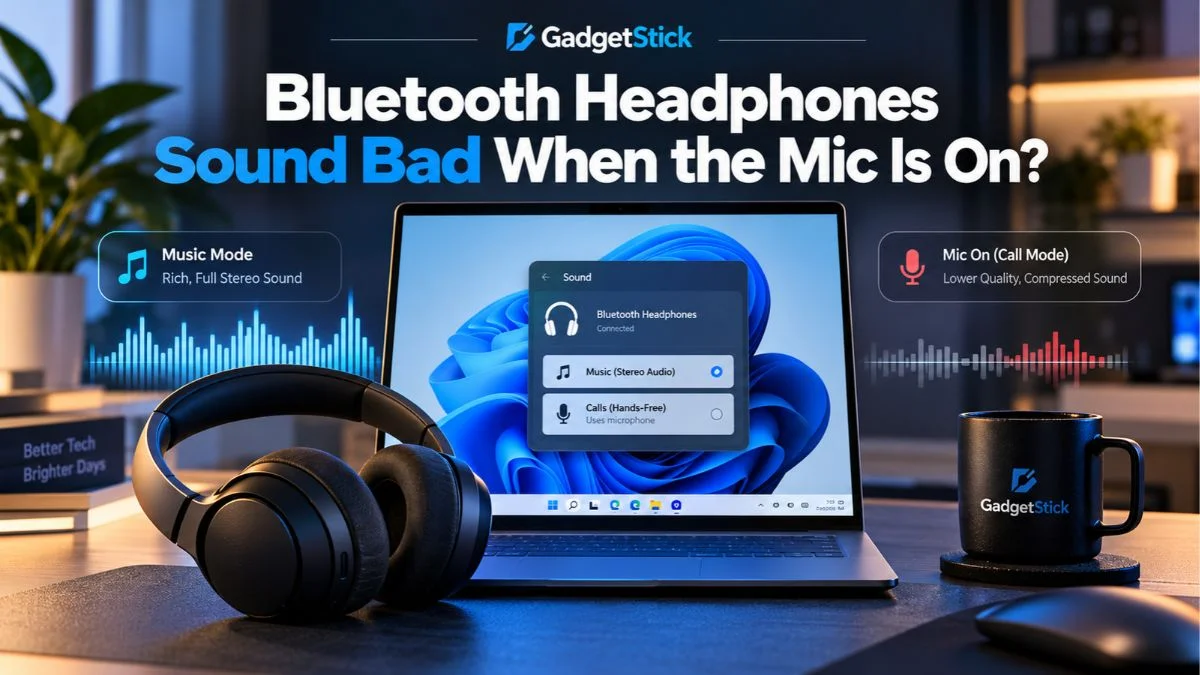
If your Bluetooth headphones sound great for music but suddenly turn thin, muffled, or “call quality” the moment an app starts using the microphone, the headset may not be faulty at all. On many Windows 11 systems, the change happens because Windows switches to a different Bluetooth audio path when it needs microphone input.
The exact behavior depends on whether your PC and headphones are using Bluetooth Classic or newer Bluetooth LE Audio. That distinction matters now because supported Windows 11 systems can handle microphone use much better than older Bluetooth setups.
Quick Answer
With Bluetooth Classic, Windows normally uses A2DP for higher-quality stereo playback. When an app activates the headset microphone, Windows needs a two-way communication profile and switches to HFP. That profile carries both microphone and playback audio, but the playback side is more voice-oriented and can sound noticeably worse.
If your PC, Bluetooth drivers, and headphones support Bluetooth LE Audio, newer Windows 11 builds can improve this behavior and may allow stereo playback while the microphone is active. If those options are missing, your hardware or drivers may not support the required LE Audio features.
Why Bluetooth Headphones Sound Worse When the Mic Turns On
The problem comes down to how Bluetooth handles playback and microphone capture. With Bluetooth Classic, Windows uses A2DP for normal media playback. A2DP is built for higher-quality stereo audio, so music, games, and videos usually sound much better in this mode.
But A2DP is playback-focused. Once Discord, Teams, Zoom, a browser call, or a game starts using the headset microphone, Windows needs a profile that can carry input and output at the same time. On Classic Bluetooth, that is HFP, or Hands-Free Profile.
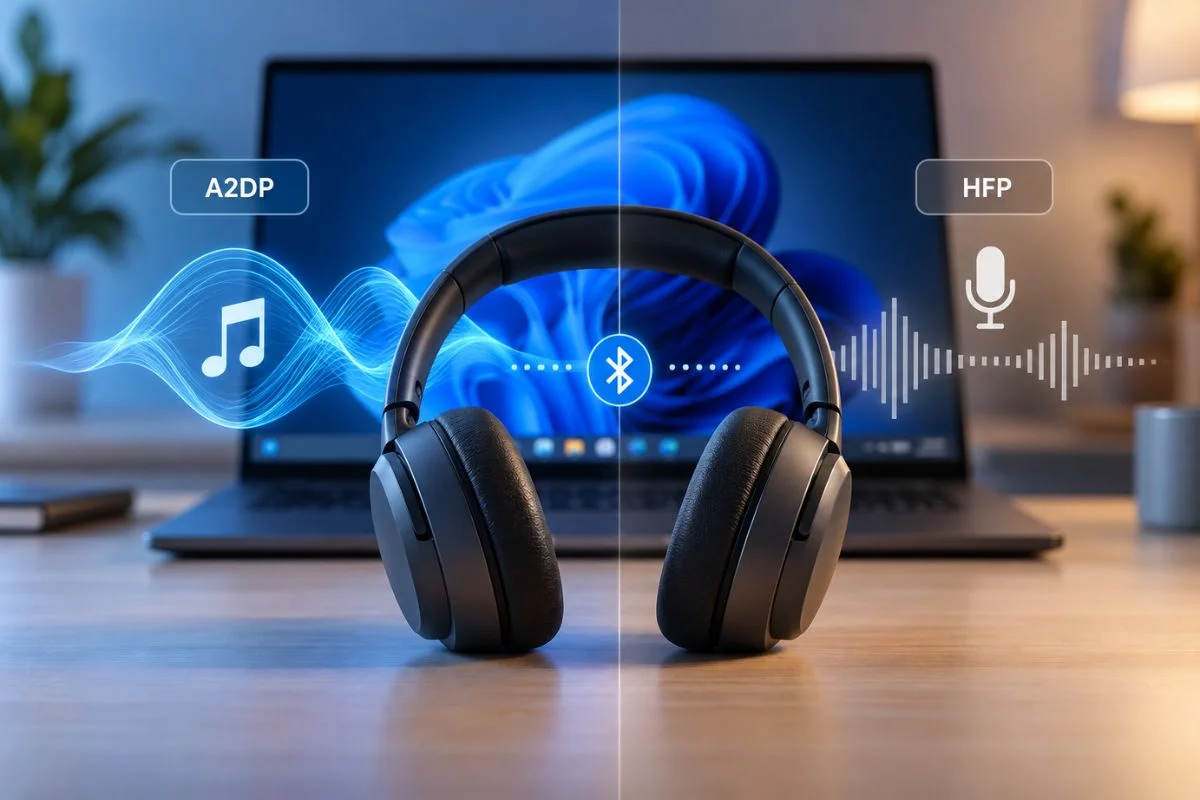
Microsoft documents that Bluetooth Classic A2DP is used for stereo playback, while HFP supports microphone capture and playback together. That is why the change can feel instant: one second your headphones are in media mode, and the next they are in a communication mode designed around two-way voice.
A2DP vs HFP vs LE Audio
| Mode | Best For | Headset Mic | What You Usually Hear |
|---|---|---|---|
| A2DP | Music, games, video | No headset mic capture | Higher-quality stereo playback |
| HFP | Calls and voice chat | Yes | Lower-bandwidth, voice-oriented playback |
| LE Audio | Newer Bluetooth audio and communication | Yes on supported setups | Can offer improved mic-plus-playback behavior and stereo support on compatible Windows 11 systems |
First, Check Whether Your PC Supports Bluetooth LE Audio
Before changing random Windows settings, check whether your PC actually supports Bluetooth LE Audio. A recent Windows version alone is not enough. The Bluetooth radio, manufacturer driver, and headphones all need the required support.
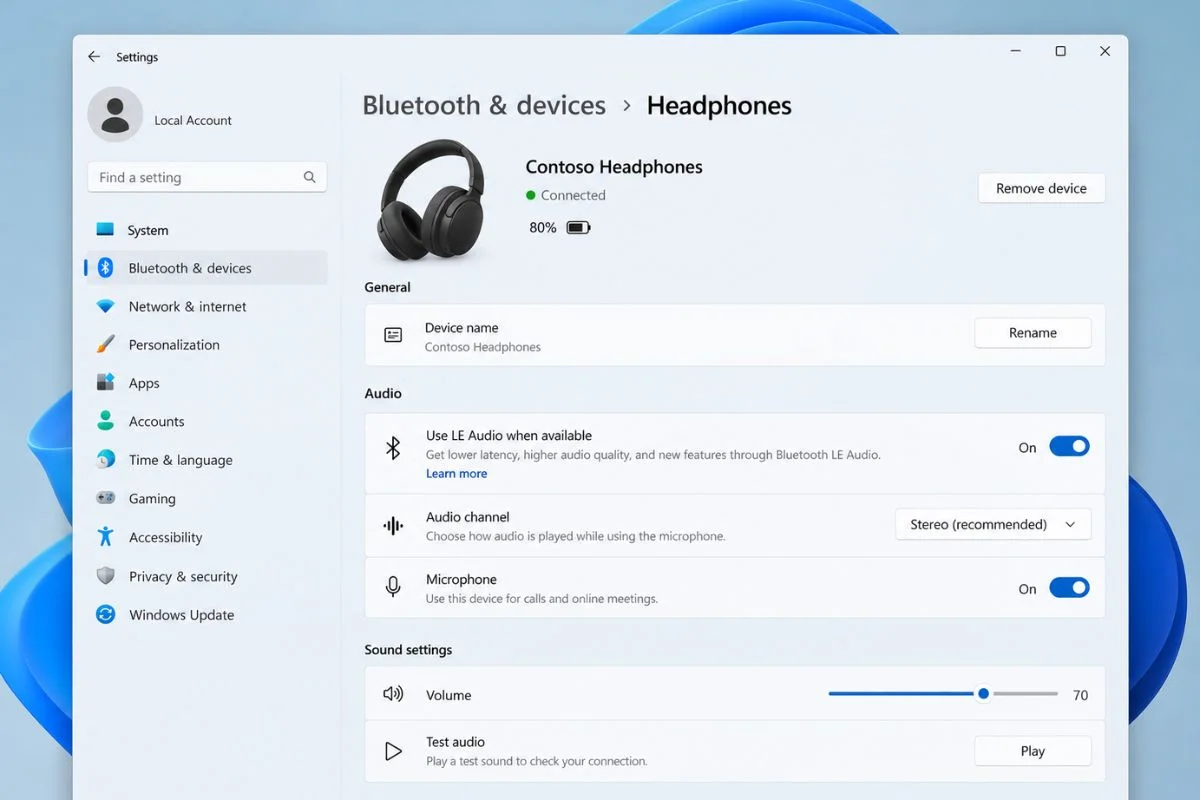
- Open Settings.
- Go to Bluetooth & devices and then Devices.
- Look for Use LE Audio when available.
- If the option exists, make sure it is enabled.
If you do not see an LE Audio option, that does not automatically mean Windows is broken. Your Bluetooth hardware or current driver may simply not support it.
Check “Format When Microphone Is Active”
On compatible Windows 11 systems, Microsoft provides a microphone-active format setting that can allow stereo playback while the Bluetooth microphone is being used.
- Open Settings > System > Sound.
- Select your Bluetooth LE Audio headphones under Output.
- Expand the relevant format options.
- Look for Format when microphone is active.
- Select the stereo option if it is available and stable with your headset.
Microsoft says this newer behavior requires Windows 11 24H2 or later plus compatible LE Audio hardware, the necessary manufacturer Bluetooth drivers, and compatible headphones or earbuds. If the setting is missing, your current setup likely does not expose that feature.
What if Stereo Audio Still Glitches With the Mic On?
Even when stereo-with-microphone support is available, the highest-quality setting is not automatically the most stable one. Some accessories may produce dropouts, glitches, or intermittent audio depending on the Bluetooth radio, drivers, headset firmware, and wireless environment.
If the stereo microphone-active mode causes problems, switch back to the more compatible option and test again. A stable call is more useful than a theoretically better format that keeps dropping out.
Update Windows, Bluetooth Drivers, and Headset Firmware
If LE Audio or the stereo microphone option should be available but is missing, update Windows first. Then check your laptop or motherboard manufacturer’s support page for the latest Bluetooth driver. Also check whether your headset manufacturer has a firmware update through its companion app.
This step matters because newer Bluetooth features depend on the whole chain working together. A compatible headset cannot expose a Windows feature that the PC’s Bluetooth hardware or driver does not support.
Remove and Re-Pair the Headphones
If Windows or your headset recently received an update, remove the headphones and pair them again. Re-pairing can force Windows to rebuild the Bluetooth connection using the device’s current capabilities.
- Open Settings > Bluetooth & devices > Devices.
- Remove the headset.
- Restart Bluetooth or reboot the PC.
- Put the headphones back into pairing mode.
- Pair them again and re-check the sound settings.
Use a Separate Microphone if You Want to Keep Better Bluetooth Audio
If your setup is limited to Bluetooth Classic, one of the cleanest workarounds is to stop using the headset’s Bluetooth microphone. Set the Bluetooth headphones as your output device, then use the laptop’s built-in mic, a USB mic, or another wired microphone as the input device.
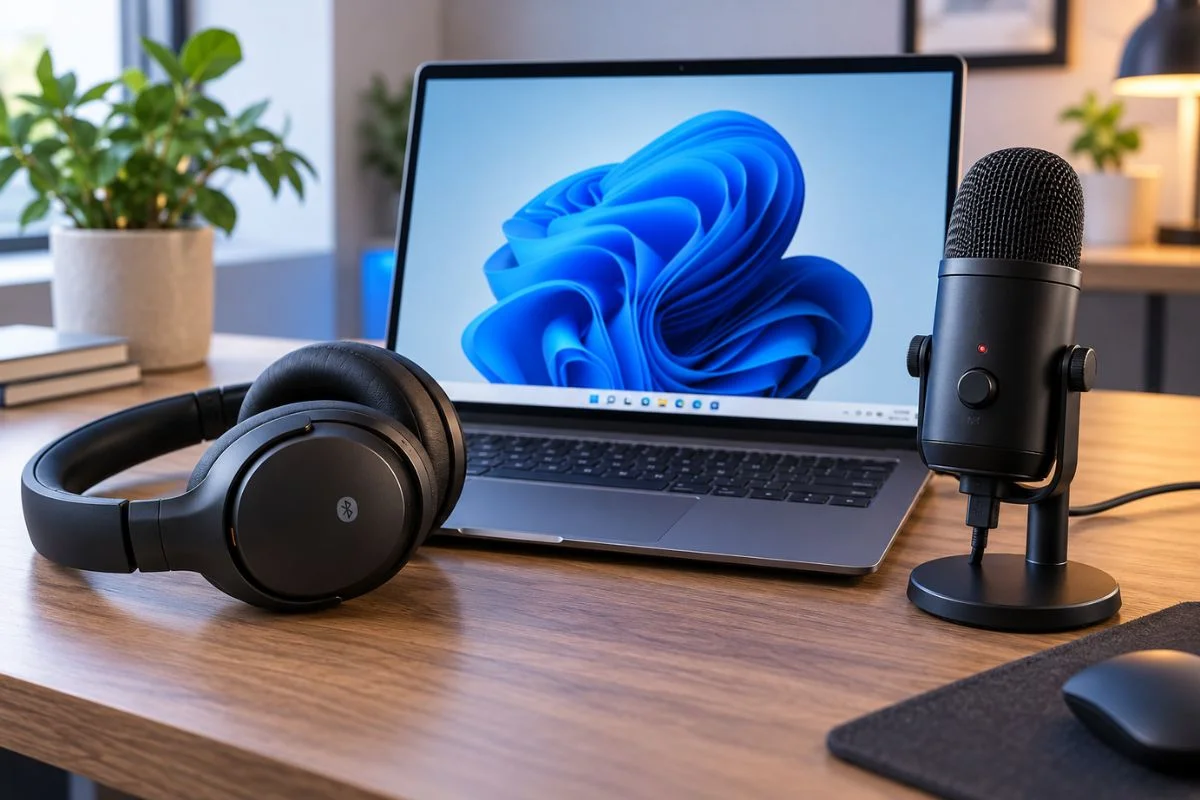
Because Windows no longer needs the headset microphone, Classic Bluetooth headphones can remain on the higher-quality A2DP playback path. This is especially useful if you already like your current headphones and do not want to replace them. If your problem is with wired USB-C headphones instead, see our USB-C headphones troubleshooting guide.
When a Dedicated 2.4GHz Wireless Headset Makes More Sense
If you regularly use voice chat while gaming or spend hours in calls, a headset with its own 2.4GHz USB wireless connection can be a more practical long-term fix than fighting the Bluetooth Classic A2DP/HFP trade-off.
The important distinction is that the headset’s main PC connection is no longer relying only on the same Classic Bluetooth communication path. You can still keep Bluetooth for phones or other devices, while using the dedicated wireless link on your PC for game audio and microphone use.
Affiliate disclosure: GadgetStick may earn a commission if you buy through an affiliate link, at no extra cost to you. We only place products here when they match the specific workaround discussed in the guide.
Best Value Hardware Alternative: Razer BlackShark V2 HyperSpeed
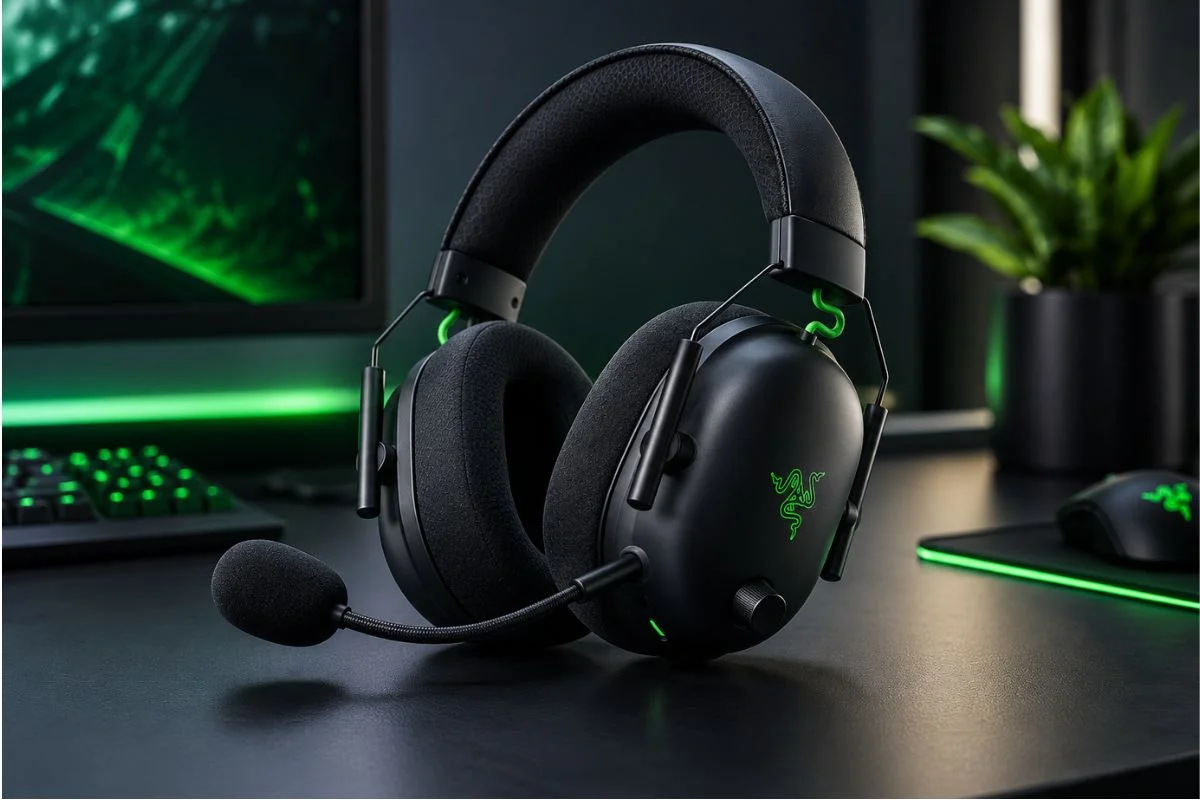
The Razer BlackShark V2 HyperSpeed is the stronger value pick for this problem because it gives PC users a dedicated 2.4GHz wireless option instead of forcing them to rely on Bluetooth for both game audio and microphone use. It also supports Bluetooth and USB, so you still have flexibility for phones and other devices.
Its wideband boom mic and lightweight design also make it a more natural fit for people who spend long sessions in Discord, multiplayer games, or work calls. Check current US prices for both headsets; prices alone do not establish microphone quality or compatibility.
Premium Alternative: HyperX Cloud III S Wireless
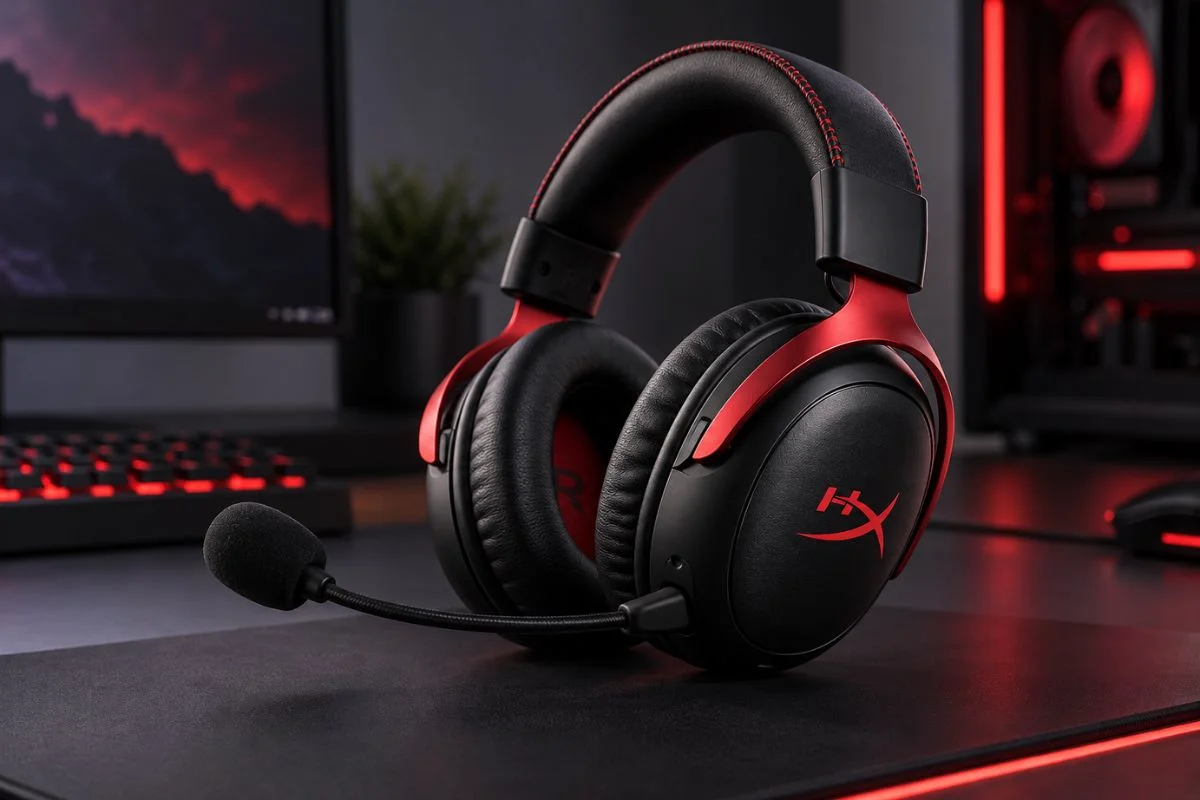
The HyperX Cloud III S is the more premium alternative. It combines a dedicated 2.4GHz wireless mode with Bluetooth, a detachable microphone, and long advertised battery life. That makes it useful if you want one headset that can stay on a PC-friendly wireless connection at your desk but still switch to Bluetooth for mobile use.
Compare the exact connection modes, microphone features, battery claims and current prices against your needs before choosing.
Bluetooth Headset vs 2.4GHz Wireless Headset
| Connection | Good For | Main Trade-Off |
|---|---|---|
| Bluetooth Classic | Convenience, phones, casual listening | Mic use can force HFP and reduce playback quality |
| Bluetooth LE Audio | Newer compatible PCs and headphones | Requires support across Windows, drivers, Bluetooth hardware, and headset |
| 2.4GHz USB wireless | Gaming, voice chat, long PC sessions | Uses a USB receiver and is product-specific |
| Separate USB mic + Bluetooth headphones | Keeping headphones you already own | Extra desk hardware and a separate input device |
Does Disabling Hands-Free Telephony Fix It?
You may find older Windows guides that recommend disabling “Hands-Free Telephony.” On some Classic Bluetooth setups, that can prevent Windows from using the headset microphone and therefore keep playback on the higher-quality path.
But that is not a true fix if you still need the headset mic. It removes the communication feature that triggers the switch. On newer LE Audio-capable systems, checking the current Windows audio options first is the better approach.
A Fast Troubleshooting Order
Different symptom? If your headphones sound normal during playback but go completely silent specifically after Windows 11 wakes from sleep, follow our Bluetooth headphones no sound after sleep troubleshooting guide instead. That wake-from-sleep issue is different from the microphone-related quality drop covered here.
- Confirm the quality drop happens only when an app activates the headset mic.
- Check whether Use LE Audio when available exists.
- Look for the microphone-active stereo format setting.
- Update Windows, Bluetooth drivers, and headset firmware.
- Remove and re-pair the headset.
- Test a separate microphone while keeping the Bluetooth headphones as output.
- If voice chat is a daily use case, consider a dedicated 2.4GHz wireless headset.
Frequently Asked Questions
Why do my Bluetooth headphones sound bad only when I use the microphone?
On Bluetooth Classic, Windows typically switches from A2DP stereo playback to HFP when the headset microphone is opened. HFP is designed for two-way communication and uses a more voice-oriented playback path.
Can Windows 11 use Bluetooth stereo audio and the mic at the same time?
Yes, on supported newer systems. Windows 11 24H2 and later can support improved stereo playback while the microphone is active when the PC, drivers, Bluetooth hardware, and headphones support the required LE Audio features.
Why don’t I see “Format when microphone is active”?
Your PC may not support the required LE Audio feature, the Bluetooth driver may be outdated, or the headphones may not support the necessary LE Audio capability.
Will a separate mic improve Bluetooth headphone sound?
Often, yes. If Windows does not need to use the headset microphone, Classic Bluetooth headphones can remain on the A2DP playback path instead of switching to HFP.
Is 2.4GHz wireless automatically better than Bluetooth?
Not in every situation. Bluetooth is more convenient and broadly compatible. The advantage of a dedicated 2.4GHz headset for this specific problem is that its main PC audio-and-mic path does not rely on the same Bluetooth Classic A2DP/HFP switching behavior.
Final Answer
If your Bluetooth headphones sound bad when the mic is on in Windows 11, the most likely explanation is the Bluetooth audio profile being used—not a broken headset.
On Bluetooth Classic, activating the headset microphone can move the connection from A2DP stereo playback to the HFP communication path, which sacrifices playback quality. On supported Bluetooth LE Audio systems, newer Windows 11 builds can improve this behavior and may keep stereo playback available while the mic is active.
Check LE Audio support and the microphone-active format setting first. If your hardware cannot use those newer features, a separate microphone is the cheapest workaround. If you spend a lot of time gaming or in voice chat, a dedicated 2.4GHz wireless headset can be the cleaner hardware alternative. Our best wireless gaming headsets for Discord guide compares seven options built around mic clarity, low-latency wireless, comfort, and battery life.
How We Researched This Guide
We reviewed Microsoft’s current Bluetooth Classic Audio documentation and Windows 11 Bluetooth LE Audio guidance to separate the older A2DP/HFP limitation from newer LE Audio behavior. For the hardware alternatives, we focused on headsets that provide a dedicated 2.4GHz PC connection rather than treating Bluetooth alone as the solution to a Bluetooth profile problem.
Editorial Note
Bluetooth behavior can vary by Windows build, Bluetooth radio, manufacturer driver, headset firmware, and supported profiles. Product prices and availability can also change. GadgetStick does not claim hands-on testing of a product unless we have actually tested it.
