
A power bank that charges your laptop for a few minutes and then disconnects is frustrating—especially when it happens the moment you start gaming, editing video, or opening demanding apps.
But there are three different problems that look similar: the USB-C connection repeatedly drops, the power bank stays connected while the laptop battery drains, or charging stops at a particular battery percentage. Each needs a different first check.
Quick Answer
If your power bank keeps disconnecting from your laptop, first connect it directly to the laptop’s USB-C charging port with a known-good, appropriately rated cable. Disconnect other devices from the bank, check its single-port USB-C PD output against the laptop’s power requirement, and test again while the laptop is idle. If the problem appears only under heavy load, the bank may not sustain the required power—or a protection limit may be interrupting output.
Start Here: Is It Disconnecting or Just Charging Too Slowly?
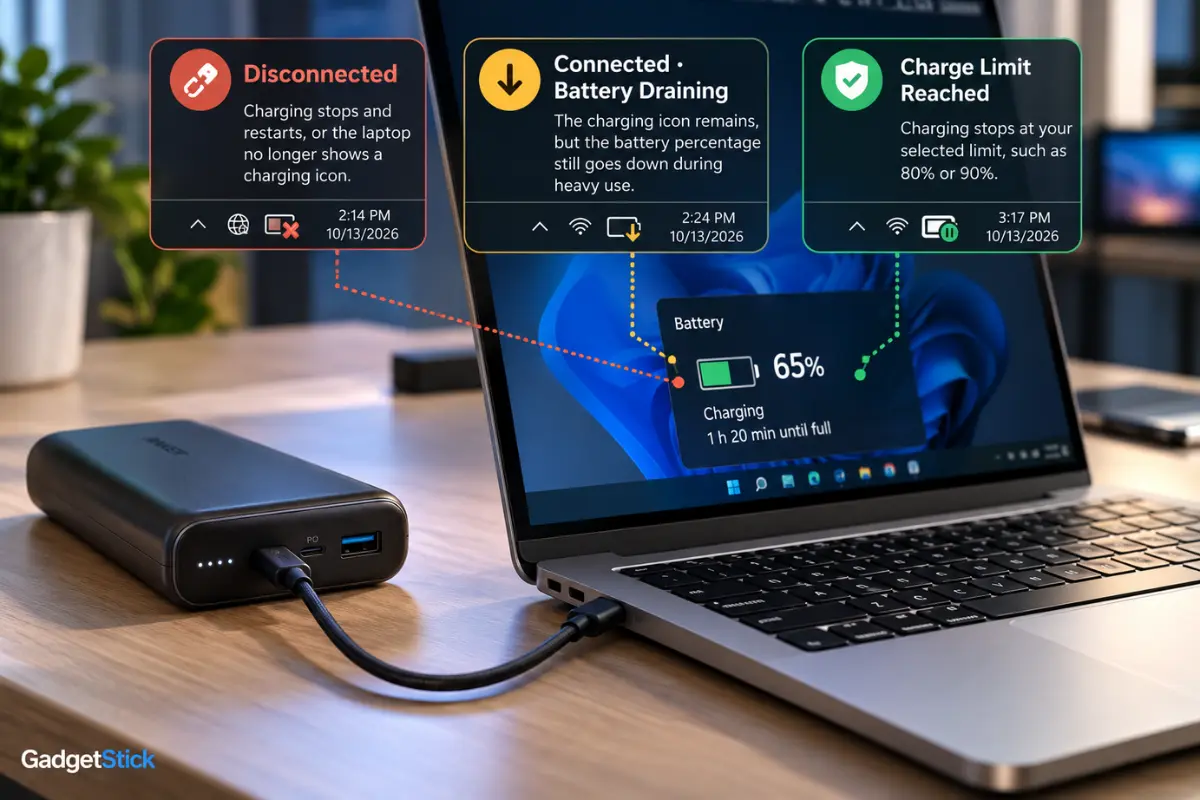
| What you actually see | Most useful first check |
|---|---|
| Charging icon repeatedly disappears and returns | Test a different cable and the correct PD output port; check for output resets |
| Charging icon stays on but battery percentage falls | Compare incoming power with laptop load; this is not necessarily a disconnect |
| Stops when you launch a game or export video | Check sustained power limits and try lower system load |
| Stops when a phone is connected too | Check shared multiport power allocation |
| Works for a while and then cuts out | Check heat, remaining capacity and protection behavior |
| Stops at exactly 80% or another set percentage | Check the laptop’s battery charge limit or conservation mode |
Do not assume a power bank is defective just because your battery percentage drops while plugged in. Microsoft notes that an underpowered charger can leave a laptop discharging even while a charging connection remains present. Microsoft’s charging guidance explains this distinction.
1. Check the Power Bank’s Single-Port USB-C PD Rating
A label advertising “140W total” or “200W max” does not automatically mean one USB-C port can deliver that full amount to your laptop. Find the specifications for the exact port you are using: its maximum output, supported USB Power Delivery profiles, and any limits that apply at lower battery levels.
Compare those details with the laptop manufacturer’s USB-C charging requirements. Some laptops accept reduced power and charge slowly; others may show a warning or require a higher-power adapter for reliable operation. A laptop designed around a high-wattage proprietary charger may not get full-performance charging from every USB-C bank.
Quick test: keep the bank above half charge, unplug other devices, and connect your laptop directly. If the bank fails only when the CPU or GPU is busy, test Balanced or battery-saver mode before replacing hardware.
2. Make Sure You Are Using the Right USB-C Ports
Some power banks have separate input, output, and bidirectional USB-C ports, with different ratings. A high-wattage port may be labeled C1 or PD; a secondary port may offer much less. Likewise, not every USB-C port on a laptop necessarily supports charging.
Check both manuals and connect the cable to the bank’s laptop-capable output and the computer’s designated USB-C charging port. Microsoft lists the wrong USB-C port among possible causes of laptop charging problems. See Microsoft’s USB-C troubleshooting guidance.
3. Rule Out the Cable Before Blaming the Power Bank
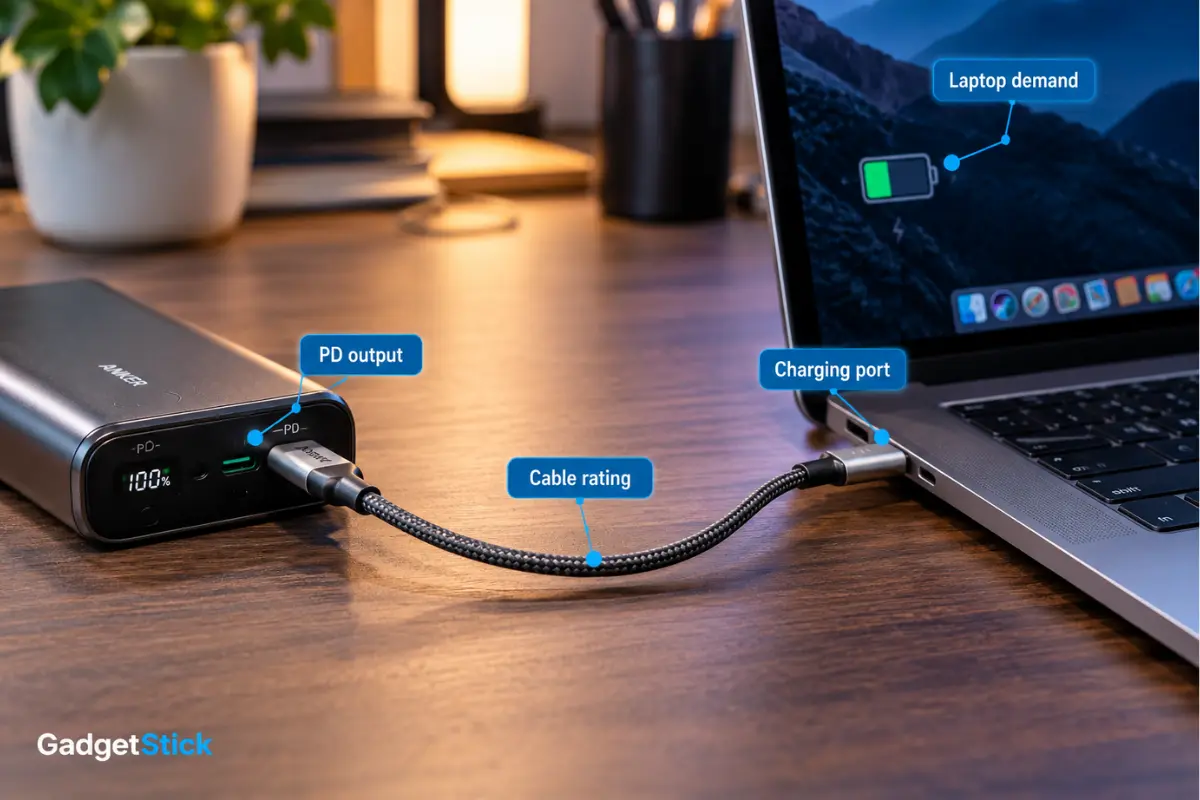
USB-C connectors may look identical while the cables have different power ratings and internal capabilities. A cable may work with a phone yet be inadequate for the laptop’s requested power. Damaged connectors or loose port contact can also create intermittent behavior.
Use a short, undamaged, properly rated USB-C cable from a reputable manufacturer. For power above standard lower-current levels, use a cable rated for the required wattage; if the bank and laptop negotiate a higher-power USB PD mode, verify cable support for that mode rather than choosing by appearance.
If a second suitable cable fixes repeated disconnects, the original cable or its fit was likely part of the problem. Our 60W vs 100W vs 240W USB-C cable guide explains why the printed rating matters.
4. Disconnect Other Devices and Check Shared Output Limits
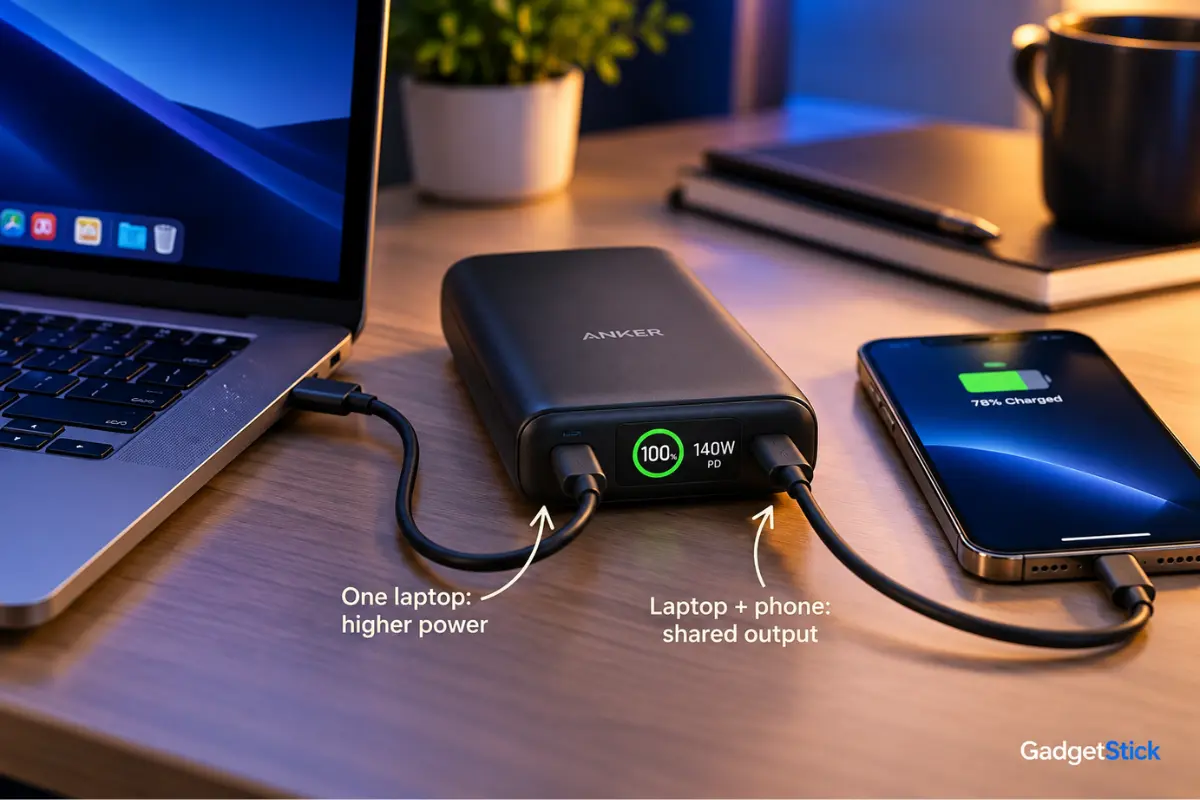
A power bank’s maximum combined output is often split across ports. Connecting a second device can change the power available to the laptop, sometimes prompting USB-C PD renegotiation. The exact behavior depends on the model and its power-allocation chart.
Anker explains that multi-device charging can reduce the wattage available to an individual port. See Anker’s multiport charging explanation. Treat the numbers on your own bank’s label as authoritative; do not assume all models share the same split.
Quick test: remove the phone, tablet, headphones, hub, and any second USB cable. If the laptop stabilizes, reconnect devices one at a time and consult the bank’s port-combination chart.
5. Check for Heat and Output Protection
Power banks convert and regulate substantial electrical power in a compact enclosure. Under sustained high output, some models reduce power or stop output when temperature or another protection threshold is reached. The exact trigger cannot be diagnosed from fan noise or a warm case alone.
Place the bank on a hard, ventilated surface away from direct sunlight or blankets. Stop using it if the enclosure is unusually hot, swollen, leaking, smells abnormal, or is visibly damaged. Do not bypass temperature protections or attempt to modify the pack.
If a previously stable bank now cuts out after a predictable period, check the manufacturer’s fault indications and support information. Repeated cutouts with a supported cable and load warrant manufacturer support, not continued stress-testing.
6. Check Low Battery and Pass-Through Charging Behavior
An almost-empty power bank may have different output limits from a well-charged one. Some models also restrict simultaneous recharging of the power bank and laptop charging (often called pass-through charging). Support for that mode is device-specific.
Recharge the bank to a healthy level and test while it is not plugged into its own charger. If the problem disappears, inspect the manual for low-capacity power limits, input/output sharing, and pass-through support. Avoid assuming that a USB-C port labeled “input/output” guarantees unrestricted power in both directions at once.
7. Separate Heavy Laptop Load From a True Charging Failure
Gaming and rendering can increase a laptop’s power consumption sharply. With a lower-wattage bank, the charging icon may stay visible while the battery slowly drops because the system is using more energy than the USB-C source provides. That is power shortfall, not necessarily the bank disconnecting.
Test the same bank and cable with the laptop asleep or idle, then under a moderate workload. Record whether the charging indicator vanishes, Windows displays a slow-charger warning, or the battery simply drains. If the connection remains stable but charging is inadequate, read our laptop charging slowly with USB-C troubleshooting guide instead of assuming a faulty bank.
If you charge through a dock, bypass it during diagnosis. Our USB-C hub charging slowdown explainer covers why a hub may pass less power to the laptop.
A Safe Five-Minute Test Order
- Turn off demanding apps and note whether the laptop reports charging, slow charging, or not charging.
- Use the laptop’s designated charging-capable USB-C port and the bank’s highest-rated compatible PD output.
- Disconnect every other device from the power bank and any intermediate hub.
- Try a known-good, properly rated USB-C cable; inspect ports for visible damage without inserting metal tools.
- Test at idle, then under a moderate workload. If output repeatedly resets or the bank becomes unusually hot, stop and check the manufacturer’s documentation.
When Should You Replace the Cable, Power Bank, or Charger?
Replace the cable if a second known-good correctly rated cable restores stable charging. Consider a different bank only after checking its actual single-port PD output, supported charging profiles, port sharing and your laptop’s requirements. A higher advertised wattage is not useful if the bank and laptop cannot negotiate compatible power.
If your laptop requires more power than a compatible portable bank can supply, the original wall charger may be the right choice for sustained gaming or creative workloads. Our 65W charger versus 100W laptop guide helps explain the trade-off.
Frequently Asked Questions
Why does my laptop reconnect to a power bank every few seconds?
Start with the correct USB-C PD port, a suitably rated cable, and the bank’s single-port output specification. Repeated reconnects can involve connector problems, power negotiation or protection behavior; the symptom alone does not prove which part is at fault.
Why does my laptop charge from a power bank until I start gaming?
Gaming raises system power demand. Your bank may not be able to supply enough power, the laptop may drain while still connected, or the bank may stop output under a protection limit. Watch the charging indicator to distinguish those cases.
Can a 100W power bank charge a laptop that uses a 140W charger?
Sometimes at reduced performance or while idle, provided the laptop supports the relevant USB-C PD input. Do not assume it will maintain battery percentage under full load. Check the laptop maker’s specifications.
Why does the power bank stop charging when I plug in my phone too?
Many multiport banks divide a fixed power budget between connected devices. Connecting another device may lower the laptop port’s available wattage or trigger renegotiation. Check the exact model’s port-combination table.
Does stopping at 80% mean the power bank is broken?
Not necessarily. Many laptops offer battery conservation or charge-limit settings that intentionally stop charging near a set percentage. Check your laptop’s utility or BIOS settings; our Windows 11 battery charge limit guide covers the manufacturer-specific controls.
Final Answer
If your power bank keeps disconnecting from your laptop, do not buy a replacement until you identify the symptom. First eliminate port and cable problems, check the bank’s real per-port USB PD output, remove other devices, and compare idle versus loaded behavior. A visible charging interruption points to a different problem from a laptop battery slowly draining while still plugged in.
If a properly matched cable and supported port still produce repeated resets, overheating, or error lights, stop using the setup and consult the manufacturer. A power bank should not require unsafe workarounds to keep charging.
How We Researched This Article
We reviewed Microsoft’s current USB-C charging and troubleshooting guidance and Anker’s explanation of shared multiport output. We compared the questions covered here with GadgetStick’s existing slow USB-C charging, cable-rating, hub passthrough and laptop charging-limit guides to avoid turning the same article into another broad checklist.
This is a documentation-based troubleshooting guide, not a claim that GadgetStick physically tested every power-bank model, laptop, cable or USB PD combination. Actual behavior depends on device-specific specifications and protection logic.
Editorial Note
USB-C PD profiles, laptop input limits and bank power-allocation behavior vary by model. Confirm the exact specifications and follow the manufacturer’s safety instructions; do not bypass protective shutdowns.
