
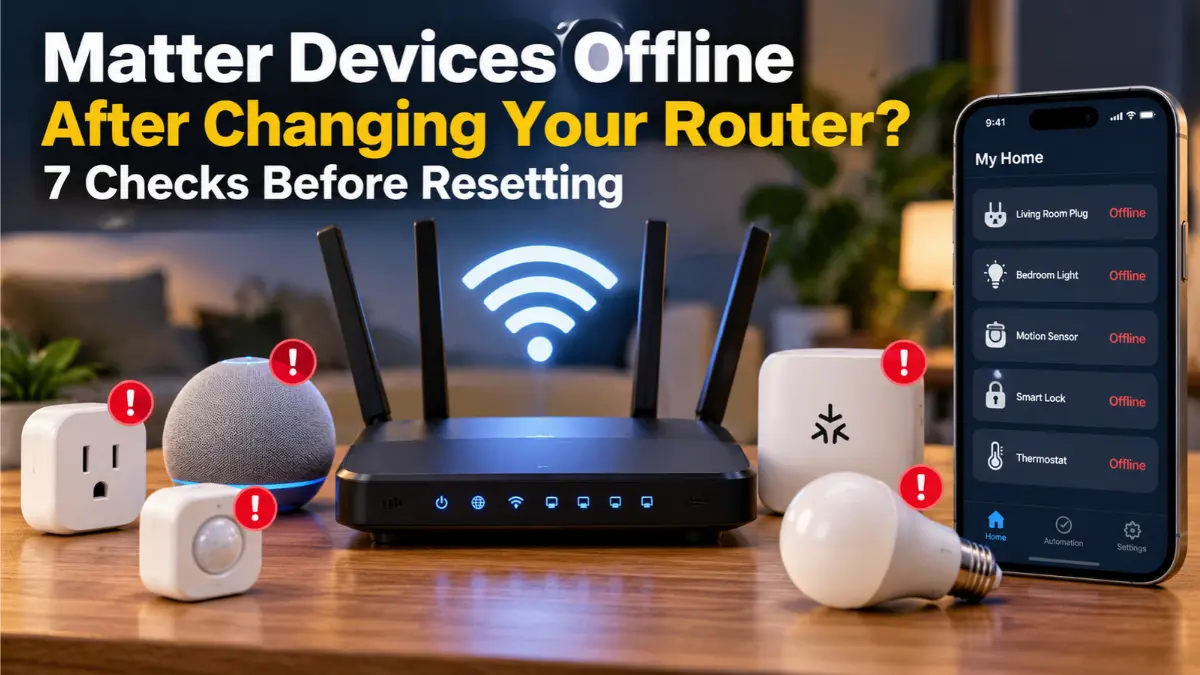
You replace your Wi-Fi router, reconnect your phone, and get internet access working. Then you open Apple Home, Google Home, or Home Assistant and find several Matter devices offline. Some still respond in their manufacturer’s app. Others have stopped responding altogether.
Resetting every device might seem like the fastest answer, but it can erase settings without fixing the shared network problem. Start by identifying which connection actually failed.
Quick Answer
If Matter devices go offline after replacing your router, identify whether they use Wi-Fi or Thread, then check the accessory, Matter controller, and any Thread border router on the new local network.
For Matter-over-Wi-Fi devices, compare the new router’s network name, password, security mode, and device compatibility. For Matter-over-Thread devices, check the Thread border router and the existing Thread network. If manufacturer control still works but Apple Home or another Matter controller fails, investigate local communication before removing the accessory.
Why a Router Change Can Break Matter Without Breaking Internet Access
Matter communicates over IP networks, including Wi-Fi, Ethernet, and Thread. Wi-Fi accessories connect through the wireless network; Thread accessories connect to a Thread mesh, which reaches the local IP network through a Thread border router. A replacement router can disrupt these paths differently.
Matter also depends on local IPv6 communication and mDNS discovery. Home Assistant’s official Matter documentation explains why network segmentation, multicast handling, and IPv6 configuration can affect devices even when ordinary internet access is fine.
1. Identify Whether Each Device Uses Wi-Fi, Thread, or a Bridge
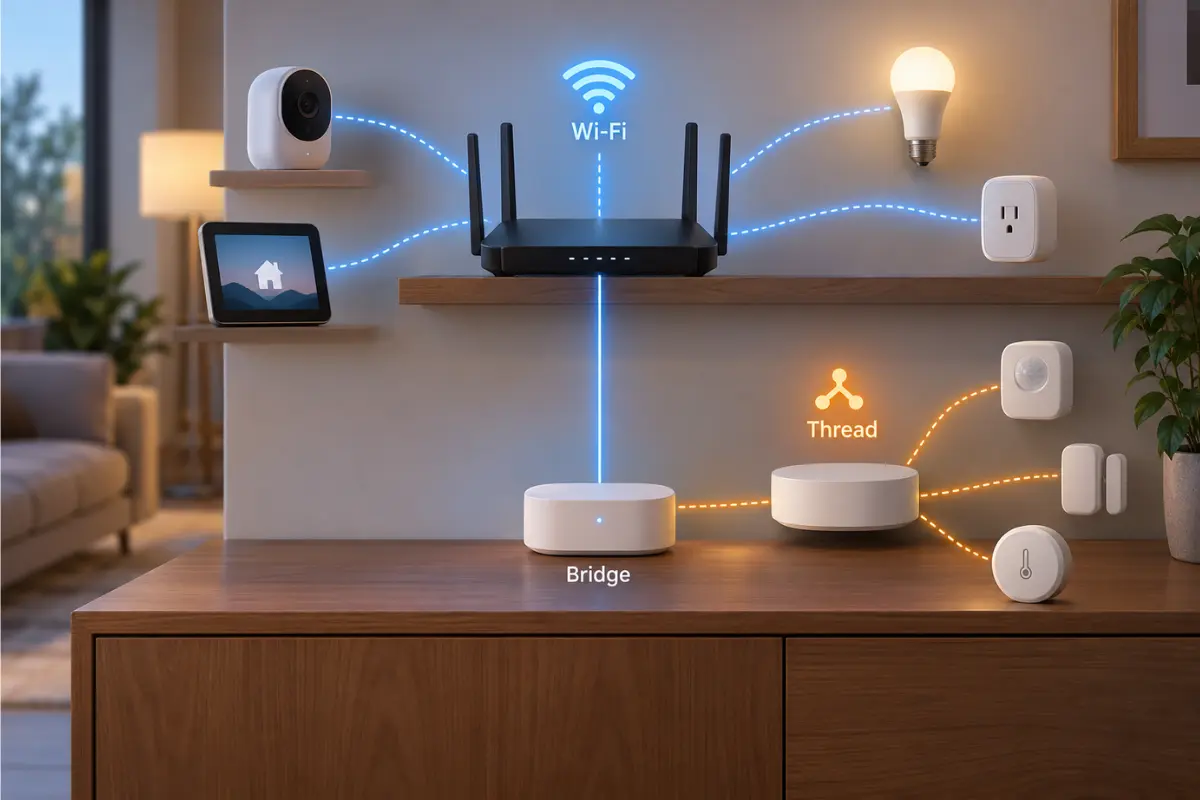
Check the accessory’s manufacturer specifications or app before changing router settings. A Matter logo by itself does not identify its network transport.
| Connection | What it uses | Check first |
|---|---|---|
| Matter over Wi-Fi | Home Wi-Fi network | SSID, password, security and connection |
| Matter over Thread | Thread mesh plus border router | Border router and Thread network continuity |
| Matter over Ethernet | Wired local network | Ethernet link and controller reachability |
| Matter bridge | Bridge plus its connected devices | Bridge online status and underlying accessories |
Thread accessories do not enter your household Wi-Fi password directly. If only Thread accessories are unavailable, repeatedly changing Wi-Fi settings on the accessories will not solve the problem. Our Matter over Wi-Fi vs Thread comparison explains the transport differences.
2. Compare Your Old and New Wi-Fi Settings
If your router change also left several rooms with weak Wi-Fi coverage, that is a separate issue from Matter pairing or discovery. Our mesh Wi-Fi vs. Wi-Fi extender comparison helps you decide whether an extender, a mesh system, or a wired access point makes sense for your home.
For Matter-over-Wi-Fi accessories, check whether the replacement router uses the same network name (SSID), password, and a security mode supported by those devices. Also confirm that the relevant Wi-Fi band is available and the accessory is not isolated on a guest network.
- If practical, compare the old router’s SSID and password with the new router’s settings.
- Check device-specific support for Wi-Fi bands and security standards.
- Use the manufacturer’s documented network-change procedure if credentials changed.
- Test one affected accessory before making changes to the entire home.
Reusing compatible credentials can allow some devices to reconnect, but is not guaranteed. Do not weaken router security broadly to accommodate one accessory; consult its current compatibility documentation first.
3. Make Sure the Matter Controller and Home Hub Are Online
Matter devices need a compatible controller to work through their chosen ecosystem. Depending on your setup, that might involve Apple Home, Google Home, Home Assistant, SmartThings, and associated hubs.
Verify that the relevant controller or home hub has power, is connected to the intended network, and runs supported software. If several unrelated brands disappear together, a shared hub or network path is more plausible than simultaneous hardware failure.
Where supported, restart the affected home hub or controller normally and allow devices time to reconnect. Apple’s home-accessory troubleshooting guidance is a useful platform-specific starting point; follow your own ecosystem’s instructions for the hardware you have.
4. Check the Thread Border Router Before Resetting Thread Accessories
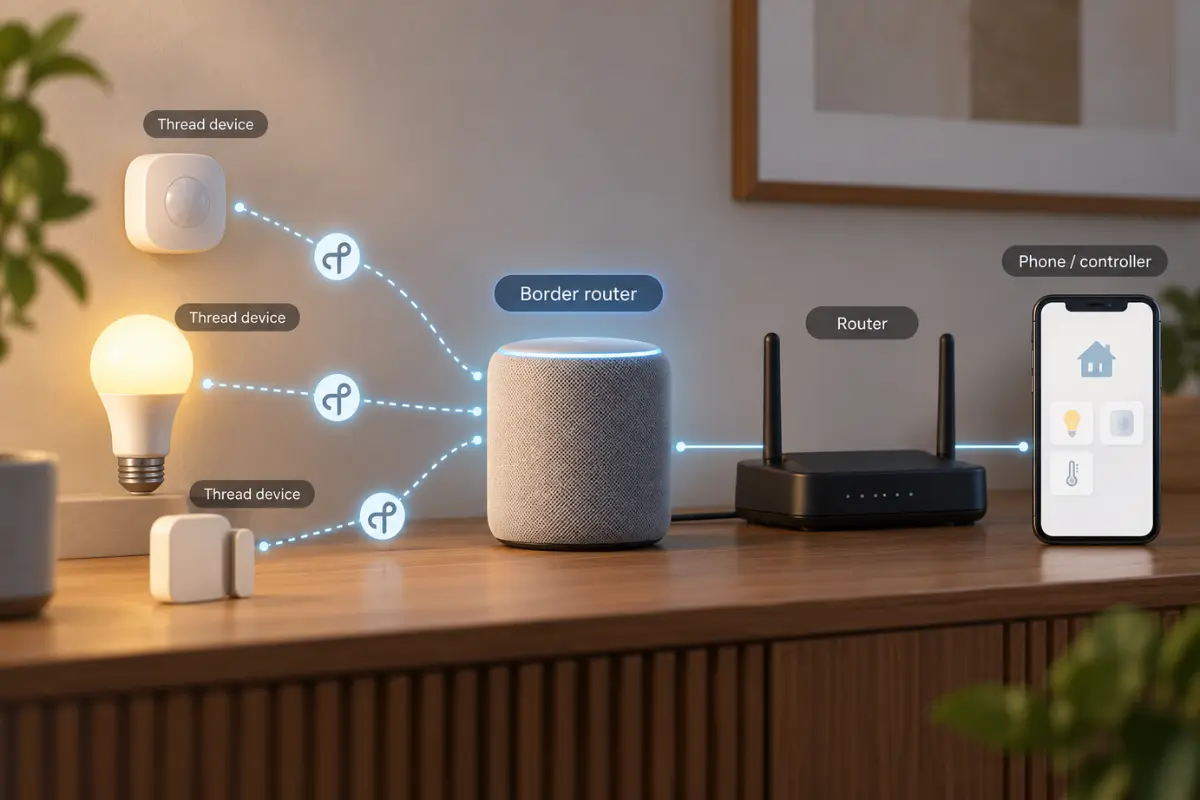
Thread devices use their own low-power mesh. A Thread border router connects that mesh to your local IP network. A new Wi-Fi router does not automatically replace the Thread border router.
- Confirm your existing Thread border router is powered and connected to the new local network.
- Check whether its manufacturer app or ecosystem reports it online.
- Allow time for the network to stabilize after reconnecting the border router.
- Avoid replacing Thread credentials or creating a fresh Thread network as a first troubleshooting step.
Homes with several Thread border routers may have additional network-coordination considerations; do not assume they all share the same Thread credentials. For context, see our guide to when a Matter setup needs a Thread border router.
5. Inspect Local IPv6, mDNS, and Network Isolation
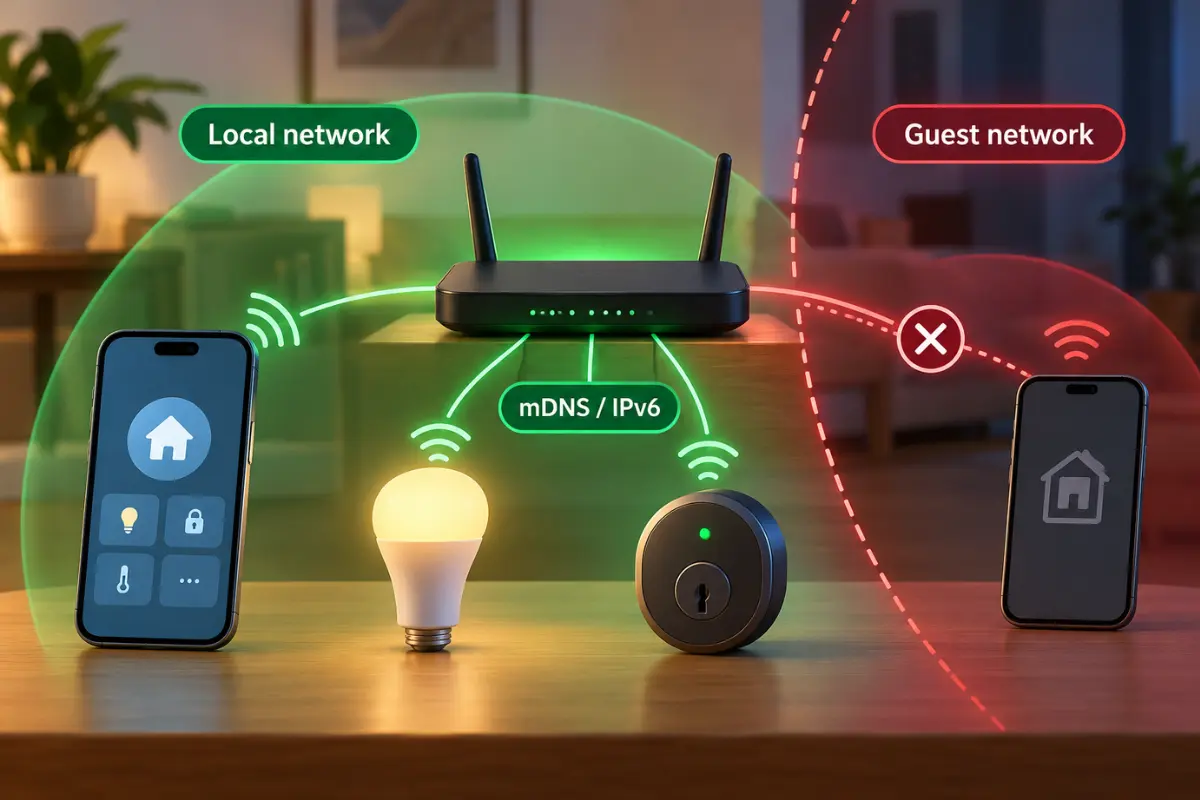
If devices connect to their network but remain unavailable in the Matter controller, inspect local communication. Matter uses IPv6 within the home network, while mDNS helps devices and controllers discover each other.
- Guest-network or client isolation preventing devices from communicating locally.
- Separate VLANs without the necessary routing or discovery setup.
- Multicast filtering interfering with mDNS.
- IPv6 disabled or restricted on the relevant local network segments.
Local IPv6 is not the same as public IPv6 internet service. Matter can use IPv6 inside the home even if your ISP does not provide public IPv6 connectivity.
Use the router manufacturer’s guidance for local multicast, segmentation, and IPv6 settings. On more complex networks, configure only the discovery and communication paths that are required. Do not disable firewalls or expose smart-home accessories to the public internet as a shortcut. Home Assistant’s Matter networking notes explain why these details matter.
6. Separate Manufacturer-App Access From Matter Controller Access
A smart plug that works in its manufacturer’s app but shows offline in Apple Home provides a clue—not proof that its local Matter connection works. Some manufacturer apps communicate through the cloud, while Matter relies on local communication.
- Test the accessory in its manufacturer app and note whether that path is local or cloud-based, if documented.
- Check the affected Matter controller and its home hub.
- Verify that the controller and accessory can communicate on the intended local network.
- If the problem is limited to one ecosystem, inspect that ecosystem’s hub, pairing state, and supported recovery steps.
- Retest before removing the device from any controller.
If several Matter controllers behave differently, the failure may involve one controller or pairing relationship rather than the accessory itself. Avoid interpreting a successful cloud command as confirmation that mDNS and local IPv6 are healthy.
7. Reset Only the Device You Have Isolated
A factory reset may eventually be needed if an accessory cannot join its new Wi-Fi network and the manufacturer offers no less disruptive migration process. But resetting everything at once can create extra work and obscure the original cause.
- Identify whether one or many devices are affected.
- Check the shared network equipment, controller, and border router first.
- Review the manufacturer’s exact network-change and reset instructions.
- Keep the Matter setup code and record important automations or sharing arrangements.
- Reset and re-pair a specific device only when that step is justified.
If a router-wide configuration problem remains, resetting ten accessories is unlikely to repair it. Treat reset as a device-specific recovery step, not a universal router-change requirement.
Quick Diagnosis Table
| What you see | Best first check |
|---|---|
| Wi-Fi Matter accessories all offline | New SSID, password, security mode and device connection |
| Thread accessories offline while Wi-Fi devices work | Thread border router and mesh continuity |
| Manufacturer app works but Apple Home fails | Controller, local networking and pairing relationship |
| Device is connected but not discoverable | Local IPv6, mDNS and isolation settings |
| Several brands disappear together | Shared router, hub or controller issue |
| Only one accessory fails | Device-specific instructions and firmware |
| Schedules fail after a power outage | Power-recovery behavior; see the separate outage guide |
Frequently Asked Questions
Do I have to reset all Matter devices after changing my router?
No. Wi-Fi devices may reconnect if compatible credentials are restored, while Thread accessories may only need their border router reconnected to the local network. Some individual accessories still require manufacturer-specific reconfiguration.
Why does the manufacturer app work while Apple Home says offline?
The two apps may use different communication paths. Manufacturer-app control can involve cloud access, while the Matter controller needs local connectivity. Check the home hub and local network before assuming the accessory is defective.
Does Matter require public IPv6 from my ISP?
No. Matter needs IPv6 on the local network, not necessarily publicly routed IPv6 internet service.
Can changing the router break Thread devices?
Yes, indirectly. Thread devices do not connect directly to Wi-Fi, but their border router needs a functioning path to the local IP network and Matter controller.
Should I disable guest-network isolation?
Isolation can prevent required local device communication. Prefer placing trusted Matter components on an appropriately configured network, rather than broadly disabling security features without understanding the implications.
How We Researched This Guide
We reviewed official Matter networking and troubleshooting documentation, particularly Home Assistant’s explanation of IPv6, mDNS, network segmentation, and controller requirements, along with manufacturer ecosystem guidance. We also considered reported router-change failures as examples of reader symptoms, not proof that every router or accessory behaves the same way. GadgetStick has not independently tested multiple router and Matter-device combinations; the steps prioritize documented behavior and reversible checks.
Final Answer
If Matter devices go offline after you replace a router, diagnose the failed network path before resetting them. Start with Wi-Fi credentials for Wi-Fi devices, the border router for Thread devices, and local IPv6, mDNS, and controller reachability when a device seems connected but remains unavailable in its smart-home app. Check shared equipment first if several accessories fail together. Reset individual devices only after the simpler checks.
