
Connected an external SSD to your Google Pixel, but it never appears in Files? Maybe the phone only shows “Charging connected device via USB,” or a drive that works on your laptop suddenly seems invisible. That does not automatically mean the SSD is faulty—or that you should format it. A data cable, storage permission, enclosure power requirement, or file-system compatibility issue can produce similar symptoms.
Quick Answer
First, connect the SSD directly using a known-good USB-C data cable, then open Files by Google and look under Storage devices. If you see a USB availability prompt, open it and allow access. If nothing appears, test the same drive and cable on a computer, try another cable or a simpler USB flash drive on the Pixel, and only then investigate power and file-system compatibility. Do not tap Format or Erase while important files remain on the drive.
Google’s USB storage instructions for Files by Google describe the expected “USB available” prompt and the Storage devices location. If your phone looks different, interfaces can vary by Android and app version.
Why a Pixel Can Recognize a USB Connection but Not Show the SSD
An external SSD involves several separate layers: the USB-C cable has to carry data; the Pixel must establish a supported USB connection; the SSD enclosure needs sufficient power; Android must recognize the storage format; and the Files app needs access. A charging notification proves only that some USB electrical connection exists—not that the drive is mounted and readable.
This distinction matters because users sometimes copy instructions meant for transferring files from the phone to a computer and assume the same USB-mode toggle will mount a drive attached to the phone. Those are different connection arrangements. A USB setting can be worth inspecting, but “set File Transfer as default” is not a universal SSD fix.
Quick Symptom Check
| What you see | Most useful next check |
| “USB available” appears but drive isn’t in Files | Open notification; grant permission; check Storage devices |
| Only “Charging connected device via USB” | Known-good data cable, enclosure and power tests |
| Drive opens on PC but not Pixel | Format/partition compatibility and power requirements |
| USB flash drive works, portable SSD does not | SSD enclosure, cable, power draw or storage layout |
| Drive repeatedly connects and disconnects | Cable fit, port debris, enclosure power or heat |
| Android asks to format a drive with important files | Cancel; verify and back up on a computer first |
1. Check Files by Google and the USB Permission Prompt
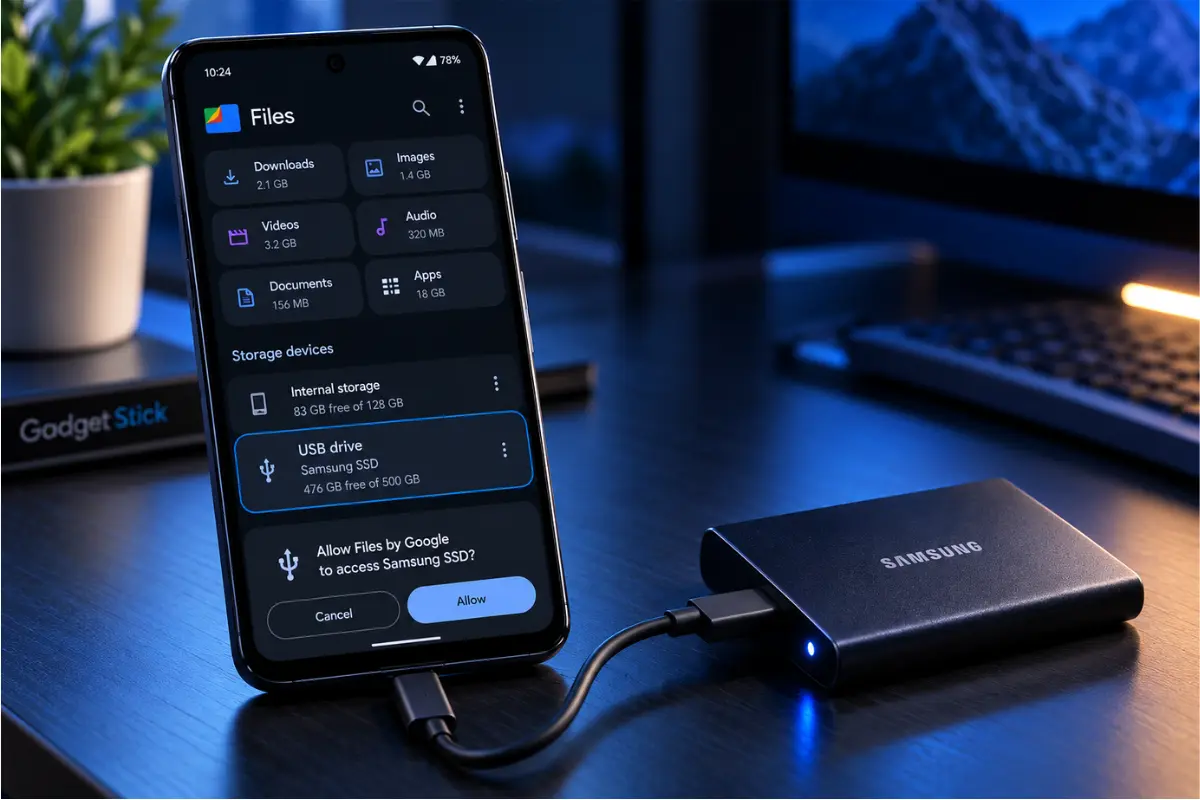
- Unlock the Pixel and connect the SSD.
- Open Files by Google (update the app if necessary).
- Look for a USB available notification, then tap it and choose Allow if prompted.
- Scroll to Storage devices and look for the USB storage entry.
- If it doesn’t appear, disconnect safely, reconnect once, and reopen Files.
Google documents this browsing flow in its official help article. Do not confuse a file manager’s home-screen categories (Images, Downloads, Videos) with the separate storage-device list.
2. Swap the USB-C Cable Before Blaming the SSD
USB-C describes a connector, not guaranteed data capability. Some charging-focused cables are unsuitable for high-speed SSD access, while damaged or loose cables can intermittently establish a connection. Try the SSD manufacturer’s supplied cable or another cable you know transfers data to a computer.
Avoid multiple adapters during this test. Connect the drive directly to the phone where practical, inspect both connectors for visible damage, and do not insert objects into the USB-C port. If changing only the cable solves the problem, there is no reason to format the drive.
A USB-C connection that supports charging does not necessarily support every data or storage feature. Our guide to USB-C hub power delivery explains why charging capability and USB-C functionality should be checked separately.
3. Test the SSD and the Pixel Separately
- Connect the SSD to a computer with its usual cable and check whether files can be read.
- If it fails there too, stop treating this as a Pixel-specific issue; check the enclosure, cable and drive health.
- Connect a known-working, compatible USB flash drive to the Pixel using an appropriate adapter.
- If the flash drive opens but the SSD does not, focus on the SSD enclosure, power needs or storage format.
- If neither device appears, inspect the Pixel’s USB connection and app behavior rather than assuming both drives are broken.
A successful computer test is useful but not definitive: desktops often supply different power and support more storage formats than phones. Conversely, a drive not recognized anywhere may require data-recovery consideration rather than repeated formatting attempts.
4. Read USB Notifications Without Assuming They Are a Fix
When you see “Charging connected device via USB,” open the USB notification or connected-device preferences if available. Check whether Android offers relevant USB choices, but remember that File Transfer/MTP options commonly refer to connecting the Pixel to another host, such as a PC. Their labels and availability vary by Android version and current connection role.
A January 2026 Pixel 10 Pro owner report describes this exact charging-only symptom, while another participant reported a working Samsung SSD. This is user experience, not proof of a universal software bug or a guaranteed USB setting.
5. Check Whether the SSD Enclosure Needs More Power
If you are choosing a new external drive rather than troubleshooting the current one, our portable SSD vs. NVMe enclosure comparison explains the compatibility, total-cost and portability trade-offs. A new drive is not automatically the fix for a Pixel USB detection issue.
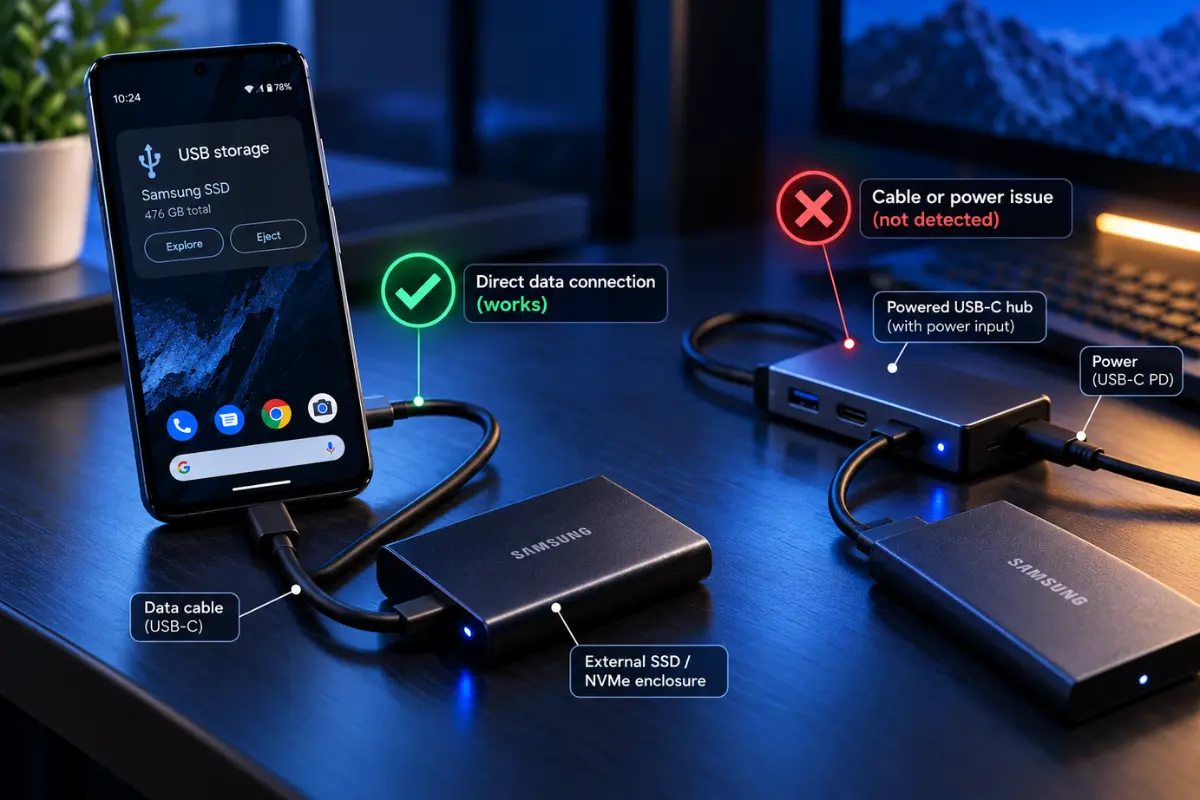
Some NVMe enclosures and portable drives draw more power, especially when starting up, than a particular phone or USB configuration can comfortably supply. A drive that spins up or lights up but never mounts might still have a power problem. Check the enclosure manufacturer’s requirements and test a reputable externally powered USB hub that explicitly supports data transfer, if available.
A powered hub is a diagnostic option, not a promise. A charge-only USB hub or poorly specified adapter can introduce another problem. If a properly powered connection works but the direct connection fails, that points toward power delivery or connection compatibility rather than corrupted files.
If you’re using a USB-C hub with your external SSD, our guide to bus-powered vs externally powered USB-C hubs explains when an additional power source can help prevent storage disconnections.
6. Inspect the File System and Partition Layout—Without Formatting
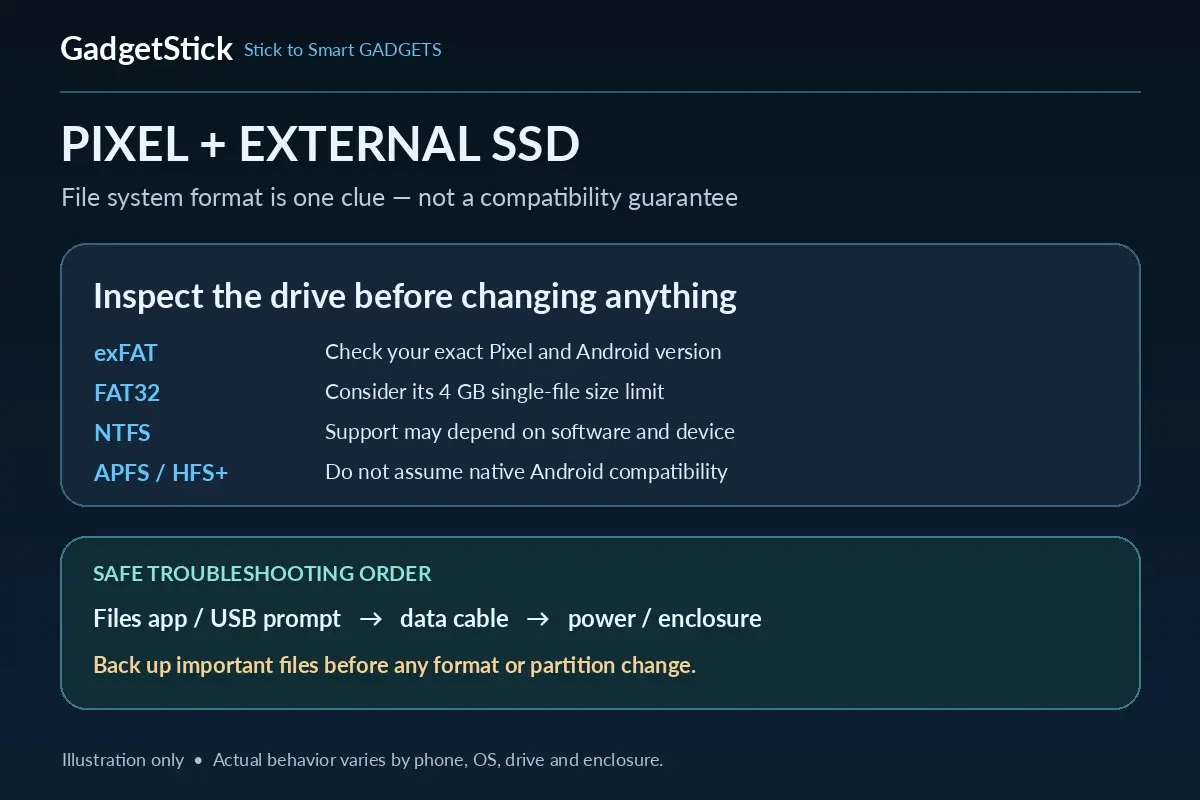
On a computer, inspect the SSD’s file system and partition scheme using the operating system’s disk-management tools. Common labels include exFAT, NTFS, APFS and ext4; Android support can vary by device, OS version and storage setup. Do not assume that because a Mac or Windows PC opens the drive, a Pixel must be able to mount it.
For a removable drive intended for cross-platform use, exFAT is often a practical choice, but even an exFAT label alone does not guarantee compatibility. Multiple partitions, unsupported encryption, a proprietary security unlocker or a problematic enclosure can also affect access. An exFAT drive that works elsewhere can still fail on a Pixel for reasons unrelated to formatting.
If the drive is NTFS, APFS, encrypted or otherwise not mounting, first copy important data to a known-safe destination on a computer. Consider any format change only after verifying your exact device’s support and preserving the files. Formatting erases the selected volume.
7. Update, Restart and Retest One Variable at a Time
Check for available Pixel system updates and Files by Google app updates. After installing an update, restart the phone and try the same known-good cable and drive. If the problem began after an update, note the date and compare against the manufacturer’s support information; avoid downloading random storage drivers or “USB repair” APKs.
Keep a short test log: phone model, Android version, SSD model/enclosure, cable, file system, direct or powered connection, and result. This is more useful to support teams than “my SSD doesn’t work,” and prevents accidentally changing three variables at once.
Should You Format the SSD? Usually Not Yet
If the SSD contains photos, projects or backups, stop before any format prompt. Confirm the files remain accessible on another device and maintain a separate verified copy. Formatting can make the data inaccessible or erase it entirely; it also will not repair a broken data cable, insufficient power or a defective USB port.
Google Files community troubleshooting explicitly cautions against formatting a drive containing important data: see the support discussion. A newly purchased empty drive is a different scenario, but even then compatibility and power checks come first.
Frequently Asked Questions
Why does my Pixel say “Charging connected device via USB” instead of showing the SSD?
That notification alone does not identify the cause. Check Files by Google, try a verified data cable and test the SSD on a second device. If the SSD alone fails, examine its power and storage setup.
Does a Google Pixel support external USB storage?
Files by Google documents access to USB storage on supported Android devices. Actual SSD compatibility still depends on the Pixel’s software, the drive’s enclosure, power requirements and storage format.
Will switching the default USB configuration to File Transfer fix it?
Not necessarily. File Transfer settings typically govern host-to-host file access such as connecting the phone to a computer. They are not a guaranteed method for mounting an external USB SSD.
Can a Samsung T7 or another portable SSD work with Pixel phones?
Some owners report successfully using Samsung external SSDs with Pixel phones, but compatibility must be checked with the exact drive, cable and phone setup. Security-enabled drives may need additional unlock steps that vary by model.
Is exFAT required, and is NTFS always unsupported?
exFAT is a common cross-platform choice, but exact Android/Pixel behavior varies. Don’t generalize from one user’s Pixel model or third-party file app. Verify current device support and back up data before changing a partition’s format.
How We Researched This Guide
We compared Google’s official Files by Google USB-storage instructions, a Google support-community troubleshooting response, and user-reported Pixel SSD behavior. Those reports help identify real symptoms but do not establish a universal Pixel hardware flaw. We have not performed controlled testing across Pixel models, SSD controllers or enclosures; the steps are evidence-based diagnosis rather than claimed firsthand benchmarks.
Final Answer
When a Google Pixel does not detect an external SSD, don’t format first. Start in Files by Google, confirm the USB permission prompt, try a known-good data cable, and isolate the SSD versus Pixel using another device. Only then inspect power, partition layout and file-system support. Preserve your files throughout—the right diagnosis matters more than a quick reset.
