
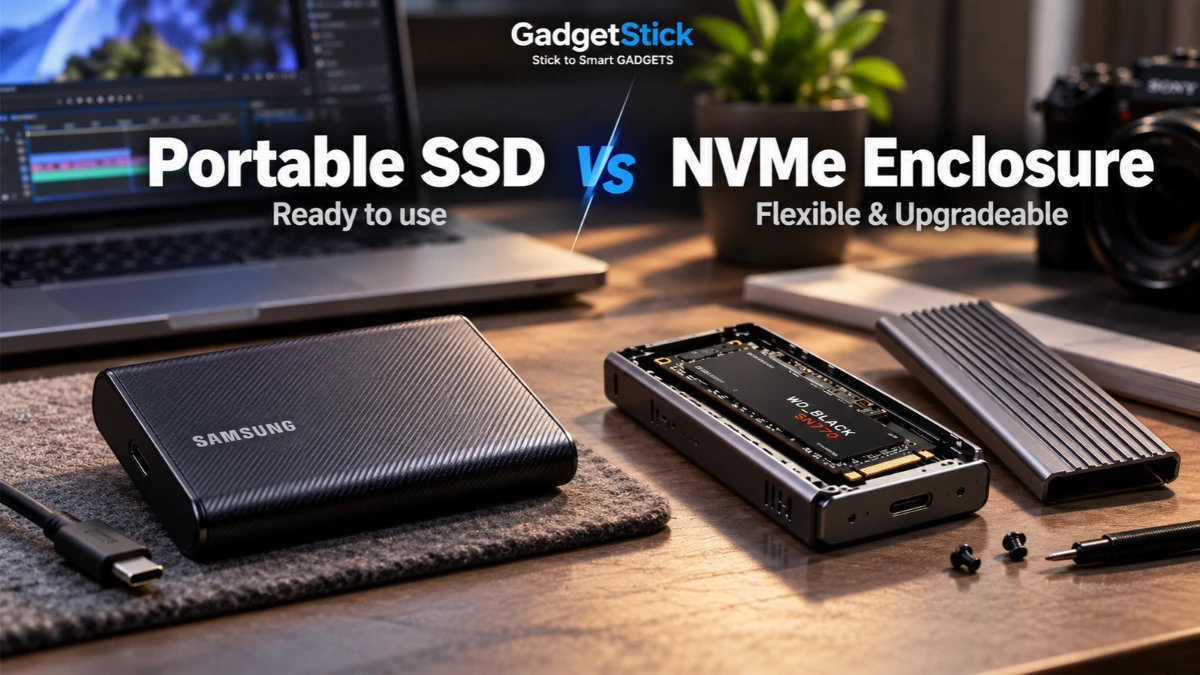
Quick Answer
Buy a ready-made portable SSD if you want a compact drive that works without assembling parts, with one manufacturer’s warranty and fewer compatibility choices. Choose an NVMe SSD plus enclosure if you already own a compatible spare M.2 NVMe drive, want to select the SSD yourself, or value future replacement and reuse. Neither option is automatically faster: your computer’s port, enclosure controller, cable, heat and the drive itself determine real transfer speeds.
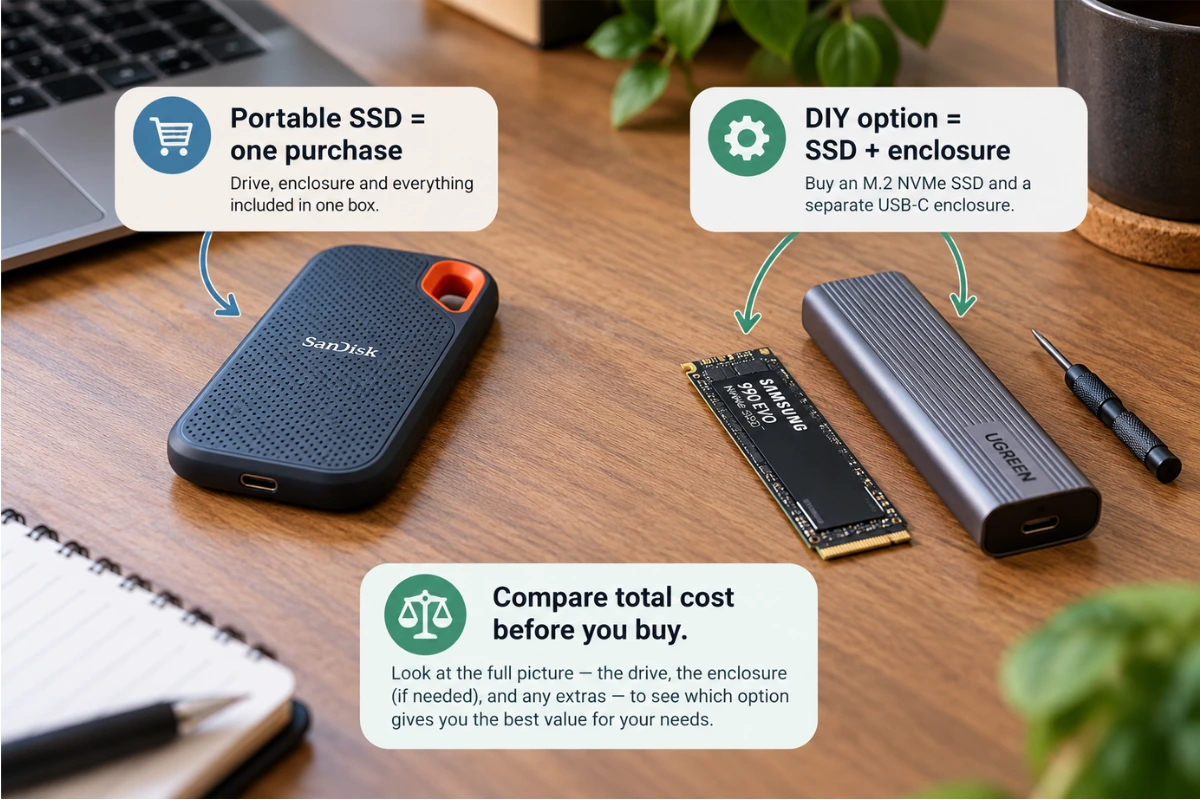
If you are buying both an SSD and an enclosure from scratch, compare the total checkout cost against a similar-capacity ready-made model. A DIY setup is not inherently cheaper.
Portable SSD vs NVMe Enclosure: Comparison Table
| Factor | Ready-made portable SSD | NVMe SSD + enclosure |
|---|---|---|
| Setup | Plug in, format if needed, start using | Install a compatible M.2 SSD, secure it and format |
| Typical appeal | Convenience, portability, simpler support | Reuse, flexibility, replacement of parts |
| Total cost | One product price | SSD + enclosure + any separately required accessories |
| Performance | Depends on specific drive and host connection | Depends on SSD, bridge controller, enclosure and host |
| Thermal behavior | Manufacturer-integrated enclosure; throttling still possible | Enclosure thermal design varies; check thermal pad and contact |
| Warranty / support | Typically one vendor to contact | SSD and enclosure often have separate warranties |
| Upgradeability | Usually not intended to be user-upgraded | Replace the M.2 drive if enclosure supports the replacement |
| Compatibility concerns | Port standard, cable, OS, file system | All of those plus NVMe-versus-SATA and physical M.2 length |
What Are You Actually Buying?
A portable SSD is a complete external storage product: solid-state storage, controller, housing and connector supplied together. Most shoppers can plug it in and use it after checking the drive’s file system and platform compatibility.
An NVMe enclosure is a housing and USB/USB4 bridge for an internal M.2 NVMe solid-state drive. You may already have the drive, or you can buy one separately. Installing it is generally straightforward but requires attention to keying, supported M.2 length, interface and cooling.
Important: M.2 describes a physical form factor, not automatically the protocol. Some M.2 drives are SATA rather than NVMe. An enclosure advertised as NVMe-only may not recognize an M.2 SATA SSD.
Which Option Is Actually Cheaper?
A Real U.S. Enclosure Example and the Total-Cost Check
As one concrete U.S. reference, the UGREEN M.2 NVMe/SATA USB 3.2 Gen 2 enclosure was listed at $24.99 when checked in October 2026. That price is for the enclosure without an SSD. Its published specifications list a 10Gbps USB connection, compatibility with M.2 NVMe and M.2 SATA (not mSATA), supported 2230/2242/2260/2280 lengths and an included thermal pad. Check current stock, final price and exact variant on the seller’s page; this is an illustration, not a product endorsement or hands-on test.
| Capacity scenario | If you already own a compatible SSD | If you must buy the SSD | Ready-made option |
|---|---|---|---|
| 1TB | Enclosure cost only (example: $24.99 before taxes/shipping) | Current 1TB NVMe SSD price + $24.99 enclosure + any extras | Compare a complete 1TB portable SSD’s current checkout price and warranty |
| 2TB | Enclosure cost only if your existing 2TB drive fits | Current 2TB NVMe SSD price + $24.99 enclosure + any extras | Compare a complete 2TB portable SSD’s current checkout price and warranty |
Why no claimed dollar savings? Current U.S. listings for full portable SSDs and standalone NVMe drives showed inconsistent prices and availability across sellers, and some results were for sold-out products. Giving a precise “DIY saves $X” verdict from those listings would be misleading. Use like-for-like capacity and actual checkout totals from reputable sellers on the day you buy.
Three Buyer Decisions You Can Make Today
- You upgraded a laptop and have its old 1TB NVMe SSD: Confirm that the drive is NVMe, not M.2 SATA, check its length and buy a matching enclosure. Reuse can make sense even if a ready-made 1TB SSD is on sale.
- You need a new 2TB travel backup drive: Price a complete rugged portable SSD against a 2TB NVMe drive plus a compatible case. If the totals are close, convenience, integrated warranty and durability may outweigh DIY flexibility.
- You edit large videos on a MacBook: Verify the exact Mac model’s USB4/Thunderbolt and USB 3.2 modes. Don’t buy a 20Gbps Gen 2×2 enclosure solely on the label; prefer a verified host/enclosure combination and credible sustained-transfer results.
Do not compare a bare enclosure price with the price of a complete portable SSD. Calculate SSD price + enclosure price + any extras, then compare that total with a ready-made drive of the same usable capacity and an interface your computer can support.
If an NVMe SSD is already sitting unused in a drawer, an enclosure can be an economical way to reuse it. When purchasing every component new, the savings may be small or disappear altogether. Brand, capacity, warranty and seasonal prices shift often, so a permanent ‘DIY is cheaper’ verdict would be misleading.
Also consider the support experience: a preassembled portable drive gives you one product to return, while a DIY setup can require identifying whether failures come from the SSD, cable, bridge chip or enclosure.
USB 5Gbps, 10Gbps, 20Gbps and USB4: Don’t Pay for Speed You Can’t Use
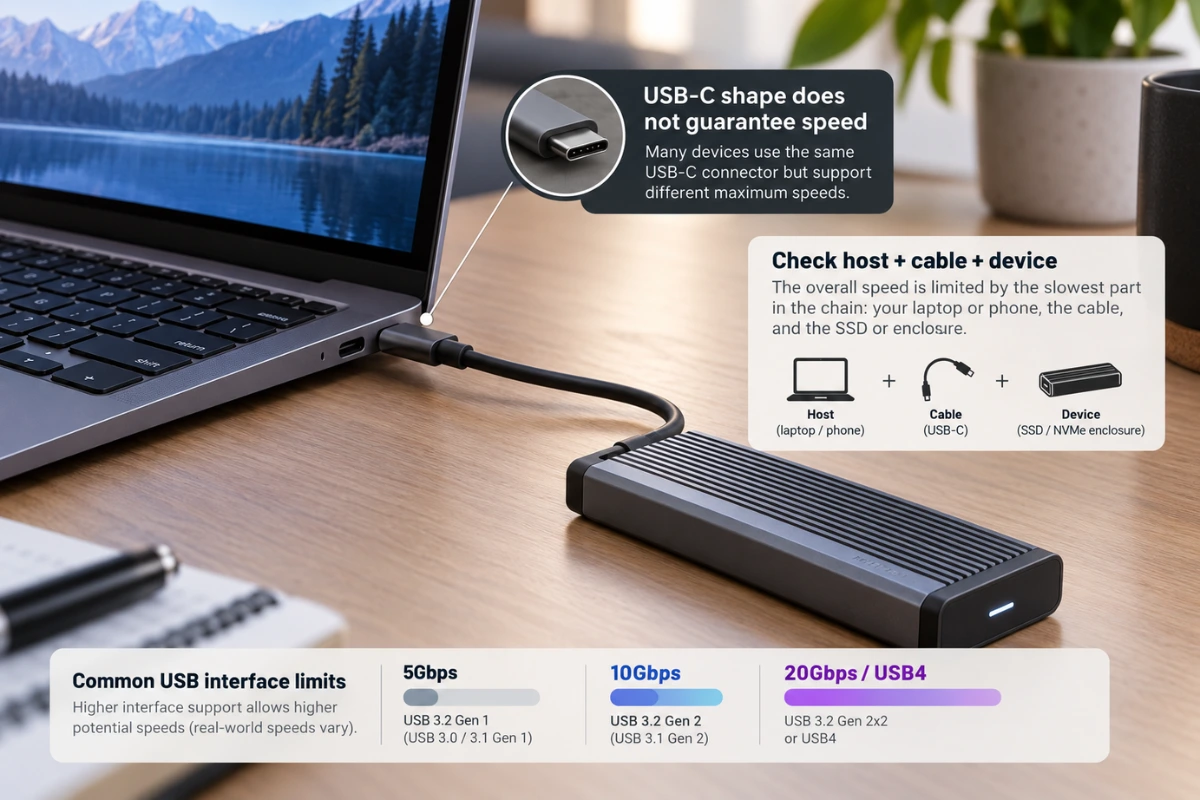
Read the actual data mode supported by your computer, not only the shape of its USB-C port. USB-C is a connector, not a promise of any particular data rate. An advertised 20Gbps enclosure or portable SSD does not automatically transfer at 20Gbps on every USB-C laptop.
USB 3.2 20Gbps (Gen 2×2) and USB4 20Gbps are different technologies. A computer advertising USB4 or Thunderbolt does not necessarily support the specific USB 3.2 Gen 2×2 mode required to reach maximum speed on a Gen 2×2 drive. This distinction is especially important when shopping for some Macs. Confirm the exact Mac model’s documented USB modes and the drive’s fallback performance before paying extra.
Theoretical link rates aren’t file-copy speeds. For example, a 10Gbps link has a theoretical upper bound of 1,250 MB/s before protocol overhead and other limitations; real results are lower. Read the USB Implementers Forum’s USB 3.2 naming guidance and USB4 overview for the standards context.
- 5Gbps host: An expensive 20Gbps storage product will still negotiate a lower supported mode.
- 10Gbps host: A solid 10Gbps drive may be better value than paying for unsupported peak speeds.
- 20Gbps Gen 2×2 host: A compatible Gen 2×2 product can offer faster transfers, subject to the SSD and enclosure.
- USB4/Thunderbolt host: Verify whether the chosen USB4 enclosure and host negotiate the relevant mode; do not assume USB 3.2 Gen 2×2 support.
Heat and Long Transfers: Why One Benchmark Isn’t Enough
Peak specifications usually describe favorable conditions. Copying a large game library or hundreds of gigabytes of footage can stress both the NAND flash and the external bridge chip. Some drives reduce write speed as cache fills or temperatures rise; others may disconnect if the cable, enclosure or power connection is unreliable.
A metal enclosure may help transfer heat, but only if the thermal pad contacts the right components and the housing can shed heat. Plastic housings aren’t automatically poor, and an enclosure’s advertised material doesn’t reveal actual sustained-transfer behavior.
For video-editing projects and repeated large backups, prioritize credible sustained-transfer testing for the specific combination of internal SSD and enclosure. GadgetStick has not conducted hands-on thermal or throughput tests of the products discussed here.
MacBook, Windows Laptop and Phone Compatibility
MacBook buyers
Check the precise Mac’s port specification before paying extra for a USB 3.2 Gen 2×2 device. Consider a compatible USB4 or Thunderbolt enclosure if your workflow genuinely needs higher sustained transfer speeds, but compare cost and verified behavior first. Confirm cable capability and compatibility with your Mac model.
Windows PC and laptop buyers
Inspect the laptop manufacturer’s USB specifications. A USB-C port can offer charging and display output yet support a slower data mode than the portable drive advertises. For DIY setups, ensure the enclosure supports your NVMe SSD’s interface and length.
Android and phone buyers
Phone support depends on USB host functionality, file-system support, power delivery and the app’s ability to access external storage. A portable SSD that works on a PC may not work on every Android phone. If you’re troubleshooting an existing drive on a Pixel, see our Google Pixel external SSD detection guide rather than buying replacement hardware immediately.
NVMe or M.2 SATA: How to Avoid Buying the Wrong Enclosure
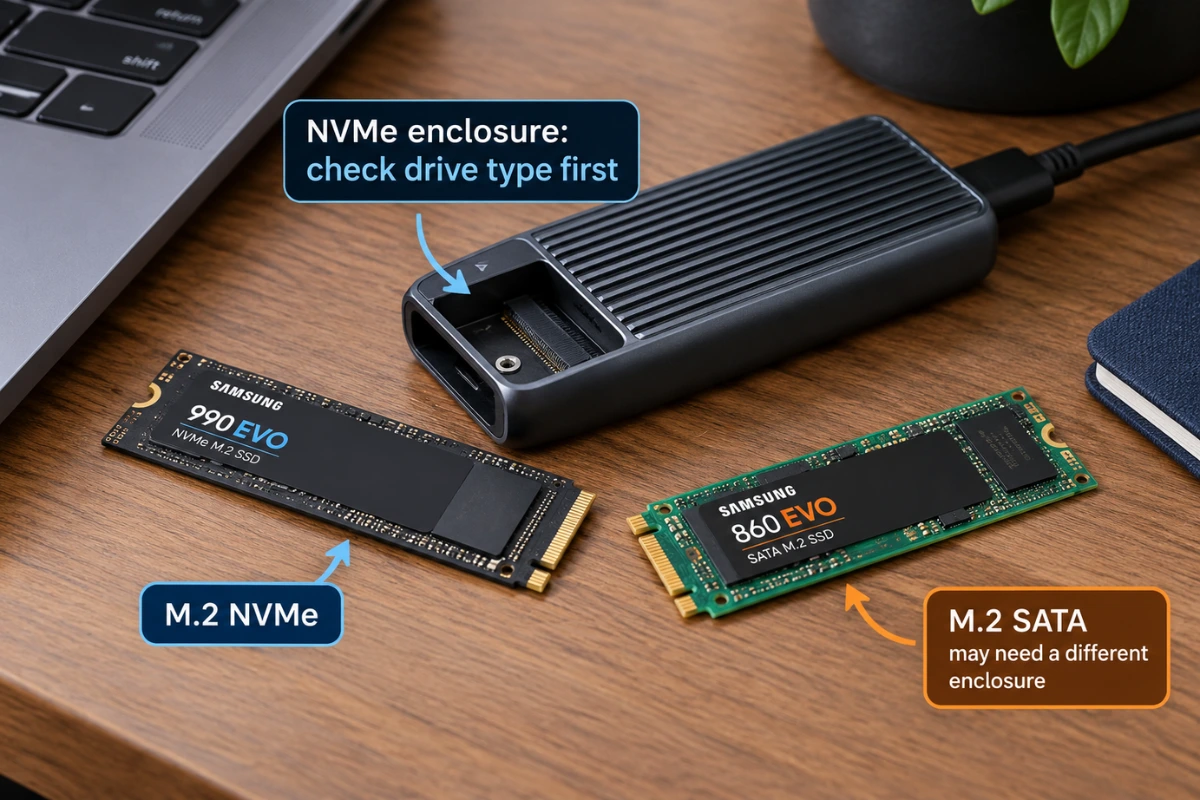
Identify the drive model before purchasing the enclosure. A connector that fits physically doesn’t prove the controller protocol matches. Look up whether the drive is NVMe/PCIe or SATA, its M.2 length (commonly 2280), and the enclosure’s supported capacities and drive sizes.
If you’re reusing an SSD from a laptop, check whether the SSD has a heat spreader too thick for the enclosure. Avoid forcing the drive, bending the board or stacking incompatible thermal pads just to close a case.
Backup Reliability, Data Safety and Warranty
Neither a ready-made SSD nor a DIY enclosure should hold the only copy of valuable files. External drives can fail, get lost or be disconnected mid-transfer. Keep at least one separate backup copy, and periodically confirm you can restore important files.
Choose a file system based on the computers that will access the storage. For example, exFAT can be convenient across Windows and macOS, while other formats may suit a single operating system or specific workflow better. Formatting erases existing data—back it up first.
For warranty decisions, compare the complete portable drive’s support terms against separate warranty coverage on an internal SSD and enclosure. The strongest value is not necessarily the product with the most impressive advertised sequential speed.
Which Should You Buy? Four Real-World Scenarios
- Travel and everyday backups: Choose a compact ready-made portable SSD if convenience, simplicity and fewer separate parts matter most.
- Reusing a spare M.2 NVMe drive: Buy a compatible enclosure after verifying protocol, length and thermal fit.
- Large video projects: Compare verified sustained speed, the computer’s actual USB mode, cooling and reliability. Either product type can fit.
- Frequent upgrades or experimentation: A quality enclosure lets you swap a compatible SSD later, though not all enclosures support every drive or capacity.
Five Checks Before Checkout
- Check the actual USB data modes supported by your laptop, desktop or phone.
- Compare the total cost of a complete portable drive versus the SSD and enclosure together.
- Confirm M.2 NVMe versus M.2 SATA compatibility and supported SSD dimensions.
- Review sustained-transfer performance and cooling, not just the largest speed number.
- Check warranty, returns, included cable and whether the drive will hold a backed-up copy of your files.
Frequently Asked Questions
Is an NVMe enclosure faster than a portable SSD?
Not automatically. Both can use similar storage technologies and external interface speeds. Performance depends on the full hardware and host combination.
Is a DIY NVMe enclosure cheaper?
Often when you already own a spare compatible SSD. If you must buy the drive and housing, compare the combined cost with ready-made alternatives.
Will every M.2 SSD work in an NVMe enclosure?
No. M.2 SATA and NVMe use different protocols, and enclosure size support varies. Check the exact SSD model and enclosure specification.
Will a 20Gbps USB drive run at full speed on a MacBook?
Not necessarily. USB 3.2 Gen 2×2 support is distinct from USB4 and Thunderbolt support. Verify the exact Mac model, external device mode and expected fallback rate.
Can I use a portable SSD for gaming?
Often, but game-platform support, file-system requirements, load times and whether games can run directly from external storage vary. Follow the platform’s storage specifications.
Does a metal enclosure prevent overheating?
Not by itself. The thermal design, pad contact, SSD power draw and workload determine whether temperatures remain manageable.
How We Researched
We compared the practical trade-offs in complete external SSDs and M.2 NVMe enclosure setups, emphasizing official interface guidance from the USB Implementers Forum and its USB 3.2 product naming document, plus Seagate’s explanation of external interface speeds. We did not physically test, benchmark or purchase the drives discussed. No claim of a universally fastest or cheapest product is made; check current prices and model-specific documentation before purchasing.
Final Answer
A ready-made portable SSD is the straightforward choice for most people who simply need dependable external storage. An NVMe enclosure makes more sense if you already have a compatible M.2 SSD, want to choose components, or plan to reuse storage later. Before deciding, verify the computer’s real USB data capabilities and compare total costs—those two checks often matter more than the highest speed printed on a product box.
