
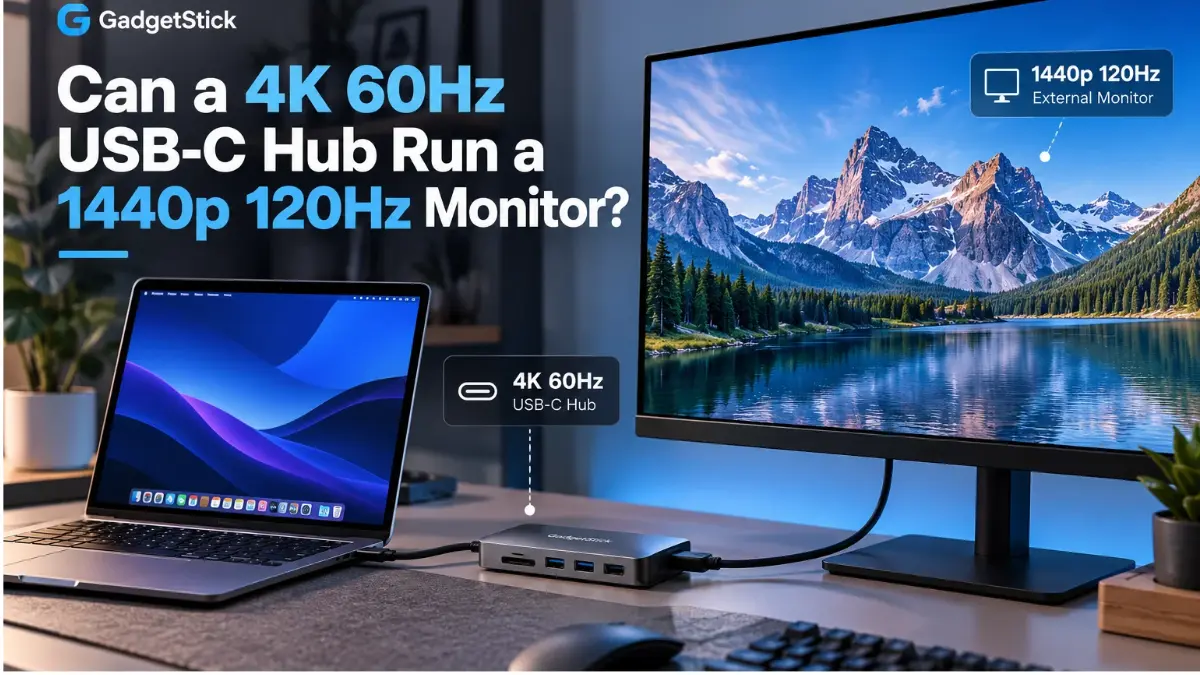
A USB-C hub advertised as “4K at 60Hz” may run a 2560 × 1440 monitor at 120Hz—or even 144Hz—but the label alone does not guarantee it. The answer depends on the hub’s actual video-output capability, the computer’s USB-C display signal, the monitor’s HDMI or DisplayPort input, and sometimes how the hub divides USB-C bandwidth.
Quick Answer
Yes, a 4K60 USB-C hub can sometimes drive a 1440p 120Hz monitor. One example is a Cable Matters USB-C dual-DisplayPort hub whose manufacturer explicitly lists a single monitor at 1440p 144Hz while also listing 4K 60Hz support. But another hub with the same “4K60” headline may have different limits. Check the model-specific specification or support answer for 2560 × 1440 at 120Hz before buying.
For the highest confidence, connect your computer directly to the monitor with a compatible USB-C-to-DisplayPort cable and test 120Hz. Then test the hub separately. If 120Hz works directly but only 60Hz through the hub, the hub or its output path is the likely limiting link.
Why a 4K60 Label Does Not Tell the Whole Story
The marketing number describes one supported video mode, usually 3840 × 2160 at 60 refreshes per second. It is not a universal statement that the hub will support every lower resolution at every proportionally higher refresh rate. Video modes also need timing overhead; some setups require different color depth, chroma formats, or compression.
There is a useful bandwidth clue: 4K at 60Hz and 1440p at 120Hz have similar orders of pixel throughput, with the latter requiring fewer active pixels per second. However, real compatibility still depends on the hub’s internal display controller and supported timing modes. Simple pixel counting is not a compatibility certificate.
1440p 120Hz vs 144Hz vs 4K60: What Is Reasonable to Expect?
| Video mode | What a 4K60 hub label tells you | Decision |
|---|---|---|
| 2560 × 1440 at 60Hz | Usually below a genuine 4K60 output ceiling, but verify | Likely on compatible setups |
| 2560 × 1440 at 120Hz | Potentially possible; not guaranteed by “4K60” branding | Check exact model specification |
| 2560 × 1440 at 144Hz | Possible on some hubs; higher requirements | Require explicit model confirmation |
| 3840 × 2160 at 60Hz | Common headline maximum for a single display | Requires compatible host, monitor, cable |
| 3840 × 2160 at 120Hz | Outside the stated 4K60 mode unless higher support is documented | Do not assume |
For example, Cable Matters states that its USB-C dual-DisplayPort hub supports a single 1440p display at 144Hz, despite its 4K60 single-monitor headline. That demonstrates the possibility, not a promise for every 4K60 hub.
The Five Things That Decide Whether 1440p 120Hz Works
1. The Hub’s Exact HDMI or DisplayPort Output
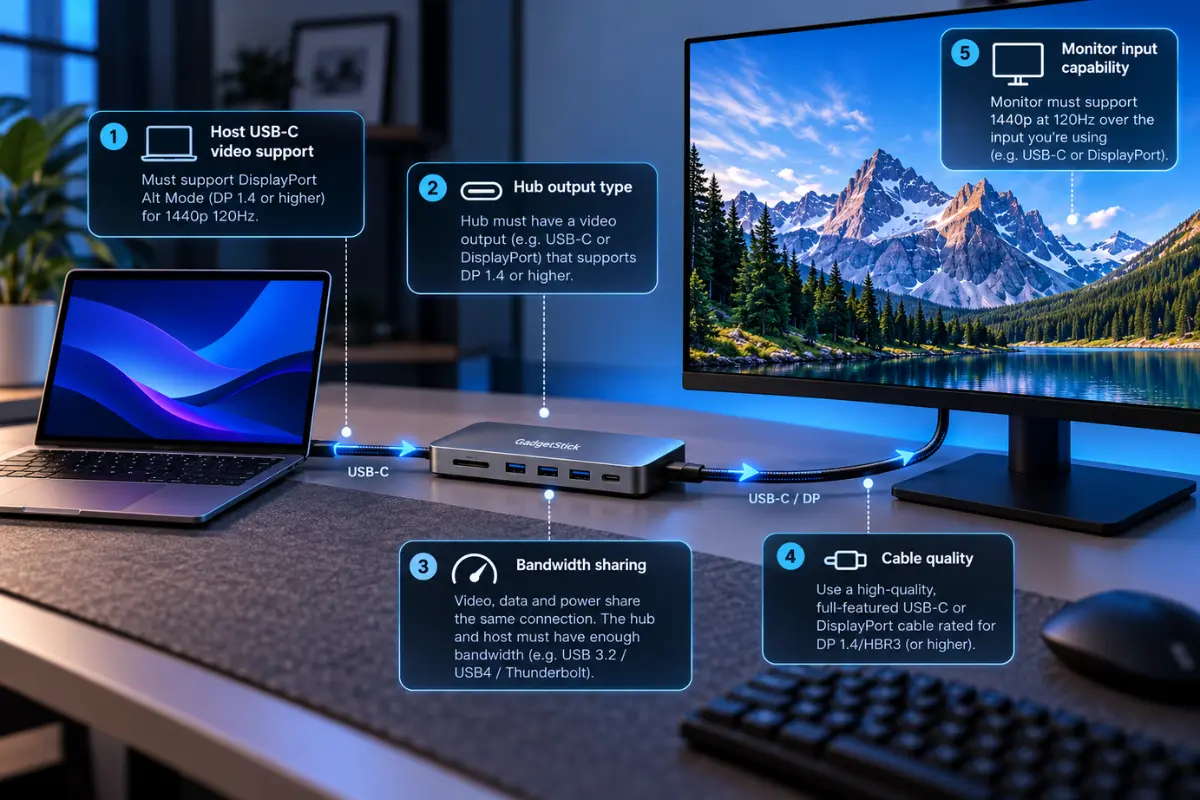
Start with the actual model number, not the words “4K60.” A hub may use an HDMI output, DisplayPort output, internal MST chipset, or DisplayLink USB graphics. Those are not interchangeable. Look for the manufacturer’s supported resolution-and-refresh-rate table, and check whether it applies to one external monitor or multiple monitors at once.
A hub with both HDMI and DisplayPort might support different modes on each port. A monitor can likewise accept 120Hz through DisplayPort but have different capabilities on an HDMI input. Check both sides of the connection.
2. Whether the Computer’s USB-C Port Carries Video
A USB-C port is a connector shape, not proof of DisplayPort Alt Mode. For native-video hubs, the host needs compatible DisplayPort Alt Mode, Thunderbolt, or USB4 display output. DisplayLink docks are different: they transfer display data over USB and require compatible DisplayLink software rather than native DisplayPort Alt Mode. For either type, verify the exact dock’s supported resolution and refresh rate, including 1440p at 120Hz, and its operating-system requirements.
3. Bandwidth Sharing With USB 3 Data
Some USB-C multiport adapters split high-speed lanes between USB data and DisplayPort video. A dock designed to retain fast USB data can have less display bandwidth available than a video-first adapter. The exact impact depends on the underlying DisplayPort link rate, lane configuration, and hub design; do not assume that plugging a USB drive into an extra port automatically changes your monitor from 120Hz to 60Hz.
4. Display Stream Compression (DSC) and Link Capabilities
Some higher-resolution or multi-monitor arrangements rely on Display Stream Compression (DSC), which needs support from the relevant devices in the signal path. A typical 1440p 120Hz mode does not necessarily need DSC when an appropriate uncompressed HDMI or DisplayPort connection is available. DSC can increase practical display-mode support on compatible hardware, but you cannot enable it on an unsupported hub just by changing Windows settings. Check the vendor’s compatibility details rather than treating “DP 1.4” as sufficient proof.
5. The Monitor, Cable, and Selected Display Mode
Make sure 120Hz is actually supported on the monitor’s input you are using. Some monitors offer high refresh rates over DisplayPort but a lower limit over a particular HDMI connection. An unsuitable cable, adapter, HDR setting, unusual timing mode, or color-depth combination can also remove the 120Hz option.
HDMI 2.0 or DisplayPort: Which Is Better for 1440p 120Hz?
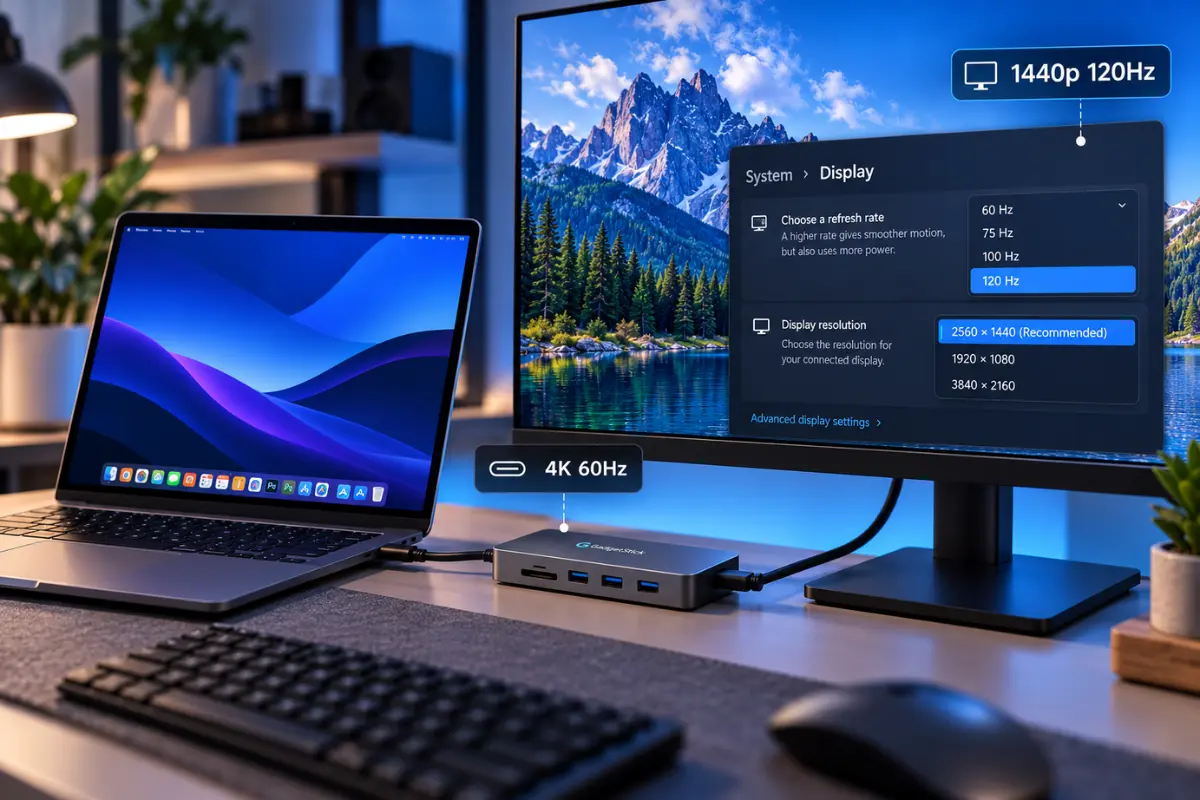
On compatible equipment, both HDMI 2.0 and DisplayPort can carry 1440p 120Hz. Cable Matters’ HDMI guidance describes 1440p 120Hz as achievable over HDMI 2.0, while its DisplayPort guidance explains higher-refresh-rate display paths. These are interface capabilities, not guarantees for any particular hub.
If your laptop supports USB-C DisplayPort Alt Mode and your monitor has a high-refresh DisplayPort input, a direct USB-C-to-DisplayPort connection is a practical first test. For an all-in-one hub, favor a model with an explicit 1440p120 or 1440p144 support statement. HDMI 2.1 branding by itself does not resolve every compatibility problem.
How to Check Before Buying a USB-C Hub
- Write down your laptop or handheld’s exact model and confirm which USB-C port supports external video.
- Look up the monitor’s model-specific manual and find which inputs accept 2560 × 1440 at 120Hz.
- Find the hub manufacturer’s full compatibility table—not just the Amazon listing headline.
- Check whether 1440p 120Hz is specified for the hub’s exact HDMI or DisplayPort port.
- Confirm whether the rating changes when two displays, USB 3 devices, or certain host devices are connected.
- Check return terms if the vendor does not explicitly verify your setup. Do not buy based only on bandwidth arithmetic.
Already Stuck at 60Hz? Follow This Test Order
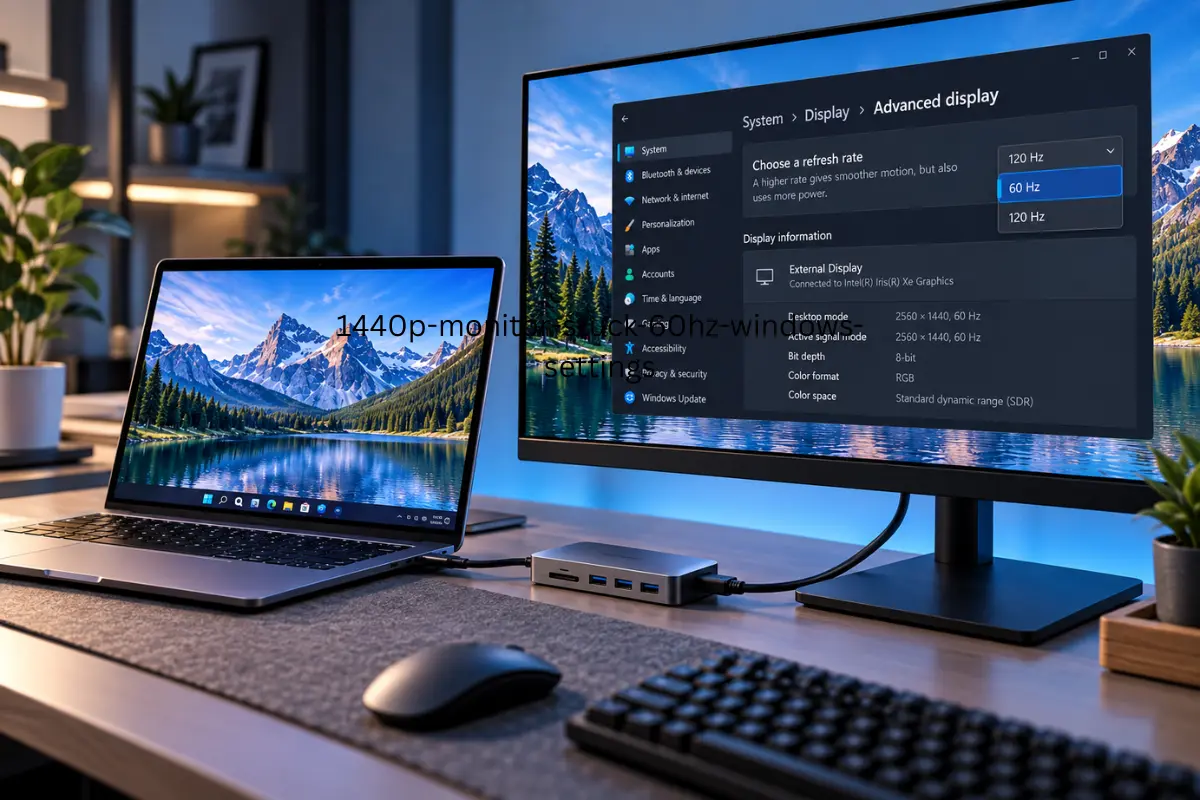
- Connect the laptop directly to the same monitor with a capable cable or adapter and look for 120Hz. This isolates the hub.
- Use the same monitor input if practical. If you change HDMI to DisplayPort, note the change because the input itself may be the difference.
- Reconnect through the hub with only one monitor attached. Disconnect optional peripherals for this test.
- In Windows 11, open Settings → System → Display → Advanced display and check the available refresh rates. On macOS, check the external display’s available refresh-rate selections in Displays settings.
- Temporarily turn off HDR or choose a standard color format if the model documentation suggests the high-refresh mode needs it. Restore preferred settings after testing.
- Update graphics drivers and check for a manufacturer-approved hub firmware update if your specific hub supports one.
- If the direct connection works at 120Hz and the hub only offers 60Hz, inspect the hub’s documented video ceiling rather than assuming the monitor is defective.
If your laptop is stuck below a monitor’s advertised rate, our gaming laptop refresh-rate troubleshooting guide covers a closely related setup. For the difference between power delivery and actual video capability, see how USB-C hub PD passthrough works.
What About Two 1440p Monitors?
Do not multiply a single-monitor result into a dual-monitor claim. Two screens share available connection and chipset resources, and some multi-monitor hubs quote different maximum modes depending on host platform. A specification saying “1440p 144Hz, single monitor” does not prove two 1440p monitors can run at 120Hz together. If dual displays are your goal, compare the specific supported configurations in our dual-monitor docking station guide.
Quick Buying Checklist
| Verify this | What you want to see |
|---|---|
| Exact hub model | Written 2560 × 1440 at 120Hz support |
| Hub video output | HDMI or DisplayPort mode matching the monitor |
| Host USB-C | Native-video hubs: compatible DP Alt Mode, Thunderbolt, or USB4 display output. DisplayLink docks: compatible USB data connection and DisplayLink software; confirm the exact display mode. |
| Single vs multiple displays | 1440p120 stated for your display count |
| Monitor input | Specific HDMI/DP port supports 120Hz |
| USB accessories | Clear explanation of lane/bandwidth or dock limitations |
| DSC requirement | Whether every relevant device supports it |
FAQ
Does a 4K60 USB-C hub automatically support 1440p144?
No. Some do, including a documented Cable Matters model in a one-monitor setup. Others may not. Check the exact adapter’s specification for 144Hz at 2560 × 1440.
Can I get 1440p 120Hz from HDMI 2.0?
Yes, HDMI 2.0 can support 1440p at 120Hz on compatible source and display hardware. A USB-C hub whose HDMI port uses an insufficient chipset or bandwidth path can still be the limiting component.
Does USB-C charging power affect monitor refresh rate?
A hub’s 65W or 100W USB-C PD charging rating describes its power path, not its display bandwidth. Power-delivery wattage by itself does not prove or disprove 1440p 120Hz video support.
Will USB-C to DisplayPort bypass a slow hub?
It can be a useful test. A direct USB-C-to-DisplayPort cable avoids the extra hub’s video-routing limitations, provided the host’s USB-C port and monitor both support the intended mode.
How We Researched This Comparison
We cross-checked vendor documentation explaining HDMI 2.0 at 1440p120, DisplayPort high-refresh-rate support, and a concrete 4K60-labeled hub that explicitly supports 1440p144 on one display. We have not independently bench-tested multiple USB-C hubs or verified every laptop/monitor pair. Device-level support must be checked against the exact models.
Final Answer
A 4K60 USB-C hub can run a 1440p 120Hz monitor, but only when its actual display output, host USB-C port, monitor input, and cable support that mode. The 4K60 label makes it plausible—not certain. Buy based on a model-specific 1440p120 specification or a manufacturer’s written confirmation, and test a direct connection if your current hub stops at 60Hz.
