
You bought a 1440p 200Hz gaming monitor, connected it to your laptop, opened Windows display settings, and found that the refresh-rate menu stops at 120Hz, 144Hz, or 165Hz.
That does not automatically mean the monitor is faulty.
On gaming laptops, the maximum refresh rate can depend on the exact display port you use, the connection standard, how that port is wired inside the laptop, the cable, and the monitor’s own input limits.
Quick Answer
If your 1440p 200Hz monitor is stuck at a lower refresh rate, first check which laptop output is actually connected to the NVIDIA GPU. On some gaming laptops, a USB-C port with DisplayPort Alt Mode can provide a better display path than HDMI. A direct USB-C-to-DisplayPort connection also removes dock and hub variables while you troubleshoot.
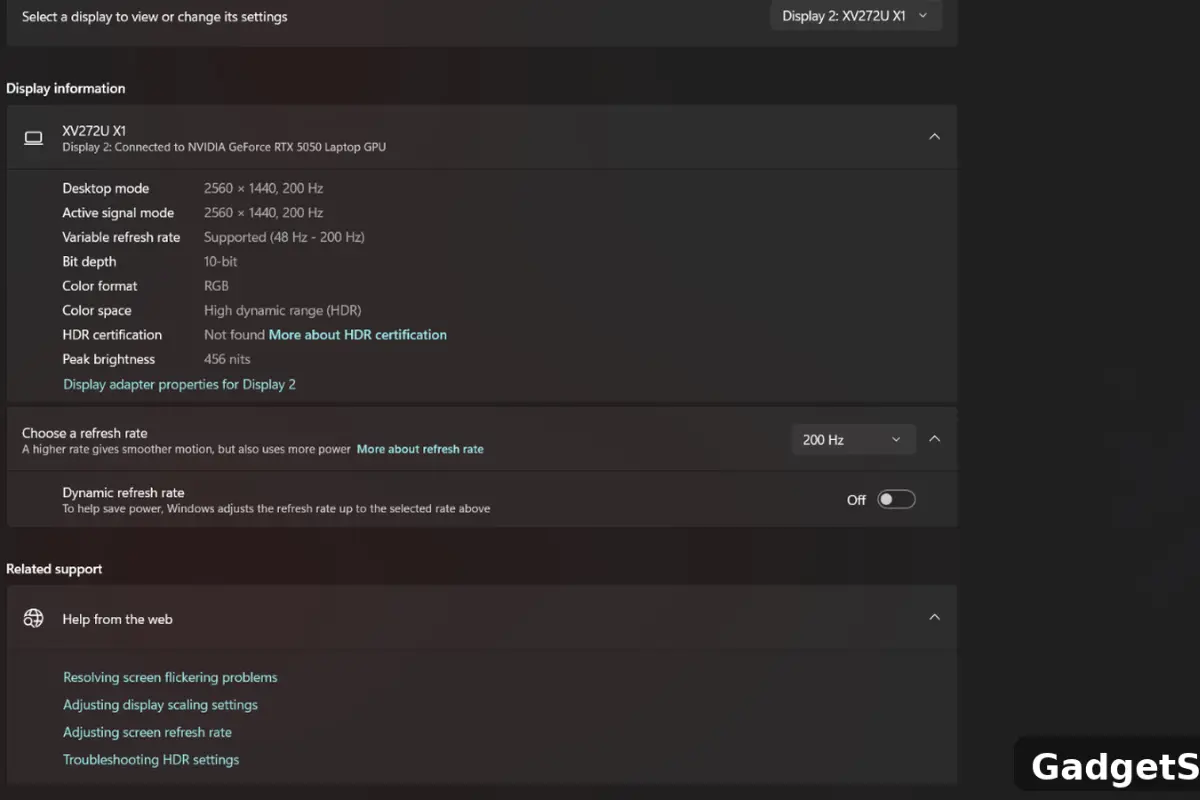
On our ASUS TUF gaming laptop with an NVIDIA GeForce RTX 5050 Laptop GPU and Acer Nitro XV272U X1, the 200Hz option became available after using the correct USB-C display output and a direct DisplayPort connection. Your result can differ because laptop port routing varies by model.
Why a 200Hz Monitor Can Get Stuck at 144Hz
There is no single cause. The problem usually comes from one of four places: the laptop output, the port’s bandwidth, internal GPU routing, or the cable and monitor input combination.
1. Your HDMI Port May Be the Limiting Link
Many gaming laptops use HDMI implementations that expose lower refresh-rate options at 2560 × 1440 than a monitor can accept through DisplayPort.
That does not mean every HDMI 2.0 laptop is hard-capped at exactly 144Hz. Actual support depends on timing, color depth, chroma, the GPU, the laptop manufacturer, and the monitor. But if your monitor supports its highest refresh rate through DisplayPort and Windows stops short over HDMI, the connection path is one of the first things to investigate.
2. The Display Output May Not Be Wired to the NVIDIA GPU
Optimus laptops can route displays differently depending on the model. One port may be attached to the integrated graphics, while another may have a more direct connection to the dedicated NVIDIA GPU.
This is why two ports on the same laptop can behave very differently with the same external monitor.
The important question is not simply, “Does my laptop have USB-C?” It is:
Does this specific USB-C port support DisplayPort video, and where is that display output routed?
The Fix That Worked on Our Setup: USB-C to DisplayPort
Our test setup uses an ASUS TUF gaming laptop with an NVIDIA GeForce RTX 5050 Laptop GPU and an Acer Nitro XV272U X1 1440p 200Hz external monitor.
Instead of relying on the laptop’s original display connection, we connected the monitor directly from the laptop’s USB-C display output to the monitor’s DisplayPort input. That exposed the monitor’s 200Hz mode in Windows on this setup.
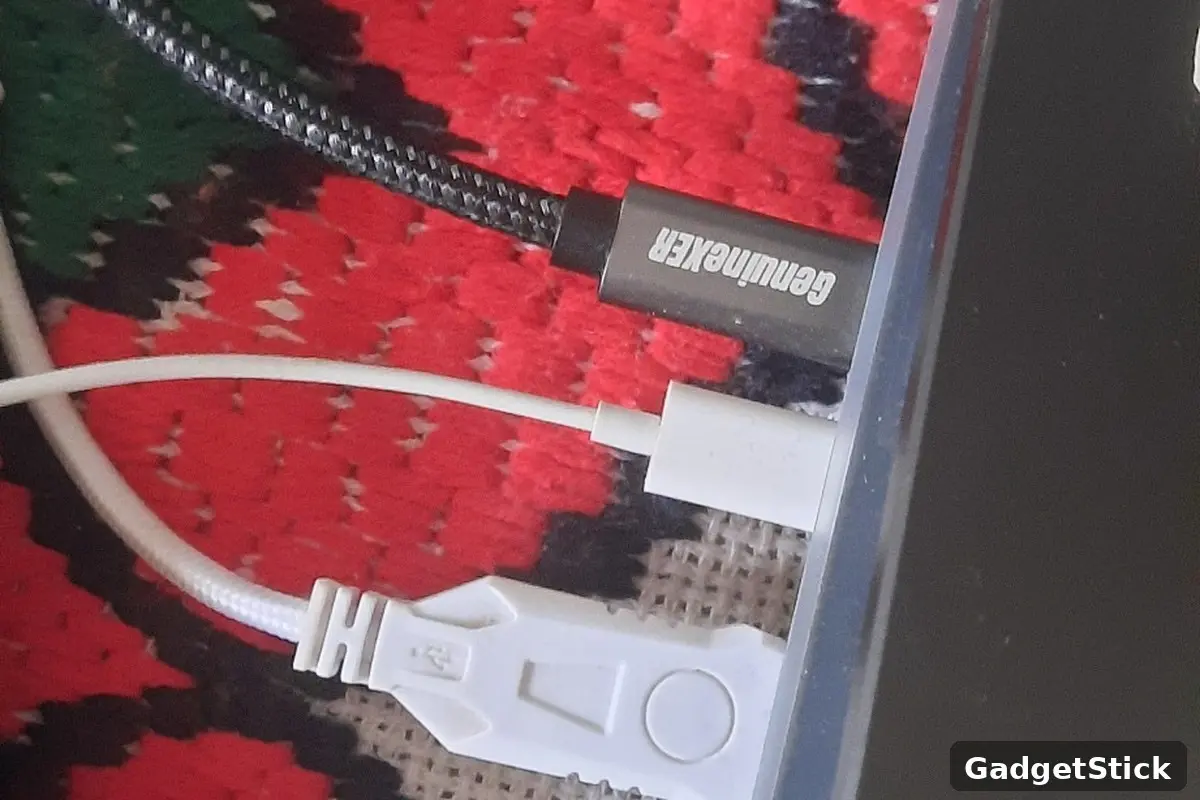
The cable shown in our real setup is a GenuineXER USB-C to DisplayPort cable. Availability varies by region, so U.S. readers do not need the exact same brand to follow this fix.
Before You Buy a Cable, Check These 3 Things
1. Confirm Your USB-C Port Supports DisplayPort Alt Mode
A USB-C connector by itself does not guarantee video output. Check the laptop’s official specifications or manual for terms such as DisplayPort over USB-C, DP Alt Mode, or a DisplayPort symbol beside the port.
2. Check Which Port Is Connected to the Dedicated GPU
If the goal is to bypass an integrated-graphics display path, the port itself has to be routed appropriately on your laptop model. USB-C does not automatically bypass Optimus. You can often verify the current display path in NVIDIA Control Panel.
3. Check the Monitor’s Input Specifications
Some gaming monitors support their maximum advertised refresh rate only through one input type, or require a specific setting in the monitor’s on-screen menu. Before replacing anything, confirm which input the monitor manufacturer lists for 1440p at 200Hz.
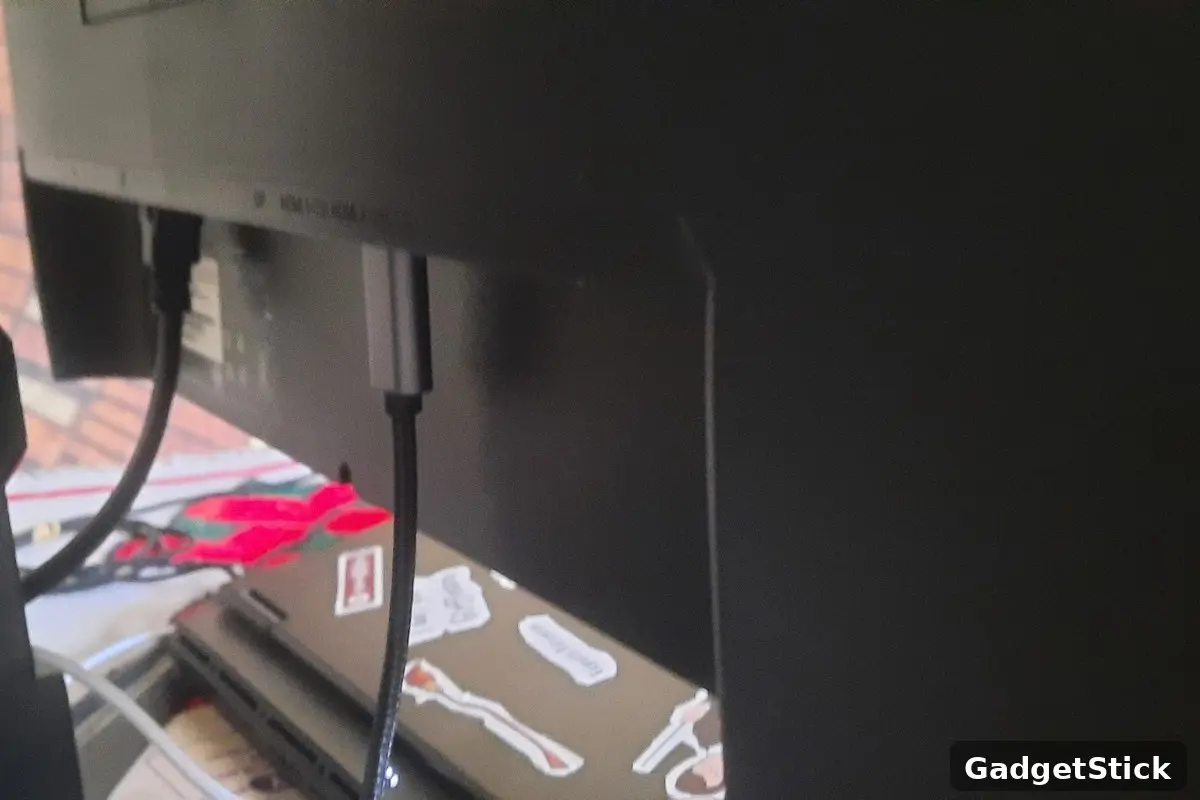
Use a Direct USB-C-to-DisplayPort Cable First
Using a 4K60 USB-C hub instead of a direct cable? Check whether its exact output supports 1440p at 120Hz before relying on its advertised 4K60 rating.
For troubleshooting, a direct cable is the cleanest path because it removes extra dock, hub, adapter, and USB-data variables.
This does not mean every USB-C hub is too slow for high-refresh gaming. Some docks can carry very high-bandwidth DisplayPort signals. The problem is that hubs differ in lane allocation, DisplayPort version, DSC support, MST behavior, and USB bandwidth sharing. If you also need a multi-monitor desk setup, see our guide to dual-monitor docking stations.
If your only goal is to find out whether the laptop can expose 1440p 200Hz, a direct USB-C-to-DisplayPort cable makes diagnosis much easier.
What to Look for in the Cable
- USB-C to DisplayPort, not USB-C to HDMI
- Support for DisplayPort 1.4-class bandwidth where required by your laptop and monitor
- A reputable manufacturer with clear resolution and refresh-rate specifications
- A cable length that fits your setup without unnecessary adapters
Recommended U.S. Cable Option
For U.S. readers, a practical option is the UGREEN Unidirectional USB C to DisplayPort 1.4 Cable 8K@60Hz 4K@240Hz 6.6FT. Its stated connection and display specifications make it a suitable high-bandwidth option for this kind of direct USB-C-to-DisplayPort setup, provided your laptop port and monitor support the required display mode.
We tested our setup with a GenuineXER cable, not the UGREEN cable above. The UGREEN model is our U.S.-available alternative based on its stated specifications.
Affiliate disclosure: GadgetStick may earn a commission if you buy through an affiliate link, at no extra cost to you.
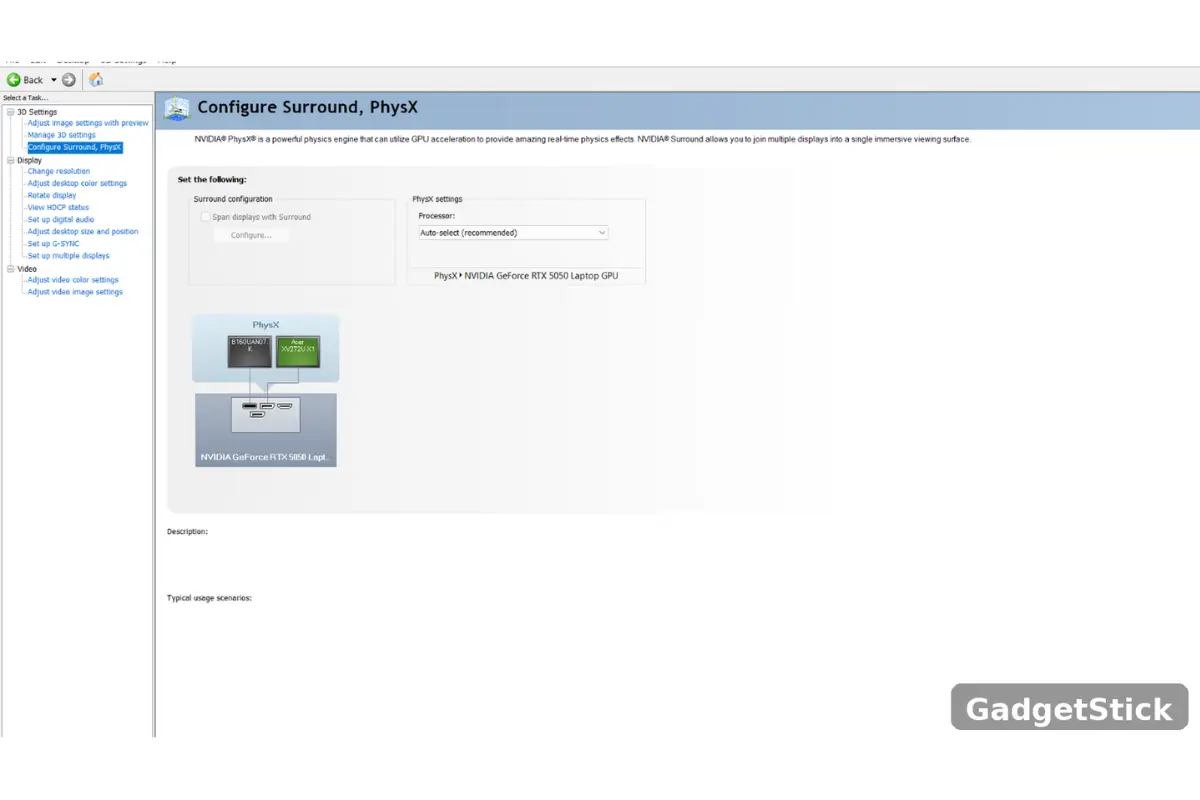
Step 1: Verify the Display Path in NVIDIA Control Panel
- Connect the external monitor using the display path you want to test.
- Right-click the desktop and open NVIDIA Control Panel.
- Open Configure Surround, PhysX.
- Look at the diagram showing the displays and GPUs.
- Check whether the external monitor appears under the NVIDIA GPU or through the integrated-graphics path.
If changing from the original connection to the correct USB-C display output moves the external monitor to the NVIDIA GPU in this diagram, you have confirmed that the two ports are using different display paths.
Step 2: Select 200Hz in Windows
- Open Settings.
- Go to System > Display.
- Select the external monitor.
- Open Advanced display.
- Find Choose a refresh rate.
- Select 200Hz if Windows now exposes it.
If 200Hz appears only after changing the connection path, that is a strong sign that the original port, routing, or link configuration was the limiting factor.
What If 200Hz Still Does Not Appear?
Do not immediately buy another monitor. Work through the connection chain in order.
- Check the laptop manual: confirm that the USB-C port actually carries DisplayPort video.
- Check the monitor manual: verify which input supports the maximum refresh rate.
- Try the native resolution: select 2560 × 1440 before checking the refresh-rate list.
- Check the monitor menu: some displays have an overclock or high-refresh mode that must be enabled.
- Update the GPU driver: an old driver can cause display-mode problems.
- Remove hubs and adapters: test with one direct cable.
- Try another known-good cable: especially if the screen flickers, drops signal, or falls back to a lower mode.
- Check color settings: very high refresh rates can interact with bit depth, chroma, HDR, and the available link bandwidth.
Does Bypassing Optimus Increase Gaming Performance?
It can, but the size of the difference depends on the laptop. A direct dGPU display path can remove the need to pass completed frames through integrated graphics on systems that use that route. That may reduce display-path overhead and latency in some games.
But do not expect a USB-C cable to magically increase GPU performance on every laptop. Modern Advanced Optimus and MUX-switch designs can behave differently, and some external outputs are already connected directly to the dedicated GPU.
Does This Fix Screen Tearing?
Not by itself. A higher refresh rate can make motion feel smoother, and a direct display path may reduce latency on some systems, but screen tearing is a synchronization issue. G-SYNC, FreeSync/Adaptive-Sync, V-Sync, frame caps, and frame pacing still matter.
Our ASUS TUF + Acer Nitro Result
On our ASUS TUF setup with an NVIDIA GeForce RTX 5050 Laptop GPU and Acer Nitro XV272U X1, the original connection did not expose the result we wanted. Switching to the correct USB-C display output and connecting directly to DisplayPort exposed 2560 × 1440 at 200Hz in Windows.
The useful lesson is not that every gaming laptop should use USB-C. It is that you should identify the output that provides the display path and bandwidth your monitor actually needs.
Frequently Asked Questions
Can USB-C run 1440p at 200Hz?
It can on compatible hardware, but USB-C is only the connector. The laptop port must support a suitable DisplayPort mode, the monitor must support the requested mode through DisplayPort, and the cable has to carry the required link.
Why does my 200Hz monitor only show 144Hz?
Common causes include the selected input, laptop port limits, internal GPU routing, monitor settings, cable capability, color settings, or the specific resolution and refresh-rate combination.
Does USB-C always bypass NVIDIA Optimus?
No. Port routing is laptop-specific. Check your laptop documentation and NVIDIA Control Panel rather than assuming every USB-C display output connects directly to the NVIDIA GPU.
Should I use a USB-C hub for a 200Hz gaming monitor?
A capable hub may work, but a direct cable is easier to troubleshoot. If you are trying to unlock the monitor’s maximum refresh rate, remove the hub first and test the simplest connection path.
Do I need DisplayPort 1.4 for 1440p 200Hz?
The required link depends on the timing, color format, bit depth, DSC support, and hardware combination. For a high-refresh 1440p setup, using a modern high-bandwidth DisplayPort path is the safer approach than assuming an older or unspecified connection will expose 200Hz.
Final Answer
If your 1440p 200Hz monitor is stuck at 120Hz or 144Hz on a gaming laptop, do not assume the monitor is defective.
Check the full display path. Verify which laptop port supports DisplayPort video, check how that output is routed, use a direct high-bandwidth connection, confirm the monitor’s input limits, and then check Windows again.
On our ASUS TUF, RTX 5050 Laptop GPU, and Acer Nitro XV272U X1 setup, moving to the correct USB-C-to-DisplayPort path exposed 1440p at 200Hz. The same fix can work on other gaming laptops, but only when the laptop’s port routing and display specifications support it.
How We Researched This Fix
We built this guide around the actual display-path problem rather than assuming one connector is always better than another. We compared the behavior of the original connection and USB-C/DisplayPort on our setup, checked GPU routing through NVIDIA Control Panel, verified the available Windows refresh-rate modes, and separated laptop-specific behavior from general DisplayPort and Optimus guidance.
Editorial Note
Display outputs vary widely between gaming-laptop models. A USB-C port, HDMI port, MUX switch, or Advanced Optimus implementation on one laptop may behave differently on another. GadgetStick does not treat the ASUS TUF result in this guide as a universal guarantee.
