
Bought a QD-OLED or WOLED gaming monitor and noticed colored outlines around text in Windows 11? That is often called text fringing. It can look like pink, green, or red edges around letters, especially on a 27-inch 1440p screen. It does not automatically mean your panel is defective. The display’s subpixel layout and Windows text rendering may simply disagree.
Quick Answer
Start with native resolution, sensible Windows scaling, and the built-in ClearType tuner. If colored edges remain, compare ClearType enabled versus disabled using the same text at the same distance. OLED monitors with nonstandard subpixel layouts may look cleaner with grayscale antialiasing, but letters can also appear thinner. There is no one setting that fixes every app or every OLED panel.
For a new monitor used mainly for documents, coding, or spreadsheets, test text readability during the return window. A higher-pixel-density 4K OLED may make fringing less noticeable than a similarly sized 1440p model. An IPS or Mini-LED monitor may still be the more comfortable choice for text-heavy work.
What OLED Text Fringing Looks Like—and Why It Happens
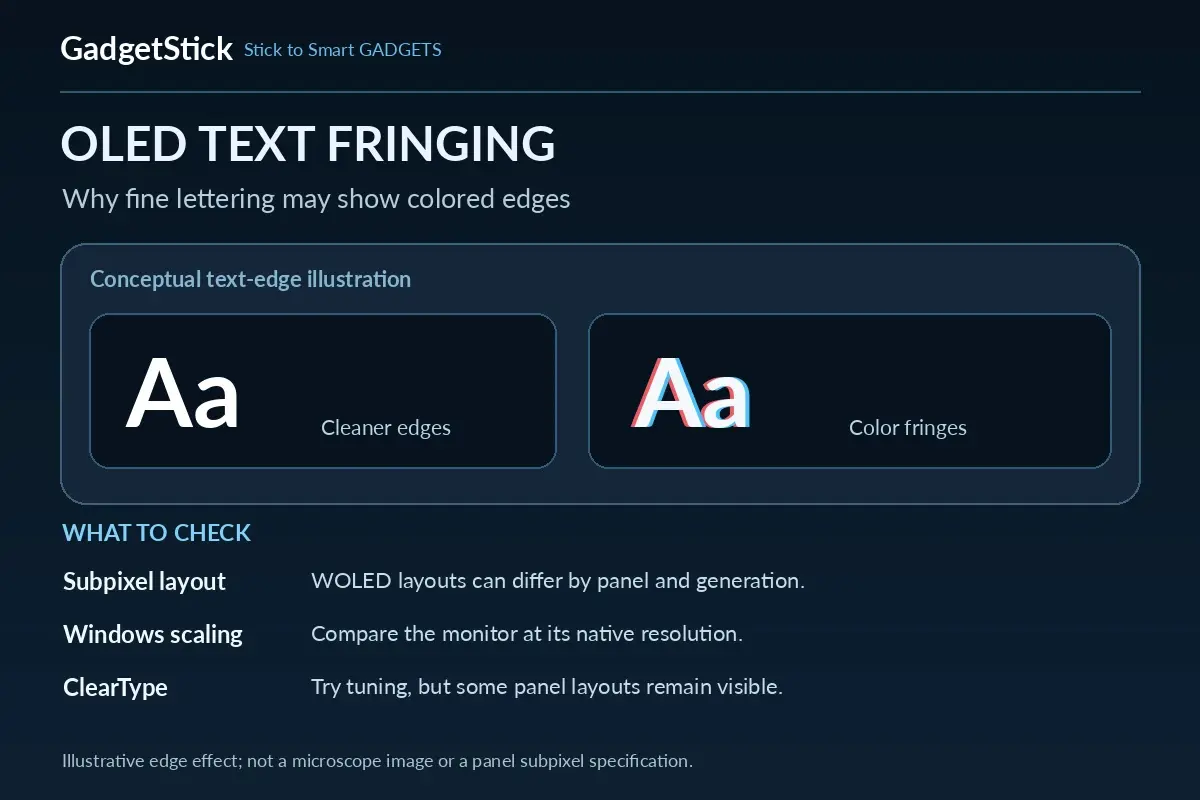
Instead of a neat gray edge, a dark letter on a light background may show a narrow colored halo along its top, bottom, or sides. Some owners notice it in Windows menus and browser tabs; others mainly see it in code editors. Whether it bothers you depends on viewing distance, eyesight, display coating, font size, and panel generation.
Windows text-rendering systems often work best with a conventional horizontal RGB subpixel pattern. RTINGS’ monitor text-clarity testing explains that WOLED layouts such as RWBG or RGWB and the triangular RGB arrangement used by many QD-OLED panels can create visible colored edges. This is different from burn-in, dead pixels, or ordinary low-resolution blur.
QD-OLED vs WOLED vs IPS: Why the Letters Look Different
| Panel or display characteristic | Typical text implication | What to remember |
|---|---|---|
| QD-OLED with triangular subpixels | Colored fringing can appear around fine text | Higher pixel density often reduces visibility |
| WOLED with older RWBG arrangement | Fringing can be noticeable with Windows text rendering | Some users prefer grayscale text |
| Newer RGWB WOLED | Can improve text appearance compared with older WOLED arrangements | Still not identical to traditional RGB |
| IPS or Mini-LED with conventional RGB | Usually predictable text rendering | Good reference for work-focused setups |
| Any panel at higher pixel density | Smaller individual pixels make artifacts harder to notice | Distance and scaling matter too |
These are general tendencies, not laboratory scores for all models. Panel generation, screen coating, font, and software can change the result. Our earlier OLED laptop burn-in guide covers permanent image retention; this article addresses a separate text-rendering problem.
1. Use the Monitor’s Native Resolution First
In Windows 11 open Settings → System → Display, select the affected external monitor, and choose its recommended native resolution. Rendering 1080p or another non-native resolution on a 1440p OLED can introduce scaling blur on top of any subpixel fringing. Do not attempt to fix colored edges by lowering resolution.
Also check Advanced display to confirm Windows is using the correct monitor. Refresh rate is important for motion, but changing 144Hz to 60Hz is not a reliable fix for the physical subpixel shape.
2. Try Windows ClearType—Then Compare It Turned Off
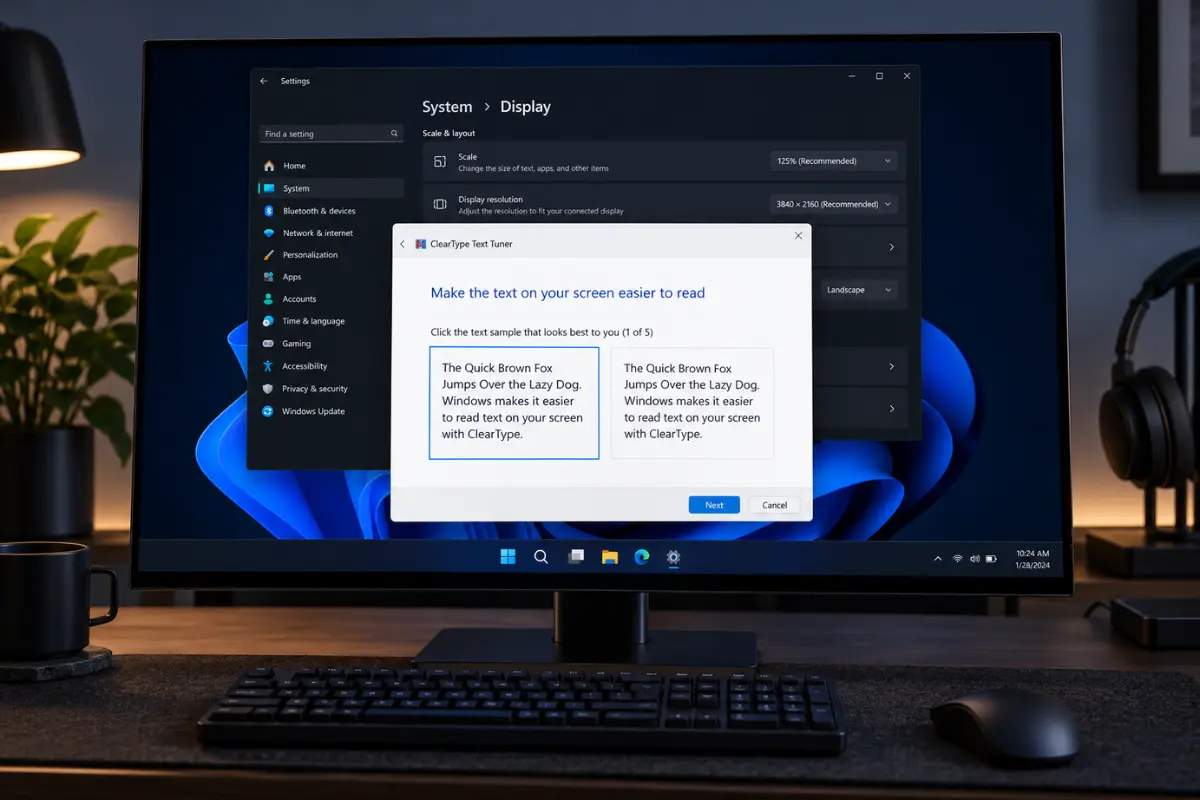
- Search Windows for Adjust ClearType text and open the built-in tuner.
- Complete the on-screen samples with ClearType enabled; choose the samples that look clearest at your usual viewing distance.
- Inspect the same browser page and a document containing small and bold text.
- Open the tuner again and compare the appearance with ClearType disabled, if that option is available.
- Keep whichever configuration is easier for you to read. Note that the result may differ between apps.
Don’t assume “ClearType off” is universally better. RTINGS explains that grayscale rendering on some WOLED panels can reduce visible color fringing while also making glyphs appear less bold. On certain QD-OLED panels, colored edges may remain. The test is subjective and reversible.
3. Test Windows Scaling Before Installing Any Utility
Open Settings → System → Display → Scale and try a standard recommended scale such as 125% or 150%, where appropriate for your monitor size and viewing distance. Bigger text is often easier to read, but scaling itself cannot change the monitor’s subpixel structure.
Avoid copying a stranger’s custom scaling percentage as a universal fix. Custom values can make some app layouts awkward or blurry. After changing scale, sign out and back in if Windows requests it, then compare the same page and font size.
4. Check Whether the Problem Is App-Specific
Use a small test set: Windows Settings, your main browser, a word processor, and your code editor if you use one. Record whether colored edges appear in all apps or only some. Windows software can use different rendering systems, and some apps use grayscale antialiasing even when a ClearType setting suggests otherwise.
This distinction is documented by the creator of Better ClearType Tuner: GDI and different DirectWrite rendering paths can respond differently to font-smoothing adjustments. That explains why a change can help a document editor yet do almost nothing in another application.
5. Is Better ClearType Tuner Worth Trying?
For technically comfortable Windows users, Better ClearType Tuner is an optional third-party utility that previews grayscale, RGB, and BGR antialiasing and text-contrast variations. Use the maintainer’s official GitHub repository, read its compatibility notes, and keep a record of your original settings before changing them.
Limitations: It cannot alter the OLED panel’s physical pixel arrangement, cannot force every app to use the same text rendering, and is not an official Microsoft cure. We have not independently tested it on a controlled set of OLED monitors. Do not download similarly named installers from unknown mirrors.
Avoid registry edits copied from Reddit as your first troubleshooting step. Such instructions may be specific to a panel or app and can make fonts less readable. If you experiment with advanced settings, understand how to restore them.
6. Inspect Color Format and the Video Connection
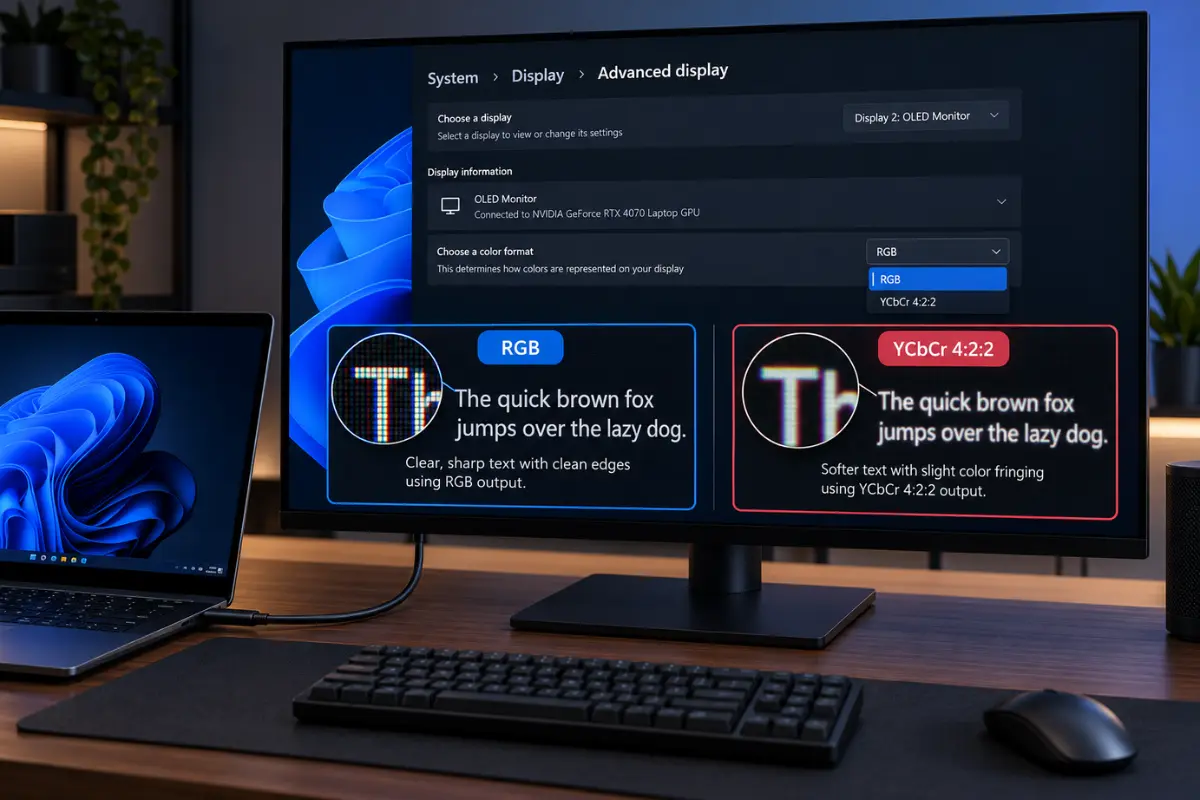
Use your monitor’s supported native signal path and ensure the computer is sending a proper display mode. When available, compare RGB output against a chroma-subsampled signal such as YCbCr 4:2:2, since chroma subsampling can itself soften colored text details. Exact controls vary between Intel, NVIDIA, AMD, and monitor models.
This is a separate source of reduced color detail, not a universal explanation for QD-OLED or WOLED fringing. If your monitor also has refresh-rate problems through a hub, see our 4K60 USB-C hub and 1440p120 compatibility guide rather than changing multiple variables at once.
7. Judge the Monitor for Your Actual Workload
If gaming takes 80% of your screen time, OLED’s contrast and response behavior may outweigh minor text artifacts. If coding, spreadsheets, editing, and reading consume most of your day, spend an hour with your normal font size and application windows before the return deadline. A fast monitor can still be a poor match for eight hours of text.
A 2026 r/Monitors buyer discussion described returning to high-resolution IPS after a 1440p OLED proved uncomfortable for text-heavy work. That is a first-hand report, not proof that all OLED monitors are unsuitable for productivity.
Should You Choose a 4K OLED Instead of 1440p OLED for Text?
In general, greater pixel density makes colored subpixel artifacts harder to see at normal sitting distance. For example, 27-inch 1440p has roughly 109 pixels per inch, while 27-inch 4K has roughly 163 pixels per inch. That is a meaningful sharpness difference, although it also raises GPU demands in games and often increases cost.
Don’t mistake a 4K label for a guarantee. A 32-inch 4K monitor has a lower pixel density than a 27-inch 4K monitor, and panel arrangement still matters. Check actual independent text-clarity assessments for the specific model, not merely screen resolution.
| Your priority | More sensible starting point | Why |
|---|---|---|
| Long hours of coding and office work | High-PPI IPS or Mini-LED; consider 4K OLED only after checking text | Predictable text is more important than peak contrast |
| Mixed work and single-player gaming | Higher-PPI 4K OLED or sharp IPS/Mini-LED | Balance image quality with readable letters |
| Competitive gaming on a budget | 1440p high-refresh option suited to your hardware | Higher frame rates and price may matter most |
| You own a 1440p OLED already | Test ClearType, scaling, app differences, RGB output | Reversible steps before replacing hardware |
What Won’t Reliably Fix OLED Text Fringing
- Raising the refresh rate: Helps motion, not the physical arrangement of subpixels.
- Increasing sharpness to maximum: Can add halos instead of fixing colored text edges.
- Installing random ICC profiles: Color profiles do not rearrange subpixels.
- Lowering screen resolution: Often introduces additional scaling blur.
- Applying one registry preset to every PC: Apps and panels respond differently.
Quick Diagnostic Checklist
- Confirm the exact monitor model and native resolution.
- Compare text on both dark and light backgrounds at your normal viewing distance.
- Run the built-in ClearType tuner and compare enabled versus disabled.
- Try standard Windows scaling and retest your regular apps.
- Check RGB versus chroma-subsampled output, if applicable.
- If still unhappy, check a trusted model-specific text-clarity review before the return period ends.
Frequently Asked Questions
Is OLED text fringing a manufacturing defect?
Not necessarily. Many OLED panels use unconventional subpixel structures that produce some visible fringing with Windows font rendering. Severe uneven colors, artifacts across all content, or other defects warrant checking the manufacturer’s support guidance.
Does disabling ClearType fix QD-OLED text completely?
No. It may change the appearance, but colored edges can persist. Whether the result looks better varies by panel, app, font, and preference.
Does 4K eliminate OLED text fringing?
No. Higher pixel density can make it less noticeable, but the subpixel arrangement and rendering method still matter.
Is this the same as OLED burn-in?
No. Text fringing is a rendering/visual structure issue you can notice on a brand-new panel. Burn-in is persistent differential wear that can develop over time.
How We Researched This Guide
We compared independent display text-clarity testing with the Better ClearType Tuner developer’s notes about Windows rendering paths and reviewed recent OLED owner reports. This is a source-based troubleshooting guide, not a controlled hands-on test of every panel or utility. We deliberately avoid claims of a universal software fix.
Final Answer
OLED text fringing in Windows 11 is often a combination of nonstandard subpixel layout and the way text is rendered—not a sign you bought a broken monitor. First use native resolution, test ClearType on and off, compare recommended scaling, and check app-specific behavior. Optional font-tuning software may help some users but cannot change the panel itself. If your daily work depends on crisp small fonts and the issue still bothers you, a higher-PPI display or conventional RGB IPS/Mini-LED monitor may be the better purchase.
