
OLED laptops are no longer unusual in 2026. They show up in thin-and-light notebooks, gaming machines, creator laptops, and premium productivity systems because they deliver deep blacks, fast pixel response, excellent contrast, and wide color coverage.
But one question still follows OLED everywhere: what about burn-in?
The short answer is that burn-in is still physically possible. Modern panels and vendor protection tools reduce the risk, but they do not make OLED immune to uneven pixel wear.
Whether that should stop you from buying an OLED laptop depends much more on how you use your screen than on the word OLED itself.
Quick Answer: Is OLED Laptop Burn-In Still a Problem in 2026?
Yes, OLED laptop burn-in is still possible, but for most mixed-use buyers it is not something that should automatically rule out an OLED laptop.
The risk is highest when the display shows bright, static elements for long periods every day — for example a fixed Windows taskbar, trading dashboard, IDE layout, surveillance feed, spreadsheet grid, or game HUD at high brightness.
Modern laptops reduce that risk with tools such as pixel shifting, pixel refresh, taskbar hiding, screen-off timers, logo/static-element dimming, and vendor-specific OLED care software.
| Usage pattern | Burn-in concern |
|---|---|
| Mixed browsing, video, gaming, general use | Low for most users with normal precautions |
| Photo/video editing with changing content | Usually manageable |
| Gaming across many different games | Usually manageable |
| Same game with fixed HUD for very long daily sessions | Higher |
| Static coding/office layout 8+ hours a day | Higher |
| Trading dashboard / surveillance / fixed kiosk screen | High-risk use case |
What OLED Burn-In Actually Is
OLED pixels create their own light. Unlike an LCD, there is no single backlight behind the panel.
That gives OLED its excellent blacks and contrast, but it also means individual pixels can age at different rates.
If one part of the screen repeatedly displays the same bright element while the rest of the panel changes, those pixels can accumulate more wear. Over time, the difference may become visible as a persistent ghost or shadow.
MSI’s current laptop documentation separates two related effects:
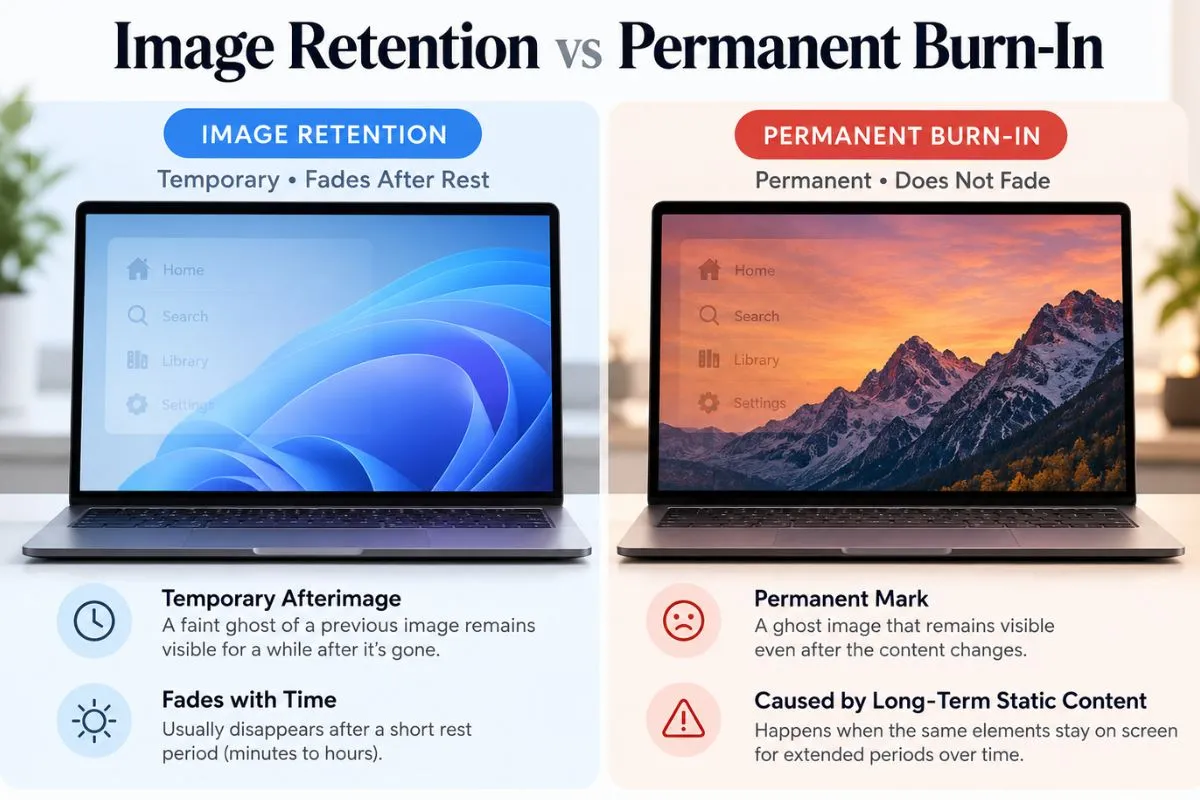
- Image retention or image persistence: a temporary residual image that may fade after the content changes or the display is turned off.
- Burn-in: a persistent residual image caused by uneven pixel aging that may not fully disappear.
Official reference: MSI OLED image persistence and burn-in guidance.
Why Laptop Use Can Be Tougher on OLED Than Movies
Laptop screens spend a lot of time showing interface elements that barely move.
Think about a typical workday:
- the Windows taskbar stays in the same place
- browser tabs remain fixed
- IDE sidebars do not move
- spreadsheet headers remain visible
- editing timelines stay anchored
- game HUD elements repeat in the same positions
That is a very different workload from watching a movie, where almost every pixel changes constantly.
ASUS and MSI both specifically warn against leaving bright, high-contrast static content on OLED screens for extended periods at high brightness.
Official references: ASUS OLED burn-in support and MSI OLED Care.
What Has Improved on Modern OLED Laptops?
The biggest change is not that burn-in physics disappeared. It is that laptop makers now actively manage the risk.
Pixel Shift
Pixel-shift systems move the image by tiny amounts so the same pixels are not illuminated in exactly the same pattern continuously. ASUS includes pixel shifting in its OLED Care system, and MSI uses similar panel-protection features.
Pixel Refresh / Panel Maintenance
Some vendors periodically run refresh routines designed to help compensate for uneven wear and temporary image persistence.
ASUS says its Pixel Refresh feature can activate after the laptop has been idle, while MSI’s OLED Care bundles automated protection tools into MSI Center.
Taskbar and Static-Element Protection
The Windows taskbar is one of the most obvious static elements on a laptop. ASUS and MSI both provide options or recommendations that reduce the time it remains fixed on-screen.
Shorter Screen-Off Timers
MSI recommends a screen-off time of around five minutes or less for OLED protection depending on usage, while ASUS also recommends shorter idle screen-off behavior.
These protections do not make the panel impossible to burn in. They reduce how aggressively the same pixels are stressed.
How Big Is the Risk for Normal Laptop Use?
There is no universal number such as “an OLED laptop burns in after X years.”
Panel type, brightness, workload, static-content duration, temperature, protection software, and how many hours the laptop is used each day all change the outcome.
HP’s current OLED-laptop guidance says burn-in has become rare during normal mixed use such as web browsing, creative work, video streaming, and gaming, while still acknowledging higher risk for extreme static workloads.
Official reference: HP: OLED laptop everyday use.
That is a reasonable way to frame the issue: possible does not mean inevitable.
Who Should Worry More About OLED Burn-In?
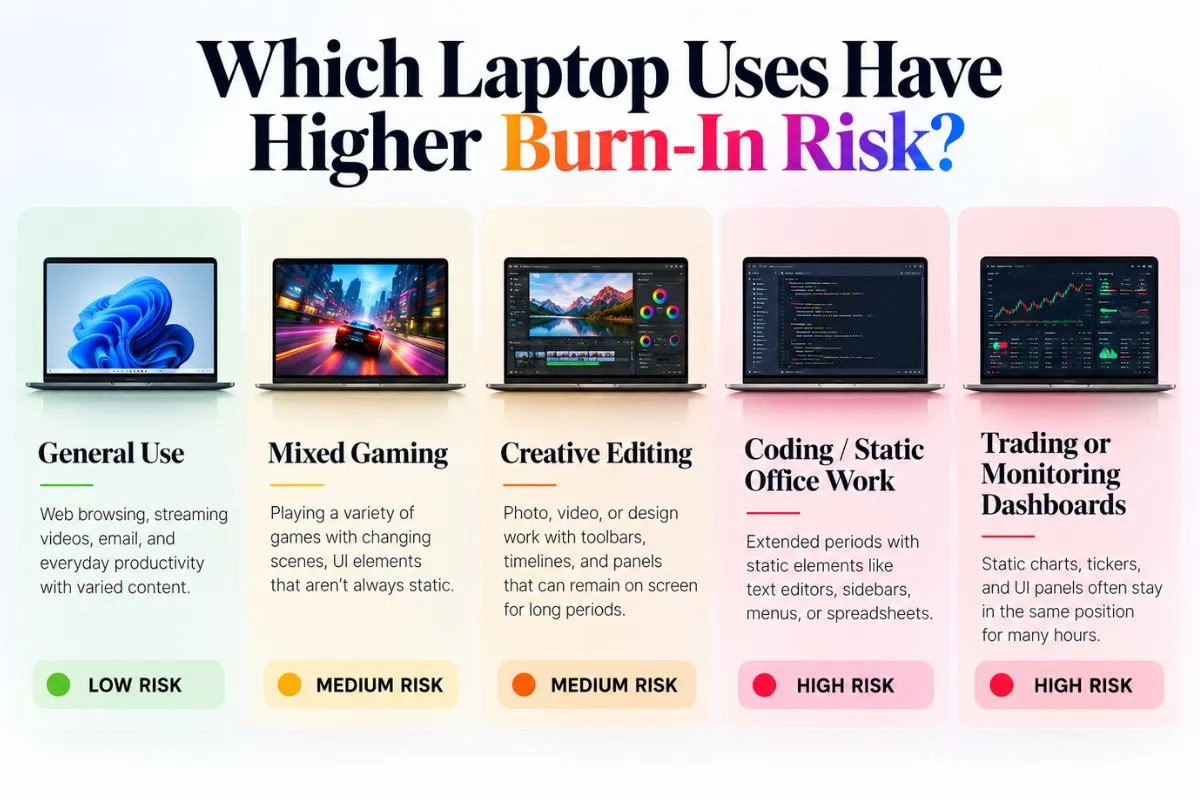
| User type | Risk level | Why |
|---|---|---|
| Student / general user | Low | Content changes frequently and screen is not usually static all day |
| Mixed gamer | Low–Moderate | Different games and changing scenes reduce repeated static exposure |
| Creator / editor | Moderate | Toolbars and editing UI may remain fixed for long sessions |
| Developer using the same IDE layout all day | Moderate–High | Large portions of the interface stay static |
| Trader / finance workstation | High | Charts, panels, and tickers may stay fixed for many hours |
| Security / monitoring dashboard | High | Near-continuous static layout |
| Kiosk-style use | High | The same interface can remain visible all day |
Is OLED a Bad Choice for Coding?
Not automatically.
Plenty of developers can use an OLED laptop without obvious problems, especially if they vary windows, use dark themes, hide the taskbar, let the screen sleep when idle, and avoid maximum brightness all day.
But coding is one of the workloads where the burn-in question deserves more attention because IDE layouts can remain almost unchanged for hours.
If your laptop is going to display the same IDE, terminal layout, or dashboard for eight to twelve hours every workday for several years, IPS or mini-LED can offer more peace of mind.
Is OLED a Bad Choice for Gaming?
For most gamers, no.
OLED’s fast pixel response, excellent contrast, and deep blacks can make games look outstanding.
The higher-risk scenario is not “gaming” in general. It is playing the same game with the same bright HUD for very long periods over months or years.
A player rotating between many games creates a very different wear pattern from someone spending thousands of hours in one title with a fixed minimap, health bar, or scoreboard.
Brightness Matters More Than Many Buyers Realize
OLED wear is related to how hard individual pixels are driven over time.
That is why manufacturers repeatedly warn against leaving static content at maximum brightness for extended periods.
ASUS recommends adjusting OLED brightness to match the environment instead of keeping it at maximum brightness all the time, and MSI gives similar guidance around bright static content.
You do not need to run an OLED laptop at an artificially dim level. The practical goal is simply to avoid unnecessary maximum brightness when the room does not require it.
Dark Mode Helps — But It Is Not Magic
Dark mode can reduce how much light many OLED pixels need to produce, especially in apps with large dark backgrounds.
ASUS ships some OLED laptops with dark-mode-oriented protection settings and recommends darker screen behavior as part of its OLED care approach.
But dark mode does not eliminate every static element. Bright icons, text, browser bars, window borders, and application controls can still remain fixed.
Treat dark mode as one layer of protection, not a burn-in guarantee.
7 Practical Ways to Reduce OLED Laptop Burn-In Risk
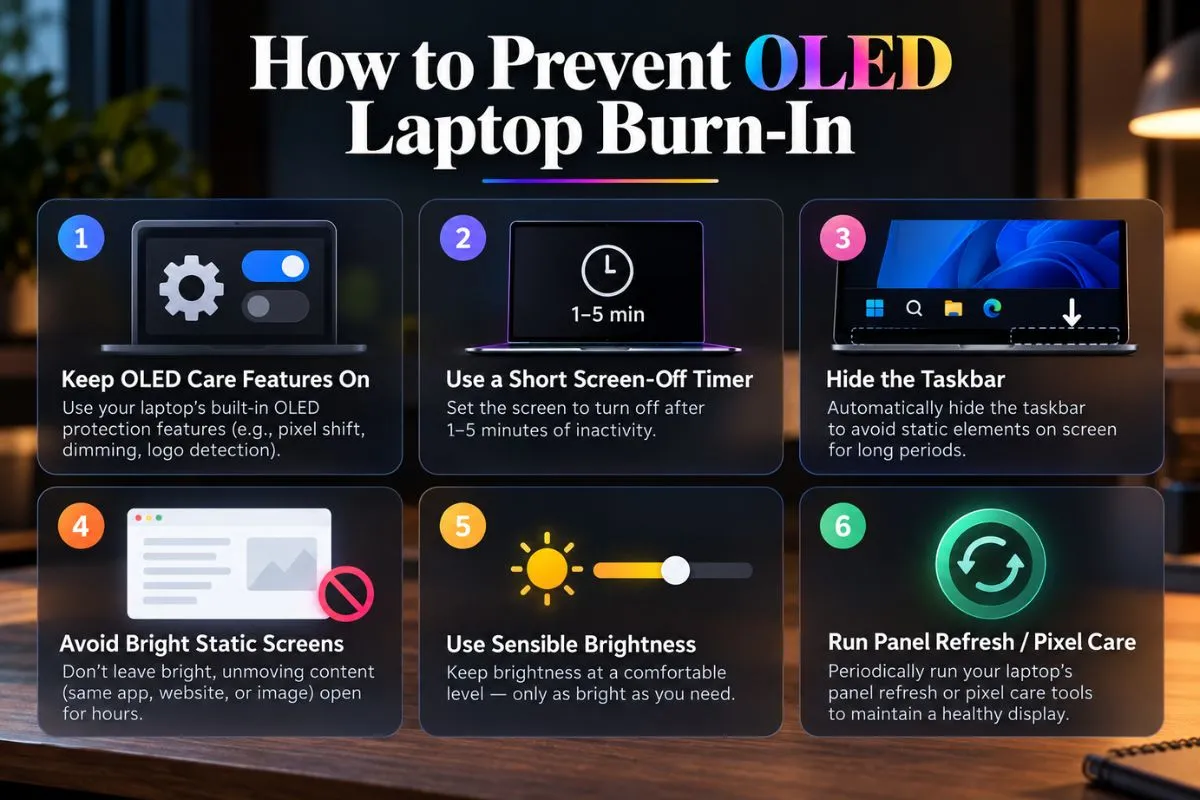
- Keep the manufacturer’s OLED protection features enabled.
- Use a reasonably short screen-off timer.
- Hide the Windows taskbar when practical.
- Avoid leaving bright static screens open for hours when you are not using the laptop.
- Use brightness that matches the room instead of running maximum brightness all day.
- Let screensavers, pixel-shift tools, and panel-refresh features do their job.
- If your work is extremely static, periodically move or rearrange windows and toolbars.
These steps matter more than obsessively changing wallpapers or constantly worrying about every static icon.
If your laptop also spends most of the day plugged in, battery care matters too. See our guide on how to limit laptop battery charging to 80% in Windows 11 for brand-specific settings and battery-health tips.
ASUS OLED Care vs MSI OLED Care: What These Tools Actually Do
| Protection feature | ASUS OLED Care | MSI OLED Care |
|---|---|---|
| Pixel shift | Yes | Yes / model-dependent OLED Care tools |
| Pixel refresh / maintenance | Yes | Yes / automated care functions |
| Taskbar protection | Yes | Yes |
| Static-content mitigation | Yes | Yes |
| Requires OEM software | MyASUS / supported models | MSI Center / MSI Center S |
| Purpose | Reduce persistent static-pixel stress | Reduce image retention and uneven pixel aging |
The exact options vary by laptop model and software version, so do not assume every OLED laptop from a brand exposes the same controls.
What If You Already See Image Retention?
First, determine whether it is temporary image retention or permanent burn-in.
ASUS recommends turning the display off for at least an hour, and ideally longer, if you notice residual imagery. Temporary retention may fade after the panel rests or displays changing content.
If the image remains persistent after normal recovery steps and panel-care routines, contact the laptop manufacturer while the device is still under warranty.
Do not repeatedly run random third-party “burn-in fixer” videos at maximum brightness. That can add more cumulative OLED wear rather than solving the underlying issue.
Does Warranty Cover OLED Burn-In?
Warranty treatment varies by manufacturer, model, country, and purchase date.
ASUS currently advertises burn-in protection and, on some OLED laptop lines and regions, a screen exchange service if burn-in occurs during the applicable warranty period.
That does not mean every OLED laptop from every brand carries the same burn-in coverage.
Before buying a high-end OLED laptop for heavy productivity use, check the exact warranty terms for the model you are considering.
OLED vs IPS for Long-Term Laptop Use
| Priority | OLED | IPS LCD |
|---|---|---|
| Black levels | Excellent | Good |
| Contrast | Excellent | Lower |
| Pixel response | Extremely fast | Slower |
| HDR impact | Strong on good panels | Varies |
| Color capability | Often excellent | Can also be excellent |
| Burn-in risk | Possible | No OLED-style burn-in |
| Static office use all day | Needs more care | Lower concern |
| Movies and gaming | Excellent | Good–Excellent |
| Long-term fixed dashboards | Less ideal | Safer choice |
The decision is not “OLED is fragile, IPS is safe.” It is whether OLED’s visual advantages are worth a small amount of extra display-care discipline for your workload.
GadgetStick Pro Tip
If your laptop use is mostly browsing, media, gaming, mixed office work, and occasional creative work, I would not reject a good OLED laptop purely because burn-in exists.
If your screen will show the same interface for most of an eight-to-twelve-hour workday — especially trading software, monitoring dashboards, POS systems, or a fixed IDE layout — I would give IPS or mini-LED much stronger consideration.
The question is not “Can OLED burn in?” It can. The useful question is “Does my workload repeatedly stress the same pixels enough for that risk to matter?”
Frequently Asked Questions
Do OLED laptops still get burn-in in 2026?
Yes. Permanent burn-in is still physically possible because OLED pixels can age unevenly. Modern protection systems reduce the risk but do not eliminate it.
How long does OLED laptop burn-in take?
There is no reliable universal timeframe. It depends on panel design, brightness, static-content exposure, daily usage, protection features, and temperature.
Should I avoid OLED for office work?
Not necessarily. Mixed office use is usually manageable. The concern becomes more relevant when the same bright interface remains fixed for many hours every day.
Does hiding the taskbar help?
Yes. The taskbar is one of the most persistent static elements on Windows laptops, which is why manufacturers such as ASUS and MSI include taskbar-protection features in their OLED care tools.
Does dark mode prevent burn-in?
It can reduce pixel output in dark areas, but it does not make burn-in impossible. Static bright text and UI elements can still remain on-screen.
Is OLED safe for gaming laptops?
For most mixed gaming use, yes. The higher-risk scenario is thousands of hours in the same game with the same static HUD at high brightness.
Is image retention the same as burn-in?
No. Image retention can be temporary, while burn-in is persistent uneven pixel aging that may not fully disappear.
Final Answer
OLED laptop burn-in is still a real technical possibility in 2026, but it should be treated as a usage-dependent risk rather than an automatic reason to avoid OLED.
Modern OLED laptops include far better protection than early OLED products: pixel shifting, panel refresh, taskbar controls, screen-off timers, and vendor-specific OLED care tools all help reduce static-image stress.
For mixed browsing, entertainment, gaming, and general productivity, an OLED laptop can make plenty of sense.
For highly static professional workloads that keep the same interface on-screen all day, IPS or mini-LED remains the lower-maintenance choice.
How We Researched This Guide
We reviewed current 2026 laptop-specific OLED guidance from ASUS, MSI, and HP, focusing on how those manufacturers describe image retention, permanent burn-in, static-content risk, brightness, screen-off behavior, pixel shifting, and automated panel-care tools.
We deliberately did not use TV or monitor burn-in results as direct proof of how long a laptop OLED panel will last. Different panels, thermal designs, brightness limits, protection algorithms, and workloads make exact lifespan comparisons unreliable.
Where manufacturer material makes broad reliability claims, we use it only to explain the protection features they provide — not as proof that burn-in cannot happen.
Editorial Note
OLED panel technology, firmware protections, and warranty coverage change by model and region. Always verify the exact laptop’s OLED care features and warranty terms before buying if your workload is unusually static.
