
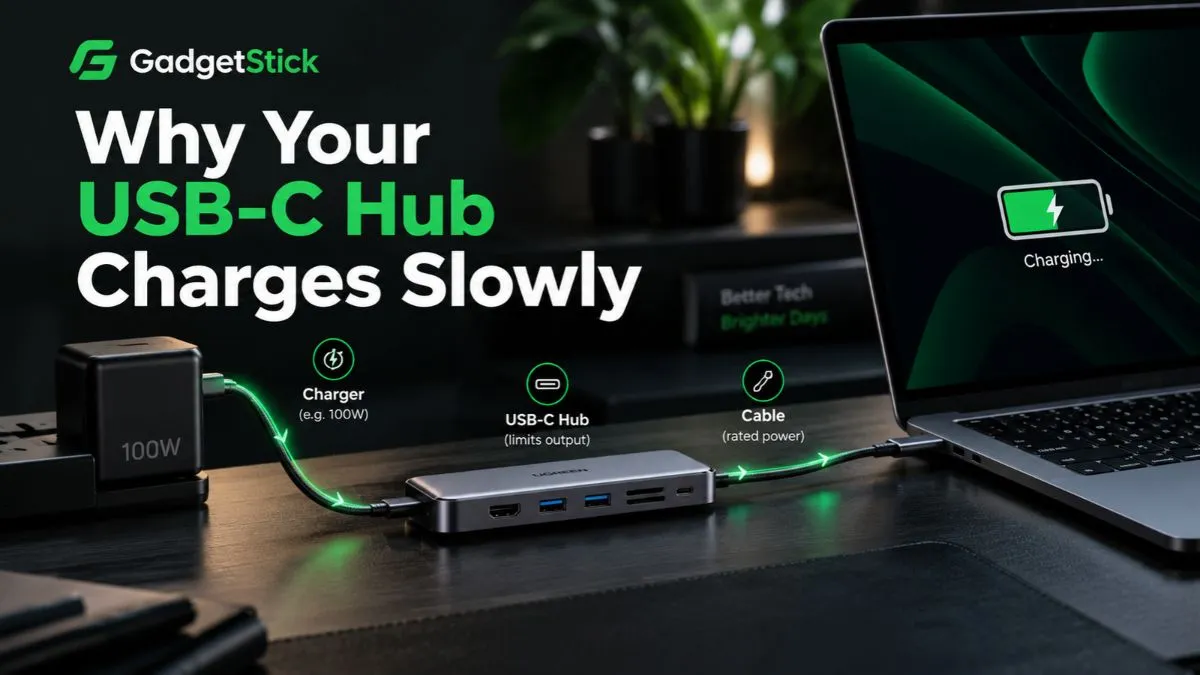
A USB-C hub can make a laptop charge slower, even when the hub says it supports 100W Power Delivery.
The reason is simple: the charger’s full wattage does not always reach the laptop.
A pass-through USB-C hub needs some power for itself. It may also need to power Ethernet, card readers, USB devices, HDMI circuitry, SSDs, or other connected accessories. Whatever remains is what the laptop can receive.
That means a 100W charger connected through a hub does not automatically mean 100W reaches the laptop.
If your laptop charges normally when the charger is connected directly but slows down through a USB-C hub, the hub, charger, cable, or Power Delivery limit is usually the reason.
Quick Answer
Yes. A USB-C hub can slow down laptop charging.
Most pass-through hubs reserve part of the incoming power for their own electronics and connected devices. A hub may accept 100W from a charger but deliver less than that to the laptop. Windows can also show a Slow charger warning when the computer receives less charging power than expected, and Microsoft specifically lists external hubs and docks as one possible cause.
The amount of power that actually reaches your laptop depends on:
- charger wattage
- USB-C cable rating
- hub maximum PD input
- hub maximum host charging output
- laptop charging requirement
- connected USB devices
- whether the laptop supports USB-C Power Delivery on that port
Why a USB-C Hub Can Slow Down Charging
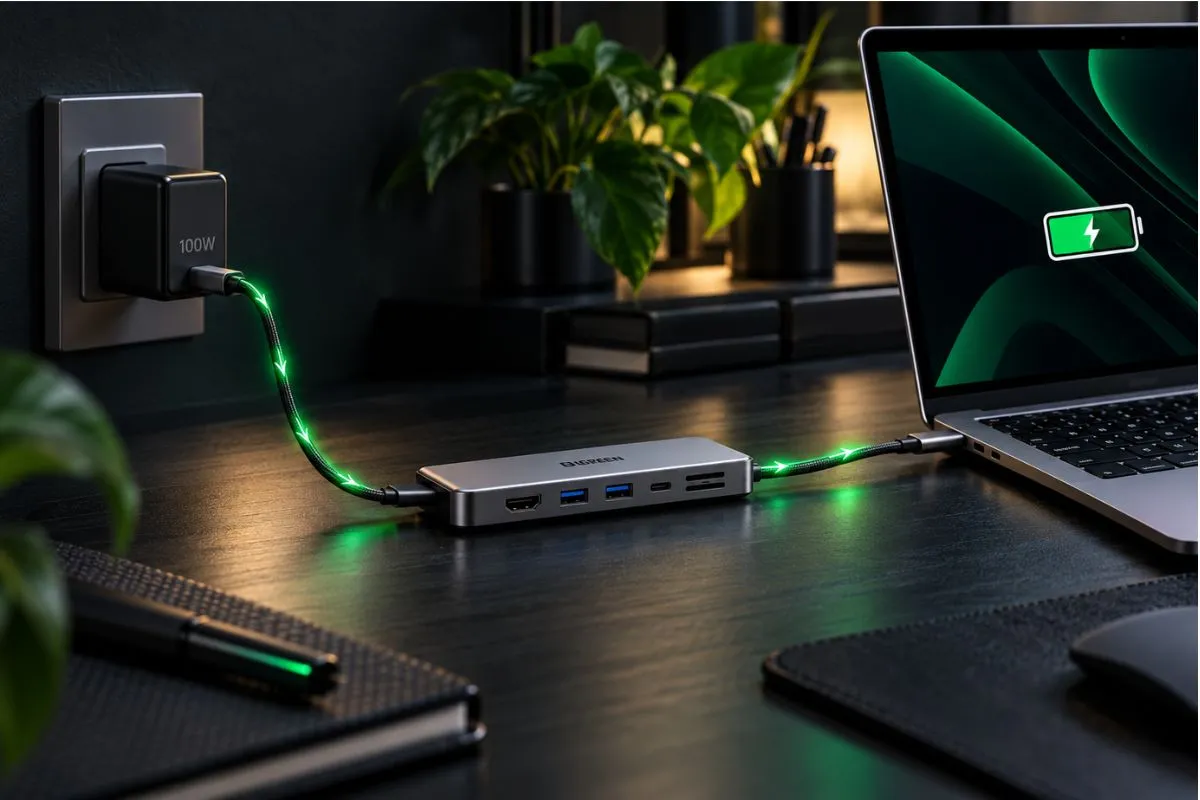
A USB-C Power Delivery hub sits between the charger and your laptop.
Without a hub, the path is simple:
Charger → Laptop
With a pass-through hub, the path becomes:
Charger → USB-C Hub → Laptop
The hub is not just a passive piece of wire. It contains controllers, USB circuitry, display hardware, Ethernet chips, card readers, and sometimes other components that need power.
With pass-through charging, some of the charger’s available power can be reserved for the hub before the rest is sent to the computer. Plugable explains that pass-through hubs can reserve power for their own operation, which is why the host may receive less power than the charger’s headline wattage. You can also see the same basic behavior in our guide explaining how USB-C hub PD passthrough works.
A Simple 100W Example
Suppose you have:
- a 100W USB-C charger
- a USB-C hub rated for 100W PD input
- a laptop that normally uses close to 100W
If the hub reserves part of that power for itself, the laptop may receive something closer to the high-80W or low-90W range instead of the full 100W. The exact number depends on the hub.
For a laptop that normally charges at 45W or 65W, that difference may barely matter. For a performance laptop that expects close to the full 100W, it can be noticeable.
100W Input Does Not Mean 100W Reaches the Laptop
This is one of the most confusing parts of USB-C hub charging.
When a hub product page says “100W Power Delivery”, that can describe how much power the hub can accept from the charger. It does not always describe how much power the hub sends to the laptop.
Those are two different specifications:
- PD input: how much power the hub can accept
- Host charging output: how much power can actually reach the connected laptop
For example, one hub can advertise 100W PD input while its maximum host charging output is 85W or 92W. That does not automatically mean the product is faulty. It may simply be how the power budget is designed.
Before assuming something is wrong, check the manufacturer’s specifications for terms such as host charging, PD output, or power to host.
How Much Power Does a USB-C Hub Use?
There is no universal number because hub designs vary.
A basic hub with a few USB ports may need relatively little power. A larger hub or dock can include:
- HDMI or DisplayPort
- Ethernet
- SD and microSD readers
- multiple USB-A ports
- USB-C data ports
- audio circuitry
- SSD storage
- multiple display controllers
The more circuitry and bus-powered devices involved, the more important the overall power budget becomes. This is also why the difference between powered and bus-powered USB-C hubs matters when you are troubleshooting charging behavior.
Charger Wattage vs Hub Output vs Laptop Requirement
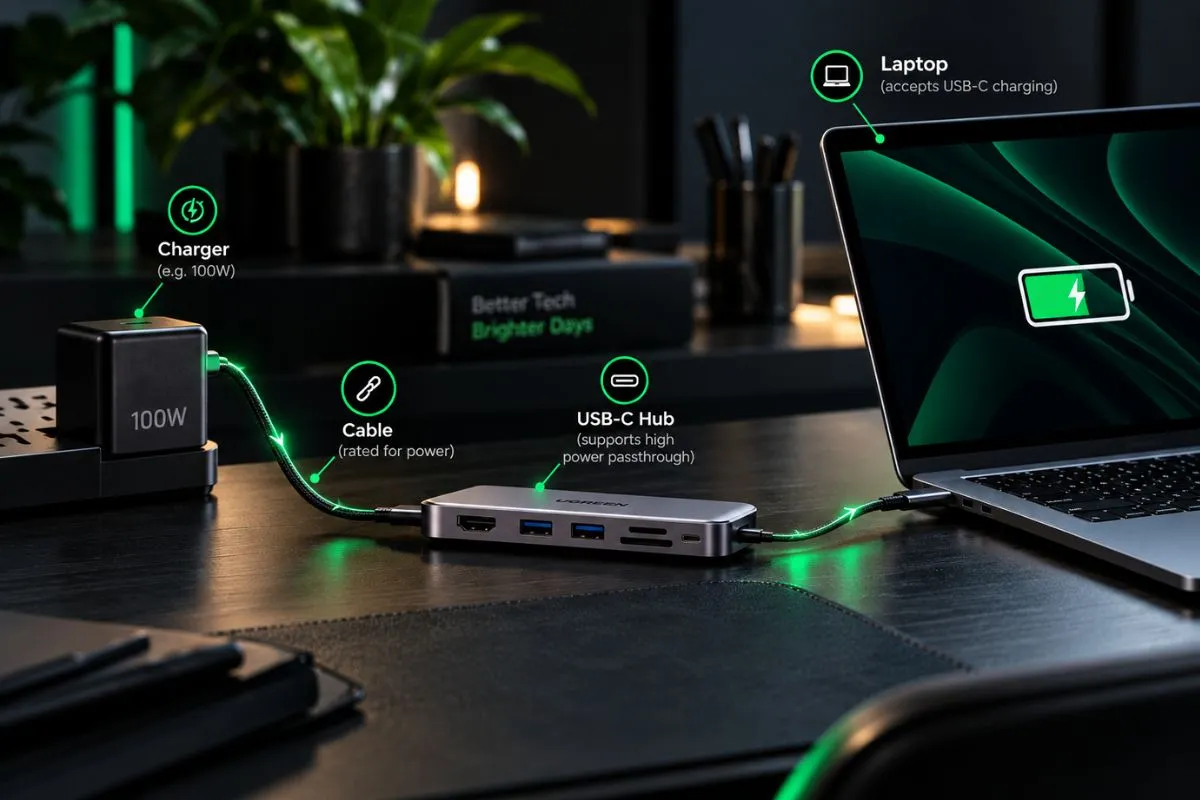
For fast USB-C charging, you need to look at the whole chain rather than one number printed on the hub.
| Part | What to Check |
|---|---|
| Charger | Maximum USB-C PD output |
| USB-C hub | Maximum PD input and host charging output |
| Laptop | Required or supported USB-C charging wattage |
| Cable | Maximum supported charging current and power |
Example 1: A 65W Laptop
Your laptop needs around 65W. You use a 100W charger, a hub capable of more than 65W host charging, and the correct cable. In this case, the laptop can still receive enough power and you may see little practical difference.
Example 2: A 100W Laptop
Your laptop expects close to 100W, but the hub’s host output is lower after its own power overhead. Now the laptop can receive less power than it would from a direct charger connection, so charging may become slower.
Example 3: A 100W Hub With a 65W Charger
A hub that supports up to 100W cannot create 100W from a 65W charger. It only has the incoming 65W available to share. After the hub uses some of that power, the laptop can receive noticeably less than 65W.
If your laptop is already charging slowly even without a hub, use our separate guide on why a laptop charges slowly over USB-C because the cause may be the charger, cable, port, firmware, or laptop itself rather than the hub.
Can Connected Devices Reduce Charging Speed?
They can, depending on how the hub manages power.
A hub may need to provide power to devices such as:
- portable SSDs
- USB hard drives
- phones
- webcams
- capture cards
- USB lighting
- card readers
- other bus-powered accessories
Microsoft notes in its USB-C troubleshooting guidance that power availability can be affected by connected devices and the power capabilities of the charger, cable, and port. The exact power split varies from hub to hub, but the practical rule is simple: the more equipment the hub has to run, the more charger headroom matters.
If charging gets slower only after you connect several accessories, unplug them one at a time and test again.
Does the USB-C Cable Matter?
Yes. The cable is part of the charging system, and a weak or unsuitable cable can limit the whole setup.
Microsoft lists a cable that does not meet the charger’s or computer’s power requirements as one possible cause of slow USB-C charging. USB Power Delivery can support high power levels, but that does not mean every USB-C cable can carry every supported wattage.
USB PD originally became widely associated with charging up to 100W. USB PD 3.1 later expanded the specification to support up to 240W with compatible Extended Power Range hardware and cables. The important part is compatible. A charger, hub, laptop, and cable all need to support the required power level.
You can therefore have a 100W charger, a 100W-capable hub, and a 100W-capable laptop but still get slower charging if the cable becomes the bottleneck.
Why Windows Says “Slow Charger”
Windows can show a Slow charger warning when the laptop receives less charging power than expected.
Microsoft lists several possible causes, including:
- the charger is not powerful enough
- the charger is incompatible
- the cable cannot provide the required power
- the charger is connected to the wrong USB-C port
- the connector is not seated properly
- the charger is connected through an external hub or dock
So if the warning appears only when you use your USB-C hub, that does not automatically mean the hub is defective. It may simply be delivering less power than the laptop expects.
Why the Battery Can Drop While the Laptop Is Plugged In
This can happen when the laptop is using power faster than the hub can provide it.
Imagine the laptop is consuming roughly 80W during a demanding workload but the hub setup can provide only around 65W to the computer. The charger is still connected, but there is a power deficit. The battery can slowly discharge to cover the difference.
This is more likely during gaming, rendering, video exports, heavy CPU workloads, or other situations where the laptop is drawing much more power than it does at idle.
How to Test Whether the USB-C Hub Is the Bottleneck
1. Charge the Laptop Directly
Disconnect the hub and connect the same charger directly to the laptop. If charging becomes noticeably faster or the Slow charger warning disappears, the hub setup is likely limiting available power.
2. Keep the Same Charger and Cable
Do not change every part at once. Test direct charging with the same charger and compatible cable, then place the hub between them. This gives you a cleaner comparison.
3. Disconnect Hub Accessories
Remove SSDs, USB drives, phones, webcams, card readers, and other bus-powered devices. Keep only the charger, hub, and laptop connected. If charging improves, attached devices may be increasing the hub’s power demand.
4. Check the Hub’s Real Host Output
Look for specifications such as 100W PD input, 85W charging output, 92W host charging, or maximum host power. Do not rely only on the large “100W PD” label.
5. Check the Laptop’s Original Charger Rating
If the original charger is rated for 45W, 65W, 90W, 100W, 140W, or another level, compare that with the hub’s actual host charging capability. Some performance laptops can also charge over USB-C while still accepting much more power from a proprietary adapter.
6 Fixes for Slow Charging Through a USB-C Hub
1. Use a Higher-Wattage USB-C PD Charger
If the hub consumes part of the incoming power, a charger with more headroom can help, as long as the laptop and hub support that Power Delivery level. Using a 45W charger through a hub for a laptop that normally expects around 65W is an obvious recipe for slower charging.
2. Use the Correct High-Power USB-C Cable
A cable that cannot carry the required power can limit the entire setup. Use a cable rated for the charging level your charger, hub, and laptop are designed to use.
3. Check the Hub’s Real Host Charging Limit
Ignore the marketing headline for a moment and find the host output specification. If the hub accepts 100W but delivers only 85W to the laptop, that may be normal for that product.
4. Disconnect Power-Hungry Accessories
If several bus-powered devices are connected, test the hub with them removed. If charging improves, reconnect them one by one until you identify which setup creates the problem.
5. Use the Correct PD Input Port
Many hubs have several USB-C ports, but only one accepts charging input. It may be labeled PD, PD IN, Power, or with a charging symbol. Connecting the charger to a normal USB-C data port may provide no pass-through charging at all.
6. Use Direct Charging During Heavy Workloads
If your laptop needs close to its maximum charger output while gaming, rendering, compiling, or doing other demanding work, direct charging may be more reliable. If the laptop has another suitable USB-C port, you may still be able to keep the hub connected for data or displays.
When Direct Charging Is Better
A hub is convenient, but it is not always the best charging path.
Direct charging makes more sense when:
- the laptop needs close to 100W or more
- the battery drains during heavy load
- Windows repeatedly reports a Slow charger
- the hub’s host output is below the laptop requirement
- you want the fastest possible charging
- the laptop uses a much higher-power proprietary adapter
For a light ultrabook that needs around 45W to 65W, the difference may be small. For a performance laptop, the gap can matter much more.
When a Powered Dock Makes More Sense
There is an important difference between a small pass-through USB-C hub and a powered docking station.
A pass-through hub relies on the charger you plug into it. A powered dock normally includes its own power adapter and is designed to run the dock while also supplying charging power to the connected computer.
A powered dock can make more sense if you regularly use multiple monitors, Ethernet, external SSDs, several USB accessories, or a higher-power laptop in a permanent desk setup.
For travel, a smaller pass-through hub is usually more convenient.
Does Slower USB-C Hub Charging Damage the Battery?
Normally, slower charging by itself does not mean the battery is being damaged.
The bigger issue is whether the laptop receives enough power for the way you are using it. If the available power is too low:
- charging takes longer
- the battery may not gain charge during heavy use
- battery percentage may fall while plugged in
- some laptops may change performance behavior
Use compatible USB Power Delivery equipment from reputable manufacturers and stay within the laptop’s supported charging specifications.
Is USB-C Power Delivery Always 100W?
No. USB Power Delivery supports different power levels.
USB PD became widely known for supporting up to 100W, while USB PD 3.1 expanded the specification up to 240W with compatible Extended Power Range equipment. That maximum specification does not tell you what your individual charger, cable, hub, or laptop supports.
The charging system is limited by the capabilities of the devices in the chain.
Frequently Asked Questions
Does a USB-C hub reduce charging speed?
It can. Pass-through hubs use some incoming power for their own electronics, so the laptop may receive less power than it would from a direct charger connection.
Why is my 100W USB-C hub only charging my laptop at around 85W or 90W?
Because the 100W figure may describe maximum PD input rather than host charging output. The hub can reserve some of the incoming power for itself and connected devices.
Can a 65W charger work through a 100W USB-C hub?
Yes, but the hub cannot turn a 65W charger into a 100W charger. Some of the available power may also be used by the hub, so the laptop can receive less than 65W.
Can a USB-C hub make my laptop battery drain while plugged in?
Yes. If the laptop is consuming more power than the hub can deliver, the battery can slowly discharge even though the charger is connected.
Do USB devices connected to the hub affect laptop charging?
They can. Bus-powered peripherals use power, and some hub designs have to divide the available power between the hub, peripherals, and laptop.
Is a powered dock better than a USB-C hub for charging?
For a permanent desk setup or a higher-power laptop, often yes. A powered dock has its own power source and can provide a more predictable power budget while running multiple peripherals.
Final Answer
A USB-C hub can slow down laptop charging, and that does not necessarily mean anything is broken.
The main reason is that a pass-through hub can consume part of the charger’s power before sending the remaining power to the laptop.
So 100W charger + 100W hub does not guarantee 100W laptop charging.
The real charging rate depends on the entire chain:
charger → cable → hub → connected devices → laptop
If your laptop charges slowly through a hub, compare it with direct charging first. Then check the hub’s actual host charging output, charger wattage, cable rating, connected devices, and the laptop’s power requirement.
For lower-power laptops, the difference may barely matter. For higher-power laptops, direct charging or a properly powered dock can be the better solution.
How We Researched This Comparison
We reviewed current USB-C charging guidance from Microsoft, USB-IF information on USB Power Delivery, and technical documentation from USB-C hub and docking-station manufacturers. We focused on how pass-through charging works, why hubs reserve power, PD input versus host output, Windows Slow charger behavior, cable requirements, and the practical difference between pass-through hubs and powered docks.
We did not treat a manufacturer’s maximum wattage claim as proof that the same wattage reaches the laptop. Where charging limits vary by product, this guide treats them as product-specific rather than universal USB-C rules.
Editorial Note
USB-C Power Delivery capabilities vary between laptops, chargers, hubs, docks, and cables. Always check the specifications for your exact hardware, especially when using laptops that require 90W, 100W, 140W, or higher charging power.
