
Two HDMI ports do not automatically mean a docking station can run two independent 4K monitors properly. The result depends on your laptop’s USB-C capabilities, DisplayPort support, operating system, available bandwidth, and whether the dock relies on native video output or DisplayLink.
That difference matters even more with MacBooks. Some Macs have native external-display limits that a conventional USB-C or Thunderbolt dock cannot simply override, while DisplayLink-based docks can add extra screens through software-driven graphics. Windows laptops can have a different set of limits depending on MST, Thunderbolt, USB4, and the GPU behind the USB-C port.
Charging is another place where product pages can be misleading. A dock advertised with a 100W power input does not necessarily send the full 100W to your laptop, and some models trade display capability, charging power, or both depending on the host connection.
For this guide, we focused on docking stations that solve real dual-monitor use cases. We compared documented display behavior, Mac and Windows compatibility, charging capability, connection standard, manufacturer support, and the limitations buyers should know before spending their money.
Quick Answer
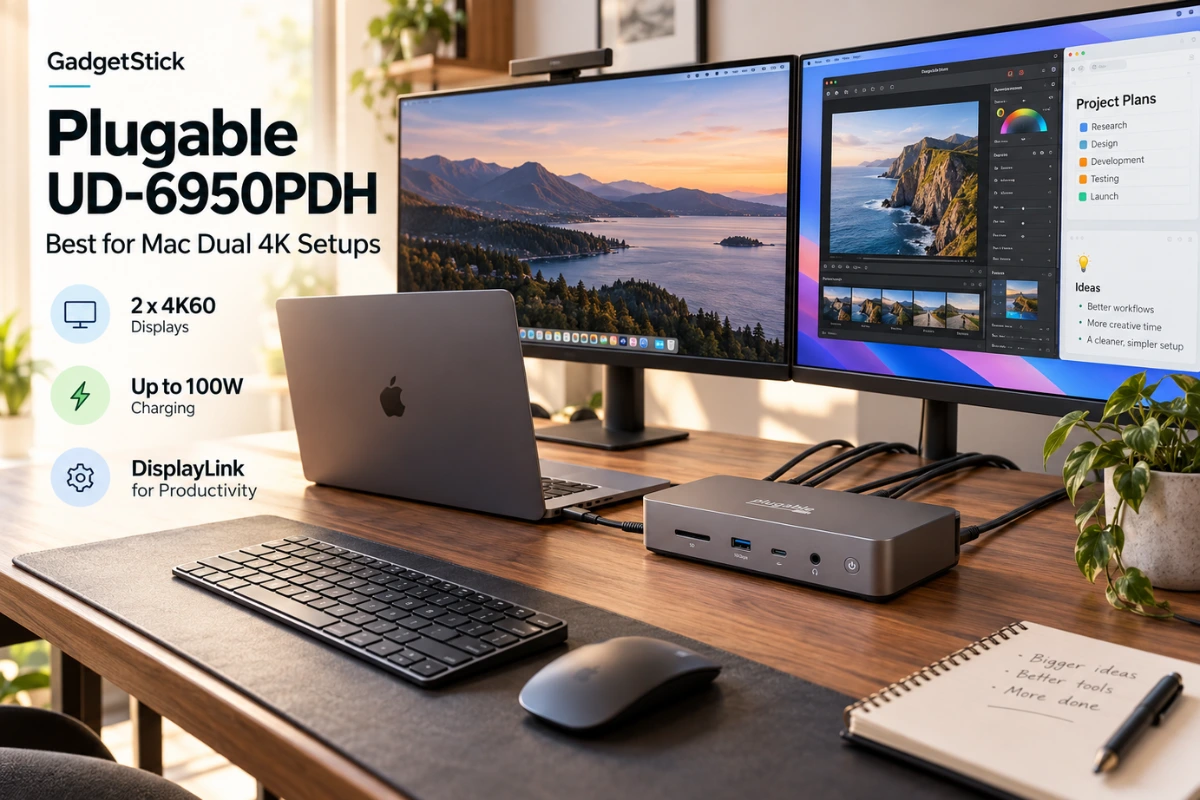
If you use a MacBook and need two independent 4K60 external monitors, the Plugable UD-6950PDH is the most targeted pick in this guide. Plugable documents two 4K60 displays, DisplayLink support for Macs with stricter native display limits, and up to 100W laptop charging.
For a premium native Thunderbolt setup, the CalDigit TS4 is the stronger workstation choice when your laptop already supports the required number of external displays. The Plugable UD-6950PDZ is the flexible choice for three-screen productivity setups, while the UGREEN Revodok Pro 209 is the value-oriented dual-4K option. The Anker 575 is best suited to a mainstream office desk where broad connectivity matters more than pushing two displays at the highest possible resolution and refresh rate.
Affiliate disclosure: GadgetStick’s previous Amazon Associates relationship is no longer active. Existing Amazon links remain in this article.
Our Recommended Dual Monitor Docking Stations
- #1 Plugable UD-6950PDH — Best overall for Mac dual 4K productivity
- #2 CalDigit TS4 — Best premium Thunderbolt workstation dock
- #3 Plugable UD-6950PDZ 100W — Best for flexible three-monitor productivity
- #4 UGREEN Revodok Pro 209 — Best value dual 4K docking station
- #5 Anker 575 — Best for everyday office dual-monitor setups
How We Chose the Best Dual Monitor Docking Stations
We did not select these docks by counting ports or sorting Amazon listings by star rating. The first question was simpler: can this docking station actually deliver the multi-monitor setup its target buyer needs?
We compared manufacturer documentation for maximum display count, resolution and refresh rate, HDMI and DisplayPort behavior, native versus DisplayLink output, Mac and Windows compatibility, charging power delivered to the host laptop, connection bandwidth, included power supply, and known limitations. We also favored brands that publish clear compatibility and support documentation instead of relying on vague “universal” claims.
We did not claim hands-on testing that we did not perform. This guide is based on documented specifications, compatibility information, product positioning, and practical buyer fit. Where a dock depends on DisplayLink software, host DisplayPort support, or a specific Mac chip capability, that limitation is called out directly.
Dual Monitor Docking Station Comparison
| Dock | Best For | Display Support | Charging | Connection | Main Limitation |
|---|---|---|---|---|---|
| Plugable UD-6950PDH | Mac dual-4K productivity | 2× 4K60 | Up to 100W | USB-C / USB4 / Thunderbolt host | DisplayLink software; not ideal for gaming or color-critical work |
| CalDigit TS4 | Premium workstation | Up to dual 4K60 on supported Windows hosts; higher-end Macs vary by chip | 98W | Thunderbolt 4 | Dual-display support depends on the host computer |
| Plugable UD-6950PDZ | Three-monitor productivity | Up to 3 external displays; two DisplayLink outputs up to 4K60 | Current version up to 100W | USB-C / USB4 / Thunderbolt host | Older 60W stock existed under the same model number |
| UGREEN Revodok Pro 209 | Value dual-4K desk setup | 2× 4K60 with DisplayLink | Up to 85W to laptop | USB-C | DisplayLink software required; charger not included |
| Anker 575 | Everyday office connectivity | Multi-display support varies with host | 85W | USB-C with DP Alt Mode | Actual dual-monitor resolution depends on laptop capability |
#1. Plugable UD-6950PDH
Best dual monitor docking station for Mac users who need two independent 4K60 displays
Quick Specs That Actually Matter
- Display support: two external monitors up to 4K 60Hz each
- Video outputs: HDMI or DisplayPort for each display
- Laptop charging: up to 100W USB-C Power Delivery
- Host compatibility: supported USB-C, USB4, Thunderbolt 3/4/5 systems
- Driver: DisplayLink software required for full display functionality
- Connectivity: Gigabit Ethernet, SD, microSD, USB-A, USB-C and 3.5mm audio
Why It Earned the Top Spot
The UD-6950PDH is here because it solves the exact problem that causes the most confusion in Mac dual-monitor setups. Plugable uses DisplayLink rather than relying entirely on the Mac’s native external-display pipeline, allowing the dock to drive two 4K60 displays on supported systems even when the laptop itself has stricter native display limits.
Plugable’s official specifications list two HDMI/DisplayPort display channels at up to 3840×2160 60Hz, 100W host charging, Gigabit Ethernet, card readers and a useful mix of USB ports. That combination makes it a strong fit for browser-heavy work, coding, office apps, financial dashboards, teaching, and general productivity.
The Limitation to Know
DisplayLink is both the reason this dock is so useful and the reason it is not for everyone. Plugable specifically positions DisplayLink docks for office and light web workloads and warns that demanding 2D/3D graphics, full-screen video playback, video editing and games may not behave as expected. HDCP-protected content is also not supported through these DisplayLink outputs.
Who should buy it: MacBook owners who need two independent 4K60 screens for productivity and want one cable for displays, charging, Ethernet and accessories.
Who should skip it: gamers, color-critical creators, or anyone who wants native GPU display output without DisplayLink software.
#2. CalDigit TS4
Best premium Thunderbolt dock for a native dual-monitor workstation
Quick Specs That Actually Matter
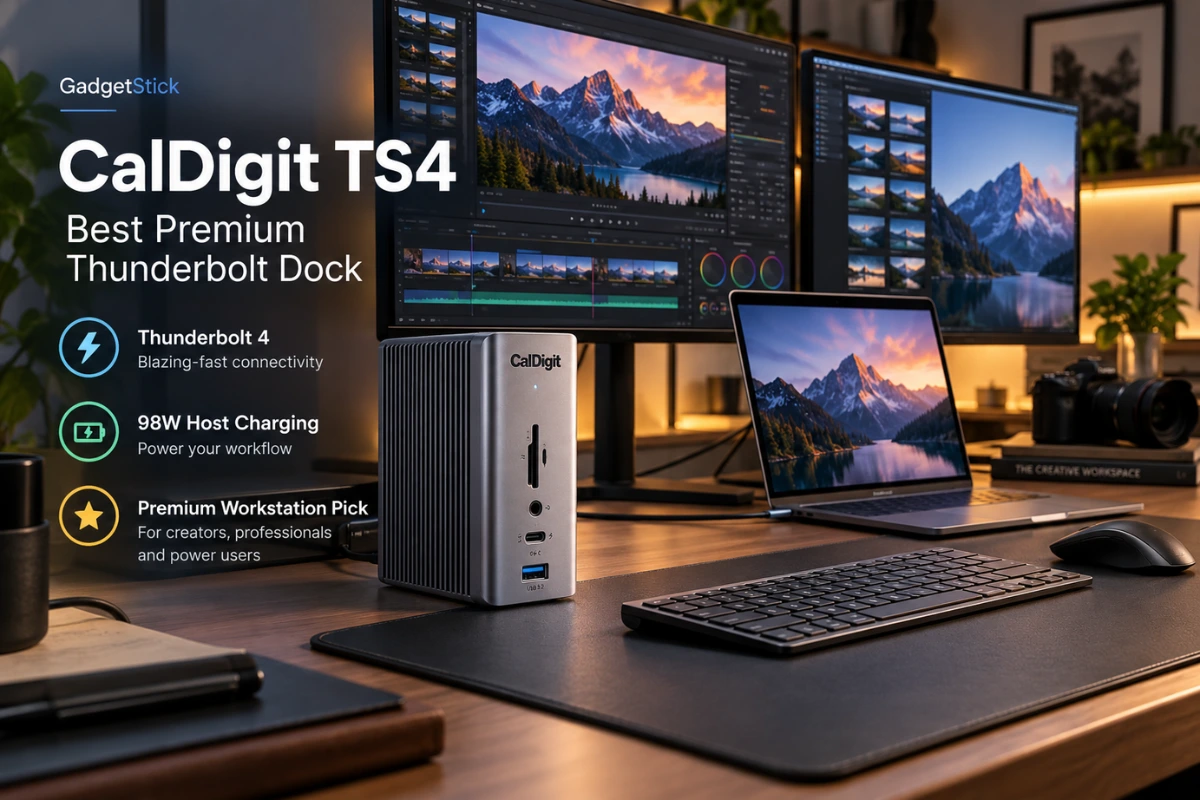
- Host connection: Thunderbolt 4 at 40Gbps
- Laptop charging: up to 98W
- Displays: dual 4K60 on supported Windows systems; Mac capability depends on chip
- Ports: 18 total, including Thunderbolt, USB-C, USB-A, DisplayPort, audio and card readers
- Networking: 2.5Gb Ethernet
Why It Is the Premium Pick
The TS4 is a different type of recommendation from the DisplayLink docks in this guide. Instead of adding software-driven display capability, it gives a compatible Thunderbolt laptop a high-bandwidth native workstation connection with 98W charging, multiple Thunderbolt ports, 10Gbps USB, 2.5Gb Ethernet and a large port selection.
CalDigit documents dual 4K60 support on Windows, while compatible higher-end Apple Silicon Macs can run dual displays at even higher resolutions. The important caveat is that the dock cannot create display capability the computer does not natively have. For example, CalDigit notes that the original base M1 Mac does not support dual external displays through the TS4.
The Limitation to Know
This is a premium Thunderbolt dock, so it makes the most sense when your laptop can actually use the bandwidth and native display capability. A base Mac with a one-display native limit will not suddenly become a dual-monitor machine just because it is connected to an expensive Thunderbolt dock.
Who should buy it: professionals with a compatible Windows Thunderbolt laptop or a Mac model that natively supports the desired external displays, especially if fast wired networking and high-speed storage matter.
Who should skip it: users whose main problem is bypassing a Mac’s native external-display limit.
#3. Plugable UD-6950PDZ 100W
Best docking station for flexible three-monitor productivity setups
Quick Specs That Actually Matter
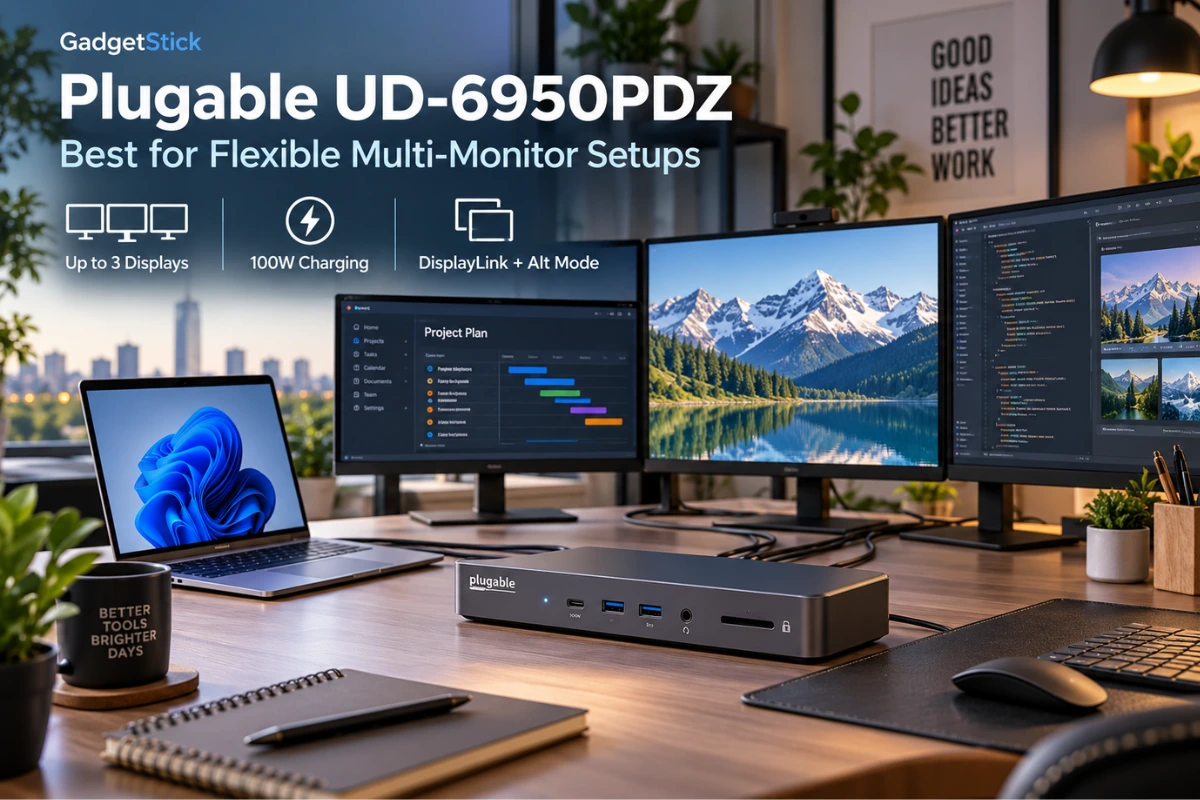
- Maximum displays: up to three external screens
- Display 1: host-driven DisplayPort Alt Mode
- Displays 2 and 3: DisplayLink, each up to 4K60
- Laptop charging: current hardware version up to 100W
- Video connectors: HDMI and DisplayPort options for each display channel
- Other connectivity: six USB-A ports, Gigabit Ethernet and 3.5mm audio
Why It Made the List
The UD-6950PDZ earns its place by combining native host video with two DisplayLink-driven outputs. Plugable explains that Display 1 uses the laptop’s USB-C DisplayPort Alt Mode, while Displays 2 and 3 use DisplayLink. That gives productivity users a practical route to three external screens without requiring every display to depend on the same graphics path.
There is one version detail worth checking before you buy. Plugable upgraded this model from 60W to 100W Power Delivery in February 2025 without changing the model number. The company says the current version delivers up to 100W to the host laptop, but some older 60W inventory may still exist.
The Limitation to Know
The first display still depends on the host laptop supporting USB-C DisplayPort Alt Mode, and DisplayLink carries the same productivity-first trade-offs described above. Also make sure the Amazon listing or product box clearly specifies the current 100W version if charging power matters to your setup.
Who should buy it: users who need three external screens for spreadsheets, dashboards, coding, research or other multi-window productivity.
Who should skip it: buyers who only need two displays and would rather use a simpler dock with fewer moving parts.
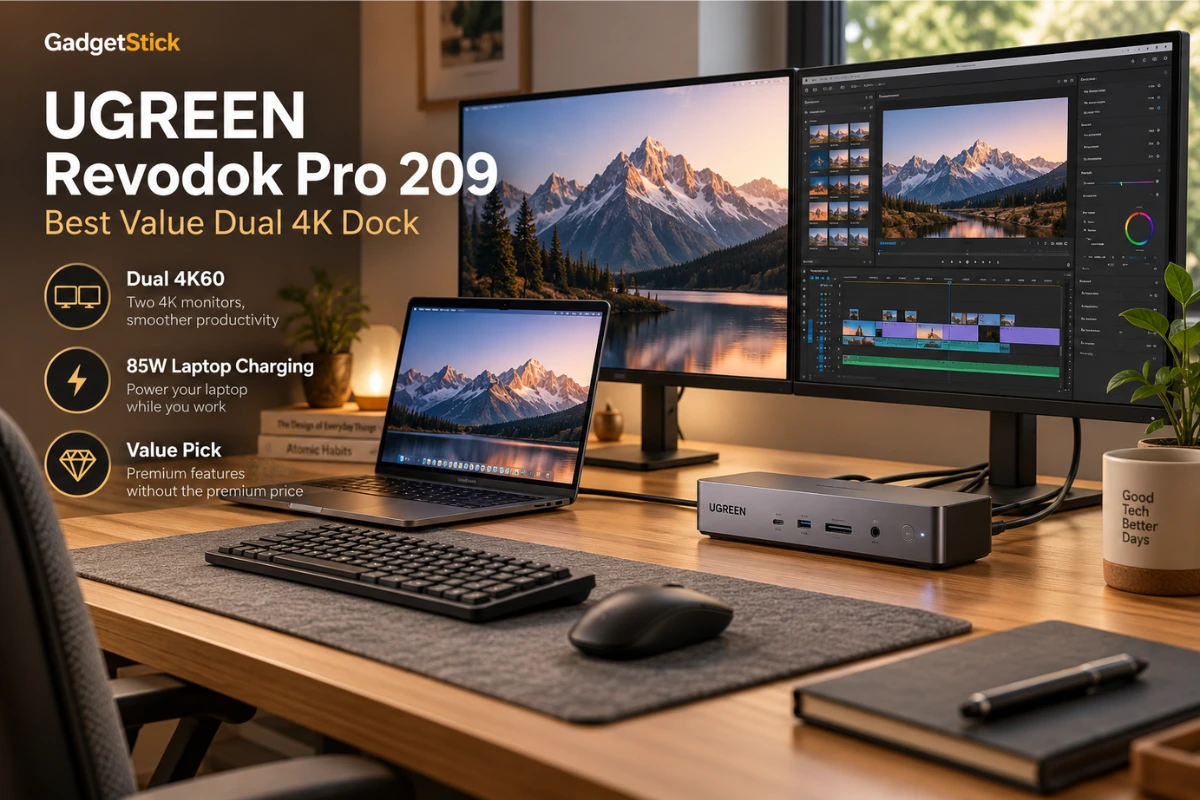
#4. UGREEN Revodok Pro 209
Best value USB-C dual monitor docking station for a 4K desk setup
Quick Specs That Actually Matter
- Display support: two external monitors up to 4K60 with DisplayLink
- Video outputs: 2× HDMI 2.0 and 2× DisplayPort 1.2
- Laptop charging: up to 85W from the 100W PD input
- Data: three 10Gbps USB data ports
- Networking: Gigabit Ethernet
- Power adapter: not included
Why It Is the Value Pick
UGREEN gives this dock a very practical spec mix: dual 4K60 output through DisplayLink, 10Gbps USB data, Gigabit Ethernet and up to 85W charging to the laptop. For someone building a fixed desk setup, that covers the features that matter without forcing a jump to premium Thunderbolt pricing.
There is an important port-layout detail. UGREEN says the HDMI and DisplayPort connectors within the same “Display” channel cannot be used together; you choose one output from Display 1 and one from Display 2. The dock supports two external displays total, not four just because four video connectors are present.
The Limitation to Know
DisplayLink software is required for display functionality, and the power adapter is not included. If you want the advertised charging capability, budget for a suitable USB-C PD charger as part of the setup.
Who should buy it: users who want dual 4K60 productivity monitors, fast USB data and Ethernet at a more approachable price.
Who should skip it: buyers who want native Thunderbolt video with no DisplayLink software or who do not already own a suitable PD charger.
#5. Anker 575 USB-C Docking Station
Best dual monitor docking station for everyday office connectivity
Quick Specs That Actually Matter
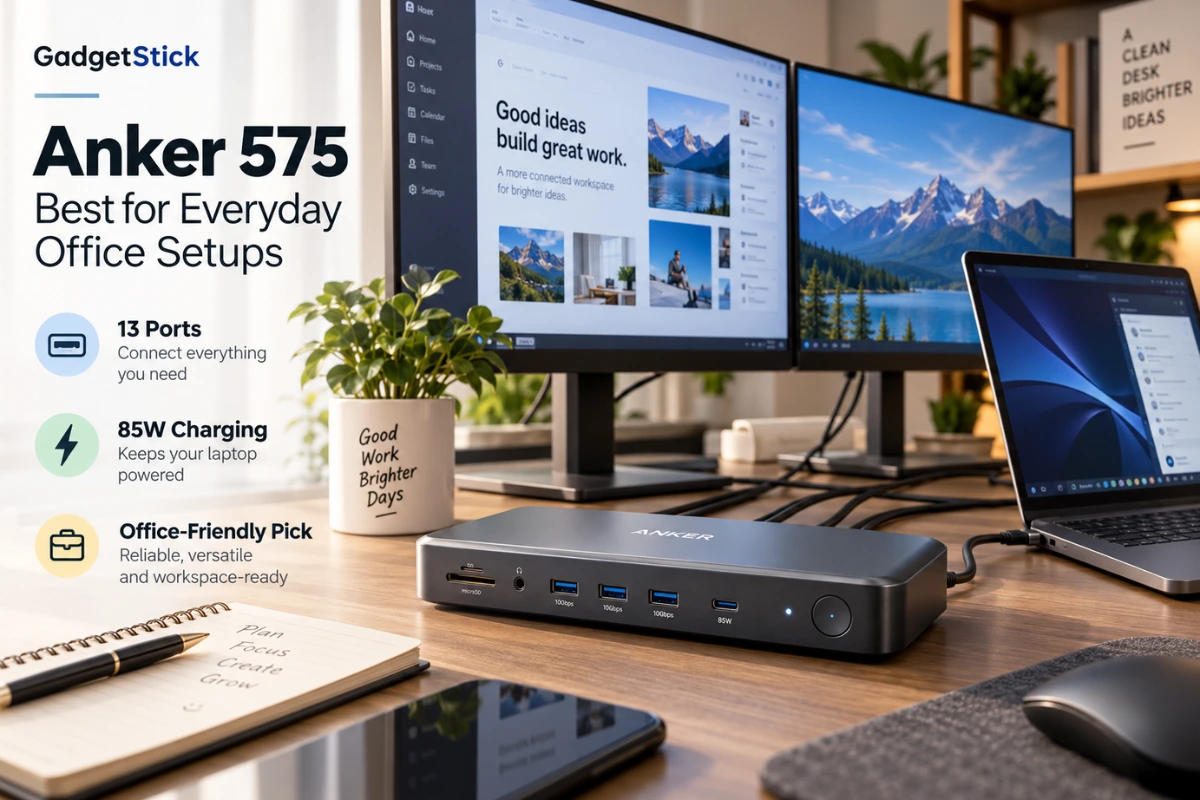
- Ports: 13 total
- Laptop charging: up to 85W to the host
- Video: 2× HDMI 2.0 plus DisplayPort
- Data: USB-C up to 10Gbps plus multiple USB-A ports
- Networking: Gigabit Ethernet
- Other ports: SD, microSD and 3.5mm audio
Why It Still Deserves a Place
The Anker 575 is not here because it wins the maximum-resolution race. It makes the list because many office users care more about a clean one-cable desk with reliable charging, Ethernet, storage connections, card readers and multiple display outputs than they do about running two 4K panels at the highest refresh rate.
Anker specifies an 85W upstream host port, two HDMI 2.0 outputs, DisplayPort, 10Gbps USB-C data, Gigabit Ethernet, SD, microSD and audio. The host laptop must support both USB-C Power Delivery and DisplayPort Alt Mode.
The Limitation to Know
Actual multi-monitor resolution depends on the laptop’s DisplayPort capabilities, so do not assume that seeing two HDMI ports automatically means two 4K60 extended displays. This is the model to choose for a broad office workstation, not for a buyer whose top priority is guaranteed dual 4K60 output across every laptop.
Who should buy it: office users who want a trusted-brand dock with strong charging and a wide mix of ports.
Who should skip it: anyone specifically shopping for the most predictable dual-4K60 setup or trying to bypass a Mac’s native display limit.
Buying Guide: How to Choose a Dual Monitor Docking Station
Start With Your Laptop, Not the Dock
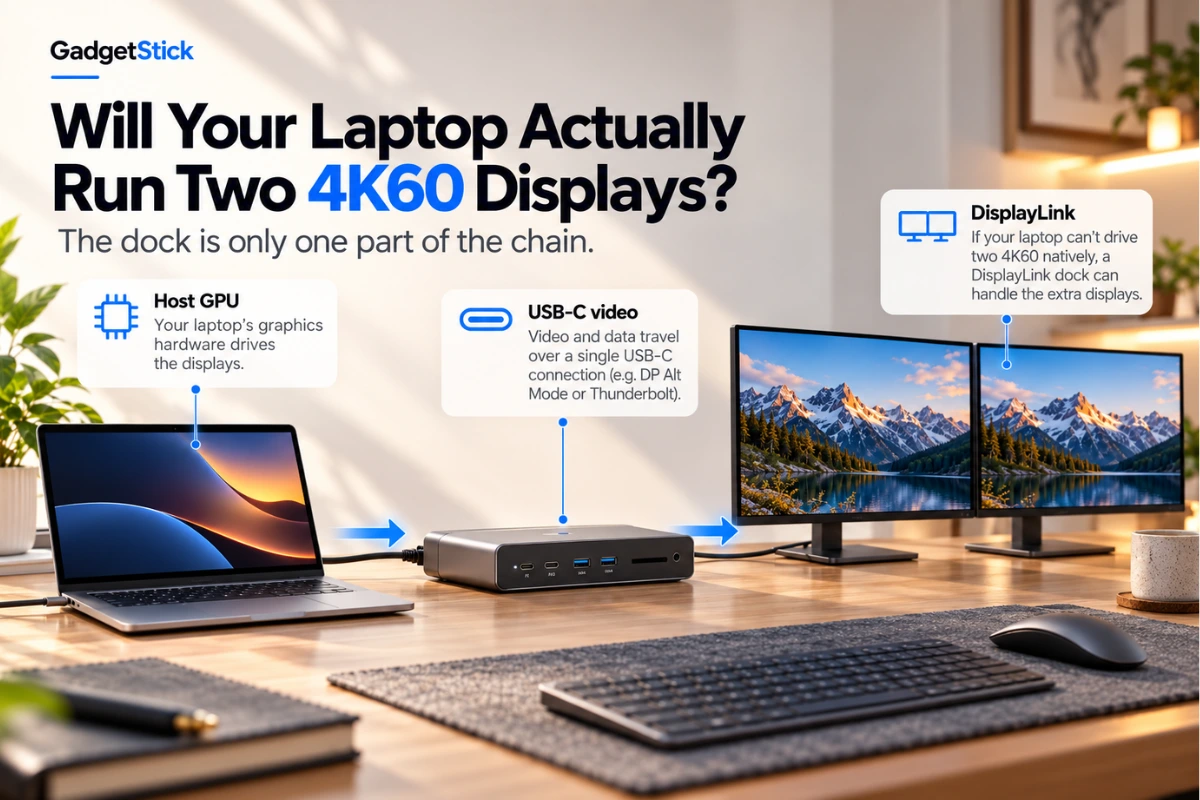
The easiest buying mistake is assuming the dock controls everything. It does not. Your laptop’s chip, USB-C implementation and operating system can determine how many native external displays are possible before the dock enters the picture.
Before buying, check the exact laptop model and ask three questions: how many external displays does it natively support, does the USB-C port support DisplayPort Alt Mode or Thunderbolt, and are you comfortable installing DisplayLink software if native support is limited?
DisplayLink vs MST vs Thunderbolt
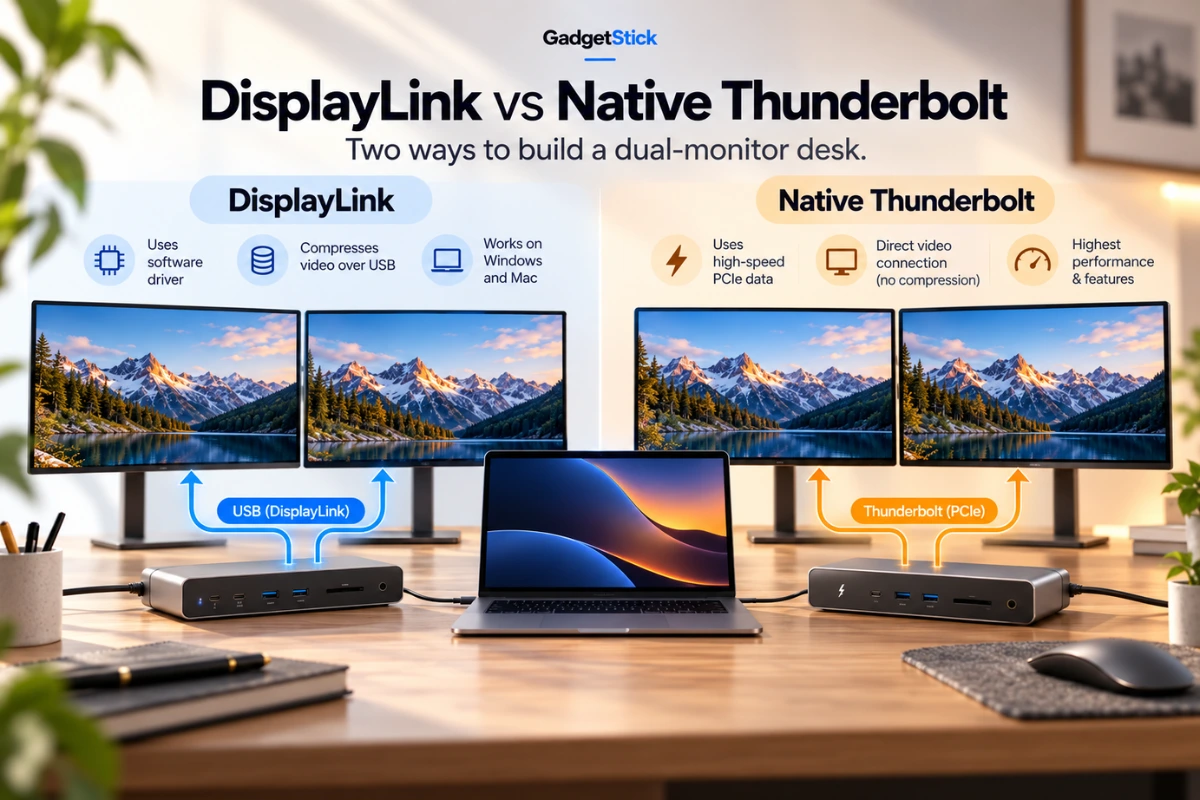
DisplayLink sends display data over USB through software. Its biggest advantage is the ability to add screens beyond some laptops’ native display limits, which is particularly useful with certain MacBook models. The trade-off is that it is better suited to productivity than gaming, high-end video work or other latency-sensitive graphics.
MST, or Multi-Stream Transport, allows multiple display streams over one DisplayPort connection and is commonly used by Windows USB-C docks. macOS does not handle MST extended desktops the same way Windows does, which is why a dock that works perfectly with two extended monitors on a Windows laptop may mirror displays on a Mac.
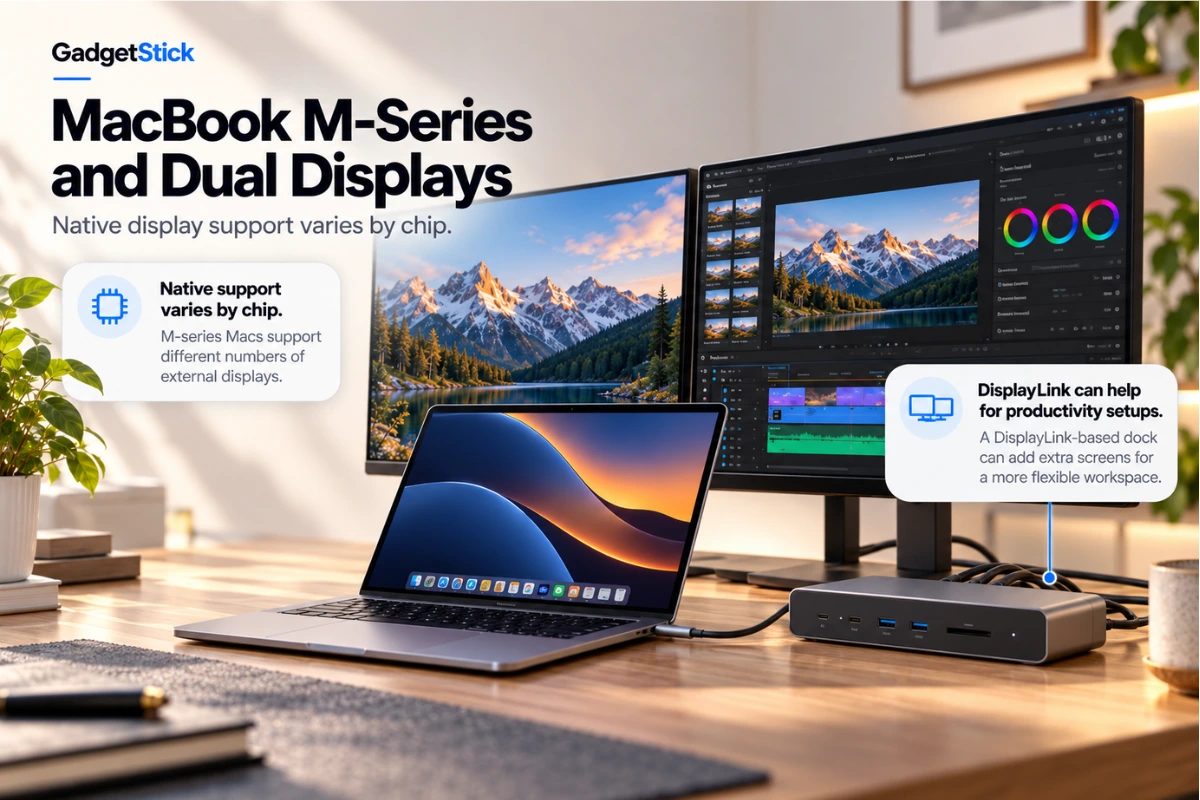
Thunderbolt provides substantially more bandwidth and is the right foundation for high-speed storage, fast networking and native high-resolution displays. But Thunderbolt does not override a computer’s own display-count limitation. A base Mac that natively supports one external screen still needs a different technology such as DisplayLink if you want to add more than the host itself allows.
Dual 4K60 vs Dual 4K30
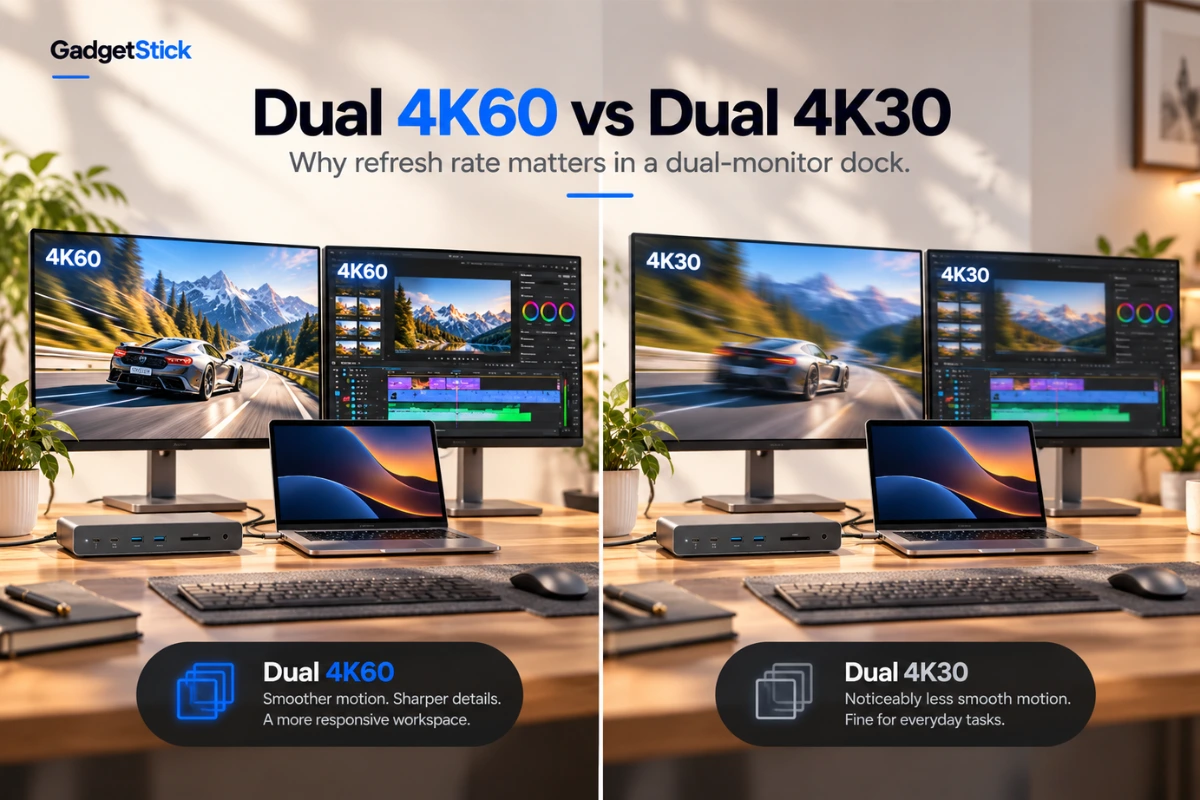
For spreadsheets and static office work, 4K30 can be usable, but 4K60 feels noticeably smoother when moving windows, scrolling text or working across a large desktop. If you are specifically buying a dock for two 4K monitors, confirm the resolution and refresh rate with both monitors connected. A product page that advertises “4K60” may only mean one display at that setting.
How Much Laptop Charging Do You Need?
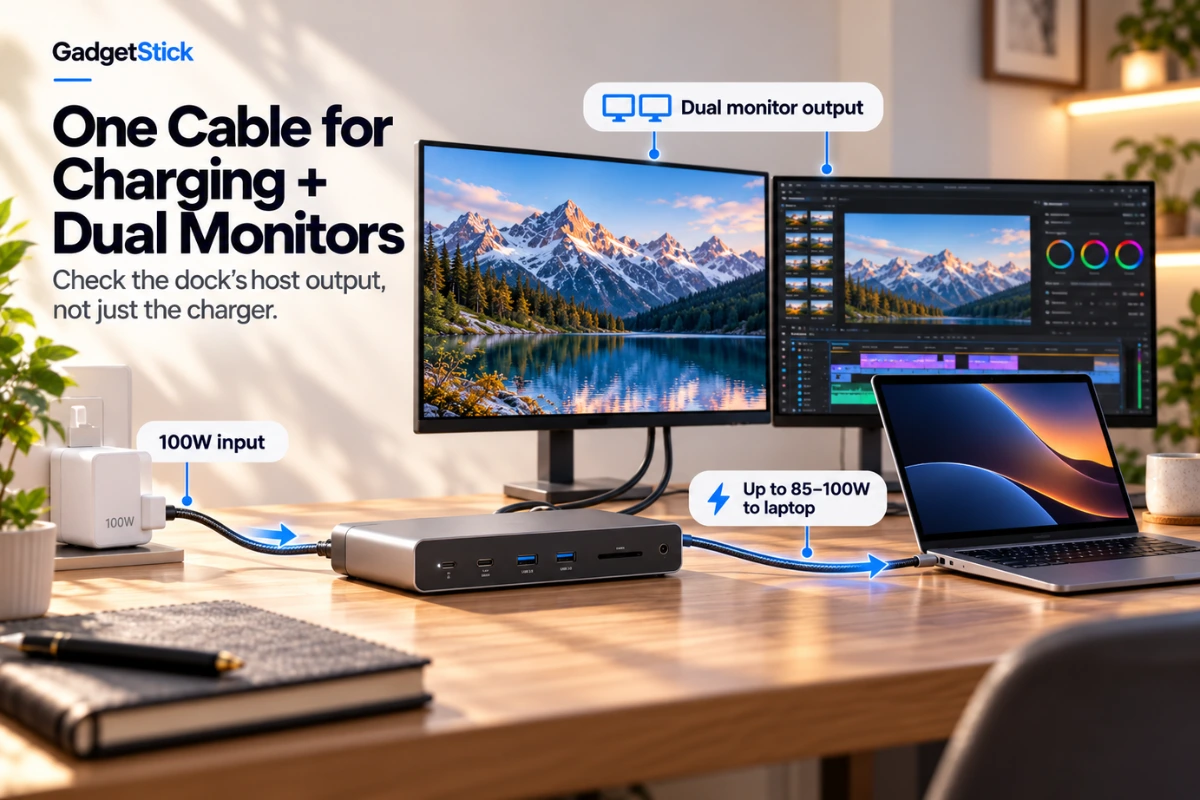
Thin-and-light laptops often work comfortably with 65W to 100W, while larger performance laptops may expect more. Matching the dock’s host charging output to your laptop’s normal USB-C charger is the safest approach. Remember that a 100W input on the dock does not always mean 100W reaches the laptop; the dock itself needs power too. For a deeper explanation, see our guide to how USB-C Power Delivery passthrough works.
HDMI or DisplayPort?
For typical office monitors, either can work well. DisplayPort is common on professional monitors and is tightly integrated with the PC display ecosystem, while HDMI is convenient for monitors, TVs and widely available cables. The more important question is whether the dock’s display engine and your laptop can deliver the resolution and refresh rate you need through that connector.
When a Thunderbolt Dock Is Worth the Extra Money
Paying more for Thunderbolt makes sense when you use fast external SSDs, high-speed wired networking, native high-resolution displays, audio interfaces or other bandwidth-heavy peripherals at the same desk. If all you need is two office monitors, Ethernet and a keyboard/mouse, a good USB-C DisplayLink dock can be the more practical purchase.
Frequently Asked Questions
Can any USB-C docking station run two monitors?
No. The USB-C connector alone does not guarantee dual-monitor capability. The laptop may need DisplayPort Alt Mode, MST, Thunderbolt, or DisplayLink depending on the dock and operating system.
Why does my second monitor mirror instead of extend on a Mac?
A common reason is that the dock relies on MST for multiple native display streams. macOS does not use MST extended desktops the same way Windows does. A DisplayLink dock can be a better solution when you need additional independent displays beyond what the Mac supports natively.
Do I need DisplayLink for two monitors on a MacBook?
Not always. Some MacBook chips natively support multiple external displays, while others have stricter limits. DisplayLink is useful when your Mac’s native display support does not match the number of monitors you want to use.
Is DisplayLink good for gaming?
It is primarily a productivity technology. For gaming, high-frame-rate video, color-critical editing or other graphics-heavy work, a native GPU-driven Thunderbolt or DisplayPort connection is usually the better choice. If your gaming laptop is stuck below your monitor’s rated refresh rate, our 144Hz-to-200Hz USB-C to DisplayPort troubleshooting guide shows how to check the display path.
Can a docking station charge my laptop at the same time?
Many can. The models in this guide provide host charging ranging from 85W to 100W or more, but your laptop must support USB-C Power Delivery and the dock’s actual host output should be compared with the charger your laptop normally uses.
Final Answer
The best dual monitor docking station depends less on the number of ports printed on the box and more on how your laptop handles external displays.
Choose the Plugable UD-6950PDH if your main goal is two independent 4K60 productivity monitors on a Mac, including systems with stricter native display limits. Choose the CalDigit TS4 if you already have a capable Thunderbolt laptop and want a premium native workstation. The Plugable UD-6950PDZ makes more sense for three-screen productivity, the UGREEN Revodok Pro 209 is the value-focused dual-4K option, and the Anker 575 fits an office setup where broad connectivity and charging matter more than maximum dual-display performance.
Whichever one you choose, verify your exact laptop’s display support before ordering. That one compatibility check matters more than any “dual monitor” label on the product page.
How We Researched This Guide
We reviewed official manufacturer documentation for display count, maximum resolution and refresh rate, USB-C or Thunderbolt requirements, DisplayLink behavior, host charging output, port configuration and known compatibility limits. That included Plugable’s UD-6950PDH documentation, CalDigit’s TS4 guidance, UGREEN’s Revodok Pro 209 specifications, and Anker’s 575 compatibility information. We also checked version-specific issues that could change the buying decision, including Plugable’s 60W vs 100W UD-6950PDZ revision note.
Products were selected to cover different real-world use cases rather than filling the list with five similar docks: Mac dual-display productivity, premium native Thunderbolt, three-monitor workflows, value dual-4K setups and general office connectivity.
Editorial Note
Product specifications, compatibility and availability can change over time. Always confirm the current manufacturer documentation and the exact Amazon listing before purchasing, especially when a model has multiple hardware revisions. GadgetStick does not claim hands-on testing where none was performed; recommendations are based on documented capabilities, limitations and practical buyer fit.
