
Quick answer: When Plex says “Not available outside your network,” first check the server’s Remote Access status, then compare your router’s WAN IPv4 with your public IPv4. If the WAN address is private or in the 100.64.0.0–100.127.255.255 CGNAT range, forwarding TCP 32400 on your home router alone will not give you a direct public connection. If the addresses match, check the server’s local IP reservation, the TCP port-forward target, the manually specified Plex public port, and the operating-system firewall. Test on cellular data, not your own Wi-Fi.
Find the Actual Cause Before Changing Router Settings
Plex can work perfectly on the home network while failing remotely, because local playback and incoming connections from the internet take different network paths. A temporary green Remote Access status is not proof that every client can stream reliably. Similarly, a remote stream that connects only through Plex Relay can be limited in quality compared with a direct connection.
| What you see | Likely area to investigate | First check |
|---|---|---|
| Works on home Wi-Fi, unavailable on mobile data | Remote access, NAT, firewall, subscription permissions | Remote Access page, WAN/public IPv4, outside-network test |
| Green briefly, then red | Port-mapping instability, address change, firewall or NAT | Fixed server LAN IP, manual mapping consistency |
| Indirect connection or lower video quality | Plex Relay fallback, bandwidth or transcoding | Playback dashboard and remote access path |
| Router WAN IP differs from public IP | Double NAT or ISP CGNAT | Look for private ranges and upstream router |
| Remote connection works but playback says permission required | Remote playback entitlement rather than networking | Plex Pass / Remote Watch Pass requirements |
Step 1: Confirm Server and Remote-Playback Requirements
- On the computer or NAS running Plex Media Server, confirm that the server is online and your account is signed in.
- In Plex Web, open Settings → Server → Remote Access (enable advanced settings if needed). Write down the reported external port and status.
- Try streaming a file on the same local network. If local playback fails, fix the server or client first.
- Check the official remote-access setup guide and the current troubleshooting guidance.
- Since Plex introduced remote personal-video playback restrictions, a Plex Pass or Remote Watch Pass may be needed depending on who owns the server and who is viewing. A working port does not bypass account requirements.
Step 2: Check for CGNAT and Double NAT — the Most Important Branch
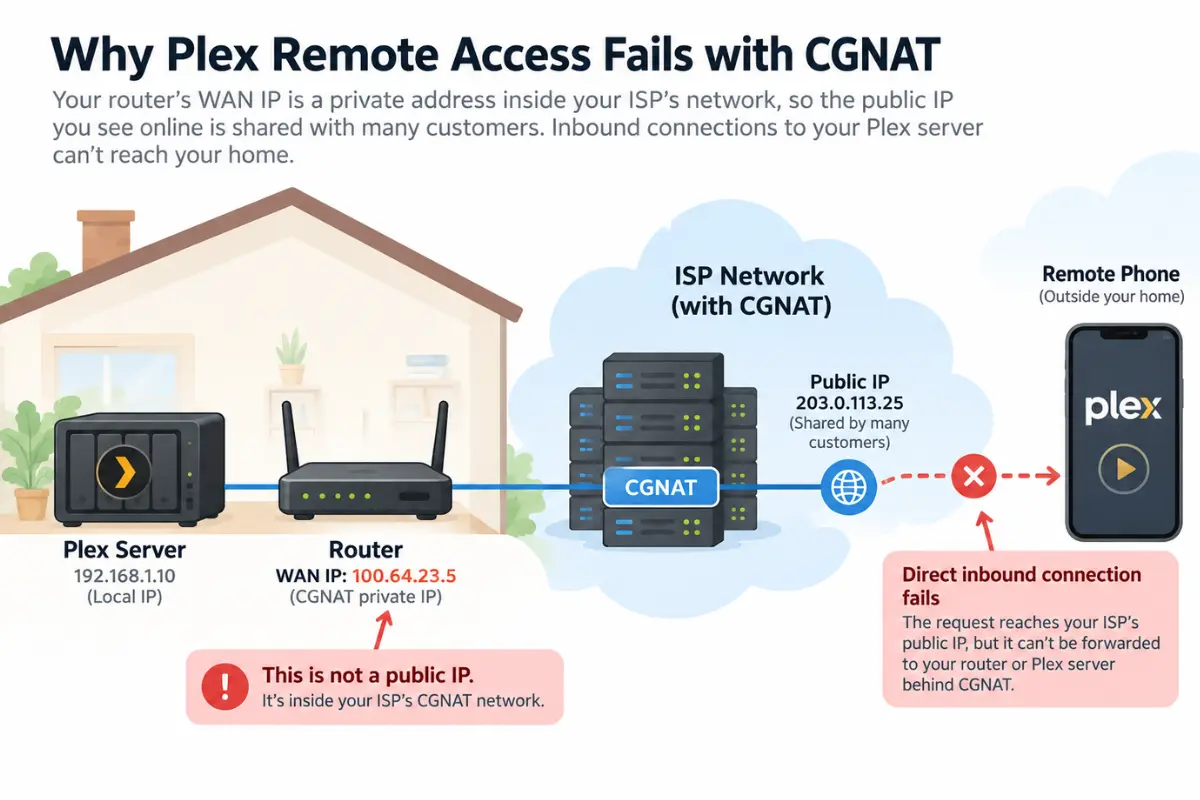
Open your primary router’s administration interface and find its WAN, Internet, or External IPv4 address. From a browser on that same home connection, visit a reputable public IP checker and note the visible public IPv4. Compare the two IPv4 addresses; do not compare an IPv6 address with an IPv4 address.
| WAN IPv4 looks like | Interpretation | Next action |
|---|---|---|
| Same as public IPv4 | No obvious upstream IPv4 NAT; port forwarding may be viable | Proceed to server reservation and port-forward checks |
| 192.168.x.x or 10.x.x.x | Private address behind another router/NAT | Inspect the ISP gateway and your own router; consider bridge mode or forwarding at both layers |
| 172.16.x.x through 172.31.x.x | Private RFC1918 IPv4, typically upstream NAT | Inspect the upstream gateway |
| 100.64.x.x through 100.127.x.x | Shared-address space commonly used for carrier-grade NAT | Ask ISP whether a public IPv4 is available |
| WAN/public IPv4 differ for another reason | Possible upstream NAT, proxy or address-reporting mismatch | Check gateway topology and address family |
Important: A dynamic public IPv4 can change over time and still support port forwarding; a static public IP is not always required. Conversely, a static private/CGNAT address does not become internet-routable just because it stays the same. Plex’s official troubleshooting page identifies 100.64.0.0–100.127.255.255 as an ISP CGNAT clue.
What if you are behind CGNAT?
Ordinary port forwarding on your own router cannot open an inbound connection through an ISP-operated CGNAT gateway you do not control. Ask the ISP for a public IPv4 option (dynamic or static), or use a carefully configured, secure remote-access alternative. Do not buy a new router expecting it to bypass CGNAT. A direct-access fix may also depend on the ISP’s port-filtering policy.
What if you have two routers?
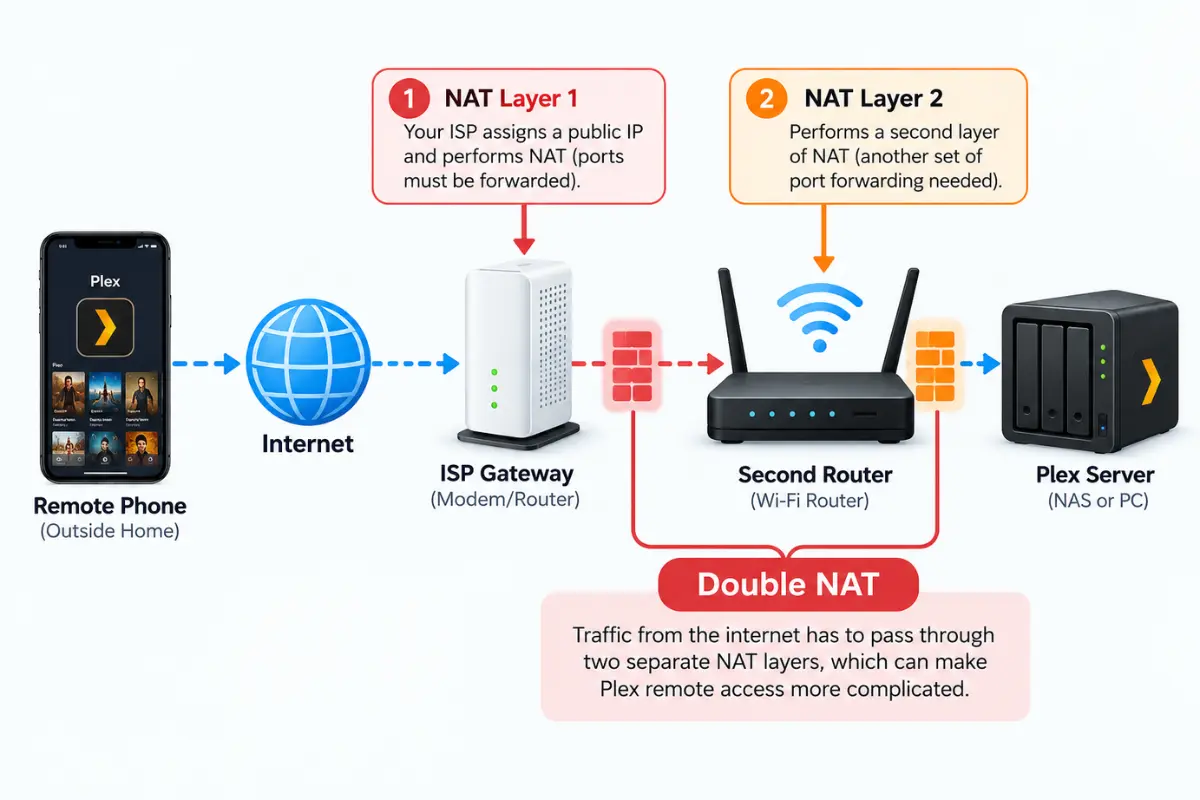
For a modem/router feeding a second Wi-Fi router, consider putting one device into a correctly configured bridge/access-point mode, or explicitly forward the required external TCP port through the upstream router to the downstream router and then to the Plex server. Bridge-mode changes can affect telephone service or ISP television equipment; review your ISP documentation first.
Step 3: Make the Server LAN Address Stable
The port-forward rule must target the machine actually hosting Plex Media Server—not your TV, NAS management screen, or arbitrary device. A router DHCP reservation is often the simplest way to keep the server at one LAN IPv4 address. Record it from the operating-system or NAS network settings. If Plex runs in a virtual machine, container, or another subnet, verify the path to that actual host/container; the default example below assumes a normal host installation.
Step 4: Check One Correct TCP Port-Forward Rule
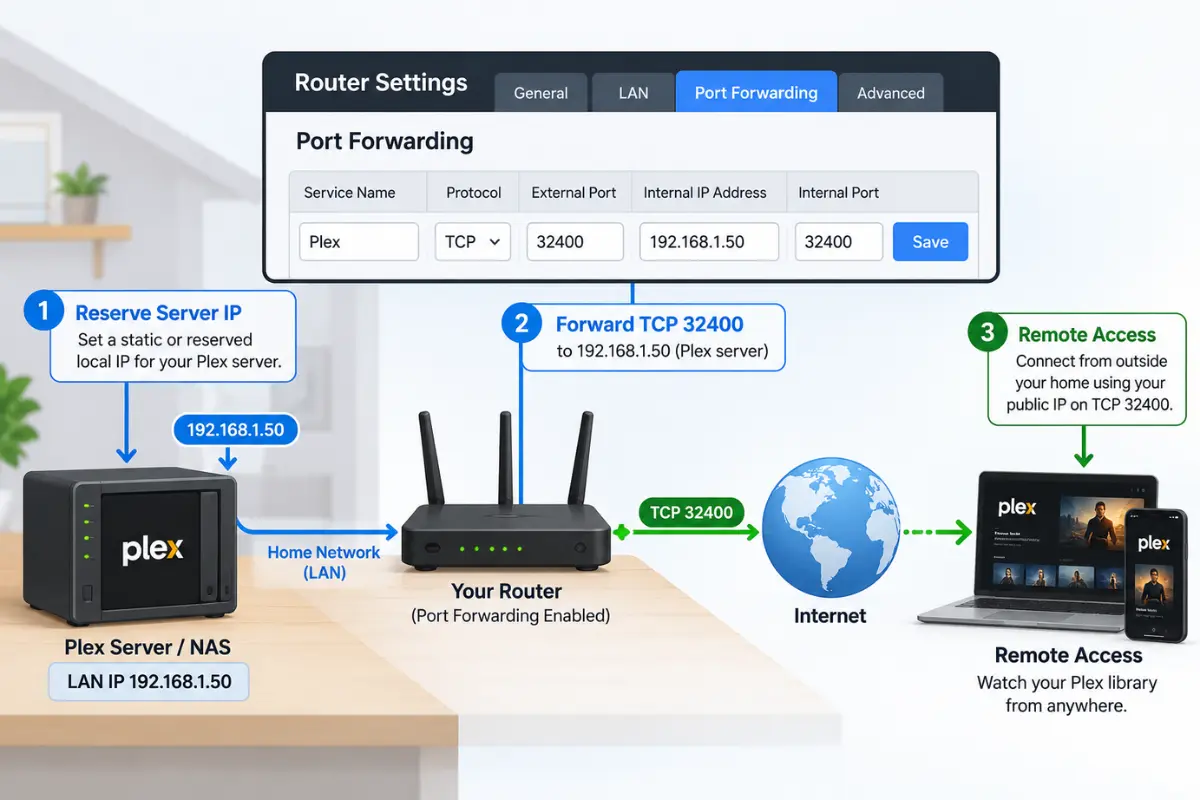
Plex Media Server normally listens on TCP 32400 internally. You can use TCP 32400 externally, or choose a different permitted external TCP port, but the internal destination should be the Plex host and its listening TCP port. Do not forward UDP 32400 for this specific Plex Remote Access rule.
| Setting | Example | What must match |
|---|---|---|
| External/WAN protocol | TCP | Use TCP for the Plex remote access mapping |
| External/WAN port | 32400 | Must match the Plex manually specified public port |
| Internal/LAN IP | 192.168.1.50 | Must be the reserved LAN IPv4 of the Plex server |
| Internal/LAN port | 32400 | Default Plex Media Server TCP listening port |
| Plex Remote Access option | Manually specify public port: 32400 | Required when using a manual forward |
These addresses are examples—not settings to copy blindly. For a nonstandard external port, such as 32401, forward WAN TCP 32401 to the server’s LAN TCP 32400, then enter 32401 in Plex’s public-port field. Plex explicitly notes that manually forwarded configurations need the checkbox enabled; otherwise Plex may try automatic mapping instead.
Step 5: Check Firewall, VPN and Security Software Without Disabling Everything
Make sure an inbound firewall rule allows Plex Media Server on the intended network profile and TCP port. If a VPN client is running on the server, the return route or firewall rules may differ. Check whether your router’s WAN firewall or ISP blocks incoming connections. Avoid turning off the whole firewall permanently. If you temporarily change a security control strictly for diagnosis, restore it immediately and create a narrow allow rule instead.
UPnP/NAT-PMP can automatically create router mappings but increase device-driven port exposure. If you prefer manual routing, you can keep UPnP disabled and create the one deliberate TCP forward. Do not expose the router administration interface, SMB file shares, or NAS management dashboards to the internet as part of Plex troubleshooting.
Step 6: Test Correctly From Outside the House
- Turn off Wi-Fi on a phone and use cellular data or another genuinely external network.
- Open a supported Plex app using the account that has permission to stream the library.
- Try a compatible, modest-bitrate file first. Review Plex’s dashboard to determine whether playback is direct or indirect/Relay.
- Then try a representative higher-bitrate file to distinguish a connectivity issue from upstream bandwidth or transcoding limits.
- If the status turns green and then red, check whether the WAN IP, server LAN IP or automatic port map changed. Repeat after a router and server restart only after recording settings.
Remote Access vs Relay vs Transcoding: Do Not Mix Them Up
A working remote connection is not proof of smooth 4K streaming. Your home upload bandwidth, video bitrate, the playback client’s codec support and the server’s transcoding capabilities still matter. Plex documents its Relay fallback as a less direct path that may limit quality. First establish whether playback is direct, then inspect upload speed and any transcoding demand. Buying a more powerful NAS won’t resolve CGNAT on its own.
Common Mistakes That Waste Time
- Forwarding TCP 32400 to an old LAN address after the DHCP lease changed.
- Forwarding only in the inner router while an upstream ISP router also performs NAT.
- Seeing a CGNAT WAN address and attempting dozens of new forwarding rules.
- Using an IPv6 public address from an IP checker to compare against the router’s IPv4 WAN address.
- Manually forwarding a port but leaving the Plex ‘Manually specify public port’ setting unchecked.
- Testing only over the same Wi-Fi network and mistaking local playback for verified remote access.
- Ignoring Plex’s remote-playback subscription or sharing requirements.
- Disabling your entire firewall or exposing NAS admin ports in an attempt to fix Plex.
When to Contact Your ISP or Plex Support
Contact the ISP if the router WAN shows a shared/private upstream IPv4, if public IPv4 service is unclear, or if inbound TCP connections are filtered even though your addresses and routing are correct. Ask: ‘Is my connection behind carrier-grade NAT, and can I receive a publicly routable IPv4 address for inbound connections?’ For a public-IP connection that remains inaccessible, gather your router topology, WAN/public IP comparison (without sharing your full IP publicly), port-forward target and Plex server logs before posting in Plex support forums.
Frequently Asked Questions
Will buying a new router fix Plex remote access?
Not if your ISP is using CGNAT. A router replacement can help with a broken home-network setup, but it cannot give you public IPv4 reachability through the provider’s shared NAT.
Do I need a static IP for Plex?
You should keep the Plex server’s local IP stable, usually with a DHCP reservation. A static public WAN IP is not inherently necessary for a working port forward, but you do need a reachable public address or a supported alternative.
Why does Plex remote access turn green and then red?
Check automatic port mappings, router restarts, server IP changes, firewall rules and upstream NAT. The status can be transient; verify through a real external-network playback test.
Should I turn on UPnP?
It may simplify configuration when the router and network support it, but a manual TCP port forward is a deliberate alternative. Evaluate the router’s security posture; neither approach bypasses ISP CGNAT.
What if I see ‘Indirect’ while streaming remotely?
Plex may be using its Relay route because direct access is unavailable. Check Remote Access configuration and the network path, then review upload bandwidth and file/transcoding demands.
Does Plex remote video playback require Plex Pass in 2026?
Personal-video remote playback has entitlement restrictions depending on the server owner and viewer; Plex Pass or Remote Watch Pass may be needed. Check Plex’s current official requirements for your account arrangement rather than assuming a network fix changes entitlement.
How We Researched
GadgetStick used Plex’s official Remote Streaming, Troubleshooting Remote Access and Relay documentation, plus 2026 user reports of intermittent external access, to distinguish network problems from playback limitations. This is a documentation-based troubleshooting guide; we did not test every ISP, router or Plex client combination. Menu names and firmware may vary.
Related GadgetStick Reading
If you’re still planning hardware for a home media library rather than troubleshooting a connection, see our Best NAS for Plex buying guide and Plex subtitle buffering troubleshooting guide.
Final Answer
The fastest reliable diagnosis is a sequence, not a pile of random router changes: check Plex permissions → compare WAN and public IPv4 → identify CGNAT/double NAT → reserve the server LAN address → verify one TCP forwarding rule and the Plex public-port field → test from mobile data. CGNAT needs an ISP/public-address or secure alternative solution; ordinary forwarding alone cannot fix it.
