

Your movie plays smoothly in Plex—until you turn on subtitles. Suddenly, playback pauses, stutters, or gets stuck buffering. Switch subtitles off, and everything works again.
That difference is a useful clue. Your network might be fine, and your NAS might be powerful enough to play the original file. The problem could be what Plex has to do after you enable the subtitle track. Here’s how to identify the cause without buying new hardware or changing settings at random.
Quick Answer
If Plex buffers only when subtitles are enabled, first check whether the video switches from Direct Play to Transcode in Plex Dashboard.
Some subtitle tracks cannot be displayed directly by certain playback devices. Plex may need to burn subtitles into the video, which requires converting the video stream. If your server struggles with that conversion, playback can buffer even though the same movie works without subtitles.
Start with Plex Dashboard, try a compatible SRT subtitle track, and check the playback app’s subtitle settings. The goal is to identify whether subtitle compatibility, another media stream, or a server limitation is responsible.
Why Subtitles Can Cause Buffering in Plex
| Playback mode | What Plex does | Server workload |
|---|---|---|
| Direct Play | Sends compatible original media | Minimal |
| Direct Stream | Repackages compatible streams into another container | Relatively low |
| Transcode | Converts video and/or audio streams | Potentially demanding |
A movie might Direct Play because your TV supports its video and audio formats. But if it cannot render a selected subtitle track itself, Plex may render those subtitles into the video frames. This is called subtitle burn-in. According to Plex’s Direct Play documentation, subtitle burn-in requires a full video transcode, even when the original video would otherwise Direct Play.
Not every subtitle track needs burn-in. The outcome depends on the track, playback client, and selected settings.
1. Check Plex Dashboard With Subtitles On and Off
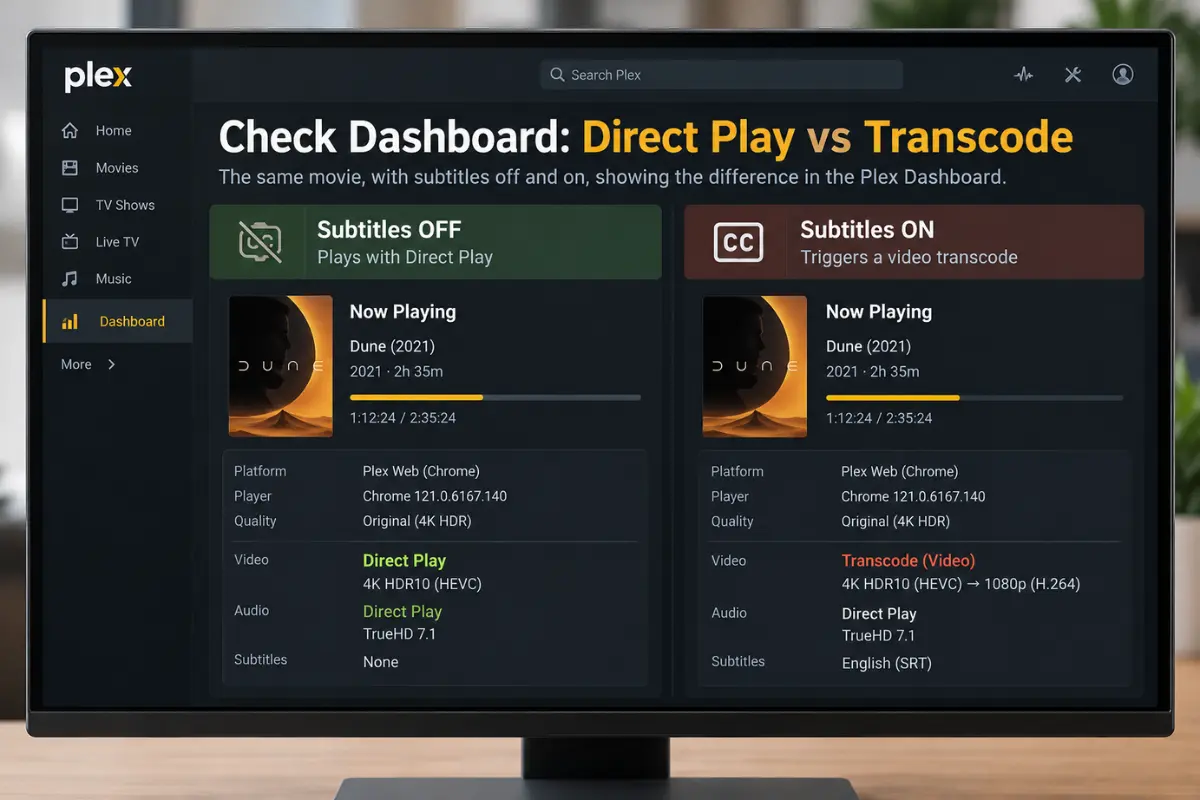
Before changing anything, reproduce the problem with the same movie and playback device.
- Start the movie with subtitles disabled.
- Open the Plex Media Server web interface.
- Open Activity → Dashboard.
- Find the session under Now Playing and expand its playback details.
- Note whether the video is Direct Play, Direct Stream, or Transcode.
- Enable the subtitle track that causes buffering.
- Recheck the Dashboard and compare.
Plex explains how to inspect this information in its playback activity documentation.
| What changes | What it suggests |
|---|---|
| Video switches to Transcode | Subtitle rendering or a related compatibility condition triggers video conversion |
| Video was already transcoding | Investigate the original playback path |
| Video stays Direct Play | Client, network, or file may be responsible instead of burn-in |
| Another subtitle track works | Subtitle format or client handling is a likely factor |
If enabling subtitles starts a video transcode, continue with the next two checks. Otherwise, examine the client and network checks below.
2. Identify the Subtitle Format: SRT, PGS, or ASS
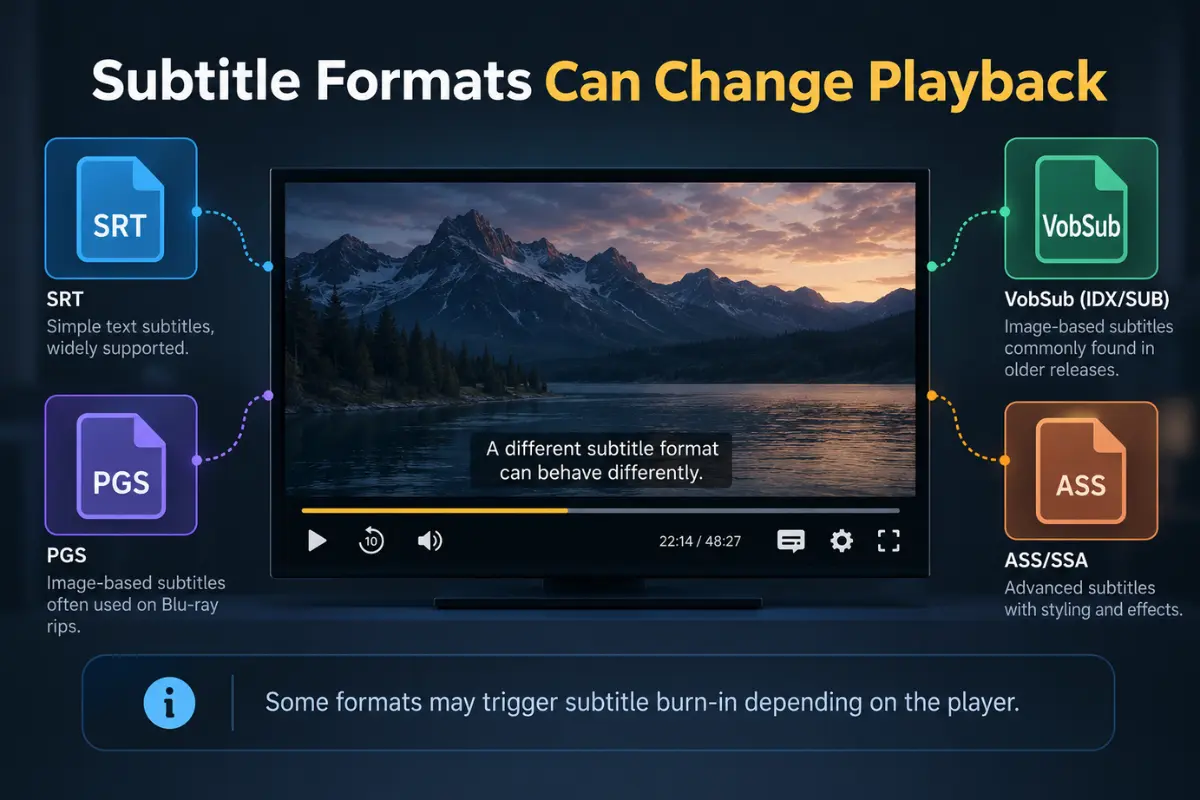
| Format | Type | Compatibility consideration |
|---|---|---|
| SRT | Plain-text subtitles | Widely supported; useful first comparison |
| PGS | Image-based Blu-ray subtitles | May require burn-in on many clients |
| VobSub | Image-based DVD subtitles | May require burn-in |
| ASS/SSA | Text with styling and positioning | Advanced effects may require burn-in |
Plex’s subtitle guide explains why image-based formats such as PGS and VobSub can require video transcoding. If you are using PGS, try an available SRT track for the same language. Replay the scene and check whether video returns to Direct Play.
If it does, the original track or the client’s handling of that format is implicated. If SRT still causes trouble, move to the player settings rather than repeatedly changing subtitle files.
3. Check the Burn Subtitles Setting
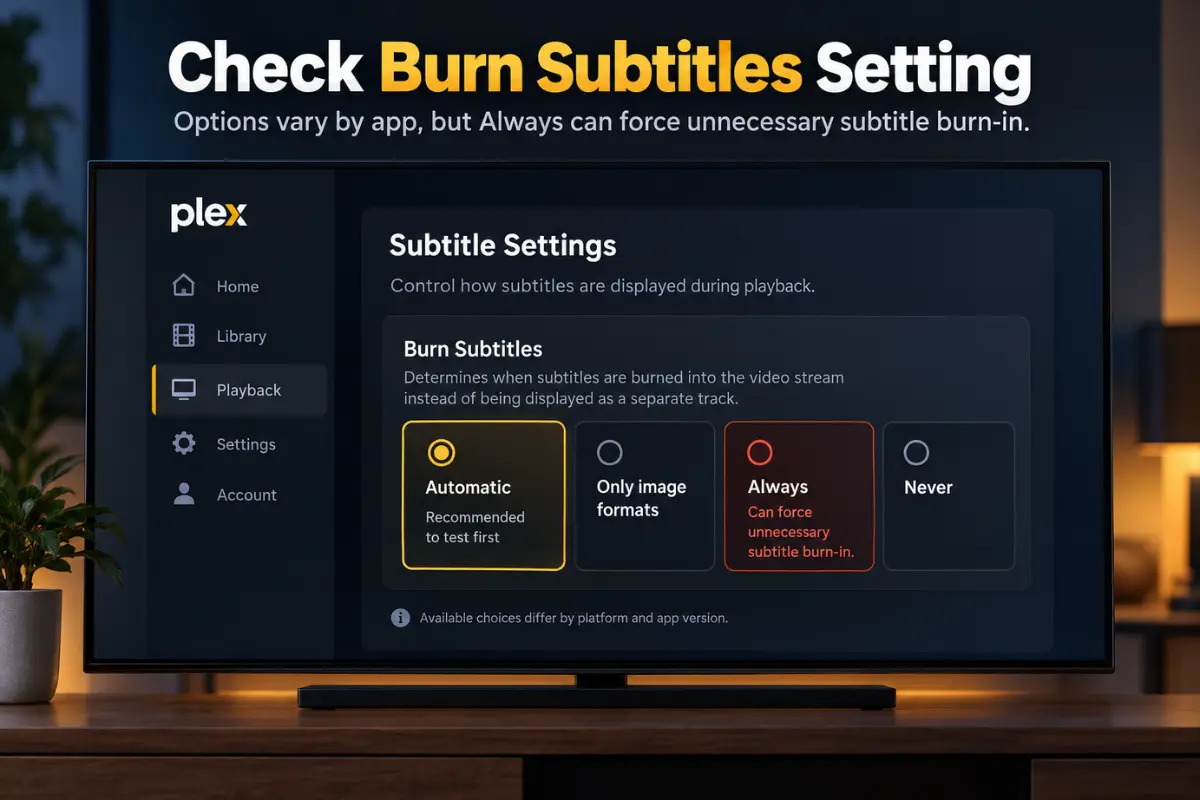
Some Plex apps include a Burn Subtitles option. Availability and labels vary across platforms and app versions; options may include Automatic, Only image formats, Always, or Never. Do not assume every device exposes the same menu.
If your device is set to Always, try Automatic when available. Restart playback and inspect Dashboard again. Plex documents platform-specific options in its Roku and Android TV settings.
If conversion stops and playback becomes smooth, the previous rendering setting contributed. If subtitles disappear or lose essential styling, restore the former option.
4. Check Whether Audio Is Being Converted Too
Subtitles may not be the only stream influencing playback. Your streaming device might support the video codec but not the selected audio track. Plex can sometimes convert audio while leaving the video unchanged.
| Video | Audio | Meaning |
|---|---|---|
| Direct Play | Direct Play | Neither stream needs conversion |
| Direct Play | Transcode | Only audio is being converted |
| Transcode | Transcode | Both streams are being converted |
Inspect video and audio separately in Dashboard. If the file has multiple audio tracks, test one that the client supports, then enable the same subtitles again. Different results can expose an interaction between the streams and client. Plex confirms that audio-only conversion is possible without a video transcode.
Audio transcoding does not automatically imply subtitle burn-in. Use the test to determine what actually changes.
5. Try the Same Movie on Another Plex Client
A smart TV app, Roku, Apple TV, desktop app, and browser can have different subtitle, audio, and video capabilities. Use a second device you already own rather than buying a new streaming box for a test.
Play the same file with the same subtitle track and compare Dashboard results. If one client Direct Plays while another transcodes, focus on playback compatibility or settings rather than assuming the movie file or NAS is defective. Plex’s streaming overview explains the role of client capabilities.
6. Determine Whether the Server or Network Is Actually Struggling
A NAS that serves a large 4K file through Direct Play is not necessarily powerful enough to convert it in real time. Look for these signs:
- Buffering starts specifically when video transcoding begins.
- NAS CPU usage rises sharply during playback.
- Several Plex sessions are converting media simultaneously.
- More demanding files suffer the most.
- Changing subtitle tracks prevents the conversion.
Plex’s NAS guidance explains why processing capability matters for conversion. If playback stays Direct Play with subtitles enabled, investigate network reliability, the client, and file-specific behavior. Lowering quality is not always helpful: it can introduce another transcode.
7. Decide Whether a NAS Upgrade Is Necessary
Keep your current NAS for now if an alternative subtitle format works, a forced burn-in setting was responsible, another existing client handles the track directly, or the issue is isolated to one file or app.
Consider stronger hardware only when your required viewing setup consistently needs a video transcode that the current server cannot sustain, especially for several simultaneous users. Plex’s hardware-accelerated streaming guide describes important hardware and software limitations. Acceleration is not a guarantee for every subtitle burn-in task.
If server capability is the verified bottleneck, our Best NAS for Plex guide explains relevant hardware trade-offs. Buy for an identified workload—not simply because one movie buffers with subtitles enabled.
Quick Troubleshooting Checklist
| Symptom | First action |
|---|---|
| PGS subtitles cause buffering | Try an available SRT track |
| Every subtitle track triggers video conversion | Check player settings and stream compatibility |
| Burn Subtitles is set to Always | Try Automatic, if supported |
| Smart TV buffers but desktop playback works | Compare client capabilities |
| NAS struggles only during transcoding | Inspect server load and conversion requirements |
| Video stays Direct Play | Investigate network, client, and file |
Frequently Asked Questions
Why does Plex buffer even with SRT subtitles?
SRT is widely supported, but the extension alone does not guarantee Direct Play. Check client settings and whether another incompatible media stream requires conversion.
Do PGS subtitles always make Plex transcode?
No. PGS handling varies by client, although image-based subtitles often need burn-in on many devices.
Can hardware transcoding fix subtitle buffering?
It can help with compatible video conversion, but subtitle rendering adds processing requirements and may not be accelerated in every setup. Verify your server’s capabilities.
Should I replace my NAS if subtitles cause buffering?
Not before you inspect the playback path. If a subtitle or player change avoids unnecessary conversion, a NAS upgrade may not address the actual cause.
How We Researched This Guide
We reviewed Plex’s official documentation on Direct Play, transcoding, subtitle formats, playback settings, Dashboard diagnostics, and hardware acceleration. Community reports helped identify real subtitle-related buffering symptoms, but cannot establish how every NAS or client behaves. GadgetStick has not independently benchmarked the hardware or reproduced these tests across multiple playback clients. This guide focuses on documented behavior and reversible diagnosis.
Final Answer
When Plex buffers only with subtitles enabled, start with Dashboard—not a NAS shopping cart. Check whether the subtitle track triggers video transcoding. If it does, try another compatible subtitle format, review Burn Subtitles settings, and compare another player you already own. Consider new server hardware only after confirming that your actual viewing setup needs more transcoding performance.
