

AirPods Live Translation can fail for reasons that have nothing to do with the AirPods themselves.
The feature depends on several things working together:
- a supported AirPods model
- a compatible iPhone
- Apple Intelligence
- the Translate app
- downloaded language models
- current iOS
- current AirPods firmware
- supported languages and regions
If even one part of that chain is missing, Live Translation may not appear, may refuse to start, or may work inconsistently.
Quick Answer
If AirPods Live Translation is not working, check these first:
- Make sure your AirPods model is supported.
- Use an iPhone 15 Pro or later with Apple Intelligence.
- Update iOS.
- Update AirPods firmware.
- Turn on Apple Intelligence.
- Make sure Apple’s Translate app is installed.
- Download both languages you want to use.
- Confirm Live Translation is available for your language and region.
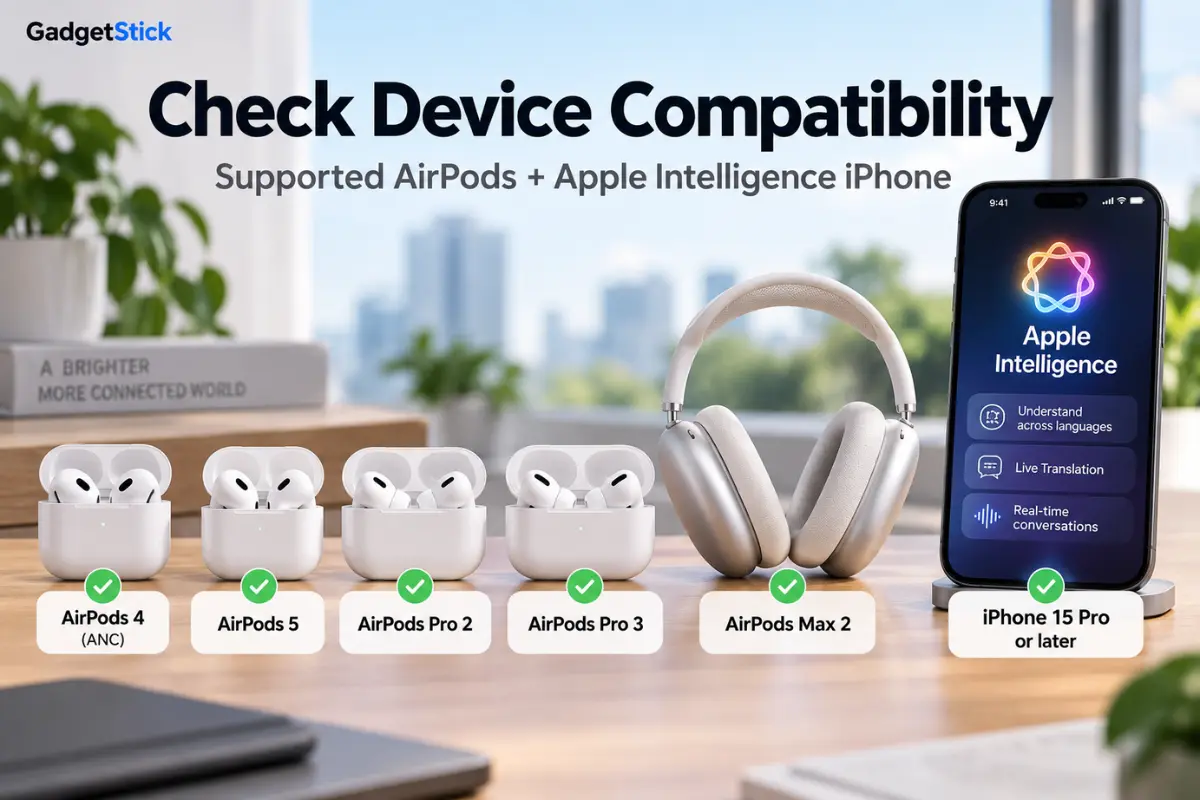
Apple currently lists Live Translation support for AirPods 4 with ANC, AirPods 5, AirPods Pro 2, AirPods Pro 3, and AirPods Max 2, paired with an Apple Intelligence-enabled iPhone.
1. Check Whether Your AirPods Actually Support Live Translation
This is the first thing to rule out.
According to Apple’s official AirPods Live Translation requirements, the feature is supported on:
- AirPods 4 with Active Noise Cancellation
- AirPods 5
- AirPods Pro 2
- AirPods Pro 3
- AirPods Max 2
Older AirPods models are not included in Apple’s current compatibility list. That means the feature can be missing even if your AirPods otherwise work perfectly for music, calls, and Siri.
Important
If you have standard AirPods 4 without ANC, check the exact model because Apple specifically names the ANC version in its support documentation.
2. Make Sure Your iPhone Supports Apple Intelligence
Live Translation with AirPods also depends on the iPhone.
Apple says the feature requires an Apple Intelligence-enabled iPhone, including iPhone 15 Pro, iPhone 15 Pro Max, and newer supported models.
So this setup will not work:
supported AirPods + older non-Apple-Intelligence iPhone
even if both devices are fully updated.
This is one of the biggest reasons users may not see the Live Translation option at all.
3. Update iOS
Apple requires a current supported version of iOS for AirPods Live Translation.
The dedicated Apple support page says the feature requires iOS 26 or later.
Because Apple continues to update Live Translation and Apple Intelligence features through newer iOS releases, running an older build can leave you without the Live tab, current language support, bug fixes, or current AirPods integration.
Go to:
Settings → General → Software Update
and install the latest stable version available for your iPhone.
4. Update Your AirPods Firmware
Apple also requires the latest AirPods firmware for Live Translation.
Unlike normal apps, AirPods firmware is not usually updated with a big manual Update button.
The safest approach is:
- keep AirPods paired with your iPhone
- keep the iPhone connected to Wi-Fi
- keep Bluetooth on
- place AirPods in or near their case as appropriate
- allow time for the firmware to update automatically
If Live Translation suddenly stopped appearing after changing devices or resetting AirPods, firmware version is worth checking.
5. Turn On Apple Intelligence
The feature depends on Apple Intelligence.
Apple explicitly lists Apple Intelligence turned on as a requirement.
If Apple Intelligence is disabled, Live Translation may not become available even if the hardware is compatible.
Check:
Settings → Apple Intelligence & Siri
and make sure Apple Intelligence is enabled.
Also remember that Apple Intelligence itself is not available in every language or region.
6. Make Sure the Translate App Is Installed
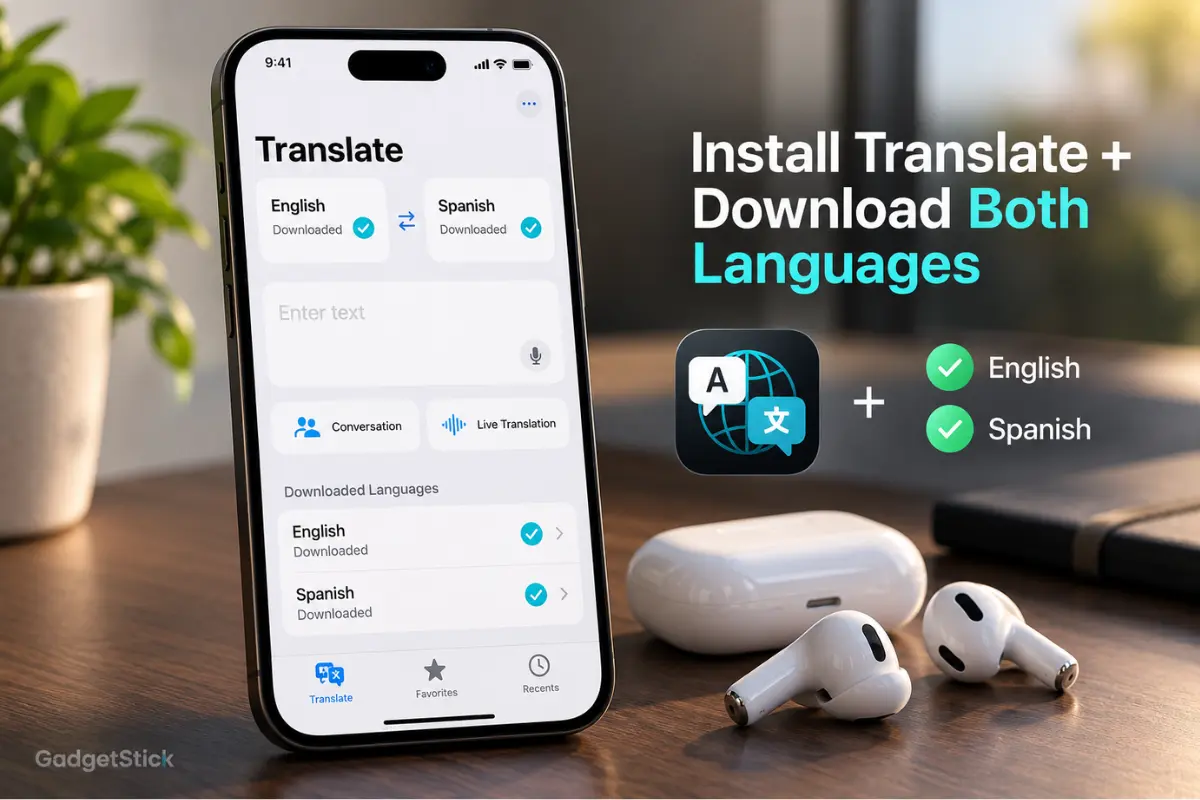
AirPods Live Translation uses Apple’s Translate app.
If you removed it from your iPhone earlier, reinstall it from the App Store.
Then open:
Translate → Live
That is where the AirPods translation session can be configured and started.
7. Download Both Languages Before You Start
This is one of the easiest things to miss.
Apple says you need to download:
- the language the other person is speaking
- the language you want the translation delivered in
before using Live Translation.
For example, if you want Spanish → English, you should download both Spanish and English.
Apple says that once the language models are downloaded, the processing happens on the iPhone.
Where to Download the Languages
With your supported AirPods connected:
Settings → your AirPods → Live Translation → Languages
Then download both required languages.
If a language is still downloading, Live Translation may not be ready yet.
8. Check Language and Region Availability
Live Translation is not available in every language and every region.
Apple warns that availability can vary by country, region, language, and device setup.
This matters because a setup can be technically compatible but still not offer the feature for a particular language pair.
If the Live Translation option is missing even though your iPhone and AirPods are compatible, region or language availability is one of the first things to check.
How to Start AirPods Live Translation Correctly
Once the setup is complete, Apple gives several ways to start Live Translation.
- open the Translate app
- tap Live
- tap Start Translation
or use supported AirPods controls.
On supported stem-based AirPods, Apple says you can press and hold both stems at the same time. AirPods Max 2 uses the listening-mode button.
You can also ask Siri to start Live Translation.
If one method does not work, try launching it directly from the Translate app first. That helps separate a control issue from a translation setup issue.
What If Live Translation Starts but Does Not Hear the Other Person?
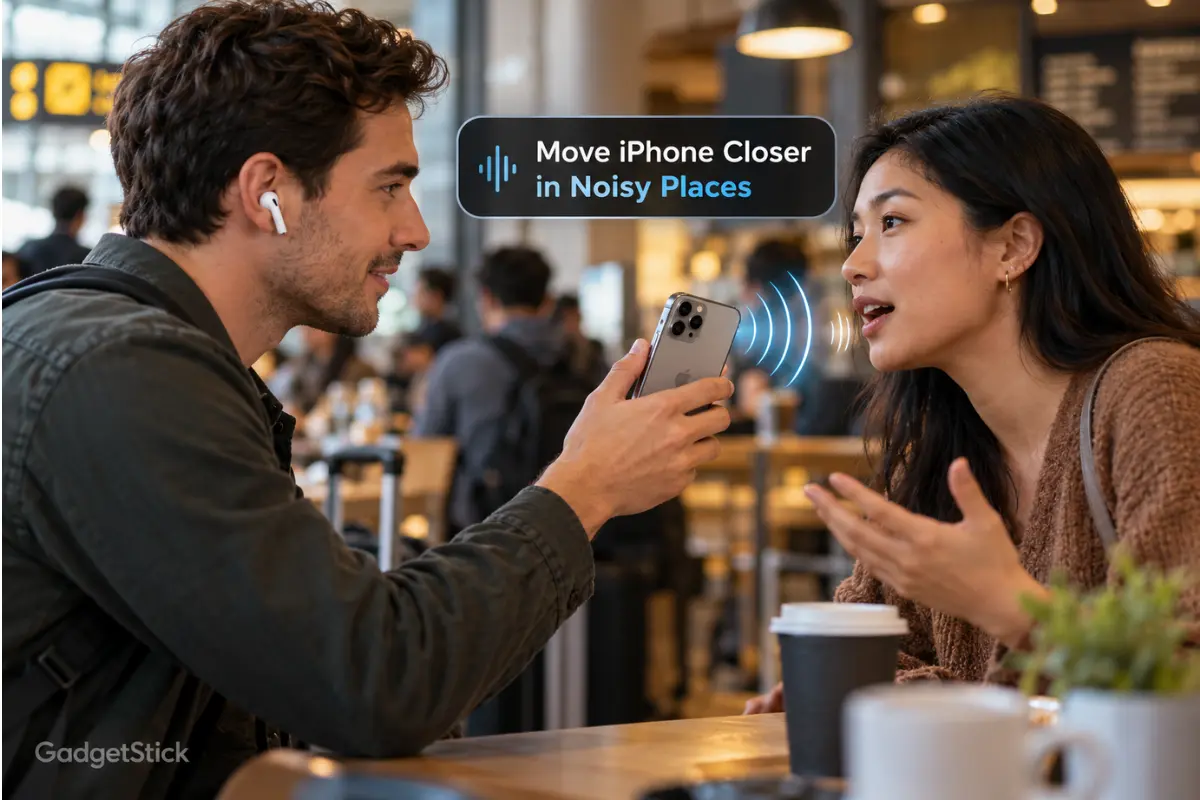
The problem may be input quality rather than compatibility.
Apple notes that in noisy environments, you can move the iPhone closer to the person speaking so the iPhone microphones can help improve translation input.
This matters in places such as airports, train stations, restaurants, conferences, and busy streets.
If the AirPods are translating inconsistently, try bringing the iPhone closer to the speaker before changing more settings.
What If the Translation Is Wrong?
A working feature can still produce imperfect output.
Apple warns that Live Translation uses generative models and that translations may be inaccurate or unexpected.
So do not treat a bad translation as automatic proof that the feature is broken.
For important details such as medical information, legal information, travel instructions, addresses, money, or emergency information, verify the translation separately.
Why Live Translation May Disappear After an Update
Sometimes a feature seems to vanish after an iOS update, AirPods reset, changing iPhones, signing out of Apple services, language changes, or region changes.
In those cases, re-check the full dependency chain:
AirPods compatibility → iPhone compatibility → Apple Intelligence → Translate app → downloaded languages → firmware → region
Do not troubleshoot only the AirPods.
Should You Reset Your AirPods?
Not as the first fix.
A reset can help if the AirPods are failing to connect properly, but it should come after the easier checks.
Before resetting:
- confirm compatibility
- confirm iOS version
- confirm firmware
- confirm Apple Intelligence
- confirm Translate app
- confirm downloaded languages
- reconnect AirPods
Only then consider a reset.
AirPods Live Translation Works on One iPhone but Not Another
This usually points to the iPhone side of the setup.
Check whether the second iPhone has:
- Apple Intelligence support
- Apple Intelligence turned on
- current iOS
- Translate installed
- required languages downloaded
- supported region and language settings
The AirPods themselves may be completely fine.
AirPods Live Translation Works in the Translate App but Not With the Stem Gesture
That suggests the translation service itself is working.
The issue is more likely related to AirPods control setup, firmware, gesture handling, or device connection state.
In that situation, continue using the Translate app while checking the AirPods controls and firmware.
Why Supported AirPods Still May Not Show Live Translation
Supported hardware alone is not enough.
| Requirement | Needed? |
|---|---|
| Supported AirPods | Yes |
| iPhone 15 Pro or newer supported model | Yes |
| Apple Intelligence | Yes |
| Current supported iOS | Yes |
| Latest AirPods firmware | Yes |
| Apple Translate app | Yes |
| Downloaded languages | Yes |
| Supported language/region | Yes |
Missing any one of these can explain why the feature does not appear or work correctly.
Frequently Asked Questions
Why is AirPods Live Translation not showing up?
The most common reasons are an unsupported AirPods model, an older iPhone without Apple Intelligence, outdated software or firmware, missing Translate app, or unsupported language or region.
Do AirPods need Wi-Fi for Live Translation?
The language models need to be downloaded first. Once they are downloaded, the processing can take place on the iPhone.
Which AirPods support Live Translation?
Apple currently lists AirPods 4 with ANC, AirPods 5, AirPods Pro 2, AirPods Pro 3, and AirPods Max 2.
Do I need iPhone 15 Pro or newer?
Yes. AirPods Live Translation requires an Apple Intelligence-enabled iPhone, including iPhone 15 Pro or later supported models.
Why does translation work poorly in a noisy place?
Move the iPhone closer to the person speaking so its microphones can help improve input quality.
Do both people need AirPods?
No. One person can use supported AirPods while the other person sees or hears the translated response through the iPhone.
Final Answer
If AirPods Live Translation is not working, do not start by resetting everything.
Check the requirements in order:
supported AirPods → supported iPhone → Apple Intelligence → iOS → AirPods firmware → Translate app → language downloads → region support
That catches most setup problems faster than random troubleshooting.
The most commonly missed requirements are unsupported AirPods, a non-Apple-Intelligence iPhone, missing language downloads, outdated AirPods firmware, Apple Intelligence disabled, or an unsupported language or region.
Once those are correct, start Live Translation directly from the Translate app and test again.
For the broader feature explanation, requirements, and supported languages, see our AirPods 5 Live Translation guide.
How We Researched This Article
We reviewed Apple’s current support documentation for AirPods Live Translation, including supported AirPods models, iPhone requirements, Apple Intelligence requirements, iOS requirements, language downloads, Translate app setup, noisy-environment guidance, and firmware requirements.
We also checked Apple’s broader Live Translation documentation to make sure we did not treat AirPods compatibility as the only requirement.
We do not treat every failed translation as a hardware fault because Live Translation depends on both device compatibility and software setup.
Editorial Note
Apple can expand Live Translation support through future iOS, AirPods firmware, language, and regional updates. Always check Apple’s current compatibility page for your exact AirPods model, iPhone, language, and country before assuming the feature should be available.
