
Your Bluetooth headphones work normally when you first start your Windows 11 laptop. But after the laptop wakes from sleep, the headphones still show as connected—and suddenly you can’t hear anything.
Maybe Windows makes its connection sound, but YouTube stays silent. Maybe the volume meter moves while the headphones produce no audio. Restarting the laptop brings everything back, only for the problem to return after the next sleep cycle.
That pattern matters. It suggests you should investigate how Windows restores Bluetooth audio after waking, rather than immediately assuming the headphones are defective.
Here are seven checks to help identify where the audio stops.
Quick Answer
If Bluetooth headphones are connected but silent after Windows 11 wakes from sleep, first check whether Windows restored the correct audio output. Then reconnect the headphones without restarting the PC.
If selecting the headphones restores audio, the problem may involve output routing. If toggling Bluetooth restores audio, investigate the connection or driver recovery. If the connection looks normal but the device never plays sound until a reboot, examine Bluetooth driver updates and power-management behavior.
The goal is to compare what happens before and after sleep. Don’t change several settings at once.
Why Bluetooth Audio Can Fail After Windows 11 Wakes Up
When Windows resumes from sleep, it has to restore the Bluetooth connection and make the headphone audio output available to applications.
Those steps don’t always recover together.
A headset may appear connected in Bluetooth settings even when its playback endpoint is unavailable or not functioning correctly. Windows can also direct sound to a different output or preserve an app-specific routing choice.
Microsoft identifies output selection, Bluetooth reconnection, driver issues, and audio services as possible causes of connected-but-silent Bluetooth playback.
The important clue is timing: If sound works after a fresh start but fails consistently after sleep, investigate the resume process first.
1. Confirm the Problem Happens Only After Sleep
Before changing Windows settings, perform a controlled comparison.
- Restart your Windows 11 PC normally.
- Connect your Bluetooth headphones.
- Play a short audio clip and confirm that it works.
- Put the laptop to sleep.
- Wake it and play the same clip using the same app.
- Check whether the headphones still appear connected.
Try this more than once if the problem is intermittent.
What the result tells you
| Observation | What it suggests |
|---|---|
| Audio works before sleep but fails after waking | Sleep/wake recovery is a useful diagnostic focus |
| Audio fails even after a fresh restart | The problem is not limited to sleep recovery |
| Only one app goes silent | Investigate app-specific routing |
| Laptop speakers work but headphones don’t | Focus on the Bluetooth playback path |
| Bluetooth mouse works but headphones remain silent | Bluetooth is not completely unavailable; audio recovery may be affected |
This test won’t identify the exact faulty component by itself. But it prevents you from treating a wake-specific issue like a general pairing failure.
2. Check the Audio Output Windows Selected After Waking
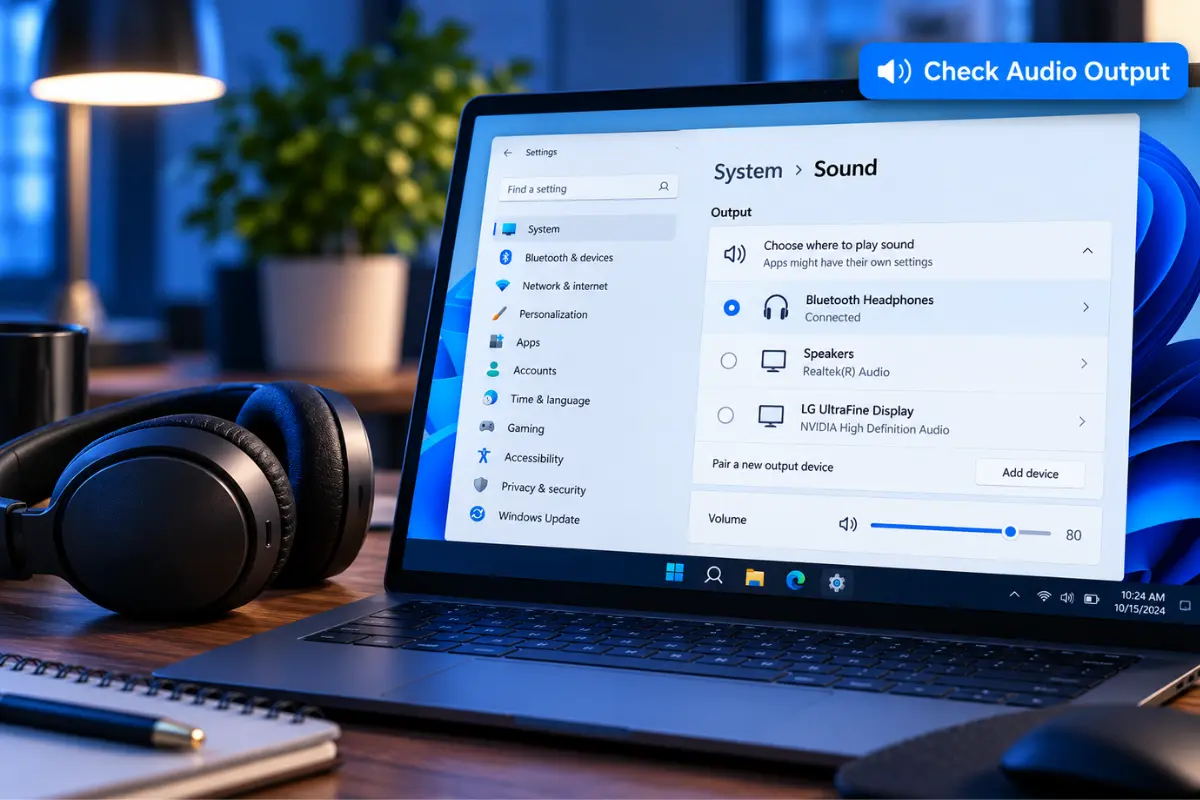
Windows may reconnect your headphones without making them the active playback device.
After reproducing the problem:
- Open Settings → System → Sound.
- Under Output, select your Bluetooth headphones if they are listed.
- Confirm that the output volume is not muted.
- Play your test audio again.
- If multiple headset outputs are available, choose the one intended for media playback.
Microsoft recommends checking the selected output device in its official Bluetooth audio troubleshooting guidance.
Microsoft: Fix Bluetooth connected but no sound
How to interpret the result
If manually selecting the headphones immediately restores audio, the active output selection was part of the problem.
If the headphones are selected but still silent, don’t keep switching outputs. Continue to the next check.
If the headphones disappear from the Output list after sleep, pay particular attention to the connection and driver checks later in this guide.
3. Check Whether the Problem Affects One App or All Audio
Sometimes the Bluetooth output works, but the app you were using before sleep doesn’t resume correctly.
Compare two audio sources—for example, a browser video and another media application.
Then open:
Settings → System → Sound → Volume mixer
Check the affected application for:
- Muted audio
- Very low application volume
- An output device different from your Bluetooth headphones
If an app has the wrong output, select the correct device and test again. Some applications may need to be restarted before they use a restored audio device.
Microsoft documents per-app volume and output-device problems separately from system-wide audio failures.
Microsoft: Fix app audio not working while system sounds work
What this isolates: If Windows system sounds or a second app work through the headphones, an app-specific problem is more likely than a completely failed Bluetooth connection.
4. Reconnect the Headphones Without Restarting Windows
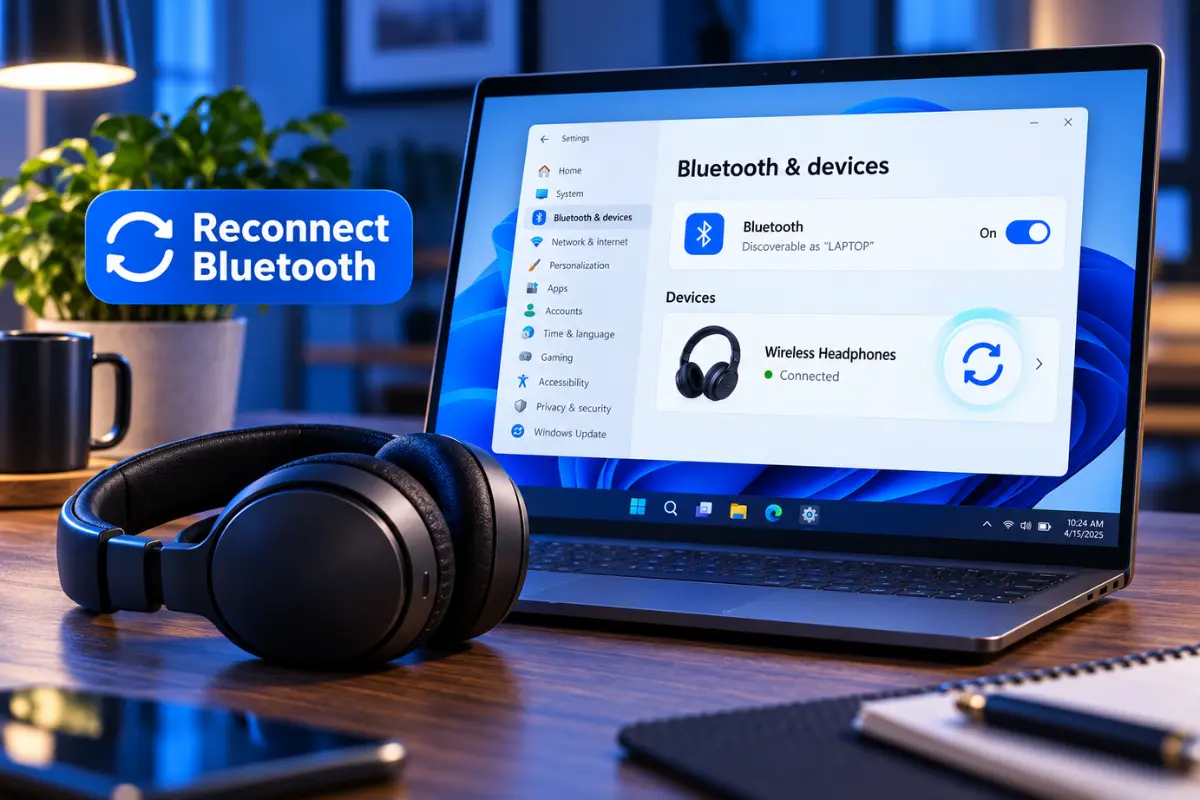
If the headphones are still silent, test whether the Bluetooth connection can recover independently of a full PC restart.
- Close or pause the application that’s playing audio.
- Open Settings → Bluetooth & devices.
- Turn Bluetooth off.
- Wait approximately 10 seconds.
- Turn Bluetooth back on.
- Reconnect the headphones if necessary.
- Play the same audio again.
If your headphones support a manual disconnect/reconnect action, you can use that first instead.
Microsoft includes toggling Bluetooth as a supported troubleshooting step for connected-but-silent devices.
Why this check matters
If reconnecting restores audio without restarting Windows, the problem is more likely associated with the connection or playback device recovery than with a permanently broken headphone speaker.
This is a diagnostic clue, not proof that the Bluetooth driver is defective.
Also note that toggling Bluetooth temporarily disconnects other Bluetooth devices, including wireless mice and keyboards.
5. Check Whether the Bluetooth Adapter Is Recovering From Sleep
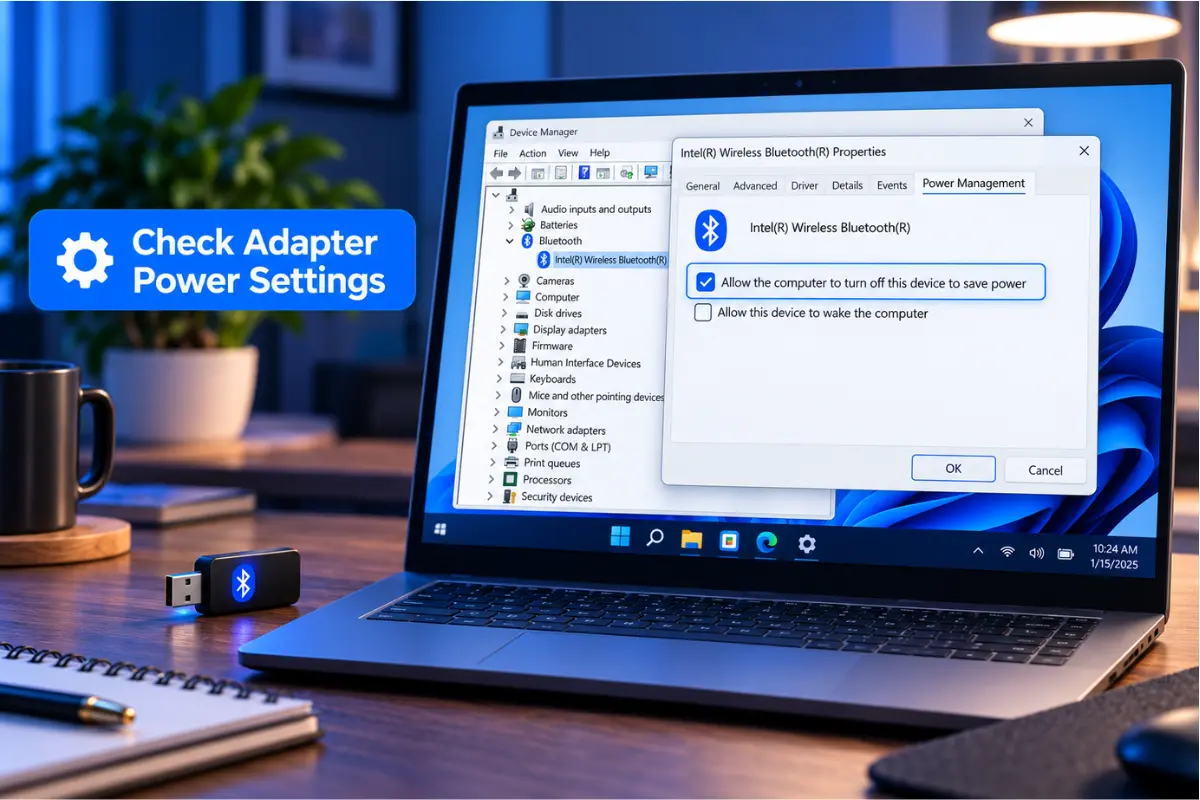
If the problem repeatedly returns after sleep, investigate Bluetooth adapter power management.
Some Windows systems expose power-management controls for their Bluetooth adapters. Others do not.
Check Device Manager
- Right-click Start and open Device Manager.
- Expand Bluetooth.
- Find the actual Bluetooth radio or adapter, such as an Intel, Realtek, or MediaTek adapter.
- Right-click it and select Properties.
- Look for a Power Management tab.
If the tab exists and includes Allow the computer to turn off this device to save power, you can temporarily clear that option as a controlled test.
Restart Windows and reproduce the sleep/wake problem.
If the behavior improves, power management may have contributed. Note the change so you can reverse it if necessary.
Important: This tab and checkbox are not available for every Windows 11 computer. Don’t search for registry edits or install third-party utilities simply to force the option to appear.
Microsoft also discusses Bluetooth power-saving behavior in its disconnection troubleshooting documentation.
Microsoft: Bluetooth keeps disconnecting in Windows
6. Check Bluetooth Driver and Windows Updates
If Bluetooth reconnects unreliably after every sleep cycle, driver compatibility is worth investigating.
Start with your laptop or PC manufacturer’s support page.
Look for Bluetooth driver updates compatible with your exact computer model and Windows version.
You can also check:
Settings → Windows Update → Check for updates
And, when appropriate:
Windows Update → Advanced options → Optional updates
Device Manager can check for driver updates, too:
- Open Device Manager.
- Expand Bluetooth.
- Right-click your Bluetooth adapter.
- Select Update driver → Search automatically for drivers.
If Windows reports that the best driver is already installed, that doesn’t necessarily mean your PC manufacturer has no newer compatible version.
Microsoft explains these update paths in its Bluetooth driver documentation.
Microsoft: Update Bluetooth drivers in Windows
If the problem started after an update
Check when the issue began.
If the failure appeared immediately after a driver or Windows update, review the device manufacturer’s release notes and available recovery instructions.
Avoid installing random third-party driver packages. A matching manufacturer-supported driver is preferable.
After making one driver change, repeat the same before-sleep and after-sleep playback test.
7. Use Windows Troubleshooting Before Re-Pairing or Resetting
If the headphones still become silent after sleep, use Windows’ built-in troubleshooting tools before removing the pairing.
On Windows 11, open Get Help and use the Bluetooth or audio troubleshooting flow relevant to your symptoms.
Microsoft’s current Windows troubleshooting guidance directs users to the Get Help app for automated Bluetooth diagnostics.
If troubleshooting doesn’t help, consider removing and pairing the headphones again:
- Open Settings → Bluetooth & devices.
- Find your headphones.
- Select Remove device.
- Put the headphones into pairing mode using the manufacturer’s instructions.
- Add the device again.
- Test audio before and after sleep.
Re-pairing rebuilds the device connection, but it may not resolve a recurring driver or power-resume problem.
If the issue persists, record your laptop model, Bluetooth adapter, headphone model, Windows build, and the steps that consistently reproduce it. That information will help the manufacturer or Microsoft support identify the problem.
Quick Diagnosis: Which Check Should You Try First?
| What happens after sleep | Best next check |
|---|---|
| Sound plays through laptop speakers | Check Windows output selection |
| One app is silent but others work | Inspect Volume mixer and per-app routing |
| Headphones disappear from Sound Output | Reconnect Bluetooth and inspect the adapter |
| Headphones are listed but remain silent | Test reconnecting without restarting |
| Reconnecting fixes it temporarily | Investigate power management and drivers |
| Only a full PC restart restores playback | Review driver/Windows recovery and built-in troubleshooting |
| Issue affects every device, even after a fresh start | Investigate broader Windows audio or hardware problems |
Frequently Asked Questions
Why do my Bluetooth headphones show connected but have no sound after sleep?
Windows can restore the Bluetooth connection without correctly restoring the playback device or app audio routing. Incorrect output selection, driver recovery problems, and temporary connection issues are possible explanations.
Compare the audio output and connection state before and after sleep to narrow down the cause.
Why does restarting Windows fix my Bluetooth headphones temporarily?
A restart reloads Windows components and reinitializes device connections. That can temporarily resolve a recovery problem without fixing its underlying cause.
If the problem returns after every sleep cycle, focus on the Bluetooth adapter, power management, and driver compatibility.
Why does my Bluetooth mouse work after sleep but my headphones don’t?
A working Bluetooth mouse shows that Bluetooth communication is available for at least one device. It does not guarantee that the headphone audio playback path recovered correctly.
Bluetooth input devices and audio playback involve different device functions.
Should I disable Bluetooth power saving in Windows 11?
Only test that setting if your adapter exposes it and the symptom genuinely suggests a sleep/wake issue.
Not every Windows 11 PC provides the same power-management options. Avoid unsupported registry tweaks or unrelated power-setting changes.
Is this the same as Bluetooth headphones sounding muffled when the microphone turns on?
No. That is usually a different audio-quality or device-mode problem.
If your sound becomes muffled specifically when an application activates the microphone, see our guide to Bluetooth headphones sounding bad when the mic is on.
How We Researched This Guide
We reviewed Microsoft’s official documentation covering Bluetooth devices that connect without sound, output selection, app-specific audio routing, Bluetooth power-management behavior, and driver updates.
We also considered community reports describing headphones that stop producing audio after Windows resumes from sleep, even though Bluetooth connectivity appears normal.
These reports helped identify useful symptom distinctions, but they do not prove the same cause applies to every laptop, driver, or headphone model.
GadgetStick has not independently reproduced the issue across multiple Windows 11 systems or tested every troubleshooting step on different Bluetooth adapters. This guide focuses on documented behavior and controlled diagnostic checks.
Final Answer
If your Bluetooth headphones stop playing sound after Windows 11 wakes from sleep, start by checking the playback output and reconnecting the headphones without restarting your PC.
If audio returns after changing the output, investigate routing. If reconnecting restores playback, focus on the Bluetooth connection and its recovery after sleep.
For repeat failures, check adapter power management, manufacturer-supported driver updates, and Windows troubleshooting before rebuilding the device pairing.
The key is to find out which part of the playback path fails after sleep—not to restart your laptop every time it happens.
