
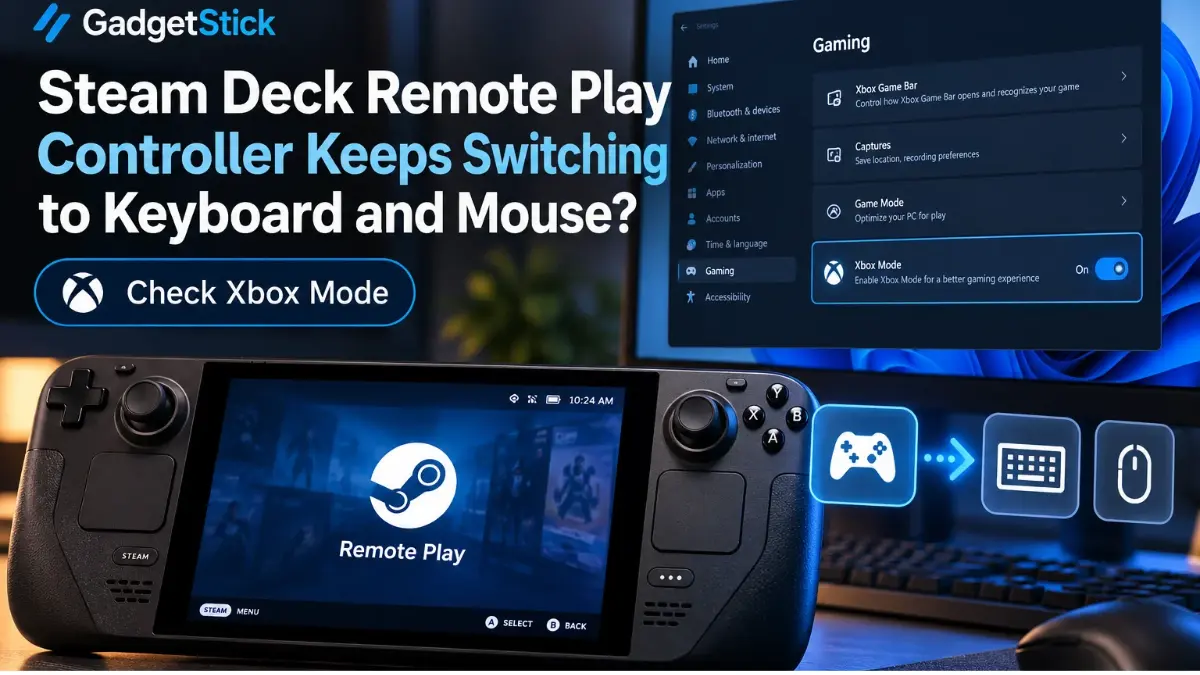
If Steam Deck Remote Play keeps switching between controller inputs and keyboard-and-mouse controls, the issue may be on your Windows host PC rather than the Steam Deck itself. A Windows 11 feature called Xbox mode has been linked to this exact symptom in a user-reported case.
Quick Answer
If Xbox mode is enabled on the Windows 11 PC hosting the game, temporarily disable it and retest. One Steam Deck user reported success with this workaround, but it is not an established fix for every Remote Play setup. On supported Windows 11 24H2-or-later systems, open Settings → Gaming → Xbox mode to check whether the setting is available. On desktop and laptop PCs, look for Enable Xbox mode. If your host is a Windows gaming handheld, the option may instead appear under Choose home app; choosing None disables Xbox mode. Close and restart your Remote Play session, then test the same game again. This fixed the problem for one Steam Deck user in August 2026, but it is not a guaranteed fix for every controller problem.
Important: Do not disable Windows services, uninstall drivers, or reset your Steam Deck before trying the reversible steps below.
What Does Controller Switching Actually Look Like?
Affected games may alternate between controller button prompts and keyboard labels, ignore analog-stick input, or seem to repeatedly detect a different input device. The Steam Deck may navigate Steam menus normally while controls become unreliable inside a streamed Windows game. That distinction matters: the problem is not necessarily a broken controller.
A user on r/SteamDeck reported this behavior across multiple streamed games in August 2026, including God of War and Zombie Army 4. Steam Input and layout checks did not resolve the issue. Disabling Xbox mode on the Windows 11 host reportedly stopped the switching. This is a documented individual experience, not a confirmed Microsoft or Valve diagnosis for all Remote Play sessions.
1. Turn Off Xbox Mode on the Windows Host PC
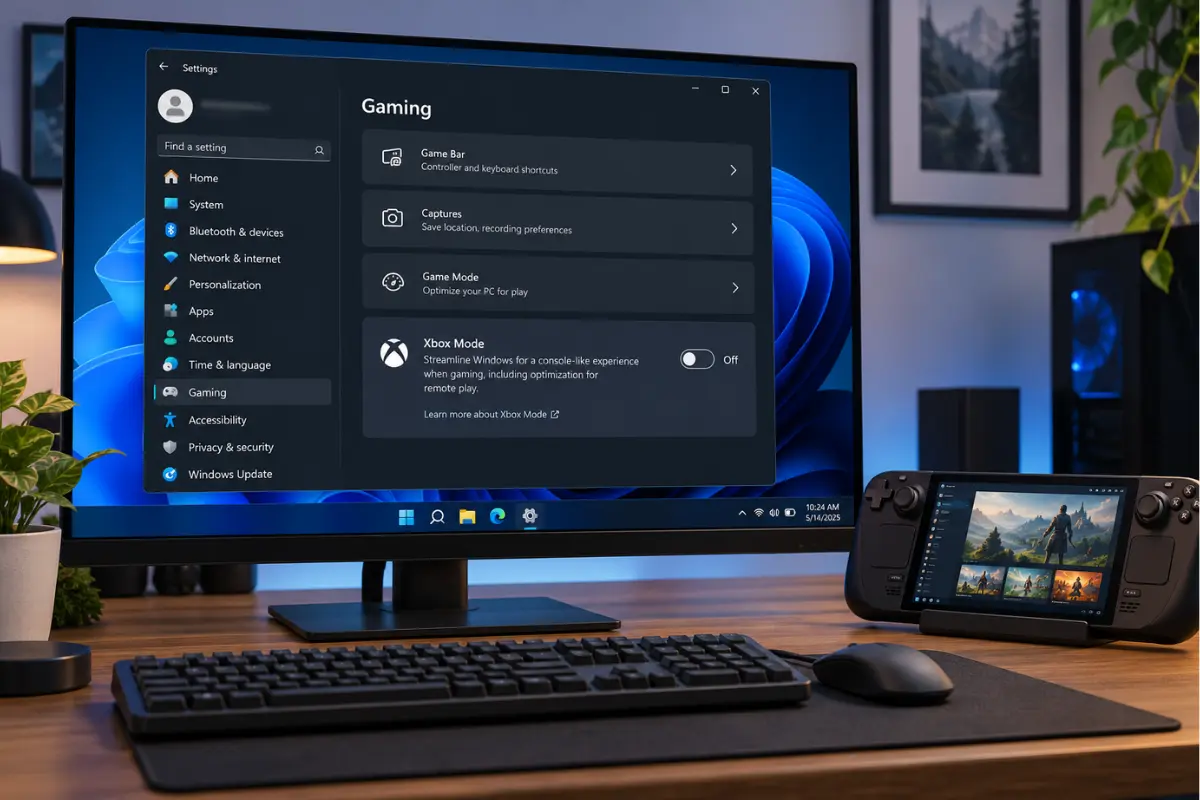
- On the Windows PC that runs the game, open Start → Settings.
- Select Gaming → Xbox mode.
- For a desktop or laptop, turn off Enable Xbox mode, if available.
- For a supported Windows gaming handheld, select None under Choose home app.
- Exit the current Remote Play stream and reconnect from Steam Deck.
- Launch the game and check whether prompts and controls remain in controller mode.
Microsoft describes Xbox mode as a controller-focused full-screen gaming environment on supported Windows 11 version 24H2-or-later systems. Because the feature rolls out by device and market, the toggle may not appear on every host PC. If you cannot find it, skip this step rather than changing unrelated Windows settings.
2. Confirm Which Machine Is Hosting the Game
Steam Remote Play involves two different devices: the host PC runs the game, and the Steam Deck sends input and displays the stream. If you’re deciding which device should run games locally versus remotely, see our gaming laptop vs handheld gaming PC comparison. Xbox mode is a Windows setting, so look for it on the Windows host—not in SteamOS settings. Changing controls on the Deck will not switch off a Windows feature on the other computer.
If you are actually playing a game installed locally on Steam Deck, rather than streaming a Windows game, this particular Xbox mode workaround is unlikely to apply. Our handheld gaming PC guide explains where local handheld gaming makes sense.
3. Check the Steam Deck Controller Layout for That Game
- On Steam Deck, select the game you are streaming.
- Open the controller-layout settings associated with that game.
- Check whether the layout is intended for gamepad input or emulates keyboard and mouse.
- If you have a custom layout, temporarily try an appropriate gamepad template.
- Test inside the game, including menus and active gameplay.
A keyboard-and-mouse layout can intentionally generate keyboard input. That is useful for PC games without controller support, but confusing when a game expects a conventional gamepad. Do not assume every unexpected keyboard prompt is an Xbox mode bug.
4. Test Steam Input Without Changing Everything at Once
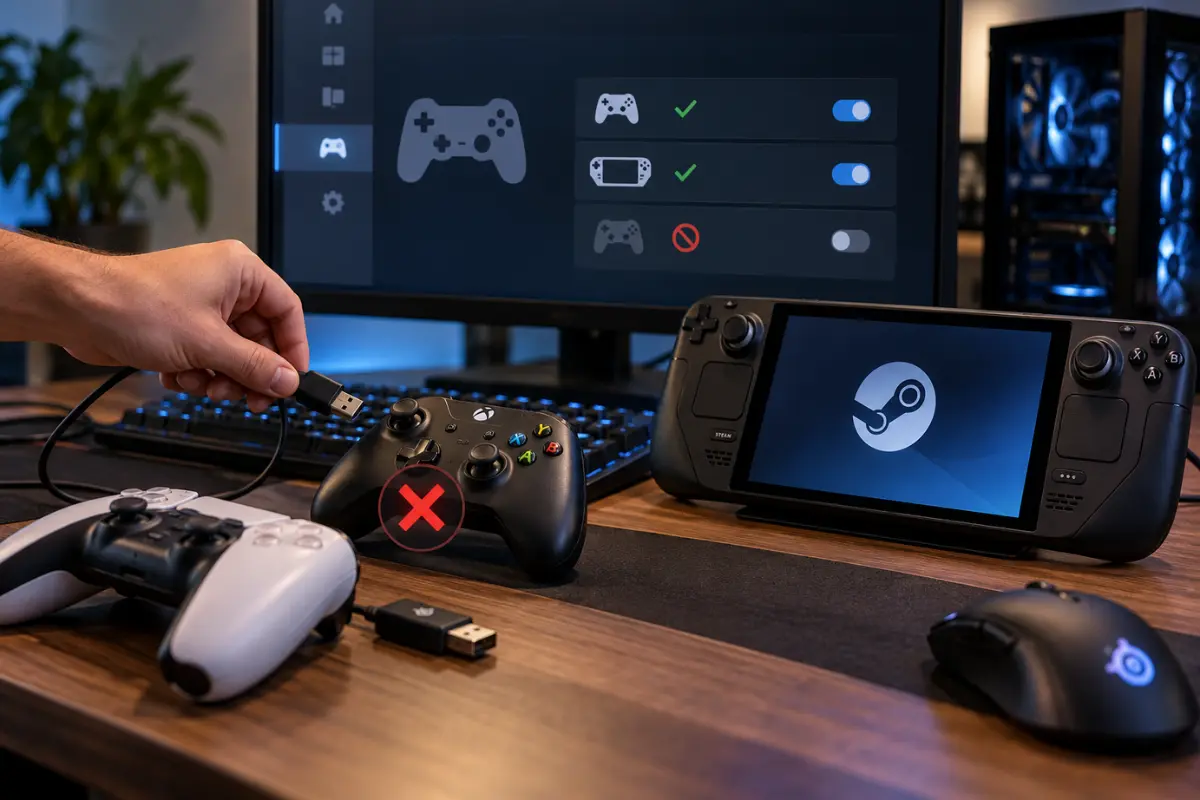
Steam Input translates physical controller actions into signals the game understands. If switching persists after disabling Xbox mode, inspect the game’s controller settings in Steam on the host and the Deck. Note the current configuration before making changes, then test one change at a time. Some games use Steam Input best, while others can behave differently with native controller support.
5. Test a Second Game to Isolate the Problem
If only one game flickers between input types, investigate that game’s controller and launcher settings. If the same issue happens across several unrelated games, a host-wide input conflict is more plausible. The August 2026 report involved multiple games, which is why the Windows-side setting was worth checking.
6. Disconnect Extra Controllers and Input Utilities Temporarily
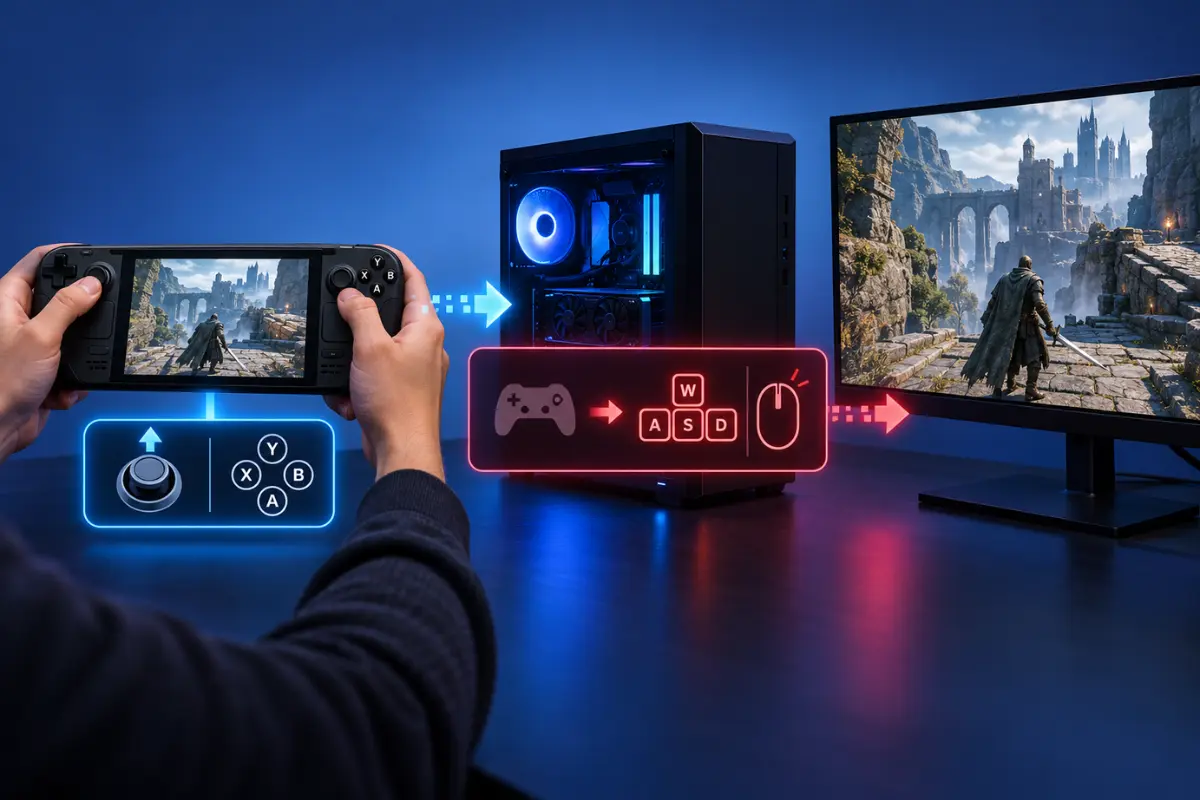
For one test session, disconnect unused controllers, virtual-controller utilities, and optional input-remapping tools connected to the Windows host. Then launch the stream with only the Steam Deck controlling the game. If behavior improves, reconnect items one at a time to identify the conflict. Do not permanently remove drivers based on a single test.
7. Restart the Stream, Steam, and Host PC
After changing Xbox mode or game-controller configuration, fully end the streaming session. If necessary, restart Steam on both devices, then reboot the Windows host. Retest before proceeding to more invasive troubleshooting. Also check normal Steam and Windows updates, but avoid unsupported firmware fixes.
Quick Diagnosis Table
| What you see | First thing to check | Why |
|---|---|---|
| Inputs alternate across multiple streamed games | Windows host Xbox mode | A host-side input-mode conflict is plausible |
| Only one game shows keyboard prompts | Game controller settings and Steam Input | The title may interpret input differently |
| Steam Deck menus work, game ignores controls | Game-specific controller layout | Menu navigation does not prove in-game mapping is right |
| Xbox mode option is missing | Skip Xbox mode; test layout and other input software | The feature is not available on every PC |
Should You Disable Microsoft GameInput Service?
Not as a first-line fix. Some community replies suggest disabling Windows input-related services, but doing so can affect other games or controllers and is not supported by the single Xbox mode report as a universal solution. The reversible Xbox mode setting, controller layout checks, and device-isolation tests are safer starting points.
Frequently Asked Questions
Is Xbox mode the same as Steam Input?
No. Xbox mode is a Windows 11 gaming interface on the host PC. Steam Input is Valve’s controller configuration and input-translation system. Both may affect the overall experience, but they are separate features.
Will turning off Xbox mode stop Xbox games from working?
Disabling the Xbox mode interface is not the same as uninstalling Xbox games or the Xbox app. You can turn the feature back on if it does not help.
What if Xbox mode is not listed in Windows 11 settings?
Its availability depends on supported Windows versions, devices, and rollout markets. Skip that test and focus on Steam Input, layouts, and connected input software instead.
Does this fix apply to a Steam Deck game running locally?
Usually not. This specific fix concerns a Windows 11 PC hosting a Steam Remote Play session. Local SteamOS game-input problems have different causes.
How We Researched This Guide
We reviewed a first-hand August 24, 2026 Steam Deck Remote Play report and compared its reported fix with Microsoft’s published Xbox mode settings. We used that evidence to build a cautious diagnosis sequence, separating one user’s successful workaround from more general troubleshooting. GadgetStick did not reproduce the problem in a controlled hardware test, and we do not present the workaround as guaranteed.
Final Answer
If Steam Deck Remote Play keeps switching to keyboard and mouse while streaming from a Windows 11 PC, if Xbox mode is enabled on the host, try disabling it temporarily and retest. Turning it off resolved one documented multi-game case. If the issue continues—or Xbox mode is unavailable—inspect Steam Input, the game’s controller layout, and extra host-side input devices. Make one change at a time so you can identify the actual cause.
References: Microsoft: Windows Gaming — Full screen experience (Xbox mode); Xbox Wire: Xbox mode on Windows 11 PCs; Steam Deck community: Windows 11 Xbox mode and Remote Play input conflict.
