
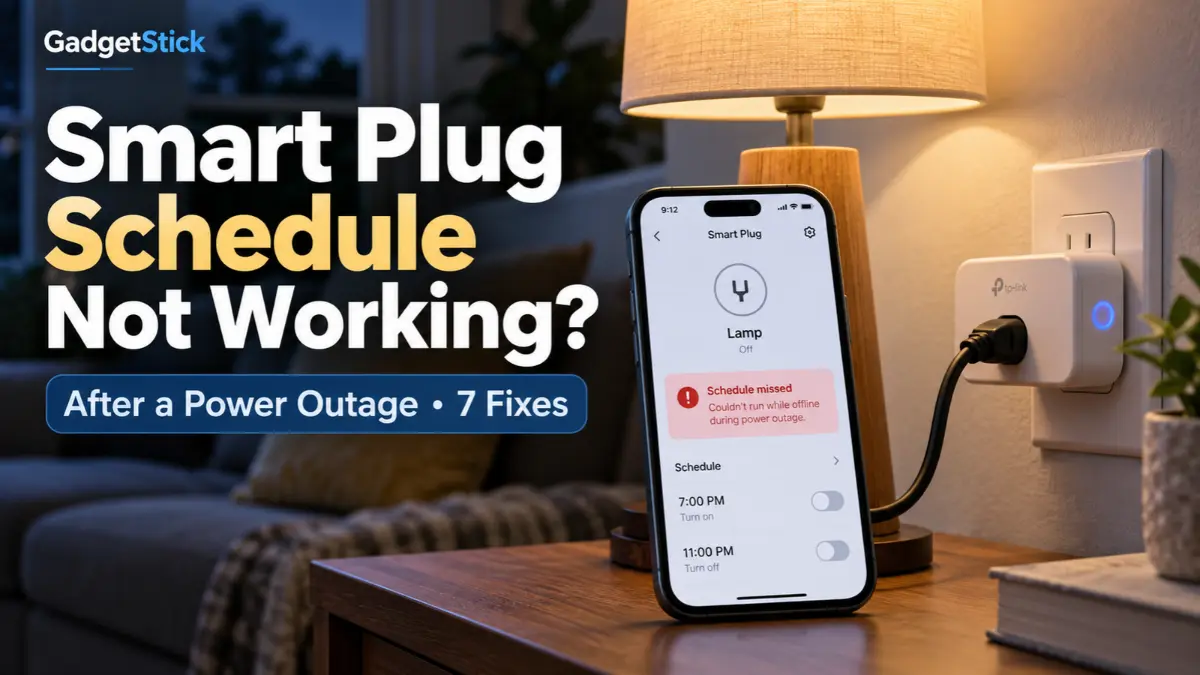
Your smart plug worked perfectly before the power went out. Electricity returns, the plug’s button may still work, and the app might even show it online—but its usual on/off schedule stops running. That does not necessarily mean the schedule was deleted.
A power outage changes more than the plug’s power state: it can interrupt the device clock, Wi-Fi reconnection, internet access, and automations that depend on a hub or cloud service. The right fix starts by identifying which of those actually failed.
Quick Answer
If your smart plug stops following its schedule after a power outage, confirm that power has returned to both the plug and your router, then check whether the plug is online and whether its device time and time zone have synchronized. On some Tapo and Kasa plugs, schedules can run without internet once configured—but a full power cut can leave the device unable to run them correctly until time synchronization is restored. Also check the plug’s Default State or power-recovery setting; that determines whether it turns on or off when electricity returns, not necessarily whether the next scheduled action will occur.
TP-Link specifically documents this behavior for supported Tapo products. TP-Link support explains how a power cut can interrupt offline schedules. Behavior is model-dependent, so do not assume every brand works identically.
First, Identify Which Problem You Actually Have
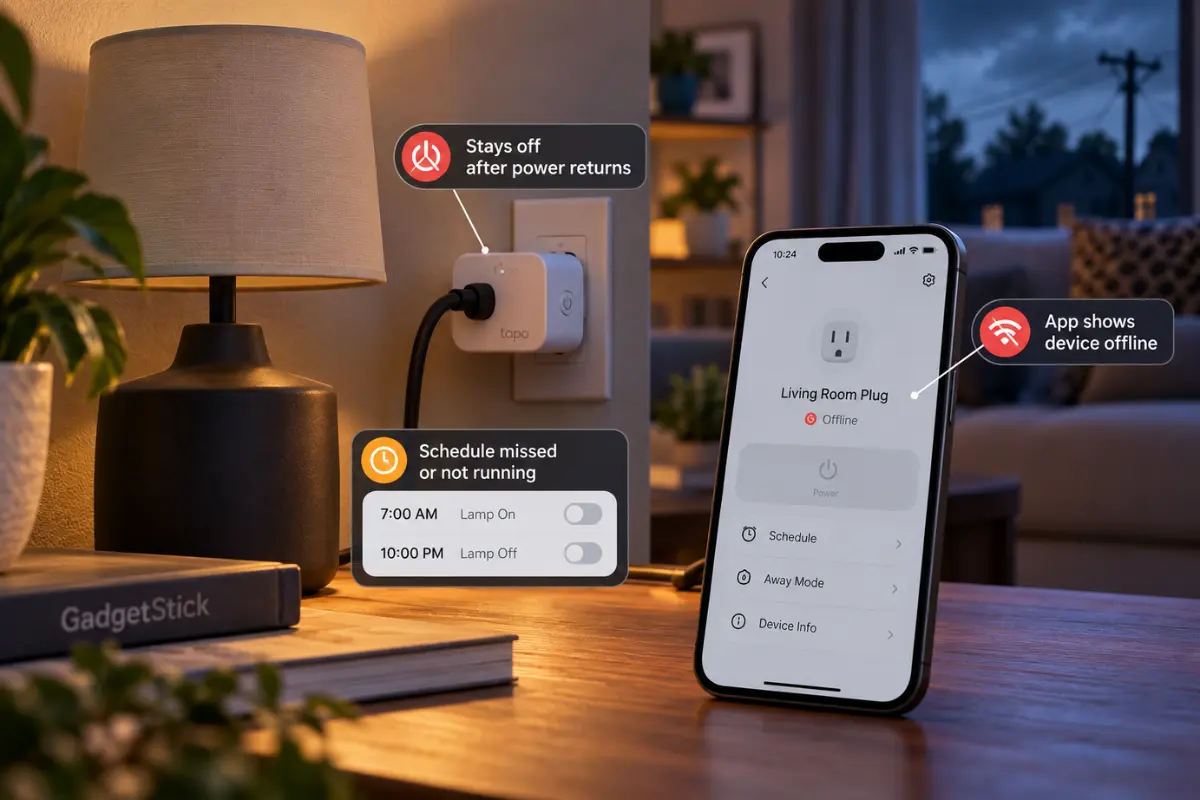
| What happens after power returns | What to check first |
|---|---|
| Plug stays off even though it was on before | Power-recovery / Default State setting |
| Plug turns on but scheduled off-time is missed | Device time synchronization and schedule state |
| Plug works from its button but shows Offline in the app | Router, Wi-Fi, plug reconnection |
| App control works but a routine does not | Cloud or hub automation dependencies |
| Schedules run at the wrong hour | Time zone, daylight saving time or clock sync |
| Only a sunrise/sunset rule fails | Location, time zone and rule type |
A manual power button, a recurring Schedule, and a multi-device Automation are separate functions. Treating them as the same thing can lead to unnecessary factory resets.
1. Check the Power-Recovery or Default State Setting
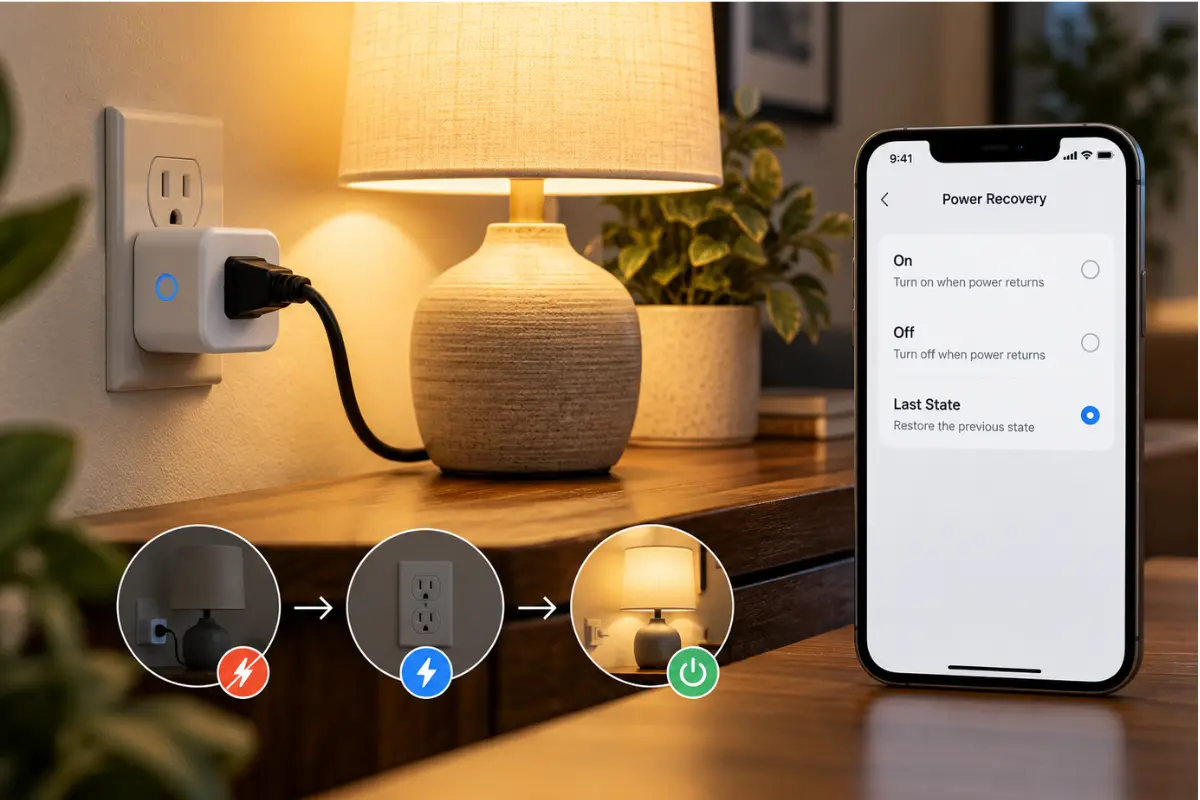
Many smart plugs let you choose what happens when electrical power returns. Depending on the model, options may include On, Off, or Last State. A plug set to stay Off after an outage can be functioning exactly as configured—even while its later schedule remains intact.
For supported Tapo plugs, open the plug in the Tapo app, go to its device settings and look for Default State. The exact menu and available options vary by hardware and firmware. The manufacturer’s Tapo app guide illustrates Last On State, On, and Off options. Confirm the setting matches the safe behavior you want when power is restored.
Important: do not set an unattended heater, cooking appliance, or other hazardous load to restart automatically after an outage. Follow the plug and appliance manufacturer’s safety instructions.
2. Let the Smart Plug Reconnect and Synchronize Its Clock
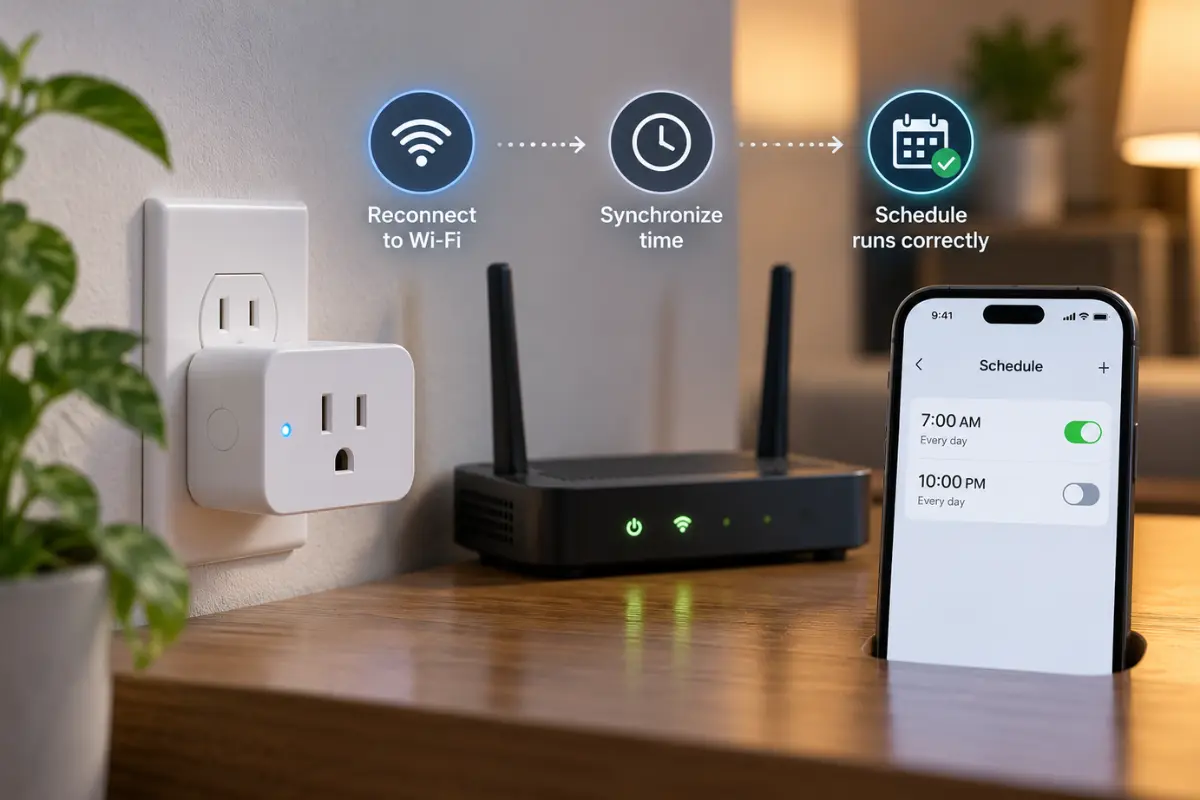
This is an easily missed cause of schedule failures. Some smart plugs retain the schedule itself while needing an accurate time reference after losing power. If the router is still starting up, the plug may lack the information required to run a scheduled event at the correct hour.
TP-Link’s technical support notes that after a power failure, a Tapo plug may need to reconnect to the internet to correct its time before its schedule resumes. That is why a schedule can work during an ordinary internet outage but fail after electricity to the plug is lost. Read TP-Link’s offline-scheduling clarification.
- Wait for the router and home network to finish restarting.
- Open the manufacturer’s app and check whether the plug appears online.
- Check the phone’s date, time, time zone, and any device-time or location sync controls.
- Run a harmless test schedule a few minutes ahead to see if timing has recovered.
3. Verify Wi-Fi Is Back, Not Just Electricity
Power returning to the socket does not prove that the router has recovered. If the plug’s status is Offline, check the router, Wi-Fi signal and any smart-home hub first. A wall plug cannot download time information or communicate with cloud services until the necessary network path is available.
Use the physical button as a separate diagnostic test if safe for the connected device. If it switches power locally but app control fails, the fault may be connectivity rather than the switching hardware. TP-Link’s smart device offline guide recommends checking router connectivity, signal strength and app/firmware updates.
4. Check the Schedule, Days, Time Zone and Sunrise/Sunset Rules
Once the device reconnects, confirm the schedule is still enabled, the intended days are selected, and the on/off actions are in the correct order. A rule at 7:00 p.m. will look broken if the plug or app is using the wrong time zone.
If your schedule uses sunrise or sunset, verify the home location and time-zone settings too. TP-Link’s Kasa device time-sync guide explains how incorrect time settings can prevent scheduled actions from firing at the expected time.
Do not delete all your automation rules as a first response. Screenshot the existing schedule, correct the clock if necessary, and test one simple on/off action before rebuilding complex routines.
5. Distinguish a Device Schedule From a Cloud or Hub Automation
A schedule saved and executed by one smart plug may be more resilient to a temporary internet outage than a multi-device automation that depends on the cloud, a hub or another device. The power-restoration behavior of the two can differ.
For example, TP-Link’s Tapo schedule guide distinguishes recurring device schedules from multi-device automation and notes internet requirements for the latter. If your plug responds to a manually created schedule but an Alexa, Google Home or app routine does not, inspect the automation platform and trigger devices—not just the plug.
6. Update Firmware and App, Then Test One Simple Rule
If network and time are correct but schedules still fail, check for app and device firmware updates through the manufacturer’s normal process. TP-Link lists software updates and time resynchronization among its official schedule troubleshooting steps. See Tapo/Kasa schedule troubleshooting.
Use a test schedule for a lamp or another harmless, low-power device. Set an ON event, verify it occurs, then test an OFF event. Avoid using safety-critical equipment as a diagnostic load. A successful basic test points toward a problem with the original rule or automation rather than the plug’s basic switching behavior.
7. Reboot or Reconfigure Only If the Basic Checks Fail
If the plug remains offline or will not follow a new test schedule after its network and time are corrected, follow the exact manufacturer troubleshooting steps for your model. A controlled restart may help; factory reset should be a later step because it can erase Wi-Fi setup and automation relationships.
TP-Link’s official Kasa time guide recommends attempting a restart when time synchronization fails. Its wider schedule troubleshooting documentation describes additional brand-specific steps. Do not assume that one reset path applies to every Matter, Zigbee, Thread or Wi-Fi plug.
What Should Happen When Power Returns?
| Setting or system behavior | What it affects | What it does not guarantee |
|---|---|---|
| Power Recovery / Default State | Immediate on/off state when electricity returns | Next schedule will run on time |
| Device clock synchronization | Ability to evaluate time-based events accurately | Cloud automations will work |
| Wi-Fi and internet reconnection | App and cloud communication where required | An existing rule is enabled |
| Stored device schedule | Recurring actions on supported devices | Operation after a power cut without time recovery |
How to Test Recovery Before Your Next Outage
- Use a low-risk lamp and review the plug’s current Default State setting.
- Record its scheduled on/off times and confirm the time zone.
- Test a short, harmless interruption only if it is safe for your connected equipment.
- Wait for the router to recover and confirm the plug reconnects.
- Schedule a near-future test action and check whether it fires; review results before relying on the device unattended.
If the plug controls a router, remember the setup can create a circular dependency: turning off the router may also remove the network the plug needs to reconnect or synchronize time. Use router-specific restart features where available, or a purpose-built recovery device instead of assuming every smart-plug schedule will safely bring the network back.
Frequently Asked Questions
Do smart plugs lose their schedules after a power cut?
Not necessarily. A stored schedule may survive, while the plug loses accurate time or network access. Some models need internet reconnection to synchronize their clocks after losing power. Check the device’s support documentation.
Why did my smart plug switch on after a blackout?
It may be following its power-recovery setting, such as On or Last State. Check that setting first. Do not enable automatic restarts for appliances that should not run unattended.
Will a Tapo or Kasa schedule work without internet?
Some supported Tapo and Kasa devices can execute device schedules offline once configured. After a full power loss, their clock may need to resynchronize before the schedule works correctly. Cloud-dependent automations can have separate requirements.
Should I factory reset a smart plug when the schedule stops?
Not first. Check that the router is back, the plug is online, the clock and time zone are correct, and the original schedule remains enabled. Reset only if your manufacturer’s troubleshooting steps call for it.
Does Matter guarantee schedules will recover after power loss?
No. Matter connectivity does not guarantee that any particular plug, automation controller or stored schedule will recover immediately after an outage. That depends on device implementation and the controller or service running the automation.
Final Answer
A smart plug that stops following its schedule after a power outage may not be broken. First separate its immediate power-recovery state from its recurring schedule, then check reconnection and device time. A plug can look operational while its schedule is waiting for time synchronization or an external automation service. Test one harmless, short schedule before rebuilding settings or replacing hardware.
If your question is broader—what still functions when the internet or Wi-Fi goes down—see our guide to smart plugs without Wi-Fi or internet. For Matter and Thread setups, our Thread border router explainer covers a separate networking dependency.
How We Researched This Article
We reviewed TP-Link’s published schedule troubleshooting and time synchronization documentation, its Tapo plug app guidance for Default State, and manufacturer support explanations of offline schedule behavior. We also compared recurring user reports about power cuts, missed events, and router restarts to distinguish symptoms. We did not physically test every smart plug or make manufacturer-wide guarantees about outage recovery.
Editorial Note
Settings and feature names differ across Kasa, Tapo, Matter, Zigbee and other devices; some models do not offer every option described here. Smart plugs should not be used to automatically restart hazardous, high-current, heating or life-safety equipment without explicit manufacturer approval.
