
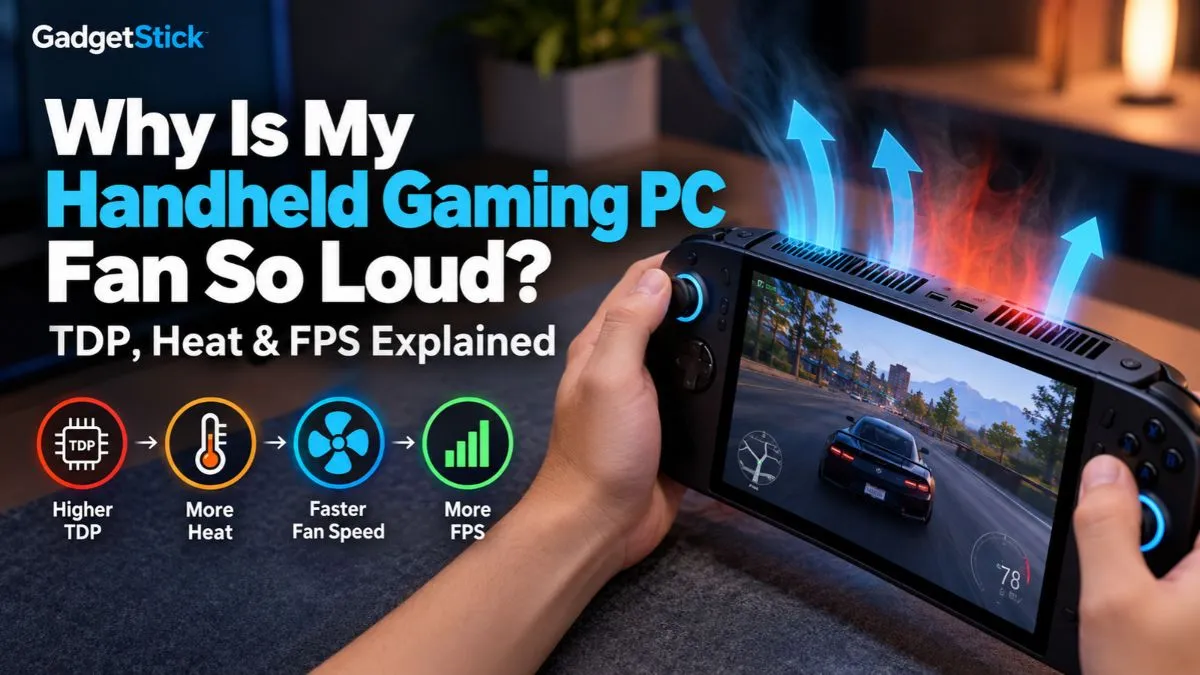
A loud fan on a handheld gaming PC does not automatically mean something is wrong.
Devices such as the ROG Ally, Legion Go, Steam Deck, and other Windows handhelds have to cool a laptop-class processor inside a very small chassis. When you increase performance mode, TDP, frame rate, resolution, or game load, the chip generates more heat. The cooling system responds by spinning the fan faster.
That is why the same handheld can be nearly quiet in a low-power game and noticeably loud a few minutes later in a demanding AAA title.
The important question is not simply “Why is the fan loud?”
It is:
Is the fan getting louder because the handheld is doing more work, or because something in the cooling setup is wrong?
Quick Answer
Your handheld gaming PC fan usually gets loud because the processor is using more power and producing more heat.
Higher-performance modes generally allow a higher TDP or power limit. That can improve FPS, but it also increases the amount of heat the cooling system has to remove.
So in most cases: More TDP → more heat → faster fan → more noise → potentially more FPS.
Lenovo describes Performance mode on the Legion Go as the mode to use when you want maximum performance and are willing to accept more fan noise, while Quiet mode lowers power to prioritize battery life and acoustics. ASUS follows the same basic trade-off on the ROG Ally, where Silent mode reduces power and fan noise while Turbo mode raises available processor power for higher frame rates.
Why Handheld Gaming PCs Get Loud So Easily
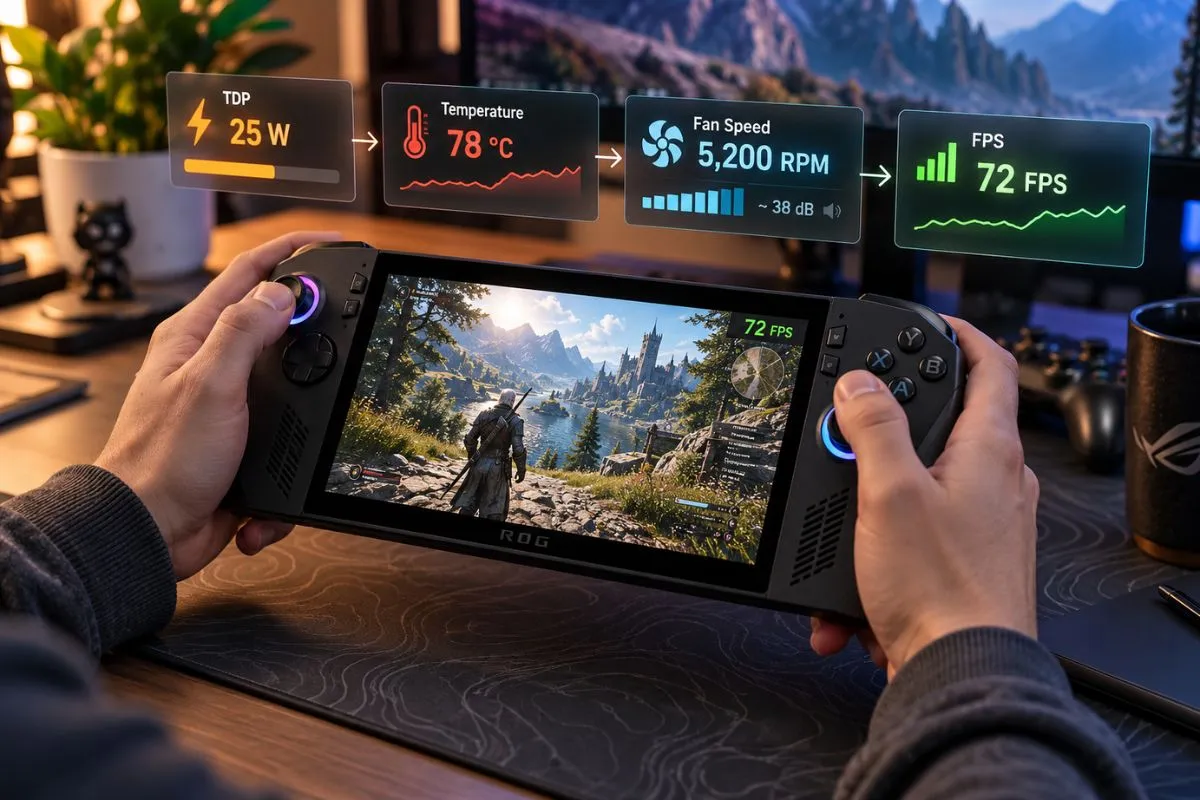
A desktop gaming PC has space for large heatsinks and large fans. A handheld does not.
Inside a handheld gaming PC, manufacturers have to fit:
- processor or APU
- memory
- SSD
- battery
- display electronics
- Wi-Fi hardware
- speakers
- controls
- cooling system
into a device small enough to hold in your hands.
That leaves much less physical space for cooling. The fan therefore has to move enough air through a relatively small heatsink to keep the processor within its thermal limits. A desktop can often move similar cooling air with a larger fan spinning more slowly. A handheld may need a smaller fan spinning much faster, which is what you hear.
TDP Is One of the Biggest Reasons the Fan Gets Louder
TDP is commonly used by handheld software as a convenient way to control how much power the processor can use.
It is not a perfect measure of total device power consumption, but for handheld gaming it is extremely useful because changing the processor power limit directly affects performance, heat, fan speed, and battery life.
Lenovo’s original Legion Go, for example, exposes preset modes around approximately 8W Quiet, 15W Balanced, 20W Performance, and a wider Custom range. Lenovo also states that maximum performance, power consumption, and fan speed vary with thermal mode.
If you want the deeper explanation, our guide on what TDP means in handheld gaming PCs explains how the power limit affects FPS and battery life.
What Happens When You Raise TDP?
Imagine the handheld is running a game at 10W. The processor generates a certain amount of heat.
You raise the limit to 20W. The processor can now work harder.
That may give you:
- higher FPS
- better 1% lows
- higher graphics settings
- fewer CPU bottlenecks
But the extra electrical power eventually becomes heat. The cooling system now has more heat to remove, so the fan spins faster. That is normal behavior.
Higher TDP Does Not Always Mean Much More FPS
This is where handheld optimization becomes interesting.
Increasing from 10W to 15W can sometimes produce a noticeable performance improvement. Increasing from 25W to 30W may produce a much smaller gain depending on the game and processor.
The relationship is not perfectly linear. You might spend substantially more power and generate noticeably more heat for only a few extra frames per second.
That means the highest-performance mode is not automatically the best mode. For many games, the better balance may be slightly lower TDP + FPS cap + lower fan noise + longer battery life instead of maximum TDP and maximum fan speed for only a small FPS gain.
Why Performance or Turbo Mode Makes the Fan Louder
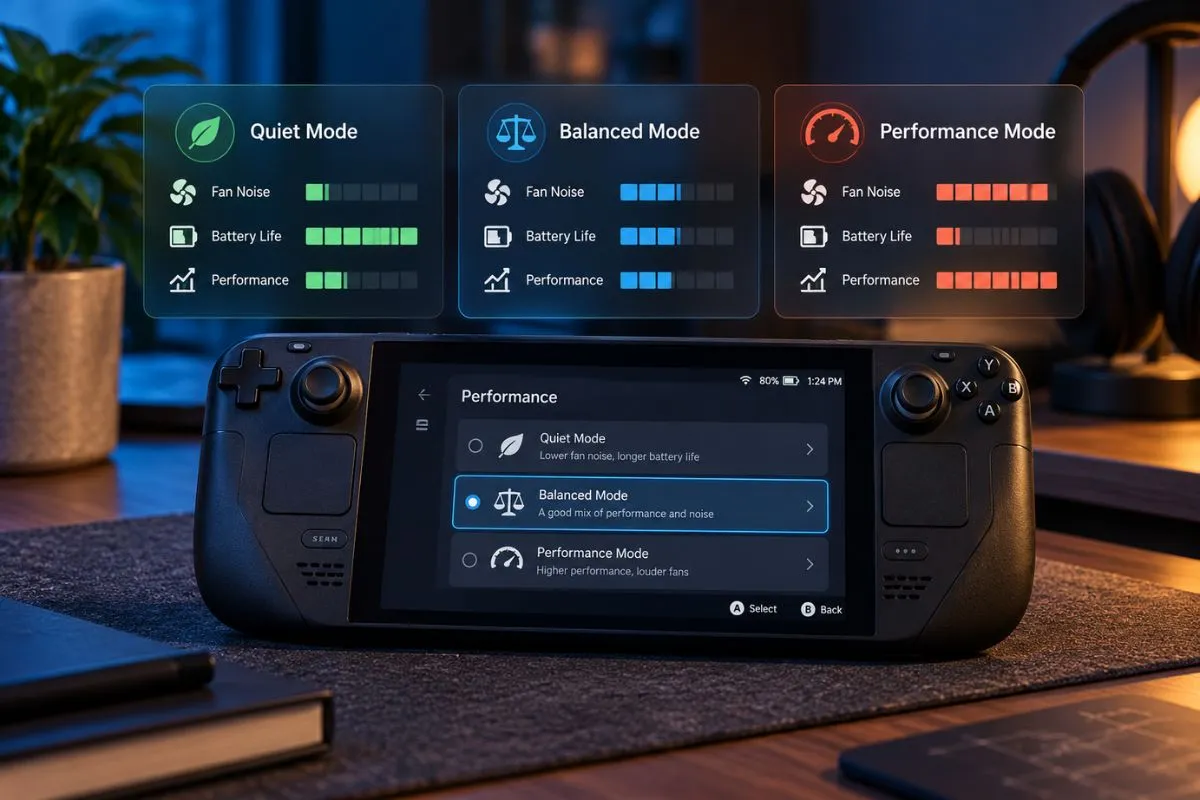
Performance modes deliberately allow the handheld to consume more power.
ASUS describes its ROG Ally modes this way: Silent prioritizes lower power, battery life, and minimal fan noise; Performance balances performance and battery life; Turbo allows more processor power for maximum frame rates.
Lenovo uses essentially the same trade-off with Quiet, Balanced, and Performance thermal modes.
So when you switch from Quiet to Performance or Turbo, you are not simply changing fan speed. You are changing the thermal target of the whole system. The handheld is effectively being told to use more power and prioritize performance, and the fan responds to the resulting heat.
Plugged-In Mode Can Make the Fan Even Louder
Some handhelds allow higher performance when connected to external power.
ASUS notes that ROG Ally models can increase power usage further in Turbo mode when plugged into the wall. That means you may notice a pattern where the handheld is fairly quiet on battery, then becomes much louder after you connect the charger and enable Turbo.
Nothing necessarily broke when you connected the charger. The system may simply have unlocked a higher power budget. This also helps explain why some users notice more fan noise in a docked setup.
FPS Can Affect Fan Noise Too
TDP is not the only factor. Your FPS target matters too.
Imagine a game that can run at 40 FPS with moderate power, 60 FPS at significantly higher power, and 90 FPS only when the processor and GPU are pushed hard.
If you leave frame rate unlimited, the handheld may continuously use available performance to produce more frames. That can raise GPU load, CPU load in some games, power consumption, temperature, and fan speed.
Setting a sensible FPS cap can reduce unnecessary work. For some handheld games, a stable 40 FPS or 45 FPS can feel much better than forcing the device to chase 60–100 FPS while the fan runs at high speed.
Resolution and Graphics Settings Also Matter
Higher rendering workloads generally require more GPU work.
Running a demanding game at 1080p High can put much more load on the handheld than 720p or 900p Medium, depending on the device and game.
That does not mean lower resolution always makes the fan silent. The processor may still use its available power budget. But reducing GPU load and combining it with a frame-rate cap can often let you lower TDP while keeping acceptable performance.
What Is a Normal Fan Noise Level for a Handheld?
There is no universal correct dB number because different handhelds use different fans, fan curves, heatsinks, chassis designs, and power limits.
Independent testing also shows how large the differences can be. Some handhelds stay relatively quiet under load while others become clearly audible, especially at maximum fan speed.
The useful point is simple: a gaming handheld becoming clearly audible during a demanding workload is normal.
When Loud Fan Noise Is Probably Normal
- it becomes louder only during demanding games
- noise increases when using Performance or Turbo mode
- noise increases when plugged in
- fan speed falls again after closing the game
- temperatures remain controlled
- performance remains stable
- there is no grinding, rattling, scraping, or clicking sound
In those cases, the cooling system is probably doing its job.
Manufacturers can also deliberately increase fan speed through firmware. ASUS has previously changed ROG Ally fan curves through BIOS updates, including higher fan-noise targets in Turbo mode. Louder cooling can therefore sometimes be intentional rather than a fault.
When a Loud Fan May Actually Indicate a Problem
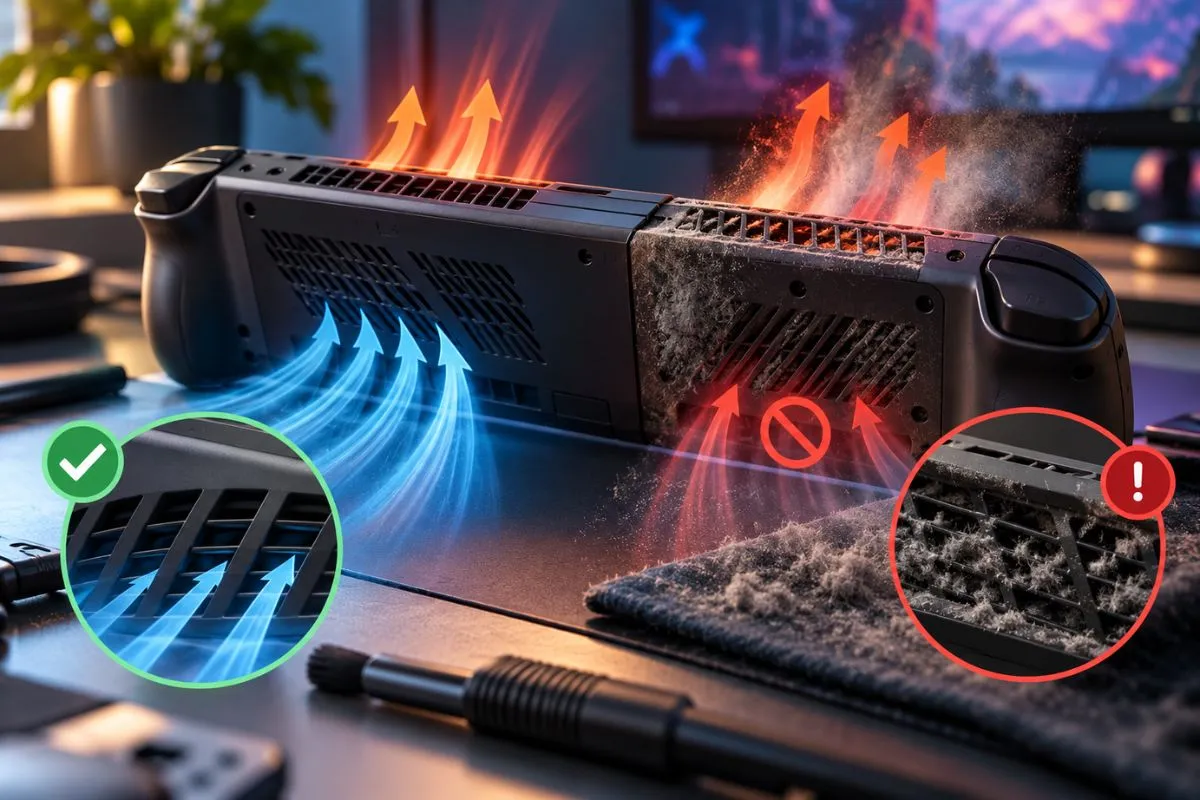
Normal airflow noise is one thing. Sudden or unusual mechanical noise is different.
Pay attention if you hear:
- grinding
- scraping
- rattling
- clicking
- rhythmic ticking
- sudden new vibration
- fan repeatedly surging up and down while idle
You should also investigate if the handheld overheats unusually quickly, performance suddenly drops, the fan stays at very high speed on the desktop, temperatures remain high with no game running, fan behavior changed immediately after an update, airflow feels unusually weak, or vents are visibly blocked.
8 Ways to Reduce Handheld Gaming PC Fan Noise
1. Lower the TDP
This is normally the most effective fix.
Instead of running the maximum power mode, try lowering the processor power limit gradually. For example, move from 25W to 20W to 15W and check whether the performance difference actually matters in the game you are playing.
If FPS barely changes but fan noise falls significantly, the lower setting is the better efficiency point.
2. Use Balanced Mode Instead of Turbo
Preset modes exist because not every game needs maximum power. A lightweight indie game, emulator, or older title may run perfectly well in Balanced or Quiet mode.
3. Cap the Frame Rate
Try 30 FPS, 40 FPS, 45 FPS, or 60 FPS depending on the game and display. If the handheld is generating 90 FPS but you are perfectly happy at 60, capping it can reduce unnecessary workload.
4. Lower Resolution or Heavy Graphics Settings
Start with settings that have a large GPU cost, such as ray tracing, shadows, volumetric effects, ambient occlusion, reflections, and resolution.
Reducing GPU demand can let you reach your target frame rate at a lower power limit.
5. Make Sure the Air Vents Are Not Blocked
Handheld cooling depends on airflow. Avoid blocking intake or exhaust vents with blankets, cushions, clothing, thick cases that interfere with ventilation, or your hands covering intake areas.
6. Check for Dust
Dust can reduce airflow over time. ASUS, for example, highlights dust-control features in the ROG Ally cooling design.
If the fan has gradually become louder over months while temperatures also rise, reduced airflow is worth checking. Do not aggressively disassemble the device unless you understand the warranty implications and proper procedure.
7. Update Firmware and Handheld Software
Fan behavior can be controlled partly through firmware and system software. Manufacturers can change fan curves, thermal behavior, performance modes, and power limits through updates.
ASUS has previously modified Ally fan behavior through BIOS updates, which shows that firmware can materially change cooling behavior.
If your fan suddenly behaves differently after an update, check the manufacturer’s release notes before assuming hardware failure.
8. Create a Balanced Custom Profile
Some handhelds let you customize power and thermal behavior.
The goal should not be the lowest possible fan speed at any cost. That can increase temperatures.
Instead, try to find a balance where FPS remains stable, temperatures remain reasonable, fan noise is acceptable, and battery life improves.
Should You Manually Lower the Fan Curve?
Be careful.
Reducing TDP is generally different from forcing the cooling fan to run too slowly. If you reduce processor power, you reduce the amount of heat being generated. That is usually the cleaner way to reduce noise.
If you keep a high power limit but aggressively lower the fan curve, the device may simply run hotter.
So the safer optimization order is usually:
FPS target → graphics settings → TDP → fan tuning
Fan Noise vs FPS: What Should You Prioritize?
There is no single correct answer.
For competitive gaming, higher FPS, lower latency, and higher TDP may be worth the extra noise.
For single-player games, stable 40–60 FPS, lower power, quieter fan noise, and longer battery life may give a better overall experience.
If you are still deciding whether the whole category fits your needs, our broader guide on whether handheld gaming PCs are worth it covers the bigger ownership trade-offs.
Quiet Mode vs Balanced vs Performance
| Mode | Typical Goal | Performance | Fan Noise | Battery Life |
|---|---|---|---|---|
| Quiet | Efficiency | Lowest | Lowest | Best |
| Balanced | Everyday gaming | Medium | Medium | Medium |
| Performance/Turbo | Maximum FPS | Highest | Highest | Lowest |
| Custom | Your chosen balance | Variable | Variable | Variable |
Exact wattages and behavior vary by handheld. The table describes the trade-off, not a universal TDP specification.
Does a Loud Fan Mean the Handheld Is Overheating?
Not necessarily.
A loud fan can actually mean the cooling system is successfully preventing overheating. The fan speeds up because temperature or power consumption increased.
More concerning signs would be thermal shutdowns, severe performance throttling, very high temperatures that do not fall, extremely weak airflow despite high fan noise, or mechanical fan sounds.
Why the Fan Suddenly Speeds Up and Slows Down
Fan curves usually contain temperature thresholds. As the processor temperature crosses those thresholds, the system changes fan speed.
That can create behavior like quiet → loud → quiet → loud when the temperature repeatedly moves around a threshold.
Short CPU boosts, shader compilation, loading screens, background processes, or Windows tasks can also create temporary power spikes. Occasional fan ramping is therefore normal. Constant rapid oscillation at idle deserves more investigation.
Does Docked Gaming Make a Handheld Louder?
It can.
Docked gaming can change several things at the same time: external power becomes available, a higher performance mode may activate, external display resolution may increase, FPS targets may increase, and CPU or GPU workload may rise.
The dock itself is not necessarily causing the noise. The handheld may simply be running at a much higher power level.
If you are comparing thermals and performance against a larger system, our gaming laptop vs handheld gaming PC comparison explains the broader size, power, and portability trade-offs.
Frequently Asked Questions
Why is my handheld gaming PC fan so loud?
The most common reason is high processor power and heat. Performance modes, high TDP, demanding games, high FPS targets, and plugged-in Turbo modes can all make the cooling fan run faster.
Does lowering TDP reduce fan noise?
Usually yes. Lower TDP reduces processor power consumption and generally reduces the amount of heat the cooling system needs to remove.
Will lowering TDP reduce FPS?
It can, but the amount varies by game. Some games lose significant performance while others lose only a few FPS, particularly once the processor passes its most efficient operating range.
Is maximum TDP always better for gaming?
No. Maximum power can generate substantially more heat and fan noise for relatively small FPS gains in some games.
Is a loud Steam Deck, ROG Ally, or Legion Go fan normal?
Audible fan noise during demanding games can be completely normal. Performance modes are specifically designed to prioritize performance over acoustics on many handhelds.
Should I lower the fan speed manually?
Usually try lowering workload or TDP first. Running high processor power with an artificially low fan speed can increase temperatures.
Why is my handheld louder when plugged in?
Some handhelds allow higher processor power when connected to a charger. Higher power produces more heat, causing the fan to run faster.
Can dust make a handheld fan louder?
Yes. Reduced airflow can force the cooling system to work harder. If noise and temperatures gradually rise over time, blocked vents or dust may be worth investigating.
Final Answer
A loud handheld gaming PC fan is usually the result of a simple trade-off:
more power → more heat → more cooling → more fan noise.
Performance and Turbo modes allow the processor to use more power so the handheld can deliver better FPS. The fan then has to remove the additional heat from a very compact chassis.
The best solution is usually not to force the fan to run slower.
- set a realistic FPS target
- adjust demanding graphics settings
- lower TDP until performance starts to meaningfully suffer
- use Balanced mode when maximum performance is unnecessary
- keep vents clear
- investigate only if the fan produces abnormal mechanical sounds or stays unusually loud at idle
For many games, a slightly lower TDP with stable FPS gives a better handheld experience than running maximum power all the time.
How We Researched This Article
We reviewed current manufacturer documentation and thermal-mode guidance from ASUS and Lenovo, including how their handhelds change processor power, cooling behavior, and fan speed between Quiet, Balanced, Performance, Turbo, and Custom modes.
We also reviewed independent acoustic testing to confirm that fan-noise levels can vary substantially between handheld designs and power modes.
We do not claim that every handheld uses the same wattage, temperature target, or fan curve. Device-specific figures remain manufacturer- and model-dependent.
Editorial Note
Handheld manufacturers can change fan curves, TDP behavior, thermal limits, and performance profiles through firmware or software updates. Always check the controls and documentation for your exact model before changing custom thermal settings.
