
Your Android phone can charge perfectly through USB-C and still refuse to recognize wired headphones. That is because charging and USB audio do not use the port in exactly the same way. A bad adapter, missing DAC, disabled USB audio routing, outdated firmware, Bluetooth routing, or a damaged accessory can all cause the same “nothing happens” symptom.
Quick Answer
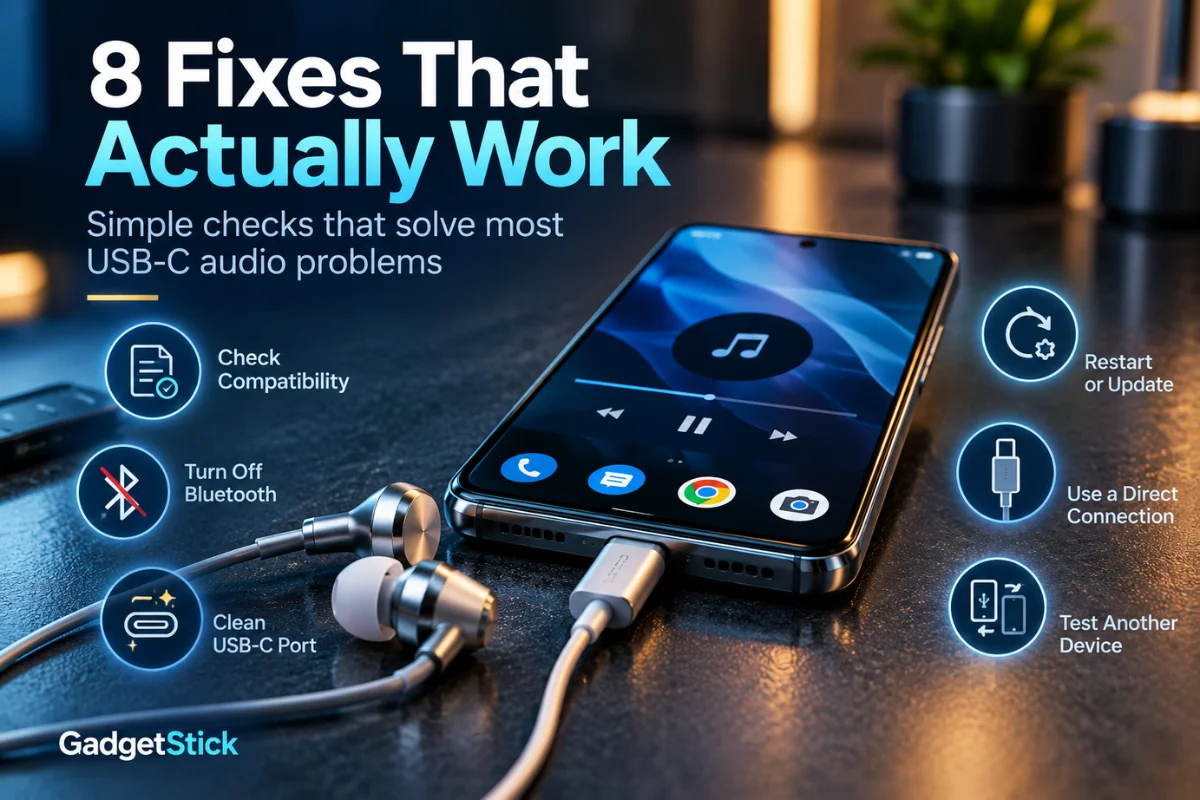
If your USB-C headphones are not working on Android, first connect them directly to the phone, disconnect Bluetooth audio, and test the headphones or adapter on another device. If you are using a USB-C-to-3.5mm adapter, make sure it supports digital USB audio and has a DAC. Android’s USB headset specification does not support purely analog USB-C audio adapters, and Google also tells Pixel users to check that USB-C audio accessories support digital audio.
If the accessory is compatible but still not detected, restart the phone, update Android and accessory firmware, inspect the USB-C port, and check that Disable USB audio routing is turned off in Developer options if that setting has been changed.
First, Identify What Is Actually Failing
| What you see | Most likely area to check first |
|---|---|
| Nothing happens when headphones are connected | USB audio compatibility, adapter/DAC, port or routing |
| Headphones appear connected but sound stays on speaker | Audio routing or Developer options |
| USB-C adapter works on a laptop but not the phone | Digital-audio/DAC compatibility |
| Charging works but USB-C headphones do not | Audio path, accessory compatibility or port contacts |
| Audio cuts out, lags or locks up | Firmware, cable/connector or compatibility |
| Multiple known-good USB-C headsets fail | Phone software or USB-C port problem |
This distinction matters because replacing headphones will not fix a routing setting, while changing Android settings will not make an incompatible passive adapter suddenly support digital audio.
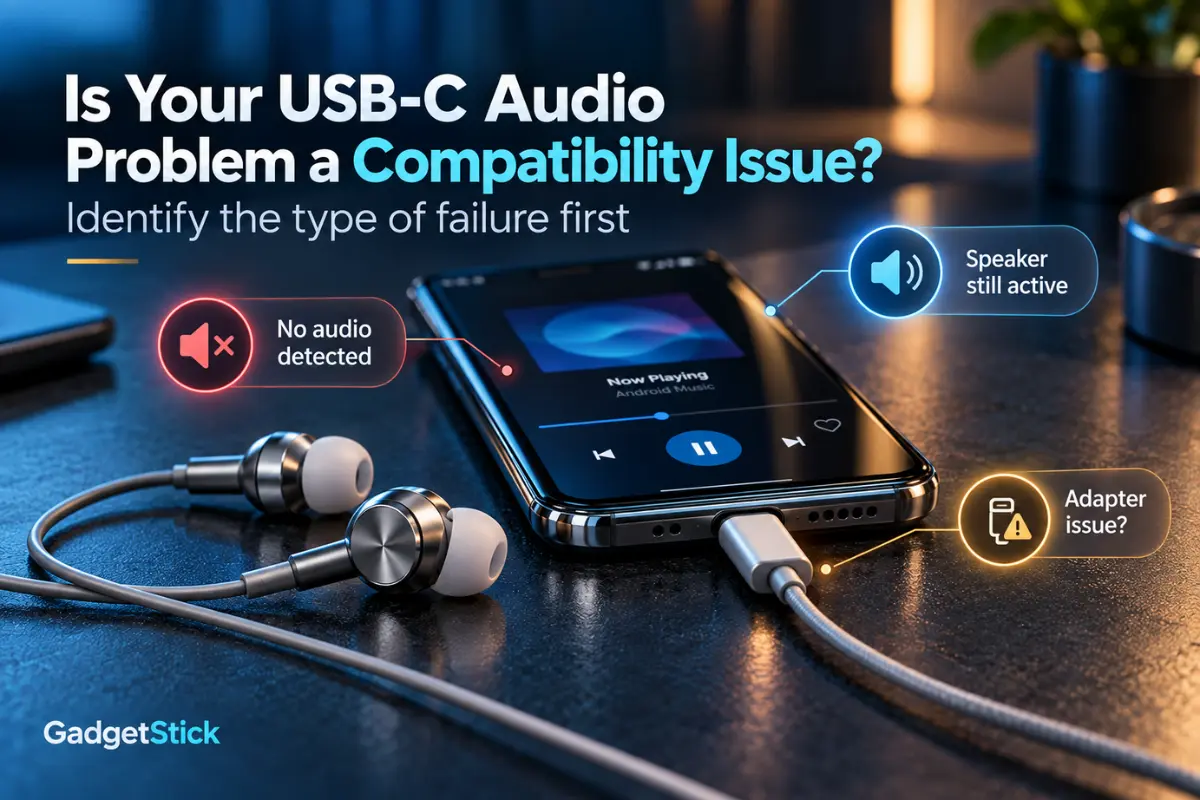
1. Check Whether the Headphones Support USB-C Digital Audio
USB-C describes the connector, not every feature that can travel through it. Android supports USB audio, but compatible headsets need to present themselves as proper digital USB audio devices.
The Android Open Source Project’s USB headset specification says USB headsets should use a digital USB audio interface. Purely analog headsets that simply adapt the electrical connection to USB-C are not supported by that Android headset specification.
Google gives similar guidance in its Pixel USB-C earbuds documentation: the connected device must support USB-C digital audio, and users should check the device specifications if they are unsure.
What to do: Look at the headphone or adapter product page for terms such as “digital audio,” “USB Audio Class,” “DAC,” “Made for Android,” or explicit compatibility with your phone model. Do not assume every USB-C headset works with every Android phone just because the plug fits.
2. If You Use a USB-C-to-3.5mm Adapter, Make Sure It Has a DAC
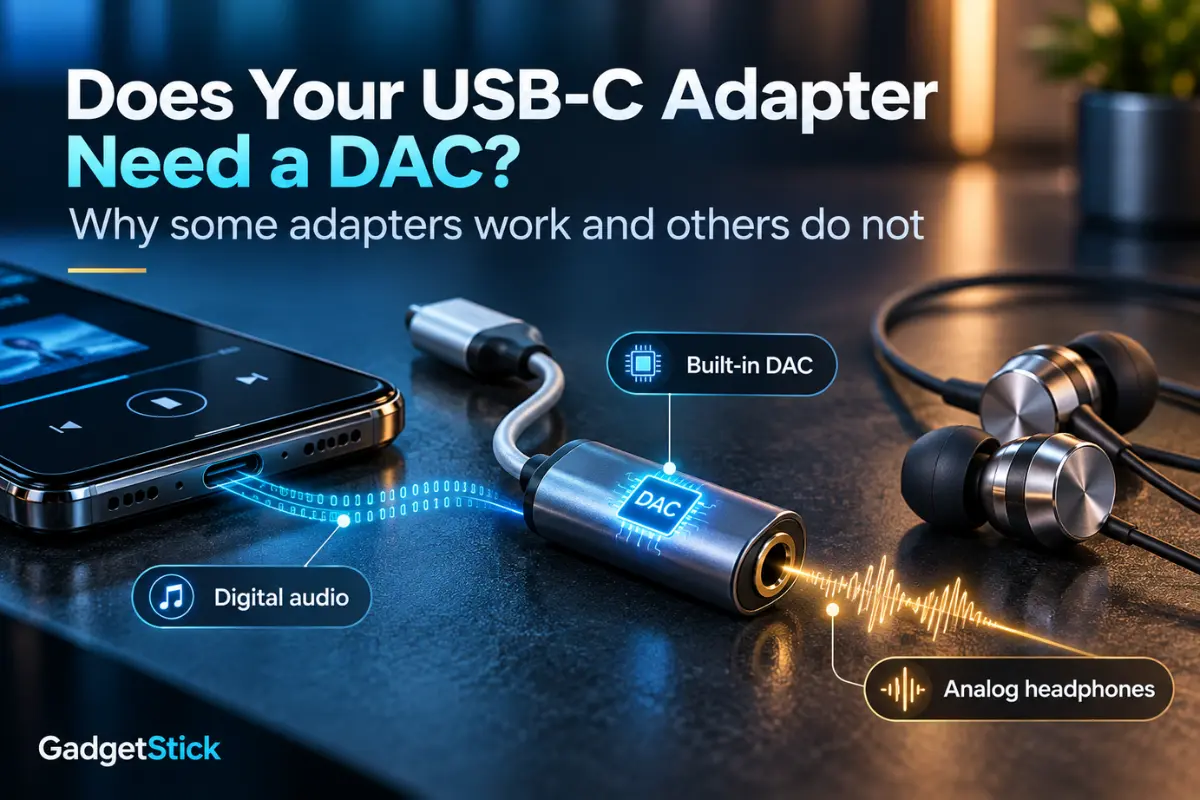
This is one of the easiest problems to miss. Traditional 3.5mm headphones are analog. Many modern Android phones output digital audio through USB-C, so the adapter must convert that digital signal into analog audio for the headphones.
Android’s official USB-C-to-analog adapter specification states that supported adapters perform digital-to-analog conversion. Analog-only adapters are not supported by the specification.
That means a cheap passive dongle can physically fit your phone and still produce no audio. An adapter with a built-in DAC is the safer choice when your phone does not provide analog audio over USB-C.
Quick test: Try a known digital USB-C headset directly. If that works but your 3.5mm headphones through the dongle do not, the adapter becomes the main suspect.
3. Disconnect Bluetooth and Check Where Android Is Sending Audio
Your wired headset can be connected while Android is still sending media to a Bluetooth speaker, car system or wireless earbuds.
- Turn Bluetooth off temporarily.
- Reconnect the USB-C headphones.
- Start music or a video.
- Use the volume panel or media output selector to confirm the wired device is selected if your Android skin provides that option.
If sound immediately moves to the wired headset after Bluetooth is disabled, the USB-C hardware was probably fine and the issue was output routing.
4. Reconnect the Accessory and Inspect the USB-C Port
A charging cable may make enough contact to charge while a headset or adapter still fails to establish a reliable USB data/audio connection. Lint, a case blocking full insertion, moisture, connector wear or a loose plug can all matter. If your phone itself only charges when the cable is held at a certain angle, diagnose the cable and charging-port connection first.
- Remove the phone case if it prevents the plug from seating fully.
- Disconnect and reconnect the headset firmly.
- Inspect the port under good light.
- If debris is visible, follow your phone manufacturer’s cleaning guidance and avoid damaging the pins.
- If the port is wet or shows a moisture warning, let it dry according to the manufacturer’s instructions before reconnecting accessories.
Do not force metal objects into the USB-C port. A damaged connector can turn a simple audio problem into a charging problem too.
5. Test the Headphones, Adapter and Phone Separately
The fastest way to stop guessing is to isolate each part of the chain.
- Test the USB-C headphones or adapter on another compatible phone, tablet or computer.
- Test a second known-good USB-C audio device on your Android phone.
- If you use a 3.5mm adapter, test the analog headphones separately as well.
If the same headset fails everywhere, the accessory is probably the problem. If several known-good USB-C audio devices fail only on your phone, focus on the phone’s software, settings or USB-C port.
6. Restart Android and Install Available Software or Earphone Firmware Updates
USB audio detection depends on both the phone software and the accessory behaving correctly. Restarting can clear a temporary routing or device-detection problem, while updates can fix compatibility bugs.
Google recommends keeping Android up to date when using Pixel USB-C earbuds. Samsung has also documented USB-C earphone firmware issues where some older earphones can show intermittent sound, lag or lockups on Galaxy devices, and recommends updating the earphones’ firmware when an update is offered.
- Restart the phone.
- Install pending Android/system updates.
- Update the manufacturer’s device-control app if your phone uses one.
- On supported Samsung USB-C earphones, check the connected-device notification for a firmware update.
7. Check “Disable USB Audio Routing” in Developer Options
Android includes a Developer options setting called Disable USB audio routing. Google’s Android Developer options documentation says enabling it disables automatic routing to USB audio devices.
If Developer options are already enabled on your phone, open them and look under the media section. For normal wired USB audio behavior, Disable USB audio routing should be off.
If you have never used Developer options, do not turn on random developer settings just to troubleshoot headphones. This check is most useful when the phone previously routed USB audio correctly and the setting may have been changed during earlier troubleshooting.
8. Connect Directly Before Blaming the Phone
If you are using a USB-C hub, splitter, charging-and-audio adapter or several dongles in a chain, remove them and connect the headphones directly to the phone first.
Every extra device adds another possible compatibility point. Once direct USB-C audio works, reconnect the hub or splitter and test again. If audio fails only through that accessory, the phone and headphones are probably not the root cause. If you are unsure why some hubs need their own power, see our guide to powered vs bus-powered USB-C hubs.
USB-C Headphones vs a USB-C-to-3.5mm Adapter: Why the Fix Can Be Different
| Setup | What the phone needs | Common failure |
|---|---|---|
| Digital USB-C headphones | Compatible USB digital audio device | Headset compatibility, routing, firmware or port issue |
| USB-C-to-3.5mm adapter + analog headphones | Digital-to-analog conversion in the adapter when required | Passive/incompatible adapter or faulty dongle |
| USB-C hub + headphones | Hub must correctly pass the USB audio device through | Hub compatibility or multi-device routing |
This is why “buy another USB-C adapter” is not a complete answer. You need the right type of adapter for the way your phone handles USB audio.
Which Fix Should You Try First?
| If this is your situation | Start here |
|---|---|
| New USB-C-to-3.5mm dongle never worked | Check DAC/digital-audio compatibility |
| Headset worked yesterday but not today | Reconnect, restart and check routing |
| Sound still plays from phone speaker | Bluetooth/output routing and Developer options |
| Audio glitches or cuts out | Firmware/software update and connector check |
| Several headsets fail on the same phone | Phone software or USB-C port |
| Headphones work directly but not through a hub | Hub/splitter compatibility |
The GadgetStick Pro Tip
Do not start troubleshooting by changing five Android settings at once. First create one known-good path: phone → compatible digital USB-C headset. If that works, add the adapter, hub or other accessory back one at a time. This turns a vague “USB-C audio is broken” problem into a simple compatibility test.
Frequently Asked Questions
Why are my USB-C headphones not detected on Android?
The most common areas to check are digital-audio compatibility, the adapter or DAC, USB audio routing, Bluetooth output, the USB-C port, firmware and software. If multiple known-good headsets fail only on one phone, the phone itself becomes more likely to be the problem.
Do all USB-C headphones work with Android phones?
No. The connector can fit while the audio implementation is incompatible. Google specifically advises checking that USB-C accessories support digital audio, and Android’s USB headset specification is based on digital USB audio rather than purely analog USB-C headsets.
Do I need a DAC for USB-C-to-3.5mm headphones?
If your phone outputs digital audio over USB-C and your headphones are traditional analog 3.5mm models, the adapter needs to convert digital audio to analog. Android’s official USB-C-to-analog adapter specification describes this digital-to-analog conversion and does not support analog-only adapters under that specification.
Why does my phone charge through USB-C but headphones do not work?
Charging successfully does not prove that USB audio is working. Power delivery and USB audio use different functions of the same connector, so an incompatible headset, routing issue, damaged contacts or software problem can affect audio while charging still works.
Should “Disable USB audio routing” be on or off?
For normal automatic USB audio routing, it should be off. Android’s developer documentation says turning this option on disables automatic routing to USB audio devices.
Final Answer
If your USB-C headphones are not working on Android, do not assume the phone’s USB-C port is dead. Start by checking whether the headset or adapter supports digital USB audio, especially if you are using a USB-C-to-3.5mm dongle. Then eliminate Bluetooth routing, reconnect and inspect the port, test the accessory on another device, restart and update the phone, check USB audio routing, and finally test without hubs or splitters.
The biggest compatibility trap is simple: USB-C is the connector, not a guarantee that every USB-C audio accessory works the same way.
How We Researched This Guide
GadgetStick reviewed Android’s official USB headset and USB-C audio adapter specifications, Google Pixel USB-C audio guidance, Android developer documentation for USB audio routing, and Samsung support documentation for USB-C earphone troubleshooting and firmware updates. We used those sources to separate confirmed Android behavior from device-specific troubleshooting.
Editorial Note
USB-C audio behavior can vary by phone model, Android version and accessory design. Settings and menu names may also differ between manufacturers. GadgetStick does not claim that every fix applies to every Android device, and we recommend checking your phone maker’s support documentation before changing advanced settings or attempting physical port repairs.
