

Mouse Without Borders is one of the easiest ways to control two Windows PCs with one keyboard and mouse, but when the cursor starts stuttering, rubber-banding, or freezing on the second machine, the experience gets frustrating fast.
The good news is that the lag is often fixable without replacing your hardware. The bad news is that the cause can be anything from a weak network path to a high mouse polling rate, a stale connection, or a software conflict.
Quick Answer
If Mouse Without Borders is lagging between two PCs, start by refreshing the connection, testing both machines on Ethernet or a cleaner network path, checking the Windows firewall rule, and temporarily lowering a very high mouse polling rate. Microsoft also recommends confirming that both machines stay connected and using the built-in Refresh connections option when the link becomes unstable.
If the software still feels inconsistent after troubleshooting, a physical USB sharing switch can be a more predictable alternative because your mouse and keyboard no longer depend on network transport between the two PCs.
Why Mouse Without Borders Can Lag Between Two PCs
Mouse Without Borders works over your local network. That means cursor movement and keyboard input have to travel from one computer to another instead of staying on a local USB connection.
When that path becomes unstable, you may notice delayed movement, rubber-banding, missed keystrokes, or short disconnects. Microsoft’s own documentation says both machines must stay connected to the same network, and its PowerToys issue tracker contains reports of lag, high delay, jitter, and instability across different versions and setups.
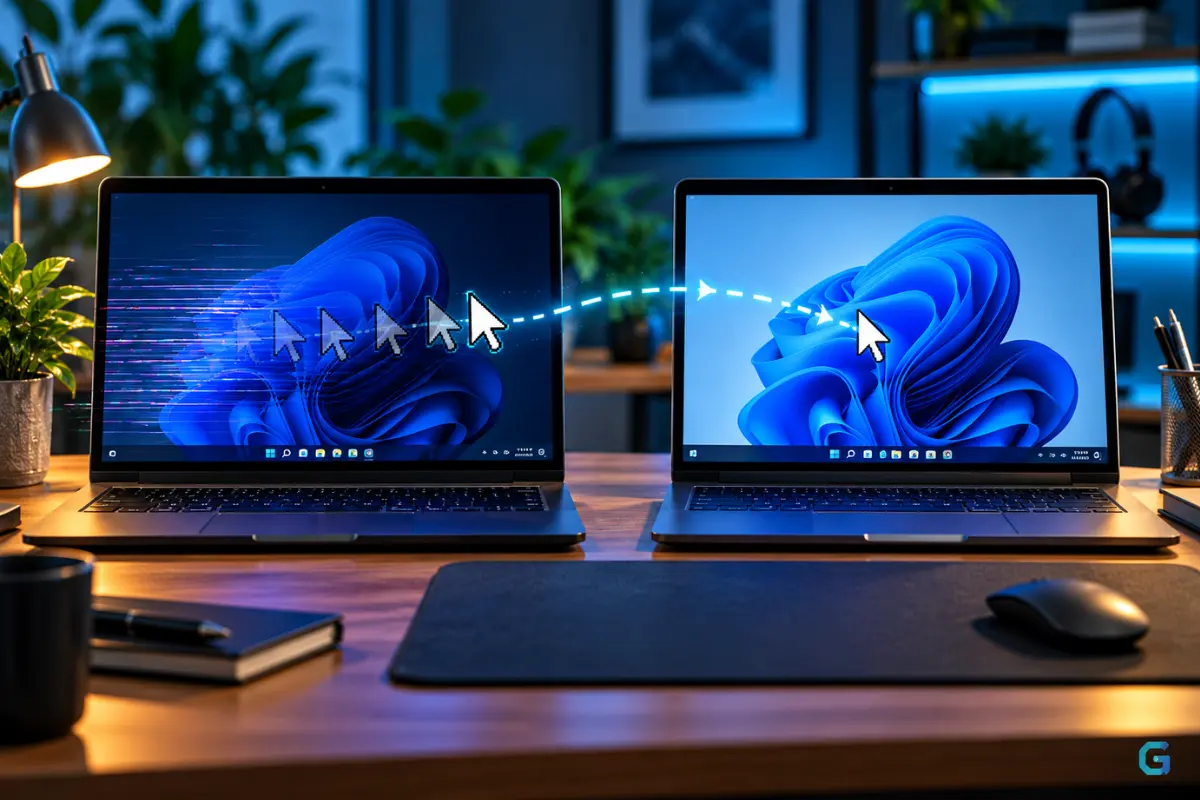
Fix 1: Refresh the Mouse Without Borders Connection
This is the first fix to try because it is built into PowerToys and takes only a few seconds.
- Open PowerToys Settings.
- Select Mouse Without Borders.
- Use Refresh connections.
- Move the cursor between both PCs again and check whether the stutter is gone.
Microsoft specifically recommends refreshing the connection when the link is lost. Some users have also reported that resetting the connection temporarily clears mouse jitter or lag.
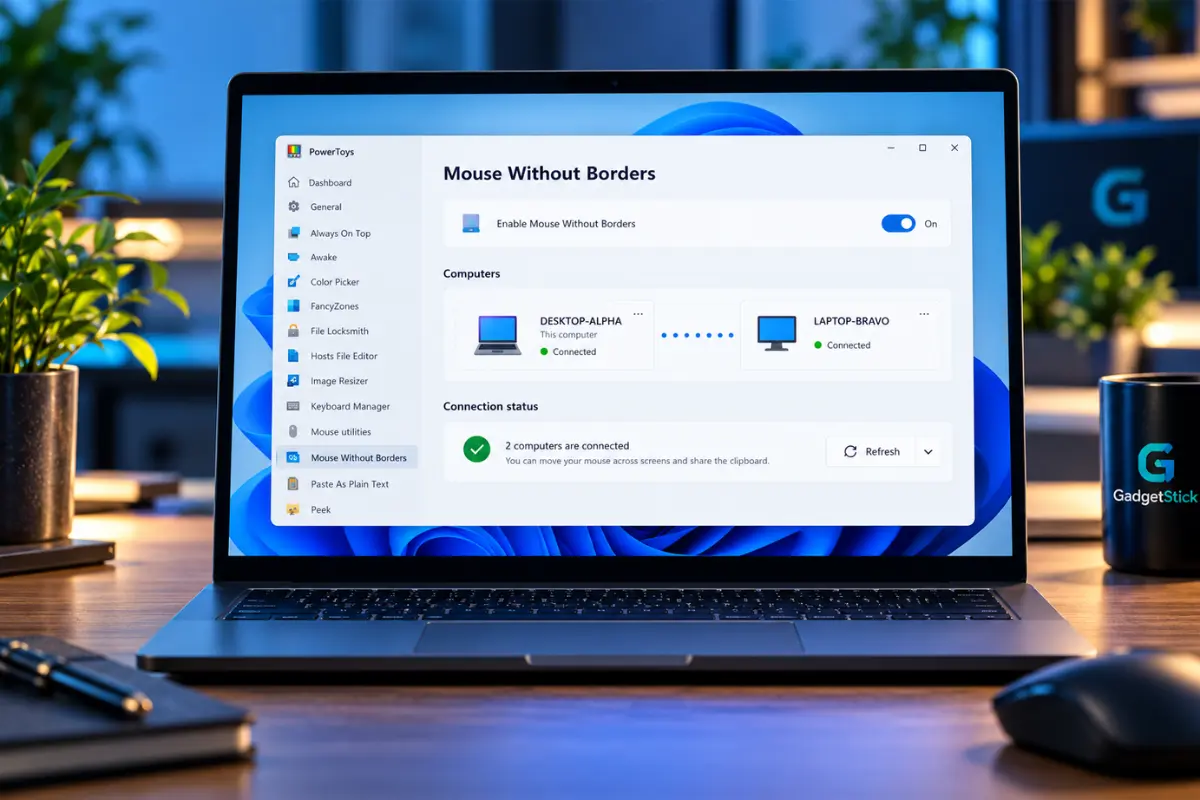
Fix 2: Test Both PCs on a Better Network Path
If one computer is on Ethernet and the other is on weak or congested Wi-Fi, Mouse Without Borders can feel less consistent.
For troubleshooting, connect both machines to the same router with Ethernet if possible. If that is not practical, move them to the same Wi-Fi band and make sure the signal is strong.
This does not mean Wi-Fi is always too slow. It simply removes one of the biggest variables while you diagnose the problem.
Fix 3: Check the Windows Firewall Rule
Microsoft lists the firewall as one of the first things to check when Mouse Without Borders cannot connect correctly.
- Open PowerToys Settings.
- Go to Mouse Without Borders.
- Find the troubleshooting section.
- Use the option to add or repair the firewall rule for Mouse Without Borders.
A firewall problem is more likely to cause connection failures than pure cursor lag, but it is worth ruling out because unstable reconnects can feel like random input delay.
Fix 4: Temporarily Lower a Very High Mouse Polling Rate
This is one of the more interesting fixes because it has been reported directly in the PowerToys issue tracker.
One open bug report describes severe rubber-banding with a mouse set to 1000Hz, while 500Hz and 125Hz behaved better on that particular setup.
If you use a gaming mouse at 1000Hz or higher, try 500Hz as a test. If the lag improves immediately, you have found a useful clue.
Do not treat this as a universal requirement. Many users prefer higher polling rates for gaming, and lowering the rate can reduce responsiveness for people who are sensitive to it. Use this as a diagnostic step, not an automatic permanent fix.
Fix 5: Make Sure Both PCs Are Running a Current PowerToys Version
Mouse Without Borders has changed over time, and some older lag reports were later marked as fixed in newer builds.
Update PowerToys on both computers, then restart the app on each machine. If one PC is several versions behind the other, matching them removes another troubleshooting variable.
Fix 6: Re-Pair the Two PCs
If the connection keeps dropping or the cursor becomes unstable again shortly after a refresh, create a new security key and pair the two computers again.
This is especially useful if your setup has old machine entries, renamed PCs, or previous connections that are no longer in use.
Fix 7: Close Remote-Control and Screen-Sharing Tools While Testing
Remote Desktop, virtual machines, screen projection, other software KVM tools, and capture utilities can all complicate input routing.
Microsoft already documents special behavior when a Remote Desktop or virtual-machine window has focus. For a clean test, close other remote-control or screen-sharing apps and check Mouse Without Borders by itself.
Fix 8: Restart PowerToys and Windows if the Lag Keeps Returning
If Mouse Without Borders works well after a refresh but becomes laggy again later, restart PowerToys on both machines. If the problem returns repeatedly, reboot both PCs and test again before changing more settings.
That may sound basic, but repeated reports in the issue tracker show that some connection and jitter problems can temporarily clear after the connection or app is reset.
When a Physical USB Sharing Switch Makes More Sense
Mouse Without Borders is convenient because there is no extra hardware on your desk. But it also depends on the network and on software running correctly on both PCs.
If your goal is simply to share one mouse and keyboard between two nearby computers, a physical USB sharing switch is a different approach. The peripherals connect to the switch, and the switch changes which PC owns those USB devices.
Because the input path is local USB instead of a network-based software bridge, it can feel more consistent in setups where Mouse Without Borders continues to stutter.
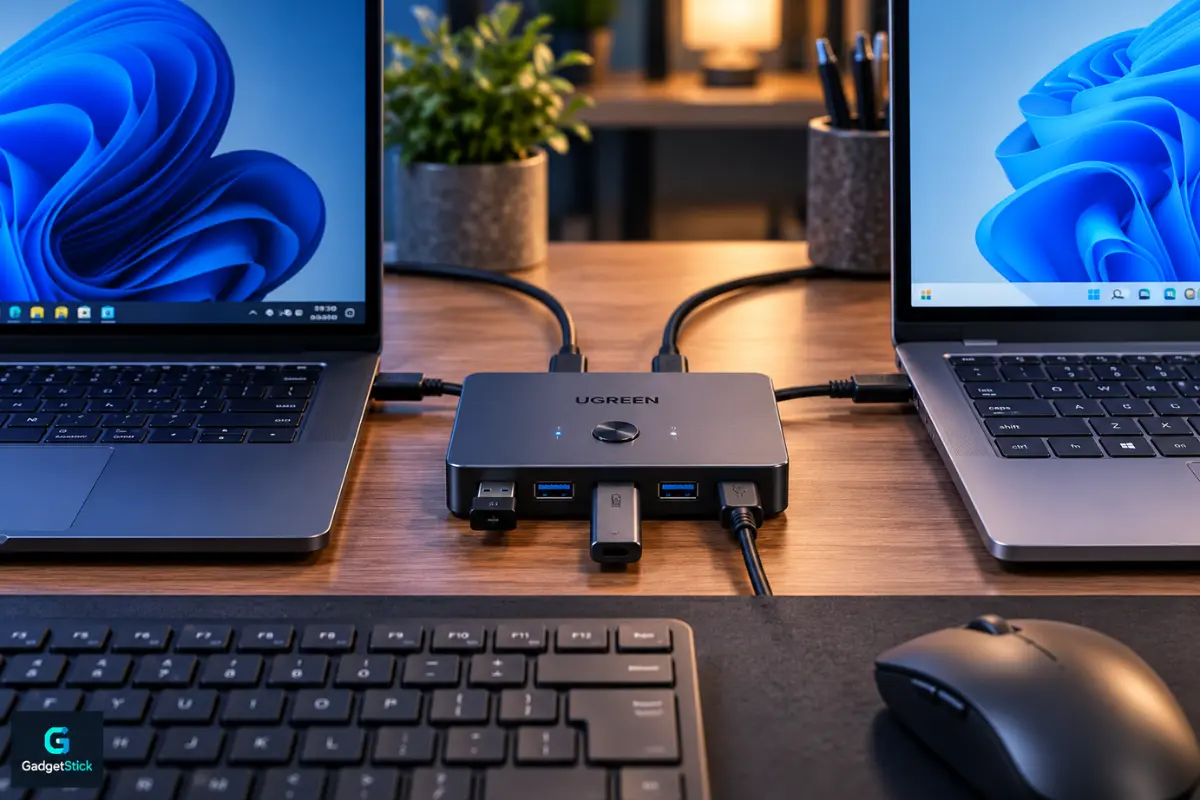
Important: a basic USB sharing switch is not the same thing as a full KVM switch. It usually switches USB peripherals only. Your monitors remain connected separately unless you buy a true video-capable KVM. If your desk problem is mainly adding and managing two external displays, our dual-monitor docking station guide covers that separately.
Good Fit for a USB Sharing Switch
- Two PCs are on the same desk.
- You mainly want to share a keyboard and mouse.
- Mouse Without Borders keeps lagging or disconnecting.
- You prefer a button press over software switching.
- You do not need the switch to handle monitor video.
When to Stay With Mouse Without Borders
- You want seamless cursor movement across screens.
- You use shared clipboard or file-transfer features.
- Your current connection is already smooth.
- You do not want another device or cable on the desk.
Best Overall Hardware Alternative: UGREEN USB 3.0 Switch Selector
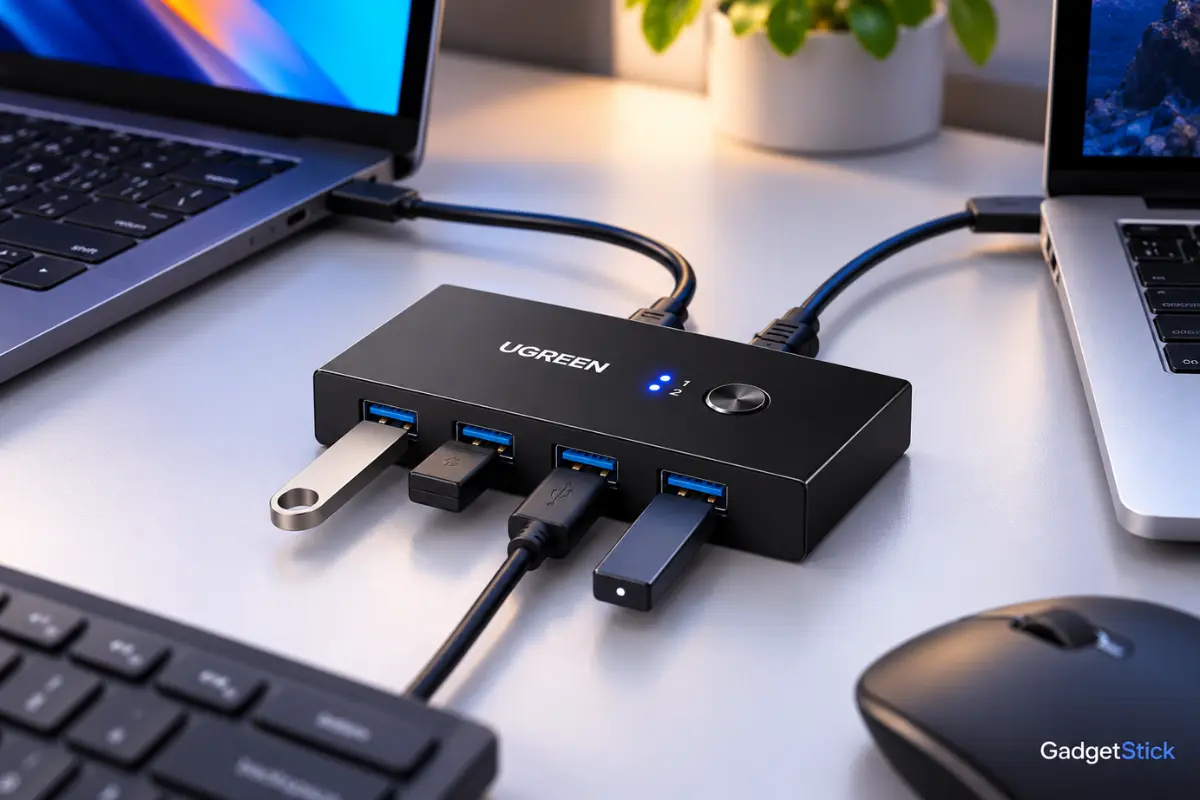
The UGREEN USB 3.0 Switch Selector is the more flexible pick if you want to share several peripherals between two computers. It gives you four USB ports, one-button switching, and USB 3.0 speeds up to 5Gbps for compatible devices.
For this article, the key advantage is simple: your keyboard and mouse can switch between the two PCs without depending on Mouse Without Borders or the local network.
Good Alternative: SABRENT USB-SW30
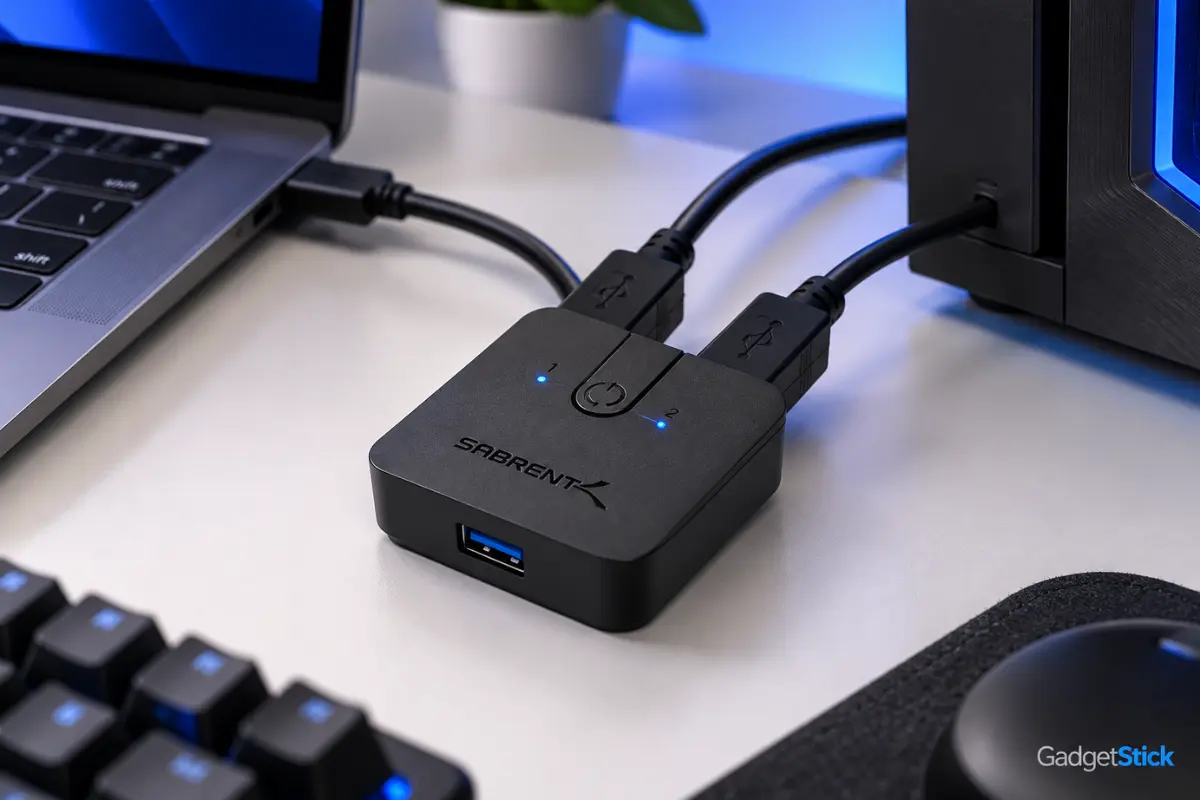
The SABRENT USB-SW30 is a simpler alternative for users who only need to move a shared USB device between computers. It uses one-button switching and USB 3.0 connectivity, so it is a cleaner fit for a smaller setup than a full multi-port switch.
Affiliate disclosure: GadgetStick may earn a commission if you buy through an affiliate link, at no extra cost to you.
Software KVM vs USB Sharing Switch: Which Is Better?
| Option | Best For | Main Trade-Off |
|---|---|---|
| Mouse Without Borders | Seamless software control across PCs | Depends on network and software stability |
| USB sharing switch | Simple keyboard and mouse sharing | Requires a physical button or switch control |
| Full KVM switch | Keyboard, mouse, and monitor switching | More expensive and more complex |
Frequently Asked Questions
Why is Mouse Without Borders lagging on the second PC?
Common causes include an unstable network path, a stale Mouse Without Borders connection, firewall problems, software conflicts, or high mouse polling rates on some setups.
Does Mouse Without Borders work better over Ethernet?
Ethernet is useful for troubleshooting because it removes Wi-Fi interference and signal variation. That does not mean Wi-Fi cannot work well, but a wired test helps identify whether the network path is contributing to the lag.
Can a 1000Hz mouse cause Mouse Without Borders lag?
It can on some systems. Microsoft’s PowerToys issue tracker includes a report where 1000Hz caused rubber-banding and lower polling rates behaved better. This is not universal, so test it rather than assuming it is the cause.
Is a USB sharing switch better than Mouse Without Borders?
It depends on what you need. Mouse Without Borders is more seamless and includes software features such as shared clipboard support. A USB sharing switch is simpler and avoids network-based input transport, but it requires physical switching and usually does not handle video.
Final Answer
If Mouse Without Borders is lagging between two PCs, do not jump straight to buying new hardware. Refresh the connection, check the network and firewall, test a lower polling rate, update PowerToys, and remove other remote-control tools from the equation first.
If the lag keeps coming back and you only need to share a mouse and keyboard between two nearby computers, a physical USB sharing switch can be a practical hardware alternative without pretending that it is a guaranteed zero-latency fix.
How We Researched This Guide
We reviewed Microsoft’s current Mouse Without Borders documentation and PowerToys issue reports covering lag, rubber-banding, connection drops, jitter, and high mouse polling rates. We separated Microsoft’s documented troubleshooting steps from user-reported workarounds so the article does not present one setup-specific fix as a universal solution.
Editorial Note
Mouse Without Borders behavior can vary with PowerToys version, network conditions, mouse polling rate, Windows configuration, and other software running on the two PCs. A fix that helps one setup may not solve another, so use the steps above as a troubleshooting sequence rather than a guaranteed formula.
