
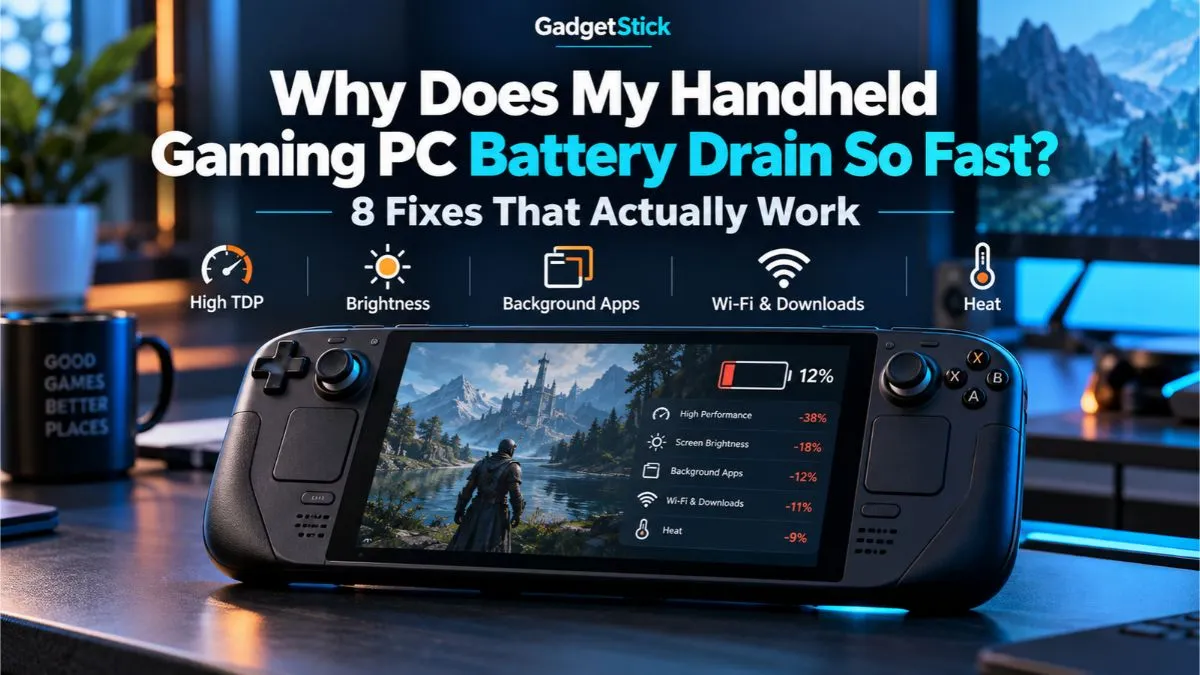
A handheld gaming PC can burn through its battery surprisingly fast, especially in demanding games. But fast battery drain does not automatically mean your battery is faulty. High APU power, an uncapped frame rate, a bright high-refresh display, background activity, and sleep behavior can all shorten runtime.
Quick Answer: Why Is My Handheld Gaming PC Battery Draining So Fast?
If your handheld mainly drains quickly during demanding games, the cause is usually high system power use rather than a bad battery. Start by lowering the performance mode or TDP, setting a sensible FPS cap, reducing unnecessary display load, and checking background apps. If the device also loses charge unusually fast while idle or asleep, investigate standby behavior, software updates, and battery health.
| What you notice | What to check first |
|---|---|
| Battery drains fast only in AAA games | TDP/power mode, FPS and graphics load |
| Runtime improves a lot at lower power | Performance settings are likely the main factor |
| Battery drops while the handheld is asleep | Sleep/standby behavior and background activity |
| Battery drains quickly even at idle | Background processes, updates or battery health |
| Battery percentage falls in sudden jumps | Battery reporting or battery-health issue |
| Runtime has become much worse over time | Battery wear and software changes |
First, Make Sure the Battery Drain Is Actually Abnormal
Handheld gaming PCs pack laptop-class processors and relatively powerful integrated graphics into a small battery-powered device. Runtime can therefore change dramatically from one game to another.
A lightweight indie game at a modest frame-rate target can consume far less power than a modern AAA game pushing the APU, display and cooling system hard. ASUS illustrates this difference in its own testing: the ROG Xbox Ally reached substantially different runtimes in Hollow Knight: Silksong and Forza Horizon 5 under different game and power settings. Manufacturer tests are not a promise of your exact runtime, but they show why workload matters.
So before troubleshooting, compare like with like. If the battery lasts much longer on the desktop or in a light game but drops quickly in a demanding title, that pattern can be normal. If it drains rapidly even when almost nothing is running, that deserves a closer look.
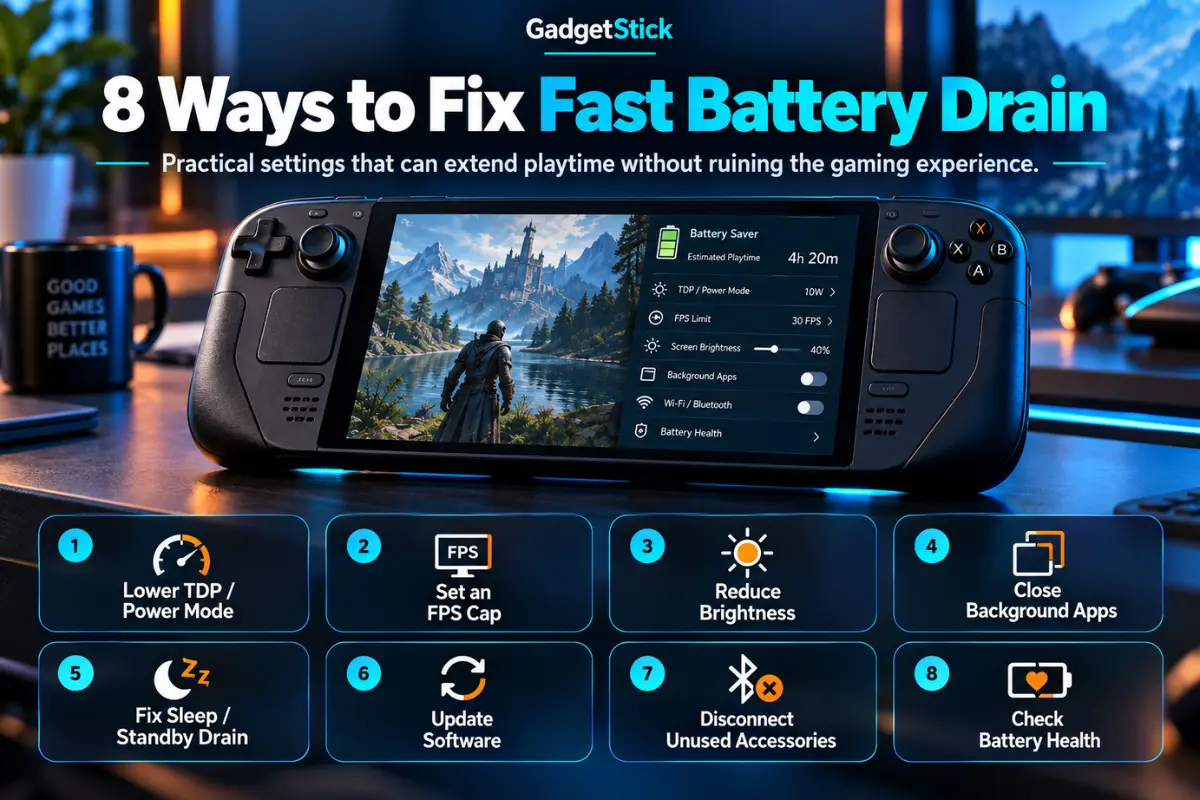
1. Lower the TDP or Switch to a More Efficient Power Mode
This is usually the biggest setting to check. A higher power target gives the processor and integrated GPU more room to perform, but that energy has to come from the battery.
On the ROG Ally family, ASUS provides lower-power modes specifically to trade some performance for longer battery life. MSI likewise provides power-oriented user scenarios on Claw handhelds. The exact names and wattages vary by model, so use your device’s own control software rather than copying another handheld’s numbers.
If TDP terminology is confusing, read our guide to TDP in handheld gaming PCs. The practical goal is simple: use the lowest power level that still delivers the performance you actually want.
2. Set an FPS Cap Instead of Letting the Game Run Flat Out
If a game can render 80 FPS but you would be perfectly happy at 45 or 60 FPS, allowing it to run unrestricted can spend extra power for frames you may not need.
ASUS explicitly notes that the FPS limiter on ROG Ally can save battery life or provide a more consistent experience. The best cap depends on the game and display. Slower single-player games may feel fine at a lower target, while competitive games can benefit from a higher one.
- Try a stable frame-rate target rather than maximum FPS.
- Match graphics settings to that target.
- If the game cannot hold the cap consistently, lower demanding settings before raising power.
3. Reduce Display Power You Do Not Need
The screen is another continuous power draw. Brightness is the obvious setting, but resolution and refresh behavior can also affect the overall workload because the system may be trying to render more pixels or more frames.
You do not need to make the display dim or unpleasant. Start with a comfortable brightness for the room you are in, then choose graphics and frame-rate settings that make sense for a small handheld screen. Chasing desktop-style settings on battery is often a poor efficiency trade.
4. Check Background Apps and Windows Activity
Windows handhelds can have launchers, update services, browsers, RGB utilities, cloud sync tools and other apps running alongside your game. One small background task is unlikely to destroy battery life by itself, but several active processes can add unnecessary CPU, network and storage activity.
- Close launchers you are not using.
- Check Task Manager for unexpected CPU or GPU activity.
- Pause large downloads and cloud syncing while gaming on battery.
- Remove unnecessary apps from startup rather than repeatedly closing them.
Do not disable random Windows services just because an optimization video recommends it. The small theoretical saving is rarely worth breaking updates, security features or device controls.
5. Fix Battery Drain During Sleep or Standby
Gaming drain and sleep drain are different problems. If you put the handheld away at 70% and return to a much lower charge without playing anything, focus on standby behavior rather than game settings.
Before putting a Windows handheld in a bag, make sure it has actually entered the intended sleep or hibernation state. Downloads, updates and connected accessories can complicate standby behavior. For longer periods away from a charger, hibernation or a full shutdown can be more predictable than leaving the system sleeping.
Also avoid storing a handheld in a case while it is unexpectedly awake and generating heat. If sleep behavior remains unreliable, check your manufacturer’s current support guidance for your exact model.
6. Update BIOS, Drivers and Handheld Control Software
Handheld power management depends on firmware, graphics drivers and manufacturer software working together. Updates can change performance profiles, fix bugs and improve how power controls behave.
Use the update tools intended for your device. MSI, for example, recommends keeping BIOS, drivers and MSI Center M current on Claw handhelds. The same principle applies to other brands: prefer official device software and support pages over third-party driver packs.
After a major update, re-check your power mode and game profile. An update can sometimes reset a setting you previously tuned.
7. Disconnect Accessories You Are Not Using
USB devices, external SSDs, docks and other accessories can draw power from the handheld. The impact varies, but when battery runtime matters, there is no benefit in powering hardware you are not using.
Wireless radios are more nuanced. Turning off Bluetooth or Wi-Fi can save some power when they are genuinely unnecessary, but you should not expect that alone to transform a two-hour gaming session into an all-day one. Start with the big loads—APU power, FPS and display—before chasing tiny savings.
8. Check Battery Health If the Drain Still Looks Abnormal
Lithium-ion batteries lose usable capacity as they age and accumulate charge cycles. If the same handheld, same game and similar settings now deliver dramatically less runtime than they used to, battery wear becomes a more plausible explanation.
On Windows, you can generate a battery report with the built-in powercfg /batteryreport command and compare the reported full-charge capacity with the design capacity. Treat the numbers as diagnostic clues rather than a perfect battery-health score.
Sudden shutdowns, swelling, unusual heat while charging, or a battery that will not charge normally are not optimization problems. Stop using a visibly swollen battery and follow the manufacturer’s service guidance.
Which Fix Should You Try First?
| Problem | Best first move |
|---|---|
| AAA game kills the battery quickly | Lower power mode/TDP and cap FPS |
| Game runs far above the FPS you need | Set a frame-rate limit |
| Battery drops overnight | Investigate sleep/standby and try hibernation |
| High drain on the Windows desktop | Check Task Manager and background activity |
| Drain appeared after an update | Check power profiles, then official firmware/driver updates |
| Old handheld has much shorter runtime | Check battery health/capacity |
The GadgetStick Pro Tip
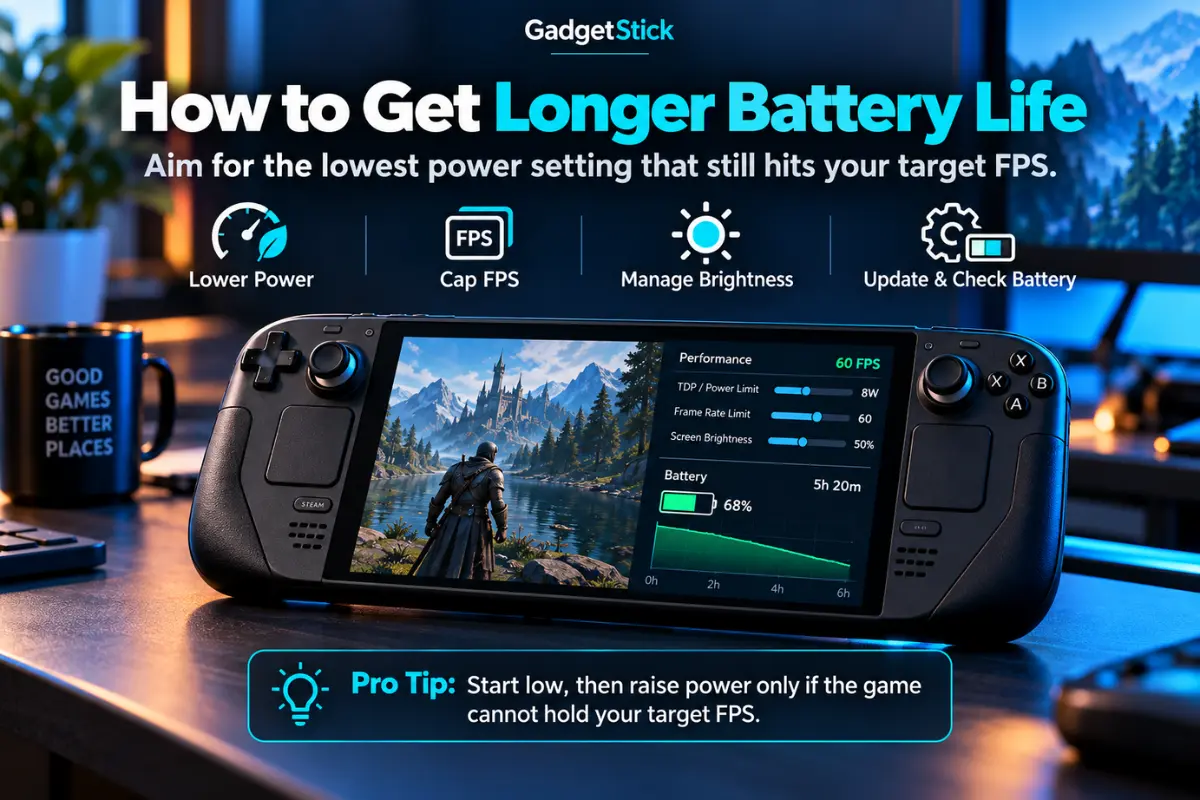
Optimize for a target experience, not the highest wattage your handheld can reach. Pick the FPS you actually want, start at a lower power setting, and increase power only until the game holds that target reliably. Once extra watts stop making a meaningful difference to your experience, they are mostly costing you battery life, heat and fan noise.
Frequently Asked Questions
Is fast battery drain normal on a handheld gaming PC?
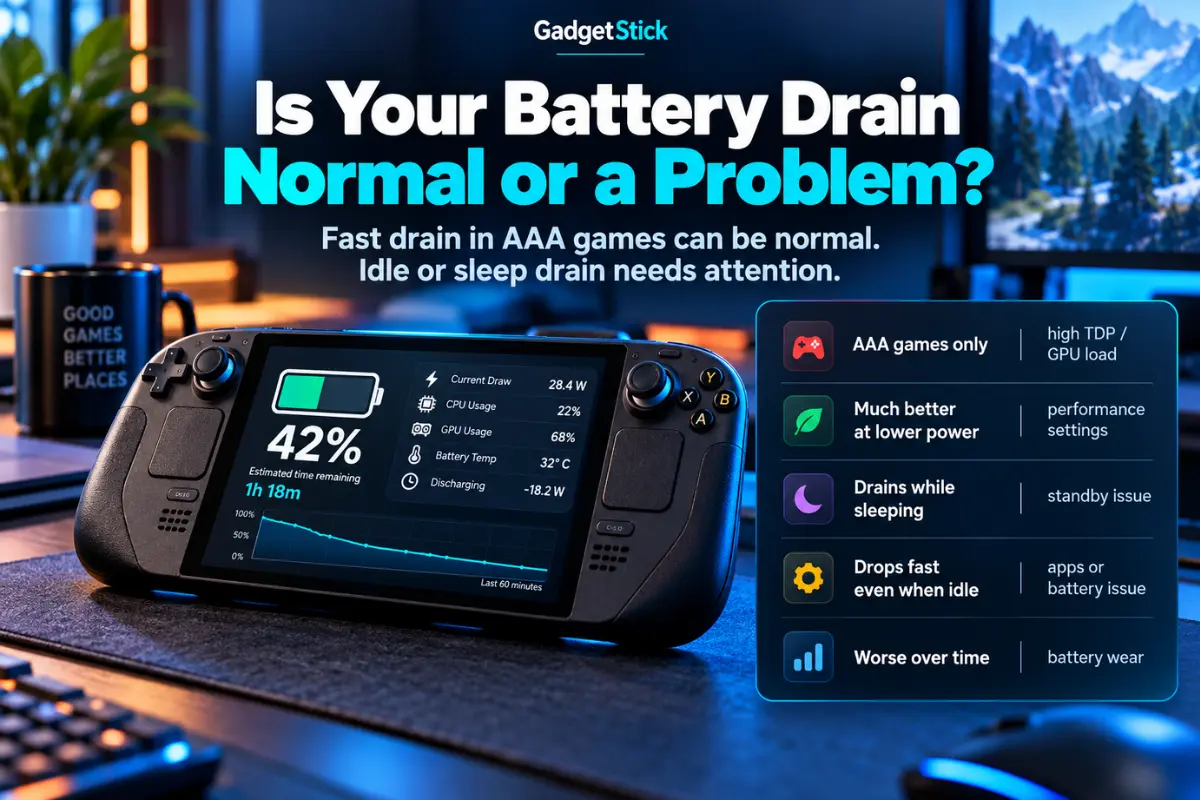
It can be. Demanding games can use much more power than light games, so runtime varies significantly with the game, TDP or power mode, FPS target, display settings and battery capacity. Fast drain while gaming is more concerning when it is dramatically worse than comparable past use or is accompanied by abnormal idle drain.
Does lowering TDP improve battery life?
Usually, yes. A lower APU power target can reduce system power consumption, although the exact runtime improvement depends on the device and workload. Performance may also decrease, so the useful setting is the lowest power level that still meets your FPS target.
Does limiting FPS save battery on a handheld?
It can, especially when a game would otherwise render many more frames than you need. A sensible FPS cap can reduce unnecessary workload and may also make frame delivery feel more consistent.
Why does my handheld lose battery while sleeping?
Sleep does not always mean zero activity, particularly on Windows devices. Background tasks, updates, accessories or standby behavior can contribute. If sleep drain is a recurring problem, try hibernation for longer breaks and check official support information for your model.
Should I keep my handheld at maximum performance on battery?
Only when you actually need that performance. For many games, a balanced power mode and a reasonable FPS target provide a better mix of smoothness, runtime, heat and fan noise.
Final Answer
If your handheld gaming PC battery drains fast during demanding games, start with power use before assuming the battery is defective. Lower the TDP or performance mode, cap FPS, avoid unnecessary display and background load, and keep the device software current. If the handheld also drains rapidly while idle or asleep—or its runtime has deteriorated sharply over time—then investigate standby behavior and battery health.
The best battery setting is not one universal wattage. It is the lowest-power configuration that still gives you the frame rate and image quality you are happy with.
How We Researched This Guide
We reviewed current manufacturer documentation and support material covering handheld power modes, FPS limiting, battery behavior, firmware updates and device-specific control software. We used manufacturer examples to explain the underlying behavior without treating one device’s wattage or battery result as universal.
Primary Sources Reviewed
- ASUS ROG: How to extend ROG Ally battery life
- ASUS ROG Ally Series FAQ
- ASUS ROG Xbox Ally battery testing and specifications
- MSI: Gaming settings for Claw series handhelds
- MSI Claw official walkthrough
Editorial Note
Battery runtime varies by handheld model, battery capacity, game, firmware, display settings, frame-rate target, power mode and battery condition. Wattages and manufacturer test results in this guide are examples, not guaranteed runtime figures for every device.
