
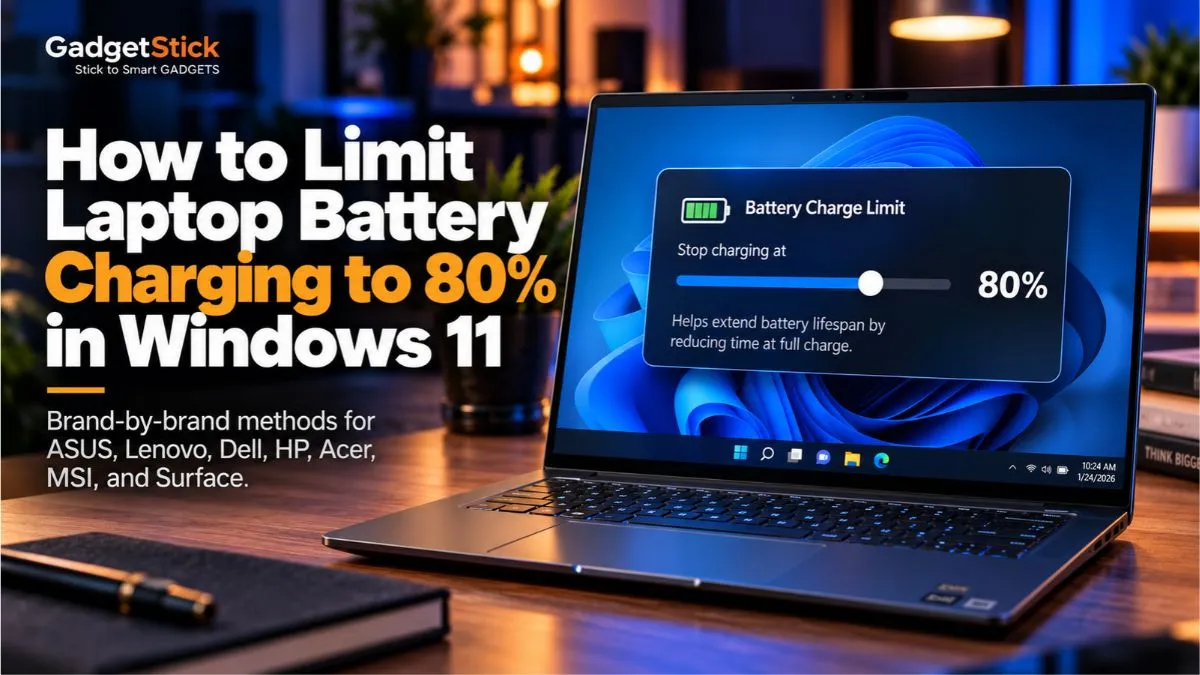
If your laptop spends most of the day plugged in, stopping the battery at around 80% can be a practical way to reduce the time it sits at a very high state of charge. The confusing part is that Windows 11 does not give every laptop the same battery-limit switch.
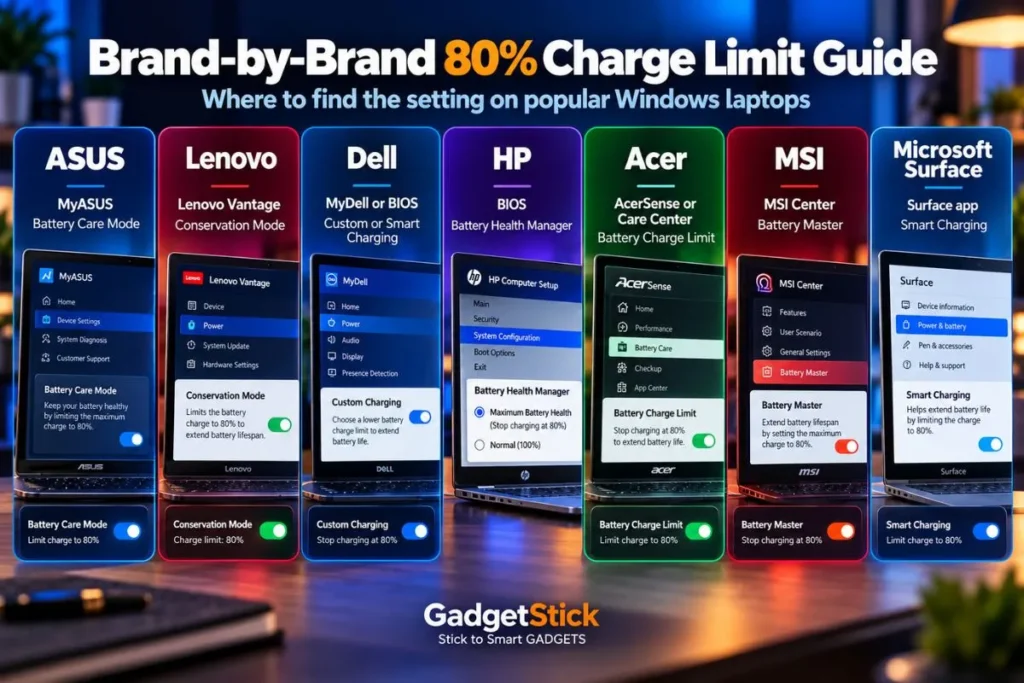
On most Windows laptops, the 80% cap is controlled by the laptop maker’s own app, firmware, or BIOS. That means the exact steps are different on ASUS, Lenovo, Dell, HP, Acer, MSI, and Microsoft Surface devices.
This guide shows the current brand-by-brand methods, explains what to do if the option is missing, and clears up one common misconception: the Windows battery report can show battery health, but it cannot set a charging limit.
Quick Answer: How Do You Stop a Laptop Charging at 80%?
Use the manufacturer’s battery-health feature rather than looking for a universal Windows 11 setting.
| Laptop brand | Where to look | Typical 80% option |
|---|---|---|
| ASUS | MyASUS → Device Settings | Battery Care Mode / Balanced Mode |
| Lenovo | Lenovo Vantage | Conservation Mode |
| Dell | MyDell / Dell Power Manager / BIOS | Custom or Smart Charging |
| HP | BIOS / HP Power Manager on supported models | Maximize My Battery Health |
| Acer | AcerSense / Acer Care Center / ControlCenter | Battery Charge Limit |
| MSI | MSI Center → System Diagnosis | Battery Master → Balanced |
| Microsoft Surface | Surface app → Battery & charging | Limit to 80% on supported models |
If your laptop does not show one of these controls, do not install random third-party charging-limit software. The charging threshold usually depends on hardware and firmware support, so software alone cannot reliably add the feature to an unsupported model.
Why Limit a Laptop Battery to 80%?
Lithium-ion batteries generally age faster when they spend long periods at very high charge levels, especially when heat is also involved. Laptop manufacturers increasingly expose battery-care modes specifically for people who leave their systems connected to AC power for much of the day.

Lenovo, for example, says its Conservation Mode keeps the battery around 75%–80% and is beneficial to long-term battery health. ASUS similarly recommends Battery Care Mode for reducing the time a laptop remains near full charge. Microsoft’s Surface Smart Charging can also hold supported devices at 80% when prolonged charging or elevated temperatures are detected.
The trade-off is simple: you give up roughly 20% of your unplugged runtime in exchange for spending less time at maximum charge.
Before You Start: The Setting Is Usually Not in Windows 11
A common mistake is opening Settings → System → Power & battery and expecting to find a universal “charge to 80%” slider.
On current Windows laptops, that setting is normally handled by the manufacturer. Windows provides battery information and power-saving controls, while the actual charge ceiling is usually enforced by the laptop’s embedded controller, BIOS, or OEM utility.
So the correct method depends on your laptop brand and sometimes even the exact model.
How to Limit an ASUS Laptop Battery to 80%
On most supported ASUS laptops, the easiest method is through MyASUS.
- Open MyASUS.
- Select Device Settings.
- Open the battery or Power & Performance section.
- Turn on Battery Care Mode.
- On models that show multiple modes, choose the option that limits charging to around 80%.
ASUS currently describes Battery Care Mode as an 80% charging limit on supported modern models. Older ASUS systems may show Battery Health Charging with Full Capacity, Balanced, and Maximum Lifespan modes. In the older layout, Balanced Mode stops charging above 80% and resumes around 78%.
Official reference: ASUS Battery Health Charging support.
If the option is missing: update MyASUS and the ASUS System Control Interface from your model’s support page. Feature availability varies by model.
How to Limit a Lenovo Laptop Battery to Around 80%
Lenovo calls its feature Conservation Mode. On supported IdeaPad, Yoga, Legion, and other Lenovo models, it is normally available through Lenovo Vantage.
- Open Lenovo Vantage.
- Go to the device or power/battery settings.
- Find Conservation Mode.
- Turn it on.
Lenovo’s current documentation says Conservation Mode keeps the battery within roughly 75%–80% instead of fully charging it. If you need a full battery before travel, switch back to Normal or Rapid Charge mode.
Official reference: Lenovo Conservation Mode documentation.
How to Limit a Dell Laptop Battery to 80%
Dell gives supported systems more flexibility than a simple on/off 80% switch. Depending on the model, battery charging can be controlled through MyDell, Dell Power Manager, Dell Command | Power Manager, or the BIOS.
Option 1: Set a Custom Stop-Charging Threshold
- Open the Dell battery-management utility available for your model.
- Go to Battery Settings.
- Choose Custom.
- Set the Stop Charging threshold to 80%.
- Choose a lower Start Charging threshold, such as 50%–60%, if the utility requires one.
Dell’s documentation allows supported systems to define separate start- and stop-charging percentages. Some newer Dell models also include Smart Charging in BIOS; on supported 2026 systems, Dell documents charging suspension at around 80% when Smart Charging is enabled.
Official reference: Dell custom battery settings.
How to Limit an HP Laptop Battery to 80%
HP is the brand where you need to be especially careful about model support. The clearest 80% control is Battery Health Manager on supported HP commercial notebooks.
- Restart the laptop.
- Press F10 during startup to enter BIOS Setup.
- Look for Battery Health Manager or a battery-health setting.
- Choose Maximize My Battery Health if your model offers it.
- Save changes and restart.
HP says Maximize My Battery Health limits supported notebook batteries to about 80%. The option is primarily documented for supported commercial notebook PCs, so you should not assume every Pavilion, Envy, Victus, or Omen exposes the same setting.
Official reference: HP Battery Health Manager documentation.
Important: some HP implementations may still show “100%” in Windows because the firmware redefines the usable full-charge capacity. That behavior is documented by HP Power Manager on supported business notebooks.
How to Limit an Acer Laptop Battery to 80%
Acer’s implementation varies by model and software generation. Supported notebooks may expose Battery Charge Limit in Acer ControlCenter, Acer Care Center, AcerSense, or a model-specific AcerSense version.
- Open the Acer battery-management app installed for your laptop.
- Look under Checkup, battery settings, or Battery & USB Charging.
- Find Battery Charge Limit.
- Turn it on and confirm the change.
Acer’s support documentation says the feature limits charging to 80% on supported notebooks.
Official reference: Acer Battery Charge Limit instructions.
If you cannot find the option: your exact model or firmware may not support it. Acer specifically notes that if the charge-limit controls do not appear in the supported utility, the system may not provide those features.
How to Limit an MSI Laptop Battery to 80%
MSI uses Battery Master on supported laptops. Depending on the generation, you may find it in MSI Center, MSI Center Pro, MSI Center S, or older Dragon/Creator Center software.
- Open MSI Center.
- Go to Features → System Diagnosis.
- Find Battery Master.
- Choose Balanced.
MSI documents Balanced mode as starting charging below roughly 70% and stopping at 80%. The “Best for Battery” profile is more aggressive and normally stops at 60%.
Official reference: MSI laptop battery guidance.
How to Limit a Microsoft Surface Battery to 80%
Surface devices use Microsoft’s own Smart Charging system. It can automatically limit supported Surface devices to 80% when the system detects prolonged charging or elevated temperatures.
On Surface models that support a manual charging limit:
- Open the Surface app.
- Select Battery & charging.
- Open Charging mode.
- Choose Limit to 80%.
Microsoft notes that manual 80% mode is not available on every Surface. On devices with automatic Smart Charging only, the system decides when the limit is needed.
Official reference: Microsoft Surface Smart Charging.
What If Your Laptop Has No 80% Charging Option?
Do not assume you are missing a hidden Windows setting. Some laptops simply do not expose a user-configurable threshold.
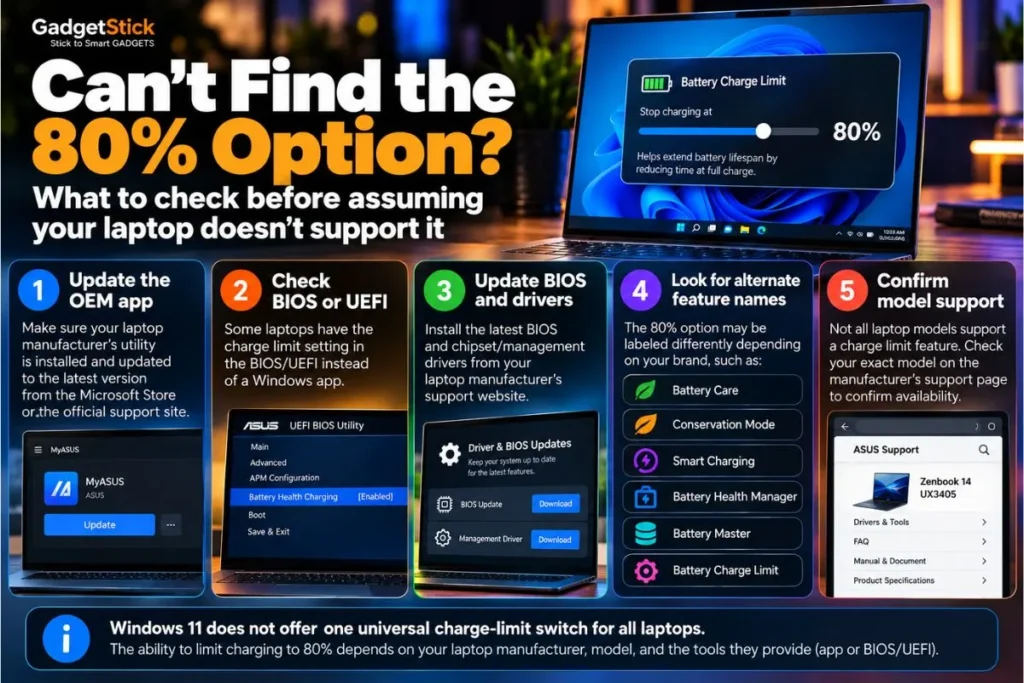
Try these checks before giving up:
- install the latest manufacturer utility for your exact model
- update BIOS/UEFI and system-control drivers from the manufacturer
- check both the Windows utility and BIOS settings
- look for names such as Battery Care, Conservation Mode, Smart Charging, Battery Health Manager, Battery Master, or Battery Charge Limit
- check your model-specific user manual or support page
If the feature still does not exist, avoid registry hacks or generic third-party apps that claim they can force an 80% hardware limit. A true charge ceiling needs cooperation from the laptop’s firmware or embedded controller.
Why Does the Battery Sometimes Stay at 79% or 80% and Say “Plugged In”?
That is usually normal when a charge limit is active.
The charger can power the laptop directly while the battery remains below 100%. The battery does not need to constantly bounce between 79% and 80%; many manufacturers use a small hysteresis range so charging resumes only after the percentage drops several points.
For example, ASUS’s older Balanced Mode resumes charging around 78%, MSI’s Balanced profile waits until the battery falls below 70%, and Lenovo Conservation Mode maintains the battery in a range rather than targeting one exact number.
Should You Always Keep the Battery at 80%?
No. An 80% limit is most useful when the laptop spends a lot of time connected to AC power.
| Usage pattern | Best approach |
|---|---|
| Laptop stays plugged in most days | 80% or manufacturer battery-care mode makes sense |
| Frequent travel or long classes | Charge to 100% when you need the runtime |
| Mixed desk and mobile use | Use 80% normally, switch to full charge before travel |
| Long-term storage | Follow the manufacturer’s storage guidance rather than leaving it at 100% |
| Battery is swollen or physically damaged | Stop using the device and arrange service |
Battery longevity is affected by more than the charge ceiling. Heat, cycle count, workload, battery chemistry, and time all matter. The goal is not to obsess over an exact percentage; it is to reduce unnecessary stress without making the laptop inconvenient to use.
GadgetStick Pro Tip
If your laptop lives on a desk, enable the manufacturer’s 80% or conservation mode and leave it alone. Before a flight, road trip, class, or long meeting, temporarily switch back to full charging.
That gives you the longevity benefit during everyday plugged-in use without permanently giving up the extra runtime you paid for.
How to Check Your Battery Health in Windows 11
Windows 11 includes a useful battery report, but it is a reporting tool — not a charge limiter.
To generate it:
- Right-click Start and open Terminal (Admin) or Command Prompt as administrator.
- Run
powercfg /batteryreport. - Windows will show the location of the generated HTML report.
- Open that file in your browser.
Microsoft says the report includes battery usage and capacity information such as installed battery details and recent usage. You can compare Design Capacity with Full Charge Capacity to get a rough picture of how much capacity the battery has lost over time.
Official reference: Microsoft powercfg documentation.
Do not confuse this command with an 80% limit. powercfg /batteryreport only generates a report.
Common Problems After Setting an 80% Limit
The laptop still charges past 80%
Restart the laptop and reopen the manufacturer utility. Some settings are applied by firmware or background services and may not take effect immediately. On some ASUS implementations, the configured threshold is reapplied after Windows has fully loaded.
The setting disappeared after an update
Check the laptop maker’s current app and support page. Manufacturers sometimes move battery controls between utilities or change which models expose them after BIOS and software updates.
The laptop will not charge above 80% even when you need it
Temporarily disable the battery-care mode or choose the manufacturer’s full-capacity option. Several brands provide a one-time or temporary full-charge mode specifically for travel.
The battery percentage is above 80% after enabling the limit
Most systems will not actively discharge the battery down to 80%. Unplug the charger and use the laptop until the battery drops below the threshold, then reconnect it.
Frequently Asked Questions
Does Windows 11 have a built-in 80% battery charging limit?
There is no single Windows 11 charge-limit control that works across every laptop brand. Most manufacturers implement the feature through their own utility, BIOS, or firmware.
Is charging a laptop only to 80% better for battery health?
It can be useful for laptops that spend long periods plugged in. Lenovo, ASUS, HP, Microsoft, and other manufacturers provide battery-care modes designed to reduce time spent at very high charge levels.
Can I set the limit to 80% with powercfg?
No. The powercfg /batteryreport command creates a battery-usage report. It does not change the charging ceiling.
Why does my laptop stop at 80% even though I did not set anything?
A manufacturer battery-health or smart-charging feature may be active automatically. Check the OEM utility, BIOS, or battery icon for a battery-care notification.
Can I force an 80% limit with a third-party app?
A software app cannot reliably create a hardware charging threshold if the laptop firmware does not support one. Use the manufacturer’s own controls whenever possible.
Should I disable the 80% limit before traveling?
If you need maximum unplugged runtime, yes. Switch temporarily to full-capacity charging, then re-enable the battery-care mode when you return to mostly plugged-in use.
Final Answer
To limit a laptop battery to 80% in Windows 11, use the battery-management feature provided by your laptop manufacturer.
ASUS uses Battery Care Mode, Lenovo uses Conservation Mode, Dell offers custom or smart charging on supported models, HP provides Battery Health Manager on supported commercial notebooks, Acer uses Battery Charge Limit, MSI uses Battery Master, and supported Surface devices can expose an 80% limit in the Surface app.
If your exact laptop does not provide the option, there is usually no universal Windows switch that can safely add it.
For laptops that spend most of their time plugged in, an 80% or conservation mode is a sensible set-and-forget option. When you need maximum battery life away from the wall, temporarily charge to 100%.
How We Researched This Guide
We checked current manufacturer documentation from ASUS, Lenovo, Dell, HP, Acer, MSI, and Microsoft to verify how each brand implements battery charge limiting on supported Windows laptops.
Because battery controls can vary by model, BIOS version, and software generation, this guide avoids claiming that every laptop from a brand supports the same feature. Where a setting is model-specific, we say so.
We also verified Microsoft’s current powercfg /batteryreport documentation so the battery-health reporting feature is not confused with an actual charging-limit control.
Editorial Note
Battery-management menus can change after BIOS, firmware, or OEM-app updates. If the path shown here differs from your laptop, use the support page for your exact model before installing older utilities or third-party battery tools.
