
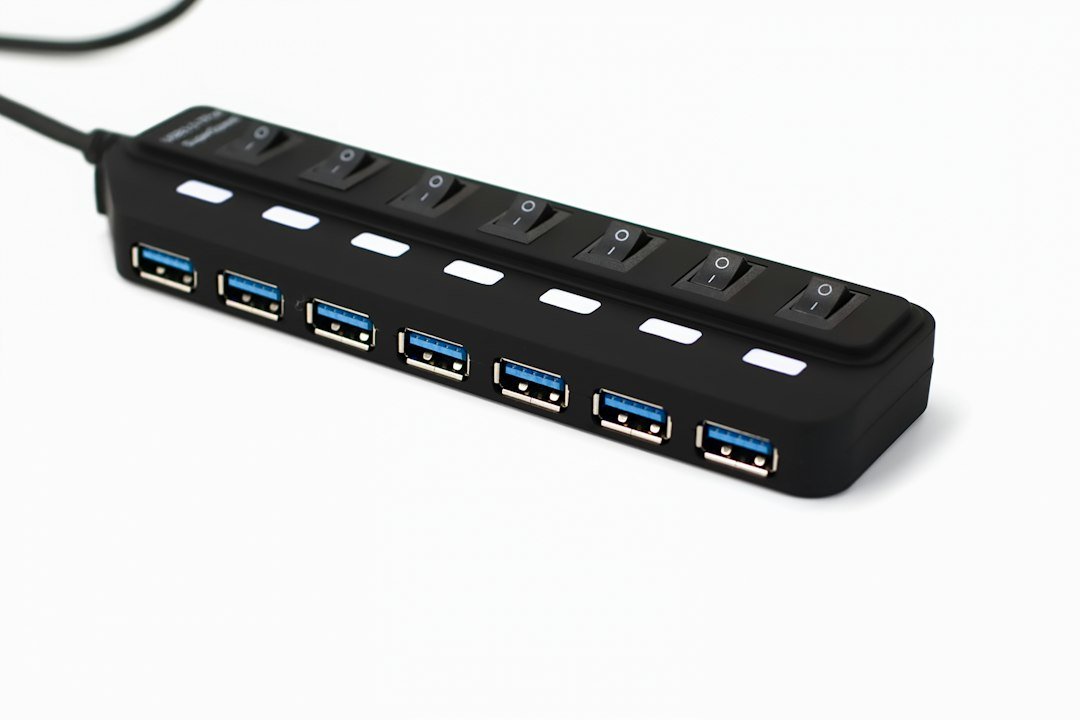
A USB-C hub does not always need external power. A simple hub can usually run from the USB-C port on your laptop, especially when you are only connecting low-power accessories such as a keyboard, mouse, flash drive, or card reader.
The answer changes when the hub is doing more. External SSDs, multiple USB devices, displays, phone charging, and laptop charging all increase the amount of power moving through the hub. At that point, plugging a charger into the hub can improve stability and make the setup behave more predictably.
Understanding where the power actually comes from makes choosing the right hub much easier.
Quick Answer
For a simple desk or travel setup, you may never need to plug power into the hub itself. For more demanding setups, external power can make the difference between a stable workstation and one where drives disconnect, devices charge slowly, or your laptop does not receive enough charging power.
| Your USB-C Hub Setup | External Power Needed? |
|---|---|
| Keyboard + mouse | Usually no |
| USB flash drive | Usually no |
| SD or microSD card reader | Usually no |
| One low-power SSD | Often no |
| Multiple SSDs or hard drives | Recommended |
| Laptop charging through the hub | Yes, if using PD passthrough |
| Several USB devices at once | Often recommended |
| Phone or tablet fast charging | Usually recommended |
| Display + drives + peripherals | Recommended |
| High-power desktop setup | Yes |
How a USB-C Hub Gets Its Power
Most USB-C hubs fall into one of two practical groups: bus-powered hubs and externally powered hubs. The difference is simply where the hub gets the energy it needs to run itself and the devices connected to it.
Bus-Powered USB-C Hubs
A bus-powered hub gets its operating power directly through the USB-C connection to your laptop or tablet. There is no separate charger required.
That makes this style ideal for travel. Plug in the hub, connect a mouse, flash drive, SD card, or a light-use SSD, and you are done. The trade-off is that the hub and its connected devices are sharing the power available from the host device.
For light use, bus power is perfectly practical. For heavier setups, it can become the limiting factor.
Externally Powered USB-C Hubs
An externally powered hub receives additional power from a wall charger or dedicated power adapter. Instead of relying entirely on your laptop, the hub has another source of power available for its own electronics, connected accessories, and — when supported — charging the host computer.
This is the better arrangement when the hub is acting like the center of a desk setup rather than a simple travel adapter.
USB-C Power Delivery Passthrough Is Slightly Different
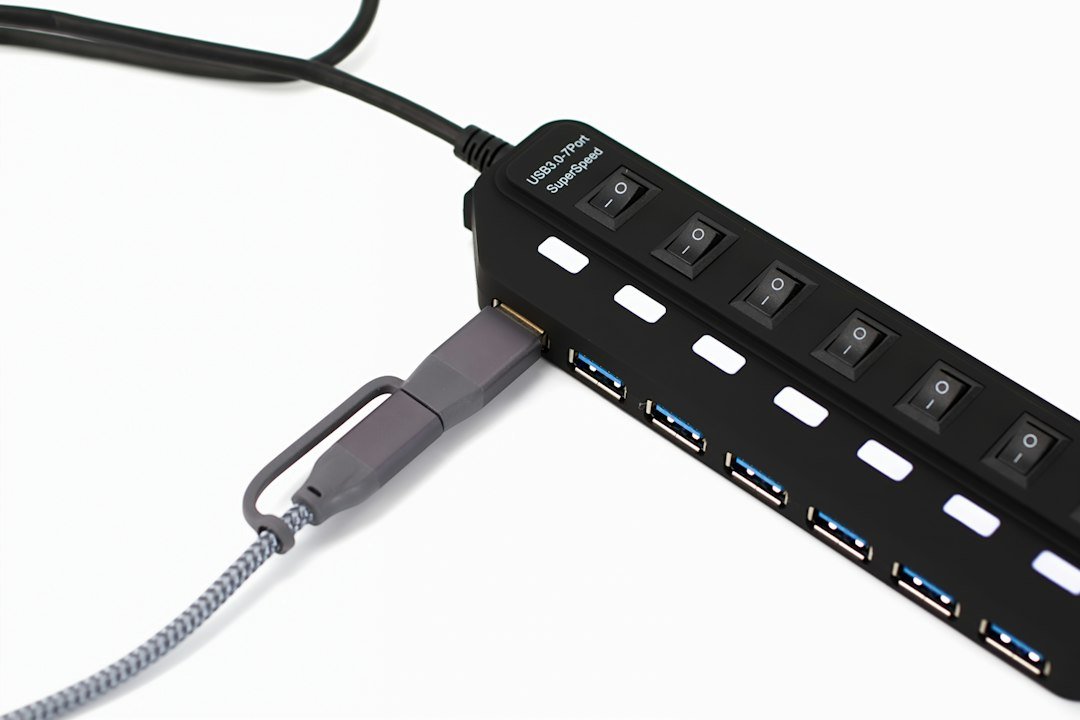
Many portable USB-C hubs are not “powered” in the traditional sense because they do not include a power brick. Instead, they have a USB-C Power Delivery (PD) input. You connect your existing USB-C charger to that port, and the hub passes power through to the laptop while also using part of that incoming power for itself and its connected devices.
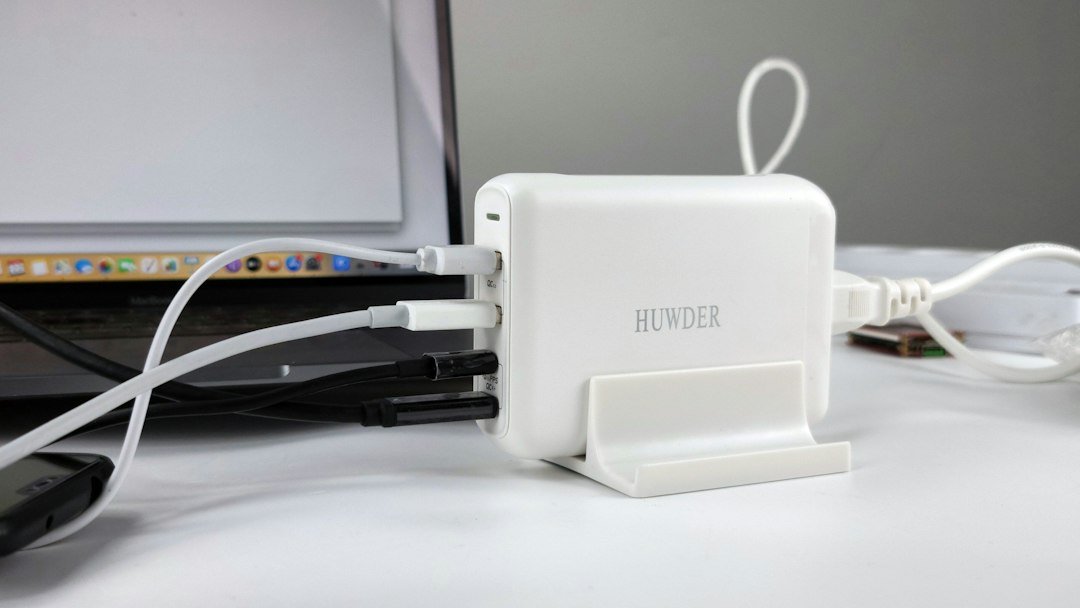
That distinction matters. A hub advertised as supporting 100W PD input does not necessarily send the full 100W to your laptop. The hub needs some power to operate.
Power flow at a glance:
USB-C charger → USB-C hub → hub electronics and connected accessories → remaining power to the laptop.
This is why the charger wattage, the hub’s PD rating, the cable, and the laptop’s own charging requirements all matter.
USB Power Delivery can support much higher power levels than older USB charging standards, but the practical limit for your setup is still determined by the charger, cable, hub, and laptop working together.
When You Actually Need a Powered USB-C Hub
Using External SSDs and Hard Drives
One portable SSD often works fine from a bus-powered hub. Add a second drive, a spinning hard drive, or several storage devices at the same time and the power demand rises quickly.
If drives disconnect during large file transfers, vanish when another device is plugged in, or repeatedly reconnect, insufficient available power is one possible cause. External power gives the hub more headroom for storage-heavy setups.
Connecting Several USB Devices at Once
A keyboard, mouse, flash drive, webcam, USB microphone, phone, and SSD may all be low or moderate-power devices individually. Together, they can push a small bus-powered hub much harder.
That does not mean every multi-device setup needs a wall adapter, but once the hub becomes a permanent desk accessory, external power is usually the safer choice.
Charging Your Laptop Through the Hub
If you want one cable to handle data, accessories, and laptop charging, the hub needs USB-C PD passthrough or a dedicated power-delivery system.
The charger connects to the hub, the hub takes what it needs, and the remaining negotiated power is delivered to the laptop. The laptop, hub, charger, and cable all have to support the required power level.
A hub cannot create extra wattage. If you connect a 45W charger to a laptop that normally expects 65W or more, the hub cannot magically turn that into a full-speed 65W charge.
Running Displays and Peripherals Together
An HDMI or DisplayPort connection does not automatically mean the hub itself needs external power, but a display plus storage, Ethernet, USB accessories, and laptop charging is a very different workload from plugging in a mouse and SD card.
For a full workstation, external power gives you more room for the hub to operate without every attached device competing for a small shared power budget.
Charging Phones and Tablets
A bus-powered hub may charge a phone slowly, but its downstream ports are not automatically fast-charging ports. Power may be shared across several connected devices.
If charging a phone or tablet quickly is part of your desk setup, check the hub’s downstream charging specifications rather than assuming the headline PD number applies to every port.
Why a 100W USB-C Hub May Not Give Your Laptop 100W
This is one of the easiest USB-C hub specifications to misunderstand. “100W Power Delivery” often describes the maximum input the hub can accept, not the exact wattage the laptop receives after the hub takes its share.
For example, Plugable documents a 100W passthrough hub that can deliver up to 92W to the laptop because some power is reserved for the hub and connected devices. Belkin documents current 100W hubs where roughly 15W is reserved for hub operation, leaving about 85W for the host in that configuration.
The exact overhead varies by hub. Before buying, look for two separate figures when the manufacturer provides them:
- Maximum PD input — how much power the hub can accept from the charger.
- Maximum host output — how much of that power can actually reach the laptop.
If your laptop normally ships with a 65W charger, using a 65W charger through a hub may result in less than 65W reaching the computer. Moving to a higher-wattage compatible charger can provide useful headroom, provided the hub, cable, and laptop support it.
Signs Your USB-C Hub Isn't Getting Enough Power
Power is not the cause of every USB-C problem, but these symptoms are worth paying attention to:
- External drives disconnecting unexpectedly.
- USB devices repeatedly reconnecting.
- Your laptop reporting slow charging.
- Your battery percentage dropping while plugged in.
- A phone charging much slower than expected.
- Some ports working only when other devices are unplugged.
- Peripherals disappearing during heavy storage activity.
- The hub becoming unstable when several devices are connected.
If the problem only appears when the hub is loaded with several devices, try connecting a suitable USB-C PD charger before replacing the hub. Also test the cable and individual devices, because power is only one possible cause.
Externally Powered vs Bus-Powered USB-C Hub: Which One Should You Buy?
A bus-powered hub is usually the better fit if portability is your priority. It keeps the setup light, needs no extra charger, and works well for basic expansion.
Choose a bus-powered hub when you mainly need:
- A keyboard and mouse.
- SD or microSD cards.
- USB flash drives.
- One light-use portable SSD.
- Occasional HDMI output.
- A simple travel setup.
An externally powered hub makes more sense when you regularly use:
- Several USB devices simultaneously.
- Multiple storage drives.
- Higher-power peripherals.
- Laptop charging through the hub.
- Phones or tablets that you also want to charge.
- A permanent desktop workstation.
If you are still deciding which type of accessory fits your setup, browse GadgetStick’s How-To guides and Accessories coverage for related USB-C explainers and buying advice.
Common USB-C Hub Power Mistakes
Assuming “100W” Means 100W Reaches the Laptop
Always separate PD input from host output. The hub may reserve part of the incoming power for itself and attached devices.
Using an Underpowered Charger
A powerful hub cannot compensate for a charger that is too small for the laptop and the rest of the setup.
Ignoring the Laptop’s Own Charging Requirement
A thin ultrabook and a performance laptop can have very different power needs. Start with the wattage your laptop is designed to use.
Connecting Too Many Power-Hungry Devices
Storage drives, phones, capture devices, and other accessories can all draw power at the same time. A setup that works with two devices may behave differently with six.
Blaming Power for Every USB-C Problem
Bad cables, port limitations, DisplayPort Alt Mode support, drivers, firmware, and device compatibility can cause similar symptoms. Treat power as one part of the troubleshooting process, not the answer to everything.
The GadgetStick Pro Tip
If the hub is going to become the center of your desk, buy with wattage headroom. Check the hub’s maximum PD input and its maximum host output, then compare that host output with the charger wattage your laptop normally expects.
A little headroom is more useful than buying a hub whose headline wattage only barely matches your laptop on paper.
Frequently Asked Questions
Does a USB-C hub need external power?
No. Low-power setups can usually run directly from the laptop. External power becomes more useful when you connect several drives or peripherals, charge devices, or want to charge the laptop through the hub.
What is the difference between a externally powered and bus-powered USB-C hub?
A bus-powered hub draws operating power from the computer. An externally powered hub receives additional power from a charger or power adapter, giving it more power to distribute between the hub, accessories, and — when supported — the host device.
Can a USB-C hub charge a laptop?
Yes, if the hub supports USB-C Power Delivery passthrough and the laptop supports USB-C charging. Actual wattage depends on the charger, cable, hub, and laptop.
Does a 100W USB-C hub charge at the full 100W?
Not always. The hub and connected devices may use part of the incoming power, so the laptop can receive less than the advertised maximum PD input.
Can insufficient power cause USB devices to disconnect?
Yes. It can contribute to unstable drives or peripherals, especially when several devices are connected. Cables, compatibility, drivers, and hardware faults can cause similar symptoms, so test those as well.
Final Answer
A USB-C hub does not need external power for every setup. If you only need a few low-power accessories, a bus-powered hub is usually simpler and more portable.
External power becomes valuable when the hub is handling multiple storage devices, several peripherals, device charging, or laptop charging through USB-C PD. For a permanent desk setup, check the real host-charging output and leave some wattage headroom if the hub is going to become the center of your desk.
How We Researched This Guide
This article was researched using USB-IF documentation along with technical documentation and power-delivery specifications published by established USB-C accessory manufacturers including Plugable and Belkin. We focused on documented USB power behavior, Power Delivery passthrough, host charging limits, and common real-world setup problems.
GadgetStick does not claim hands-on testing unless we actually tested the product or setup. This guide is research-based and is designed to explain how USB-C hub power works in practical terms.
Editorial Note
USB-C hub specifications vary by model, laptop, cable, charger, and connected devices. Always check the manufacturer’s current power-delivery and compatibility details for the exact hub you are considering.
